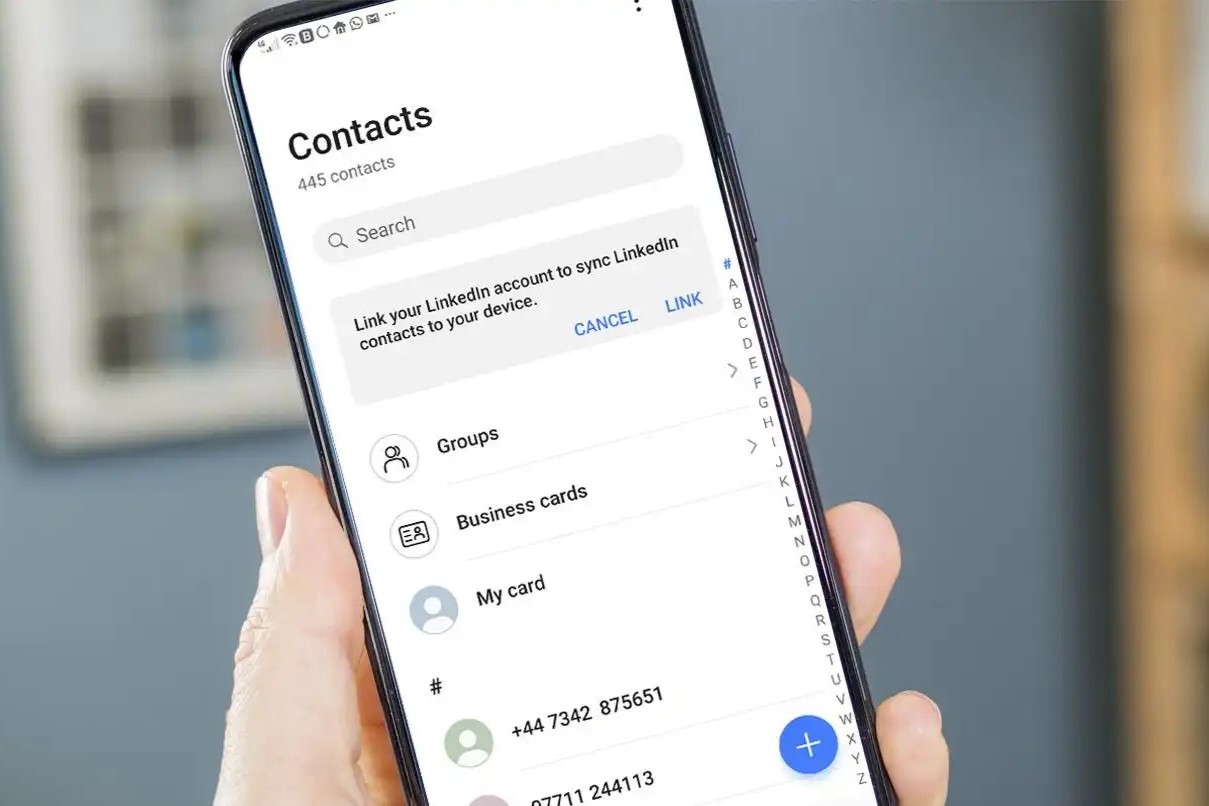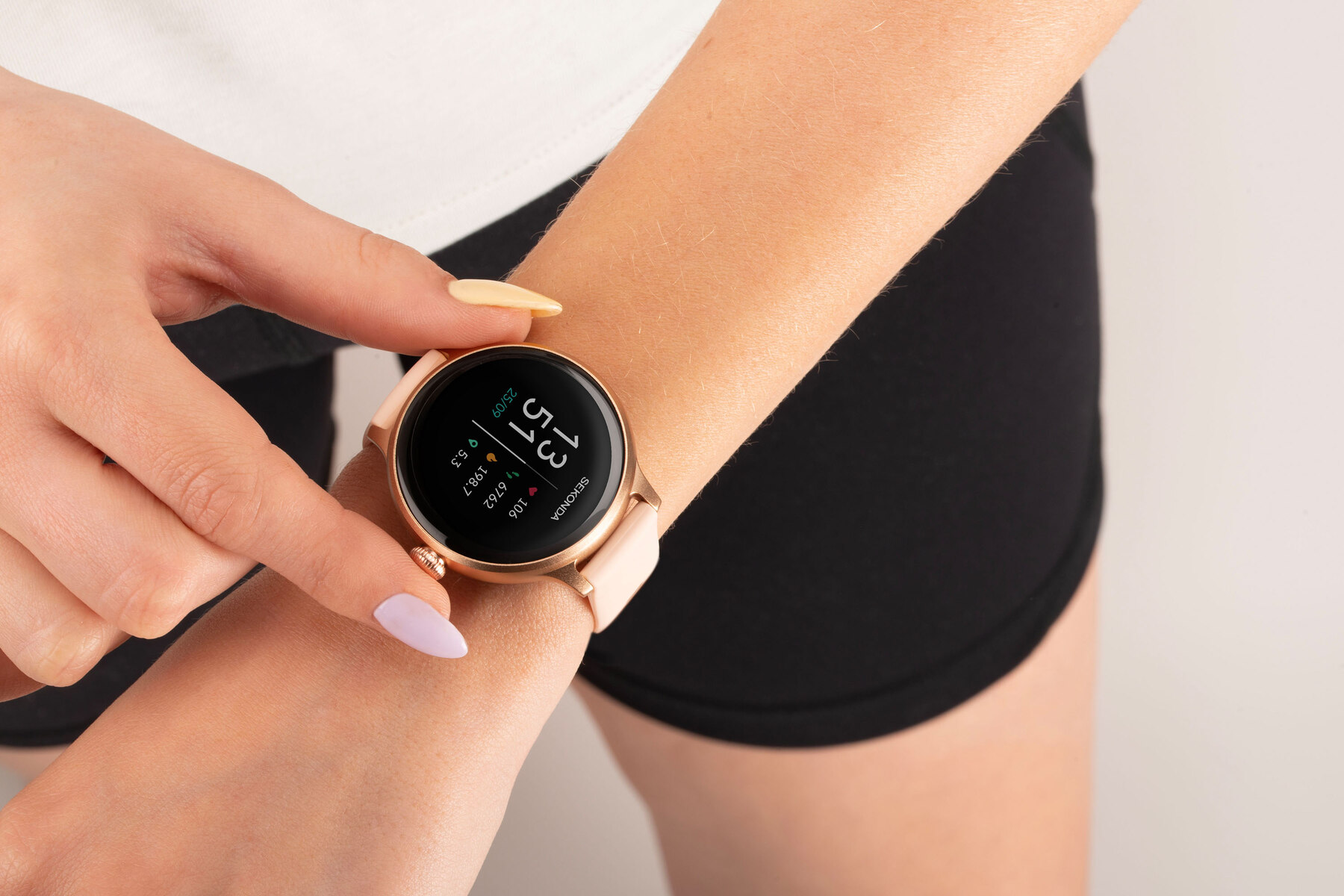
To sync contacts to your smartwatch, you need to enable contact sharing from your smartphone's settings and select the correct account within your watch's companion app. This process ensures you can make calls and send messages directly from your wrist, keeping you connected without needing to pull out your phone.
Why sync contacts to your smartwatch is useful
Having your contacts on your smartwatch offers several practical benefits. You can make hands-free calls during a workout or while driving, keeping your phone safely stowed away. In an emergency, essential contacts are just a tap away on your wrist, but if your screen freezes during a call, see smartwatch malfunctions for immediate fixes. For busy professionals, quickly reaching a colleague or client from your watch boosts productivity without interrupting your workflow.
How to sync contacts to an Apple Watch
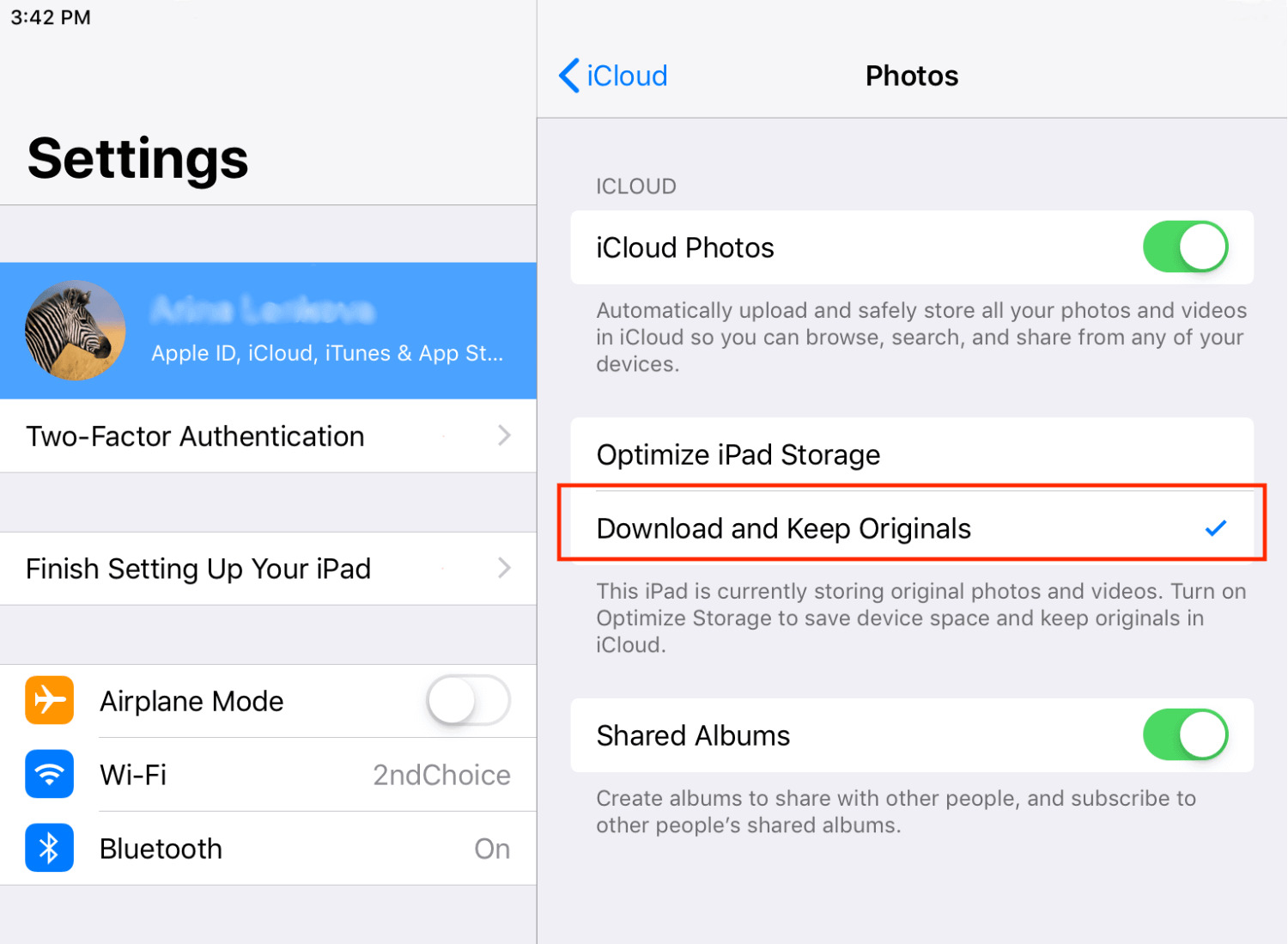
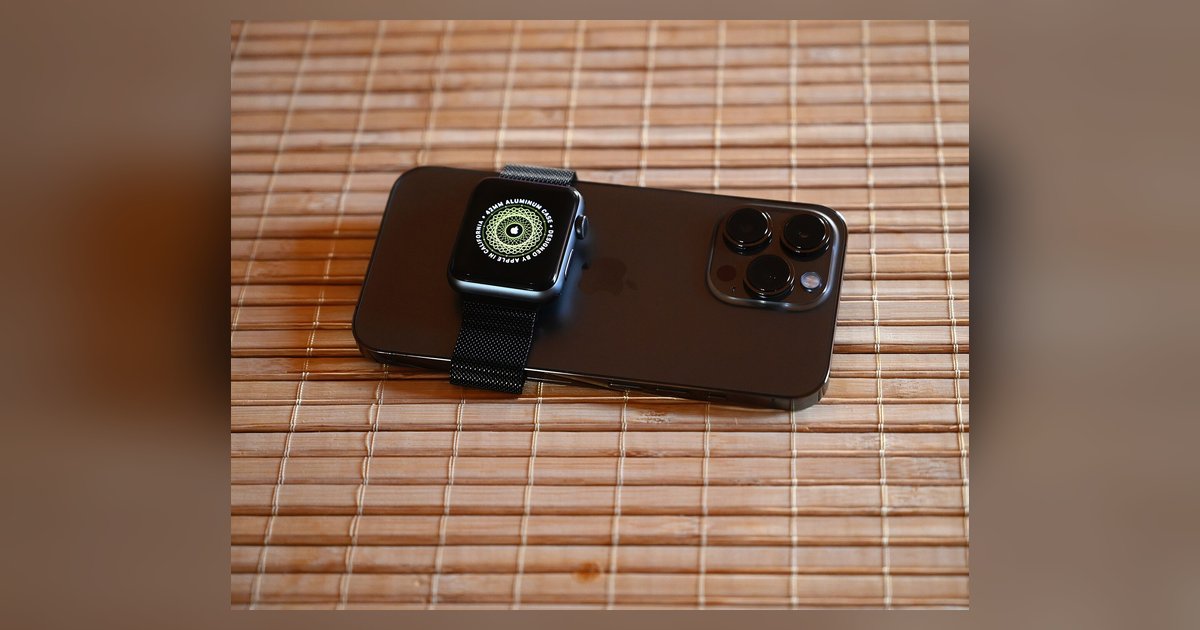
To get your contacts onto an Apple Watch, start with your iPhone. Ensure that iCloud contact sync is enabled on your iPhone by checking the Contacts toggle in Settings > [Your Name] > iCloud. Then, open the Watch app on your iPhone and verify that the contacts have appeared on your Apple Watch. For Apple Watch models running watchOS 10.1 or later (including SE 2nd generation, Series 7 and later, and Ultra models), you can use NameDrop to quickly exchange new contact information with nearby compatible iPhones or other Apple Watches.
How to sync contacts to an Android or Wear OS smartwatch
Syncing contacts on an Android or Wear OS smartwatch requires a few steps within the companion app. First, open the smartwatch app on your phone. Navigate to the contact sync settings, which are often found under a "Sync" or "Connections" tab. If your smartphone uses multiple contact accounts, select the specific account from which you want to sync contacts to the smartwatch. Your options typically include Google, Microsoft Outlook, or your SIM card.
Managing contacts directly on your smartwatch
Modern smartwatches, such as Apple Watch (watchOS 8 and later) and Samsung Galaxy Watch, allow you to view, add, or edit contacts directly from the wrist. You can organize your most important contacts as favorites for quick access. Many watches also support voice commands, letting you call or message a contact by speaking their name, which is especially useful during your smartwatch setup and pairing process or when your hands are full. For a complete walkthrough of the initial configuration, follow the smartwatch setup steps first.
Troubleshooting contact sync issues
- Restart both devices. If contact syncing problems occur, restart both your smartphone and smartwatch. This simple step often resolves temporary glitches.
- Check account selection. Verify that you have selected the correct contact account (Google, iCloud, or Outlook) in your smartwatch's companion app. Syncing from the wrong account can prevent contacts from appearing.
- Unpair and re-pair your smartwatch. Persistent syncing issues may be resolved by unpairing your smartwatch from your smartphone and then re-pairing them to establish a fresh connection. This resets the communication link and often fixes stubborn problems.