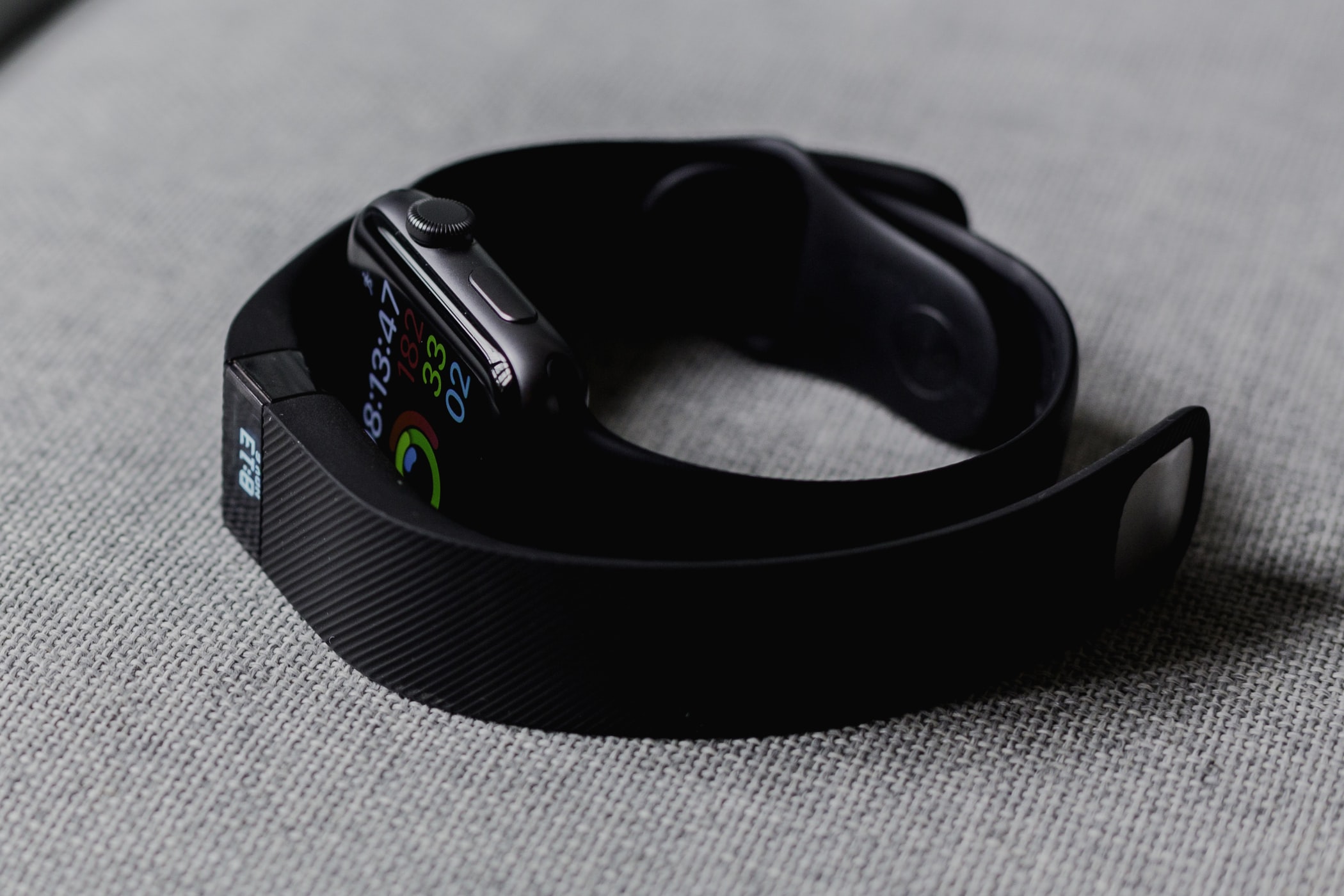
To get the most accurate distance tracking from your Fitbit, you need to complete a proper Fitbit stride setup by manually measuring and entering your stride length. By default, Fitbit estimates your stride based on your height and gender, but that guess can be off by several percent, which adds up to meaningful distance errors on every walk or run. You can also pair this with setting up your wallet in Fitbit to leave your phone behind during accurately tracked runs.
Why your Fitbit stride setup matters
Your Fitbit stride setup matters because it directly controls how the device converts the steps it counts into distance. The default estimate, derived from the height and gender you entered during account creation, works for an average person, but almost no one is perfectly average. If your legs are proportionally longer or shorter than the norm, or if you have a distinctive gait, your reported distance will be wrong. Manually adjusting your stride length in the Fitbit app can significantly improve the accuracy of distance tracking for your steps and workouts, turning a rough estimate into a precise measurement that reflects your actual movement. If you’re managing trackers for multiple people, a proper Fitbit family account setup ensures each person’s stride calibration stays independent and accurate.
How to measure your stride length for Fitbit
The only reliable way to get a correct stride length is to measure it yourself. The process is simple and takes just a few minutes. You will need a known distance, such as a running track or a measured route, and a way to count your steps accurately.
- Find a flat, measured distance. A standard running track’s inside lane is 400 meters, which is ideal. If you don’t have a track, measure a straight path using a car odometer, a GPS app, or a tape measure.
- Walk that distance at your normal, natural walking pace. Count every step you take from the starting point to the finish line.
- Divide the total distance by the number of steps you counted. That result is your walking stride length.
- Repeat the process at a running pace, again counting steps over the same known distance, to get your running stride length.
For example, if you walk 400 meters and take 500 steps, your stride length is 0.8 meters (400 ÷ 500 = 0.8). If you run the same 400 meters and take 400 steps, your running stride length is 1.0 meter. Because your stride is typically longer when running, you should always measure and enter separate values for each activity.
How to set your stride length in the Fitbit app
Once you have your measured numbers, entering them into the Fitbit app takes less than a minute. The setting lives in your profile, not in the device settings, so you must use the app on your phone or tablet.
- Scroll down and tap “Activity & Wellness,” then tap “Exercise.”
- Look for the “Stride Length” section. You will see two fields: one for walking and one for running.
- Enter your measured walking stride length in the walking field and your measured running stride length in the running field.
- Tap the back arrow to save your changes. The app will sync the new values to your Fitbit device automatically.
If you only measured one stride length, enter it in both fields, but be aware that this will make one of the two activities slightly less accurate. It’s worth the extra minute to measure both paces.
Tips for an accurate stride measurement
To get a stride length that truly reflects your everyday movement, follow these best practices. First, use a consistent, flat surface like a running track. Uneven terrain, hills, or soft ground will change your stride length and give you a skewed number. Second, measure multiple strides and average them. A single walk or run can include an outlier step, but averaging two or three repetitions smooths out those variations and gives you a more representative value. Third, maintain a natural gait. Don’t try to lengthen or shorten your steps to hit a round number; just move the way you normally do. If you force an unnatural stride, the measurement will be wrong, and your Fitbit will report inaccurate distance every time you exercise.
When to update your stride length
Your stride length is not a permanent constant. As your fitness level improves, your gait may change, and your typical walking or running speed will likely increase. Faster movement naturally lengthens your stride, so a value that was accurate six months ago may now be too short. Re-measure your stride length and update the Fitbit app whenever you notice a significant change in your fitness, your running form, or your usual pace. This is especially important after a major training program, a weight change, or recovery from an injury, all of which can alter your biomechanics. A quick re-measurement takes minutes and ensures your Fitbit continues to deliver accurate distance data. Keep in mind that Fitbit setup and syncing are separate from stride calibration, and troubleshooting those steps will not fix a stride measurement problem. Keep your stride length current, and your distance tracking will stay precise for the long haul.