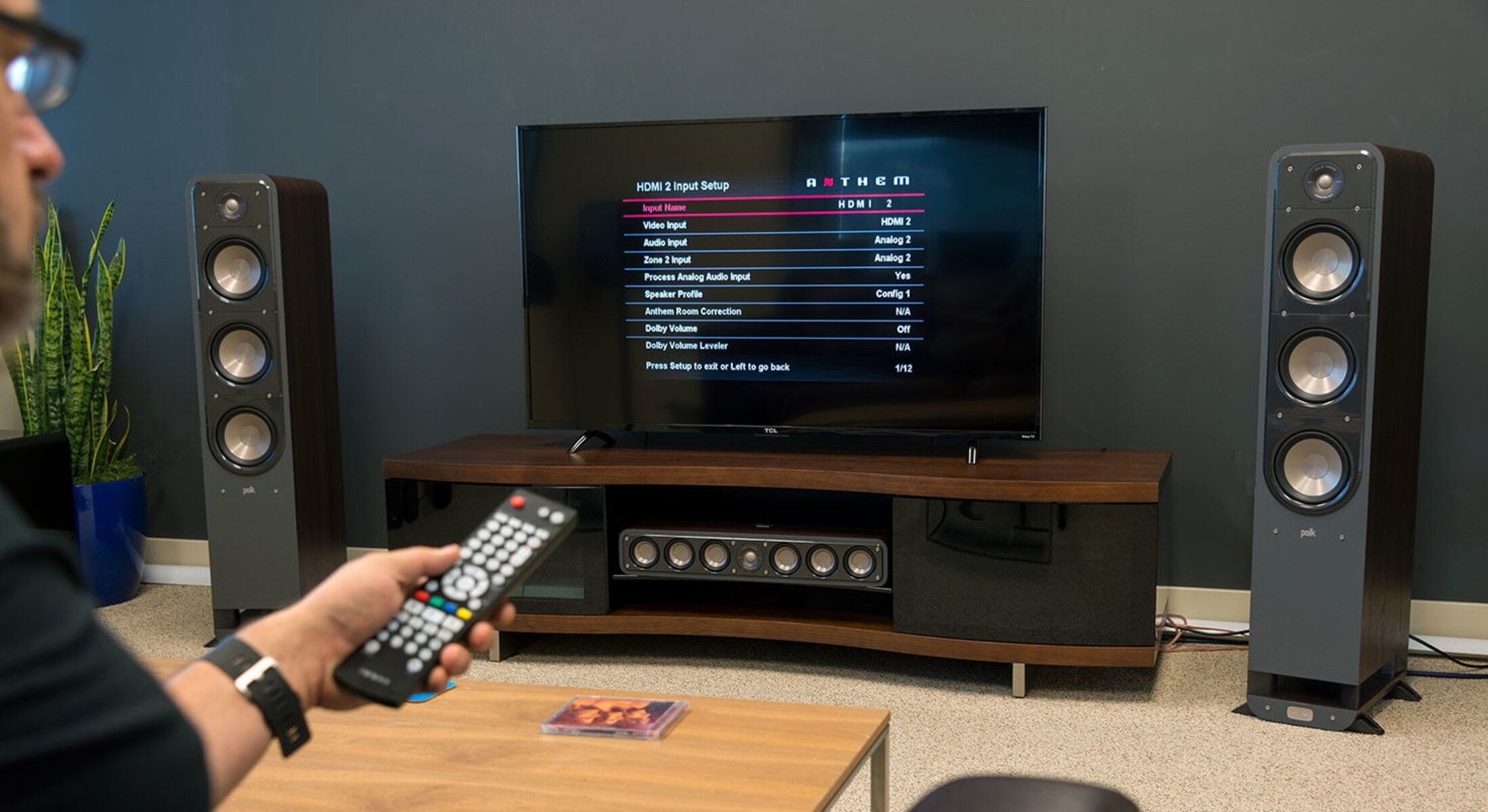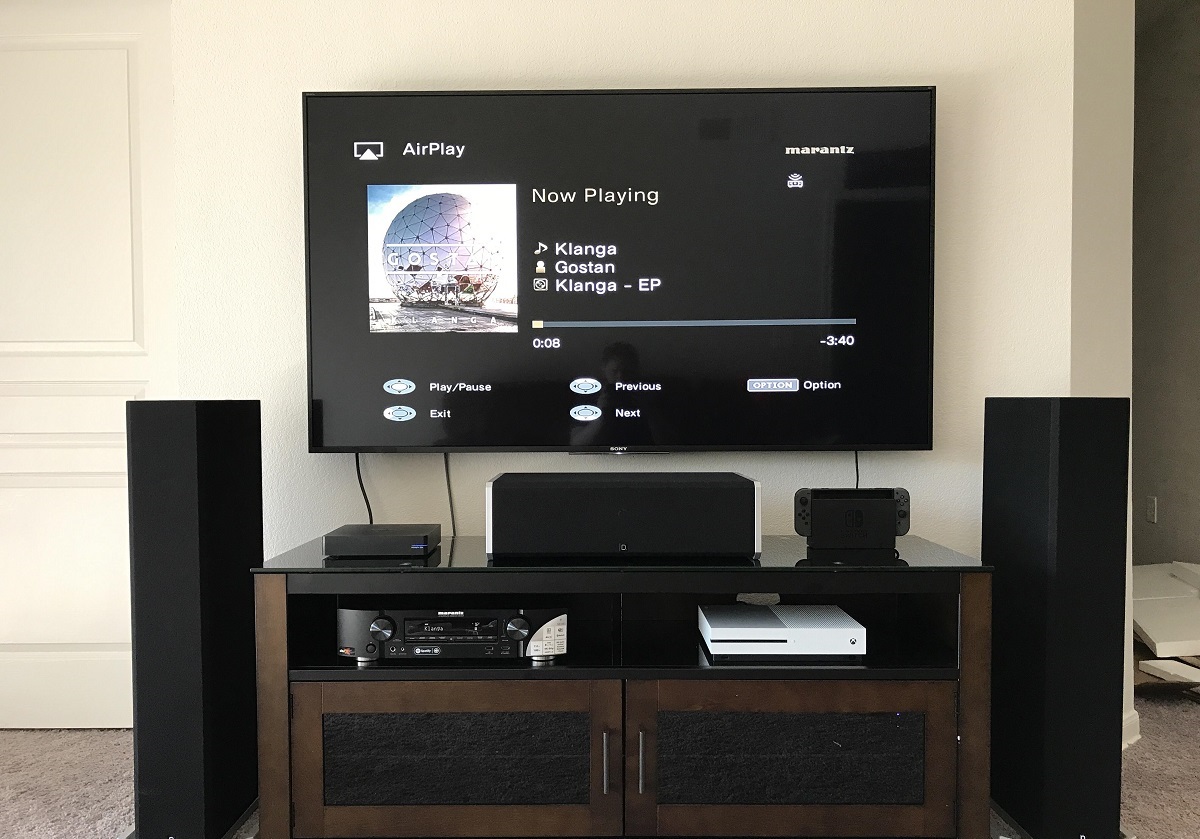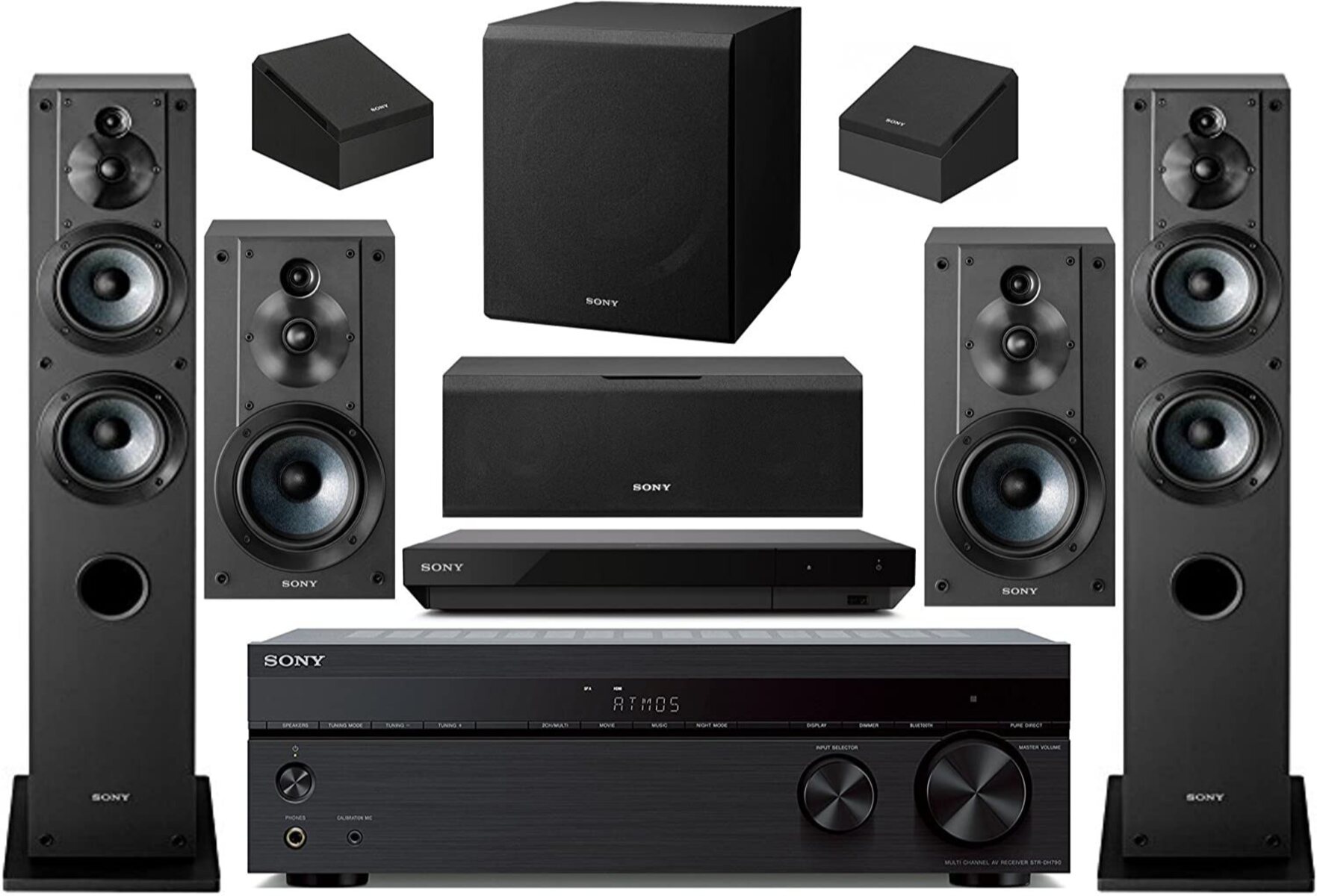
To program Verizon Fios remote to Sony surround sound, you need to enter a specific code or run an automatic search, depending on your remote model. This gives you a single remote to control both power and volume on your Sony audio system, eliminating the need to juggle multiple remotes.
How to program your Verizon Fios remote to a Sony surround sound system
Programming your Verizon Fios remote to your Sony surround sound system takes less than a minute once you have the right code. You can either enter a direct code for your specific Sony model, or let the remote cycle through its built-in code library automatically. Both methods put the remote into a special programming mode where the LED indicator guides you through each step. The direct code method is faster, while the automatic search is more thorough if you don't have the exact code handy. If your remote fails to respond, you may first need to connect to verizon Fios wireless router to ensure your network supports the setup.
Sony programming codes for your Verizon Fios remote
These codes may work across many Verizon Fios remote models, including older white remotes and newer black ones. Write down the codes you find before you start, because you may need to try more than one if the first doesn't respond. If your Sony system is a home theater in a box, an AV receiver, or a standalone soundbar, a code from the list should match.
Method 1: Enter a direct code for your Sony system
This method works best when you have the correct code from the list above. The entire process takes about 15 seconds, and you only need to press a few buttons.
- Turn on your Sony surround sound system manually using its own power button.
- Press and hold the OK and TV buttons on your Verizon Fios remote simultaneously.
- Release both buttons when the LED light on the remote stays on solid (it will blink once first, then stay lit).
- Press the Audio button once, the LED will blink and then stay on again.
- Enter one of the Sony codes using the number pad.
- If the code is accepted, the LED will turn off. If it blinks and stays on, try the next code.
- Point the remote at your Sony system and press the Power button to test.
- If the system turns off, press Volume Up to confirm volume control works.
Once the power and volume respond, the programming is complete. If the system doesn't react, move to the next code on the list and repeat from step 2.
Method 2: Run an automatic code search
If none of the direct codes work, or if you're unsure which code matches your exact Sony model, the automatic search scans through every code stored in the remote's memory. This method takes longer but doesn't require you to know the code in advance.
- Turn on your Sony surround sound system manually.
- Press and hold the OK and TV buttons together until the LED stays on.
- Press the Audio button, the LED will blink and stay on.
- Press the Channel Up button repeatedly, one press at a time, with a 1-second pause between presses.
- Watch the Sony system, when it turns off, you've found the correct code.
- Press the OK button immediately to lock in that code.
- Test the volume and mute buttons to confirm full control.
If you accidentally skip past the right code, the system will turn back on. Simply press Channel Down to go back one step, then press OK to save it. The search can take up to a few minutes if the code is near the end of the library, so be patient.
Testing and troubleshooting your remote setup
After programming, verify that the volume, mute, and power buttons all control your Sony system correctly. Press Volume Up and Volume Down to check the level changes, then press Mute to confirm the audio cuts out and returns. If the volume works but the power doesn't, or vice versa, the code may be partially compatible, try a different code from the list. If nothing responds, reset both devices: remove the batteries from the remote, unplug the Sony system for 30 seconds, then retry the programming. Remember that the remote must be in Audio mode to control the sound system, press the Audio button before using volume or power, or the remote will control the TV instead. If you've tried all six codes and the search method without success, check the user manual for your specific Verizon Fios remote model, as some older remotes require a different programming sequence. For persistent issues, contact Verizon support with your remote model number and Sony system model number ready, as they can provide model-specific codes that aren't in the standard list.
\nRelated reading: How To Hook Up An Old Surround Sound System To A Newer TV and How Do I Program Alexa To Use My Surround Sound System?.