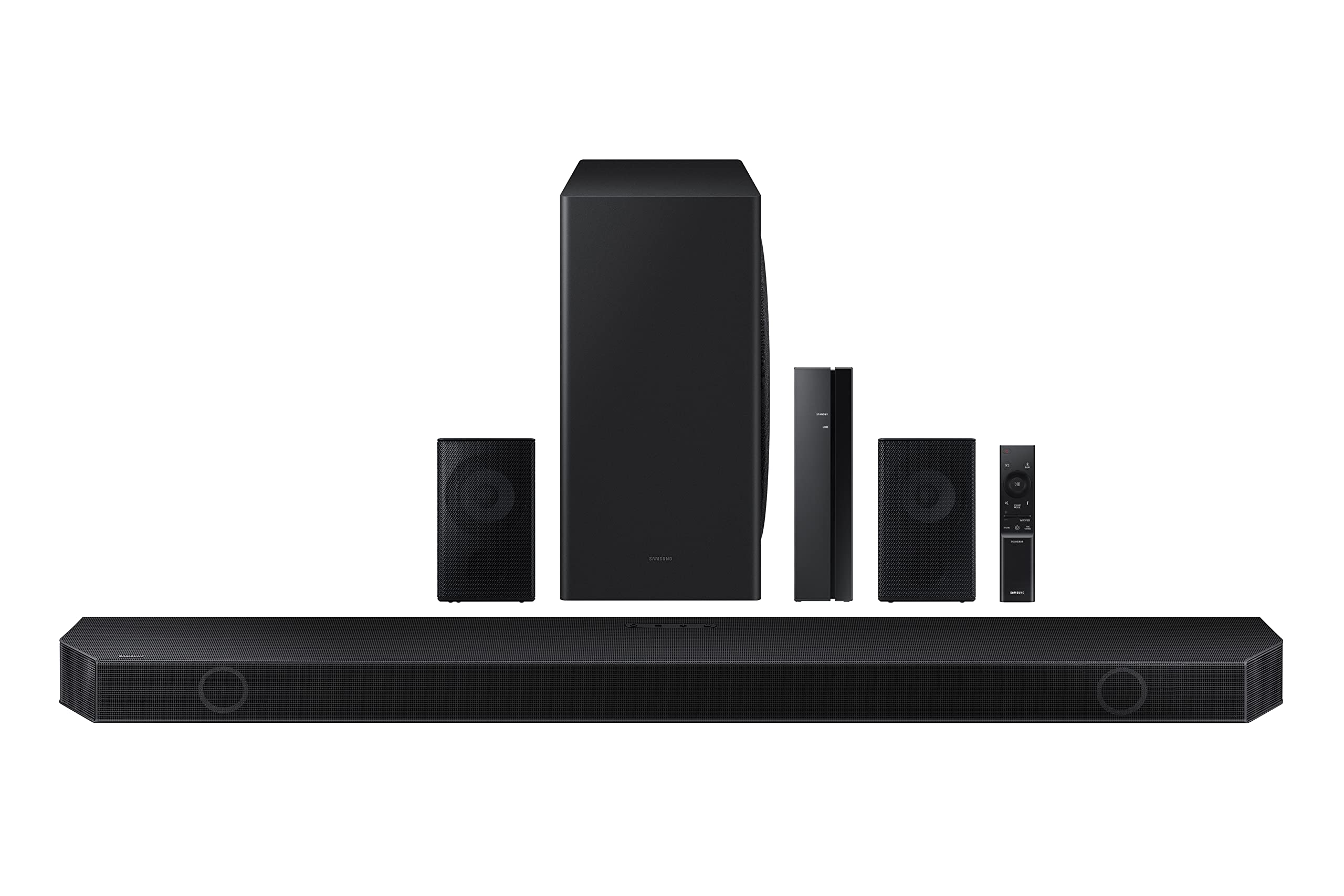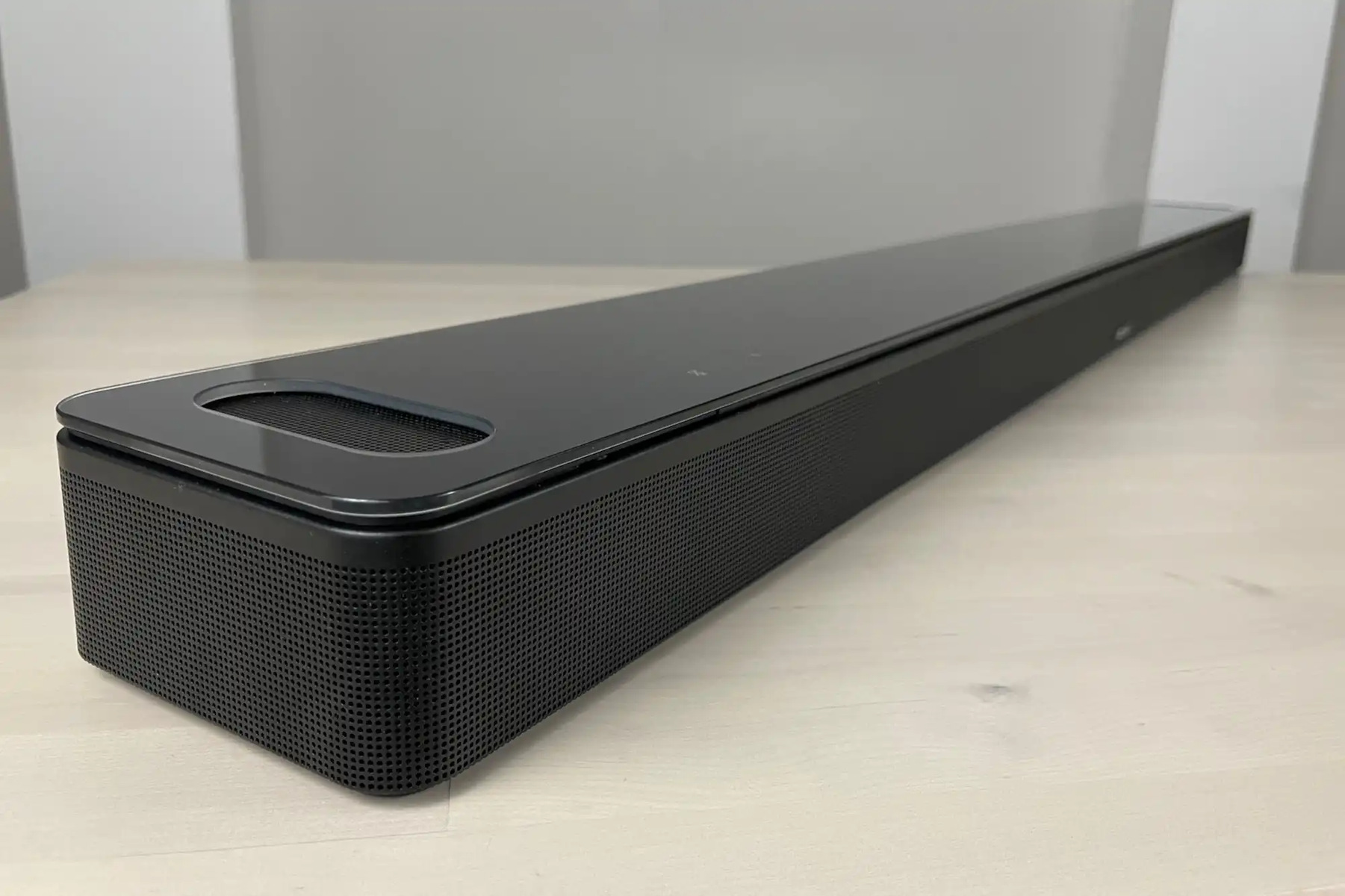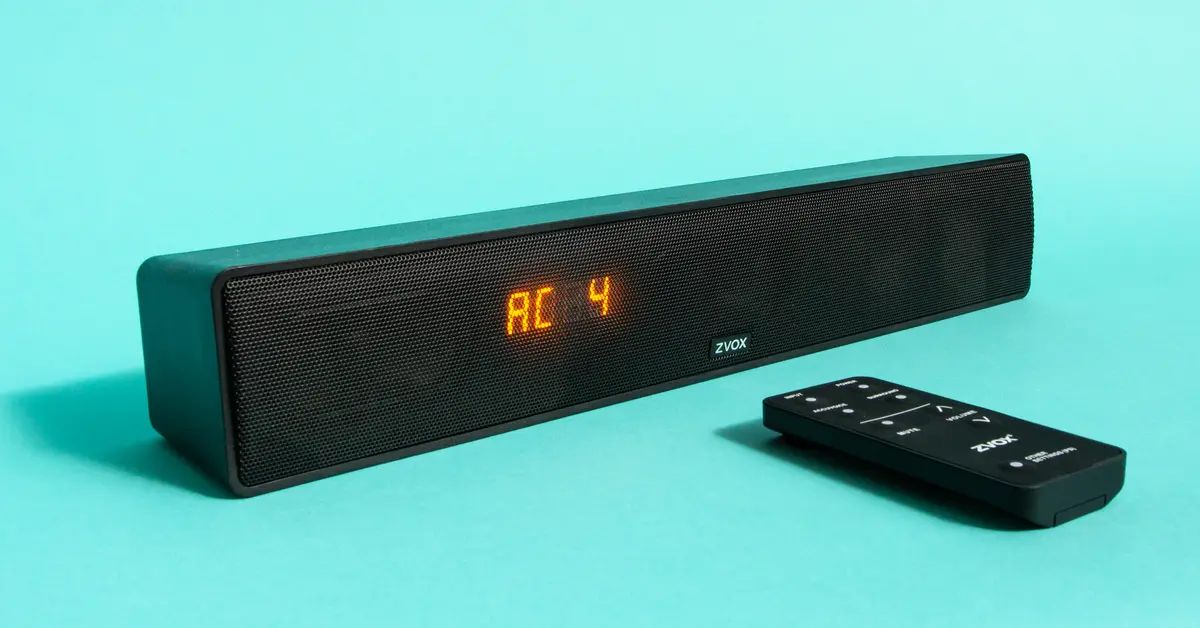
If you find dialogue on your Samsung soundbar is too quiet while sound effects are very loud, the fastest solution is to enable Voice Enhance mode, which specifically boosts speech frequencies over background audio. If that doesn't fully solve it, you can manually raise the center channel level, since the center speaker carries most dialogue, to make voices cut through clearly. For a more automated approach that adjusts audio based on content in real time, you can also enable adaptive sound on a Samsung soundbar. Before adjusting individual channels, make sure you get the id set on Samsung soundbar so your remote correctly controls the soundbar.
Why your Samsung soundbar dialogue is too quiet and sound effects are loud
Movie and TV soundtracks are mixed with a wide dynamic range: explosions, music, and ambient noise are recorded at high volume, while dialogue sits at a lower, quieter level. Samsung soundbars default to cinematic or surround modes that preserve this range, which means the sound effects punch through while speech recedes. The result is exactly what you're experiencing, a constant battle between whispered lines and booming crashes. Understanding this helps you target the right fix: you're not trying to make everything louder, you're trying to rebalance the frequencies and channel output so voices take priority.
Enable Voice Enhance mode on your Samsung soundbar
This is the primary, one-button solution for your problem. Voice Enhance mode compresses the dynamic range and amplifies the mid-range frequencies where human speech lives, making dialogue crisp and audible without touching the overall volume of the soundbar.
Using the remote control
On your Samsung soundbar remote, press and hold the Sound Control button repeatedly until the display shows “Voice Enhance.” Once it appears, use the up/down arrows on the remote to switch it to On. You'll see the soundbar's front LED confirm the change.
Using the SmartThings app
Open the SmartThings app on your phone and select your soundbar's card. Tap Advanced Sound Settings, then toggle the switch next to Voice enhancement to the on position. This does the exact same thing as the remote method but gives you a visual confirmation.
Note: Voice Enhance is supported on 2022 and later Samsung soundbar models. If your model is older, skip to the center channel adjustment below, that works on all models.
Adjust the center channel level for clearer speech
If Voice Enhance isn't enough, or isn't available on your model, boosting the center channel is the most granular fix.
Using the remote control
Press and hold the CH LEVEL button on your soundbar remote until the display reads “Center.” Then use the up/down arrows to increase the level. You can push it up to +6 dB for maximum voice clarity. Start with +3 dB and test a dialogue-heavy scene, then adjust up or down based on what you hear.
Using the SmartThings app
In the SmartThings app, navigate to your soundbar's card, tap Back from Advanced Sound Settings, then select Channel Level. Drag the Center slider to the right, again, up to +6 dB, and play a movie to hear the difference. This method is more precise because you can see the exact dB value.
Check your TV's audio output settings
Your TV's audio settings can silently sabotage your soundbar's performance. If the TV is sending the wrong audio format or not properly routing to the soundbar, you'll get weak dialogue and overblown effects. Here's what to verify:
First, make sure the TV's audio output is set to HDMI (ARC/eARC) or Optical, depending on how your soundbar is connected, not the TV's internal speakers. Then, go into the TV's sound settings and set the Digital Output Audio Format to PCM instead of Dolby Digital or DTS. PCM delivers a cleaner, uncompressed signal that often results in louder, more balanced volume from the soundbar, especially if you don't have a full surround sound setup. Finally, locate the Expert Settings menu on your TV and ensure HDMI-eARC Mode is set to Auto. This enables the highest-bandwidth audio return channel, preventing any signal compression that could bury dialogue.
Update firmware and power cycle your devices
If you've tried the above and still hear imbalanced audio, the issue may be software-related. Samsung periodically releases firmware updates that fix audio bugs, including dialogue level issues. Visit the Samsung support website, search for your soundbar's model number, and download the latest firmware file. Follow the on-screen instructions to install it via USB or the SmartThings app, this takes about five minutes and requires the soundbar to stay powered on.
After updating, perform a power cycle: unplug both your TV and soundbar from the wall outlet, wait 30 seconds, then plug them back in and power them on. This clears temporary glitches in the HDMI handshake and audio processing that can cause persistent volume imbalances. Test a movie scene with both dialogue and action to confirm the fix.
These two steps, firmware update and power cycle, are the final safety net. They resolve any underlying software conflicts that settings adjustments can't touch, ensuring your soundbar operates at its intended performance level.
\nRelated reading: Why Is My Bluetooth TV Audio Out Of Sync And How Do I Fix It.