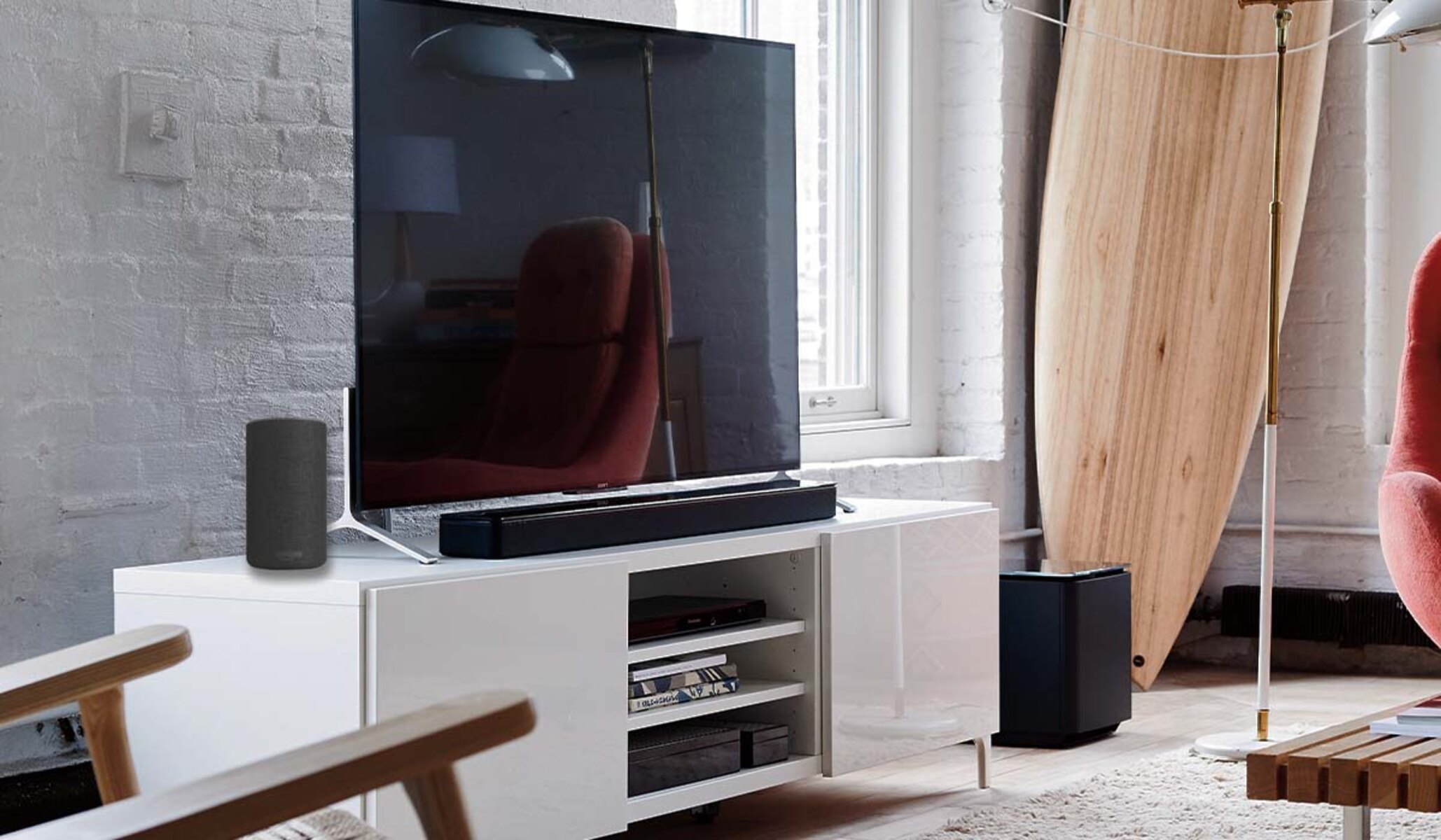
To connect Alexa to a soundbar, you have two main paths: pair your Echo device to a Bluetooth or AUX soundbar for louder audio, or activate the Alexa features already built into the soundbar itself. The right method depends entirely on what your soundbar supports, so check its specs first to avoid wasted effort.
How to connect Alexa to a soundbar: the two main ways
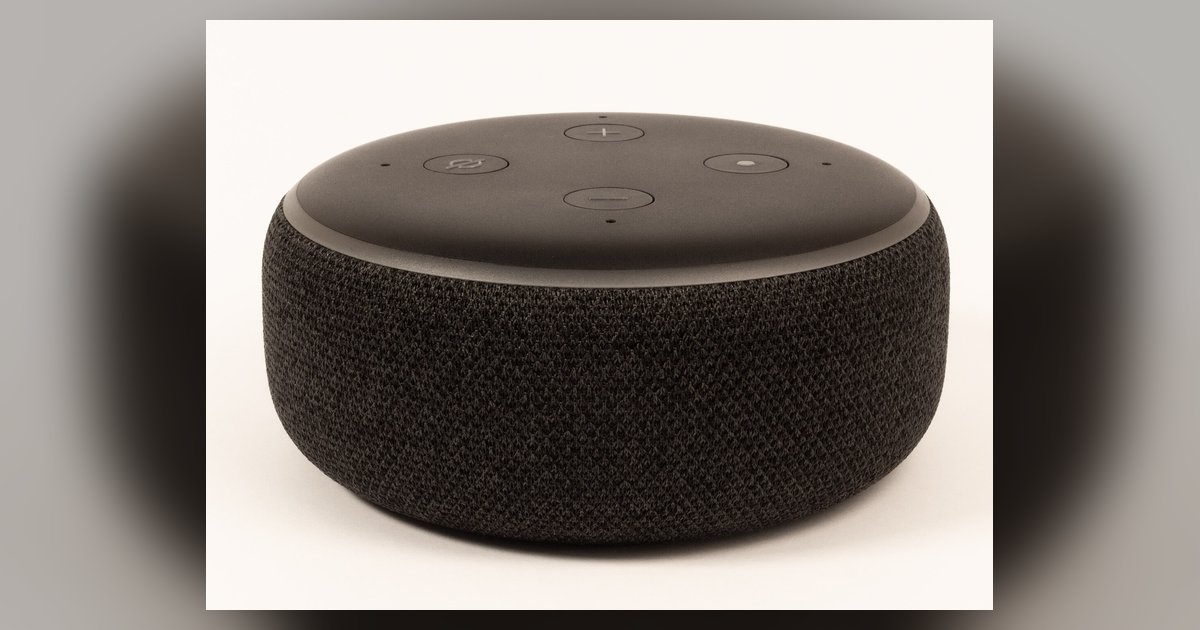
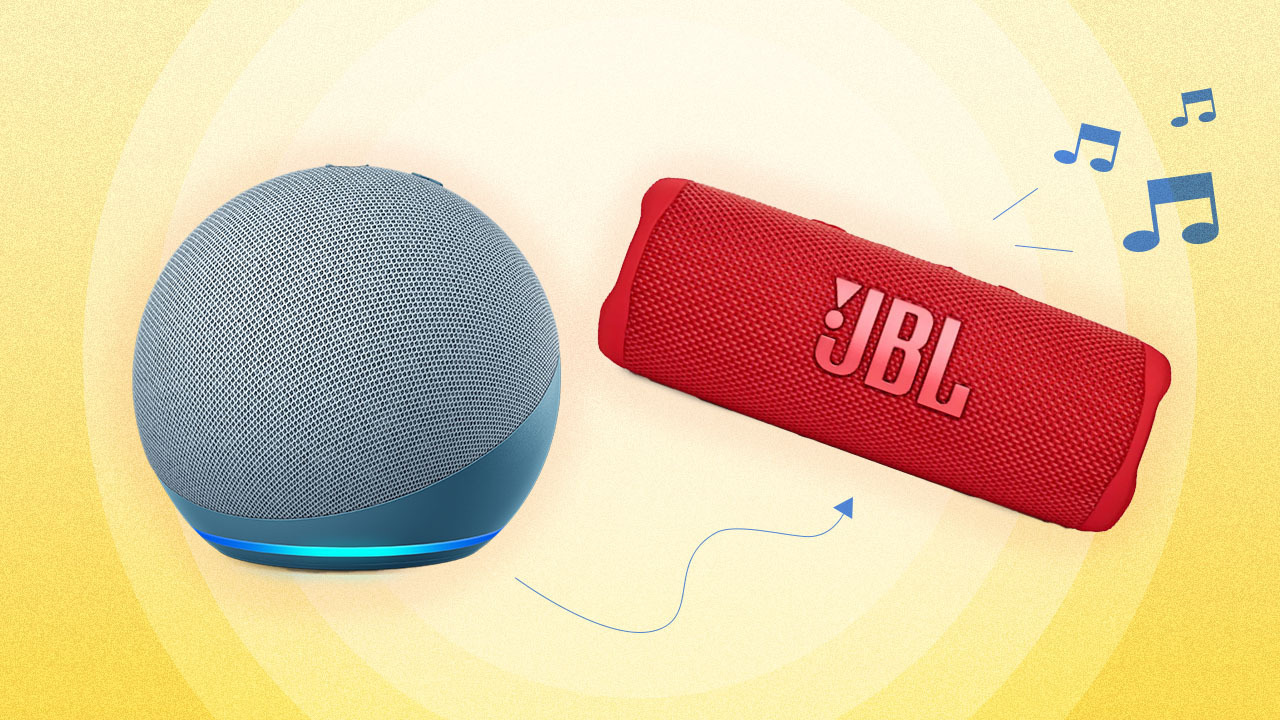
The first method involves using an external Alexa device, like an Echo Dot or Echo Show, and linking it to a standard soundbar via Bluetooth or a physical AUX cable. This works with any soundbar that has Bluetooth or a 3.5mm input, and it turns your existing soundbar into a speaker for Alexa’s voice and music. If your Wi-Fi is down, you can still connect Alexa to Bluetooth without wifi to keep music playing through the soundbar. The second method applies only to soundbars with Alexa built-in, these models have a microphone and speaker inside, so they can hear your commands directly without needing an Echo at all. If you’re unsure which type you own, look for “Alexa built-in” or “Works with Alexa” on the box or in the manual. Choosing the right path from the start saves you time and prevents confusion during setup.
Before you start: compatibility and prerequisites
Before doing anything, confirm your soundbar’s capabilities. Check the product specifications or user manual for one of two things: Bluetooth support (for pairing with an Echo) or “Alexa built-in” (for direct voice control). If your soundbar has neither, you can still use the AUX method with an Echo device, but you’ll need a 3.5mm audio cable. Next, ensure your Alexa device is online and linked to your Amazon account, open the Alexa app and verify it shows your Echo as connected. Finally, update your soundbar’s firmware if the manufacturer offers updates; this is especially important for built-in Alexa models, as outdated firmware can block voice assistant features. These checks take two minutes and prevent most common setup failures.
Method 1: connect your Echo device to a soundbar
This method works for any soundbar with Bluetooth or an AUX input, and it’s the simplest way to get louder, richer sound from your Echo without buying new hardware. Open the Alexa app on your phone and follow these steps:
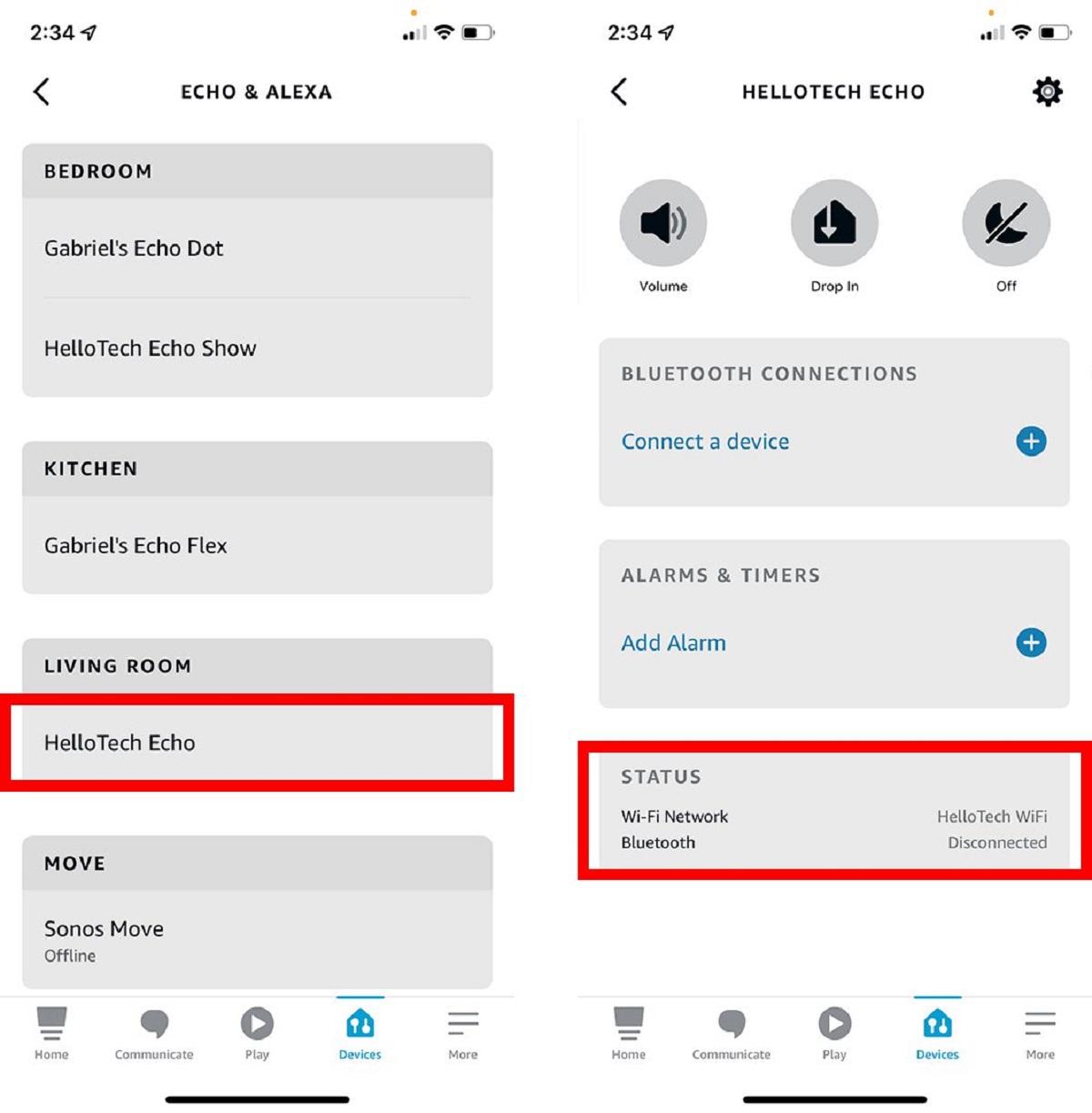
- Tap “Devices” at the bottom of the screen.
- Select “Echo & Alexa” and choose your specific Echo device.
- Tap “Bluetooth Devices” and then “Pair a new device.”
- Wait for your soundbar to appear in the list and tap it to connect.
Once paired, Alexa will route all audio, music, podcasts, and even voice responses, through the soundbar. If your soundbar lacks Bluetooth, use an AUX cable as a fallback: plug one end into the soundbar’s 3.5mm input and the other into your Echo device’s audio out port (available on Echo Dot and Echo Show models). After connecting the cable, say “Alexa, play some music” and adjust the soundbar’s volume with its remote or the Alexa app. Note that AUX connections are wired, so you won’t need to re-pair, but the Echo’s own speaker will be bypassed entirely.
Method 2: set up a soundbar with Alexa built-in
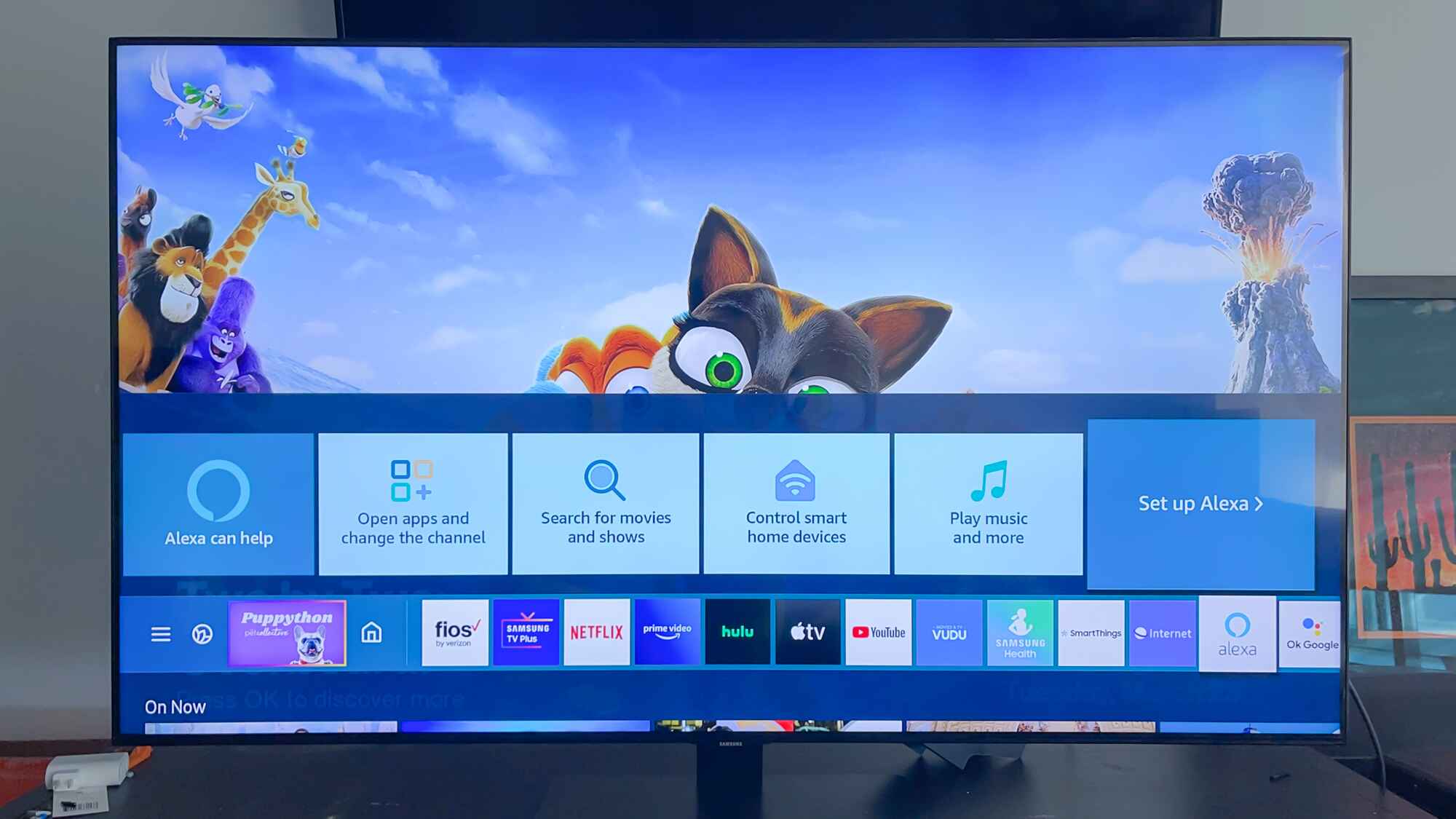
If your soundbar has Alexa built-in, you don’t need an Echo device at all, the soundbar itself is the Alexa speaker. This setup requires installing the manufacturer’s app, which varies by brand: Samsung uses SmartThings, Sony uses Music Center, and Yamaha uses Sound Bar Controller. These apps act as the bridge between your soundbar, your Wi-Fi network, and your Amazon account. The process for setting up Alexa on such a soundbar follows this general sequence:
- Install the manufacturer’s app from your phone’s app store.
- Power on the soundbar and put it in Wi-Fi setup mode (check the manual for the exact button combination).
- Open the app, follow the on-screen prompts to connect the soundbar to your home Wi-Fi network.
- Sign in with your Amazon Alexa account when the app asks for it, this links the soundbar to your Alexa profile.
After linking, the soundbar’s built-in microphone will listen for the wake word “Alexa,” and you can control volume, music, and smart home devices directly. Some soundbars also support multi-room audio with other Echo speakers, which we’ll cover next. If you already have an Echo in the same room, you can disable the soundbar’s microphone to avoid two devices responding to the same command, check the manufacturer app for that setting.
Bonus: create a multi-room music group
Once your soundbar is connected, either via Bluetooth or built-in Alexa, you can group it with other Echo devices to play synchronized audio throughout your home. This is called Alexa Multi-Room Music, and it’s perfect for parties or moving from room to room without losing the beat. To set it up, open the Alexa app and use these steps:
- Tap “Devices” and then the “+” icon in the top-right corner.
- Select “Combine speakers” and then “Multi-room music.”
- Choose the soundbar and any Echo devices you want in the group.
- Give the group a name (like “Living Room” or “Whole House”) and save it.
After creating the group, you can say “Alexa, play [song] on [group name]” and the audio will play from all selected speakers simultaneously. Note that Bluetooth-paired soundbars may not support this feature, only Wi-Fi-connected soundbars with Alexa built-in or Echo devices on the same network will work reliably in a multi-room group.
How to test and fix common issues
After connecting, test with basic voice commands to confirm everything works. Say “Alexa, set the volume to 50%” or “Alexa, play jazz on Spotify”, if the soundbar responds and plays audio, you’re good. If not, start by checking that both your Alexa device and soundbar are on the same Wi-Fi network; a mismatch is the most common cause of failure. For Bluetooth connections, forget the soundbar in the Alexa app and re-pair it from scratch. For built-in Alexa models, verify the soundbar’s microphone isn’t muted and that the wake word is enabled in the manufacturer app. Distance and obstruction also matter: if the soundbar’s microphone is too far from where you speak, or blocked by furniture, voice commands may not register. Move the soundbar closer to your listening position or clear any obstacles. If issues persist, restart both devices and repeat the setup process, this resolves most temporary glitches. Remember to keep the soundbar’s firmware updated, as manufacturers often release fixes for Alexa connectivity problems.
\nRelated reading: How Do I Connect Alexa To New Wifi Without App.