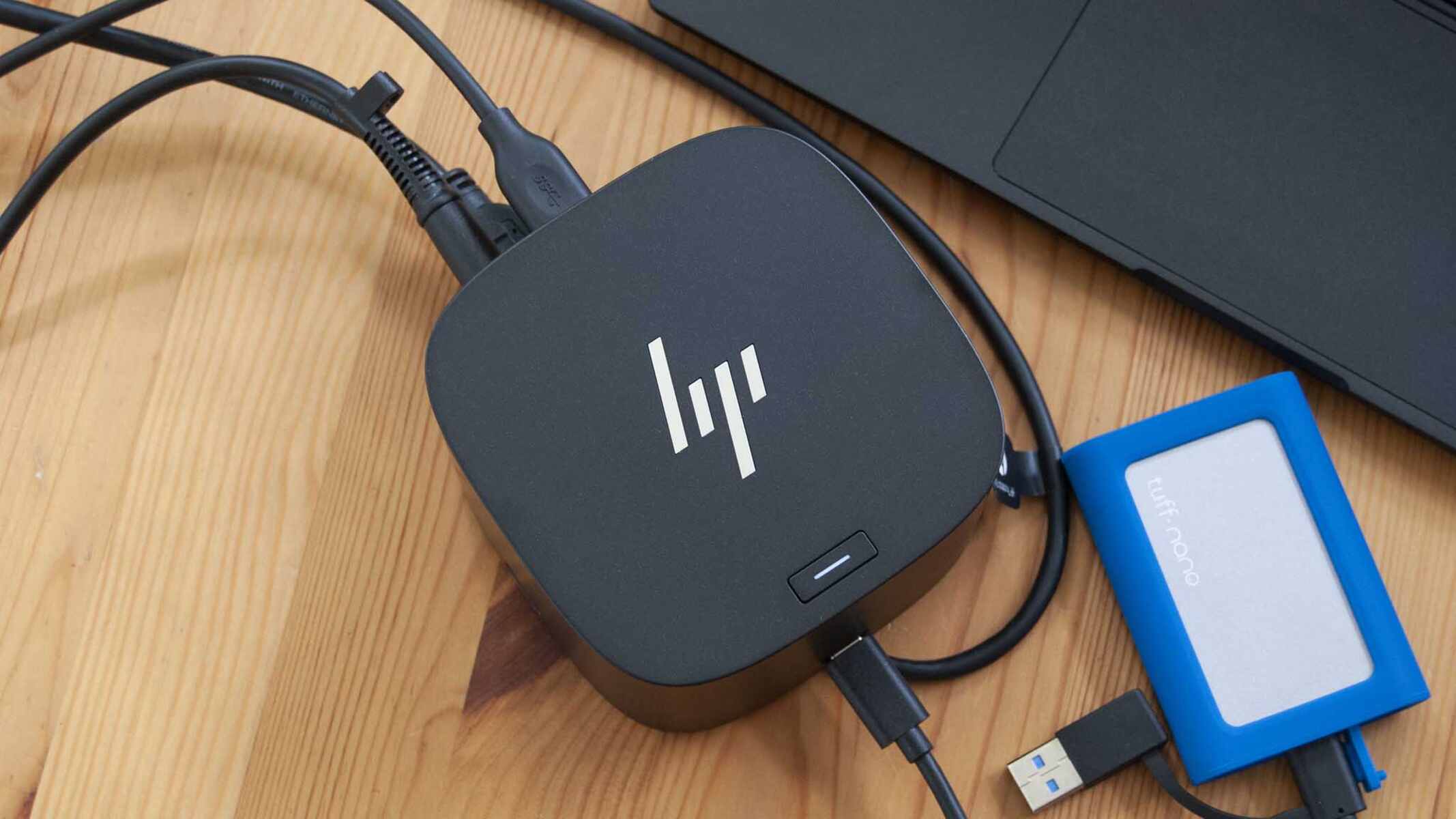
To use an HP Thunderbolt Dock, connect the dock's power adapter to a wall outlet and then to the dock, then connect the dock to your computer using the included USB Type-C Thunderbolt cable. After the physical connection, you must authorize the Thunderbolt device on your PC (with administrator privileges) and install the latest drivers and firmware from HP for optimal stability and performance. This guide walks you through each step of using your HP Thunderbolt Dock, from initial setup to connecting monitors, peripherals, and troubleshooting common issues.
How to use HP Thunderbolt Dock: Quick Setup
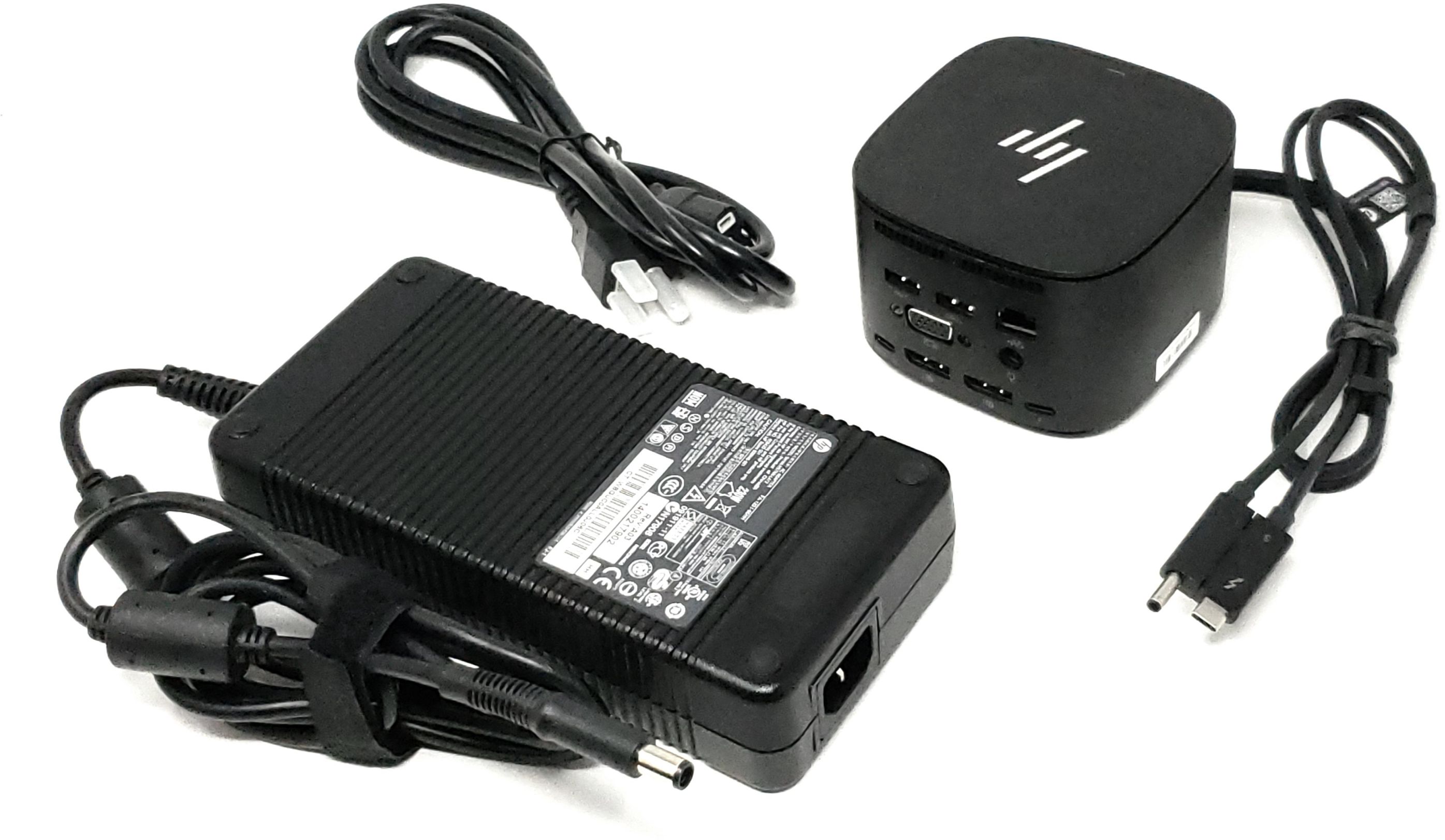
Setting up your HP Thunderbolt Dock involves three core steps: physical connection, software authorization, and driver installation. First, connect the AC adapter to the dock and a power outlet, then attach the integrated Thunderbolt cable to your laptop's USB-C port. When you see the "New Thunderbolt Devices" dialog, choose "Always Connect" to avoid repeated prompts, and ensure you have administrator privileges to complete the authorization. Finally, download and install the latest drivers and firmware from HP's official support portal to ensure full functionality and stability.
Before You Connect: Compatibility and Requirements
Before you begin, verify that your host PC has a Thunderbolt 3 or Thunderbolt 4 port (USB-C shape). HP Thunderbolt Docks support Windows 10 (19H1 and up), Windows 11 (21H2 and up), ChromeOS (M101 and up), Ubuntu Linux (20.04 LTS with 5.14 kernel), ThinPro OS 8.0, and macOS Big Sur 12.1 or later. However, not all features work on every system. Critical warning: on non-HP notebooks, the dock's power button to turn on/wake the system, Wake-on-LAN, and MAC Address Pass-Through will not function. Only HP or HP-supported commercial notebooks retain these advanced features.
Step 1: Connect Power and the Thunderbolt Cable
Start by connecting the dock's AC adapter to a working wall outlet and then securely to the dock itself. Next, take the integrated combo cable (which features Thunderbolt 3 USB-C and power connectors) and plug it into the Thunderbolt 3 (USB-C) port on your laptop. Warning: Use only the HP-supplied cable designed for your dock model. Using a non-HP Thunderbolt dock cable may lead to decreased Thunderbolt performance and capabilities.
Step 2: Authorize the Thunderbolt Device
On first connection, your computer will display a "New Thunderbolt Devices" dialog box. You have two choices: select "Always Connect" for automatic reconnection every time you plug in, or "Connect Only Once" which requires an administrator login each session. You typically need administrator privileges on your notebook to allow access to the dock. If the authorization dialog does not appear, your system's Thunderbolt security level may be set to a mode that suppresses it, check your BIOS/UEFI settings. For HP Thunderbolt Dock G4, you may need to authorize the Thunderbolt device when connecting for the first time.
Step 3: Install Drivers and Firmware
For optimal stability and performance, download and install the latest drivers, BIOS, and firmware for your specific dock model from the official HP software and driver downloads portal. Search by your dock model (e.g., HP Thunderbolt Dock G2 or G4) and install the recommended Thunderbolt driver and firmware update. A BIOS update on your host laptop may also be required for full compatibility, especially if the dock is not recognized. After installation, restart your computer to finalize the setup.
Connecting Monitors and Configuring Displays
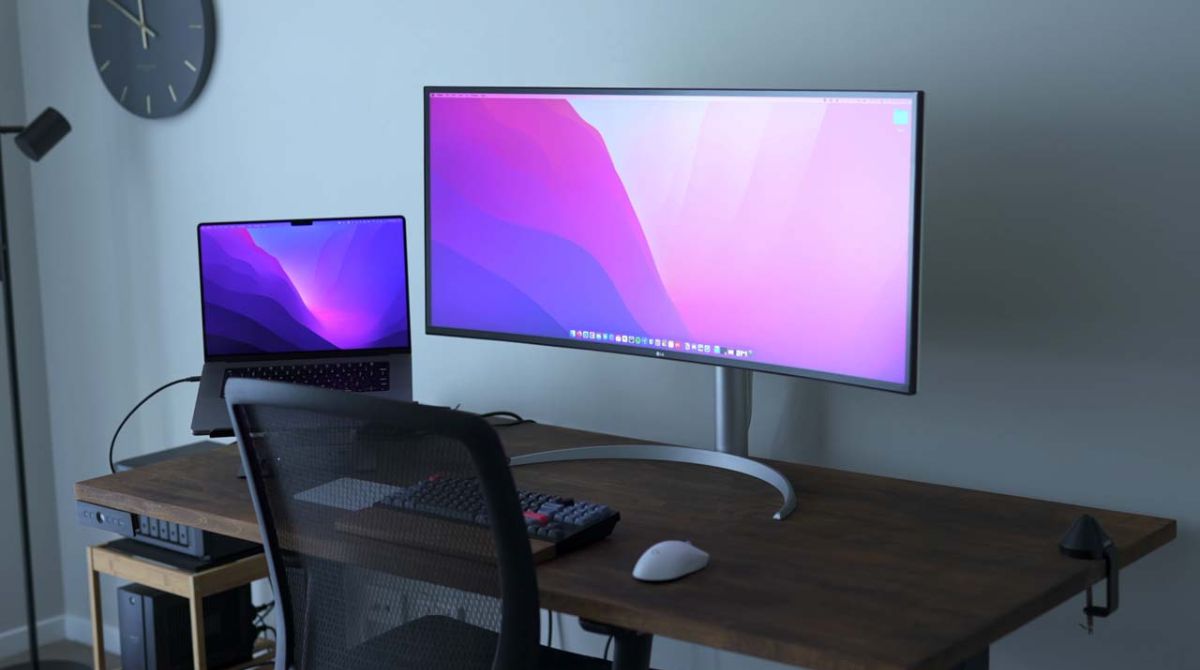
To connect an external monitor, use the DisplayPort, HDMI, or VGA ports on the dock (depending on your model). For triple monitor setups, utilize a combination of DisplayPort, VGA, and the Thunderbolt port with appropriate adapters if needed. After connecting a monitor, use Windows (Windows key + P) to configure display settings: "Second screen only," "Extend," or "Duplicate." For dual monitors, connect each to the respective port and then adjust resolution, orientation, and layout in your operating system's display settings. If the display is not detected, verify the input source on the monitor and try a different cable or port.
Connecting USB Devices, Ethernet, and Audio
Plug keyboards, mice, and external drives into the USB ports on the dock (typically USB-A and USB-C). For a wired network connection, connect an Ethernet cable to the RJ45 port on the dock and the other end to your router or modem. For audio, use the combo audio jack on the dock for headphones or speakers. Note: For integrated audio functionality on the HP Thunderbolt Dock G2, an HP TB Dock Audio Module (sold separately) is required. If you connect a microphone, plug it into the dedicated jack and configure the audio input settings on your computer to recognize it.
Power Delivery and Charging
The HP Thunderbolt Dock provides up to 100W power delivery to compatible notebooks and supports Power Delivery 3.1 standards. This allows you to charge your laptop while it is connected to the dock. For systems requiring more than 100W of power, such as high-performance workstations or gaming laptops, a separate notebook AC adapter may be needed, or consider a higher wattage dock like the HP Thunderbolt Dock 280W G4. The dock intelligently distributes power to connected devices based on their requirements, so you can also charge your smartphone or tablet via the USB ports.
Troubleshooting Common Issues
If your dock is not recognized, first check the Thunderbolt cable connection and ensure it is plugged into the correct Thunderbolt port on your laptop. Try disconnecting and reconnecting the cable and power supply. If the display is not working, verify the monitor's input source, test with a different cable, and ensure your BIOS is set to high-resolution mode if applicable. The dock's power button will not function on non-HP notebooks, ChromeOS, or unsupported HP systems, this is normal. For inconsistent performance, use only the HP cable designed for your dock; third-party cables can degrade Thunderbolt performance. If issues persist, check for driver and firmware updates on HP's support site, or try a different Thunderbolt port on your computer to rule out hardware failure.
\nRelated reading: How To Update HP Thunderbolt Dock Firmware, How To Find The IP Address Of My Network Attached Storage On Windows 10, and How To Use An Ultrawide Monitor With A Mac.