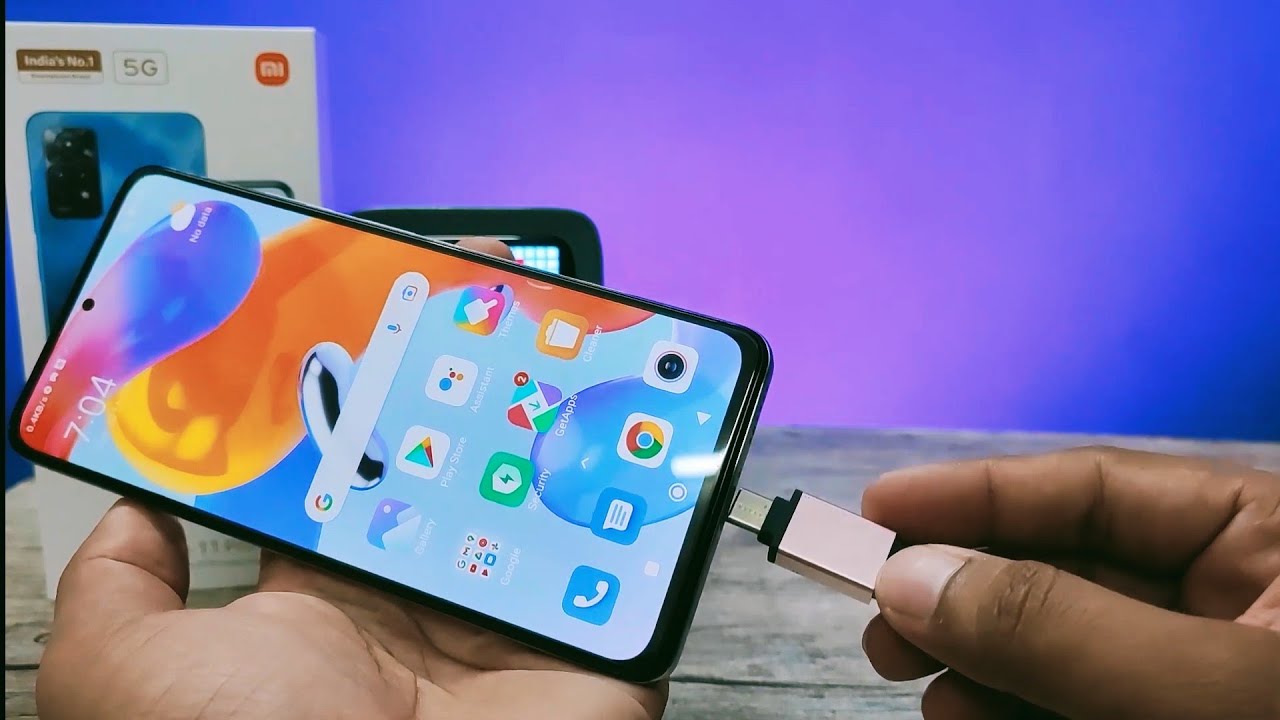
To enable OTG on Xiaomi, open Settings, go to More settings or Additional settings, tap OTG, and turn the switch on, but only if your device runs MIUI 10 or earlier. On MIUI 11 and newer, OTG activates automatically the moment you plug in an adapter and external device, so no manual toggle is needed, just as you can improve call clarity by enabling volte on your Xiaomi device.
How to enable OTG on Xiaomi: what you need to know first
The key difference comes down to your MIUI version. Before MIUI 11, Xiaomi included a dedicated OTG switch in the settings, and it defaults to off to reduce power consumption. From MIUI 11 onward, that switch was removed on many models, and OTG works instantly when you connect hardware. Regardless of version, OTG automatically turns off after 10 minutes of inactivity to conserve battery. You also need an OTG adapter that converts your phone's Micro-USB or USB Type-C port into a standard USB Type-A port, and most connected flash drives must be formatted as FAT32 with a single partition for the phone to read them reliably.
Enable the OTG setting on older MIUI versions (before MIUI 11)
If your Xiaomi runs MIUI 10 or earlier, you must manually flip the switch each time you want to use OTG. The exact path is straightforward:
- Open Settings on your phone.
- Tap More settings or Additional settings.
- Tap OTG.
- Turn on the OTG switch.
The switch is off by default specifically to save power, so don't be surprised if you need to re-enable it after each use, the 10-minute auto-off rule also applies here.
Use OTG automatically on MIUI 11 and newer versions
On MIUI 11 and later, there is no manual switch to find. The OTG function is no longer a separate setting, and the phone acts as a USB host as soon as you connect an OTG adapter with an external device attached. This applies to many recent models, though some like the Redmi Note 13 and Xiaomi 14T still have the OTG toggle in Settings > Additional settings > OTG. Just plug in your hardware and start using it, no configuration required.
Connect your USB device with the OTG adapter
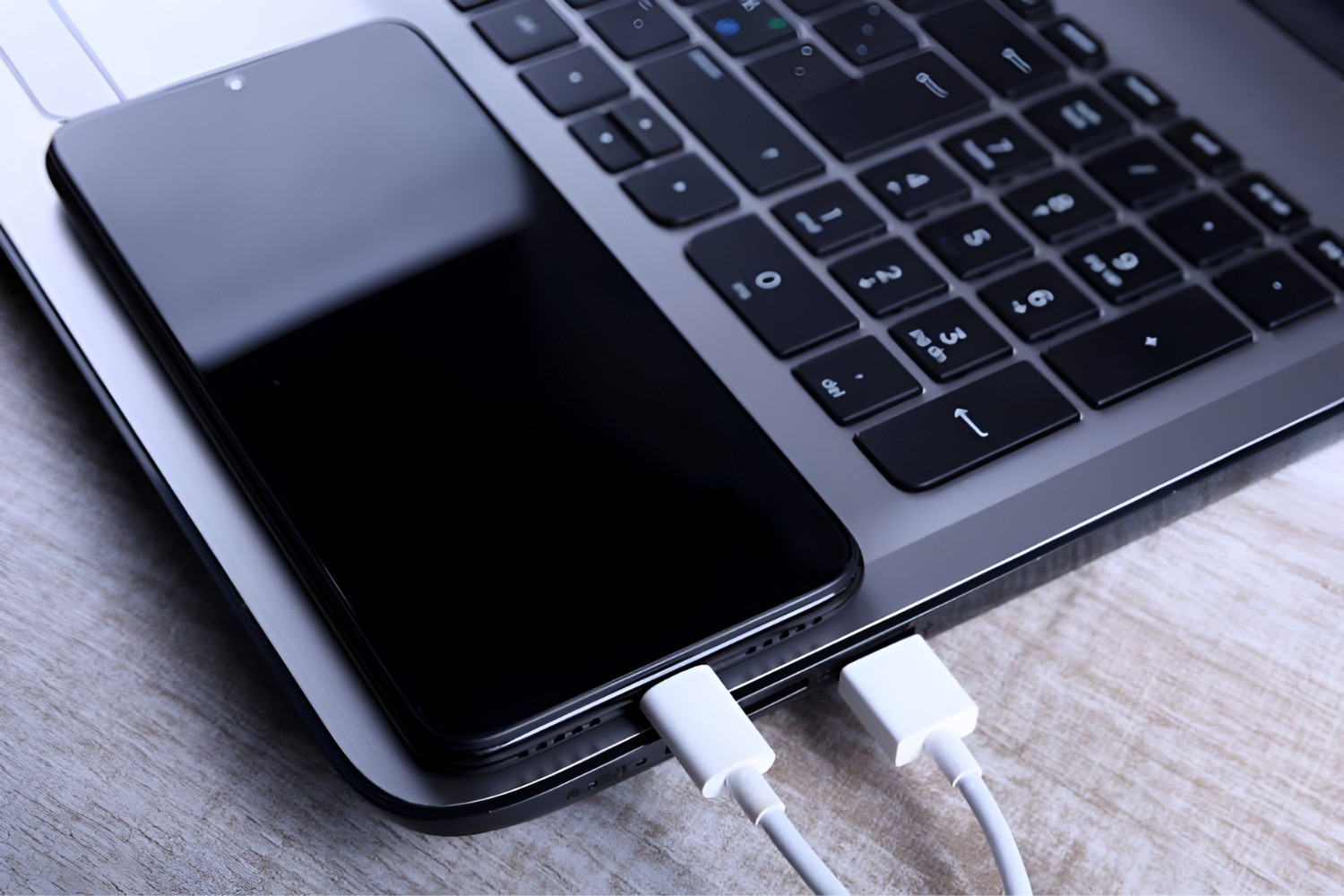
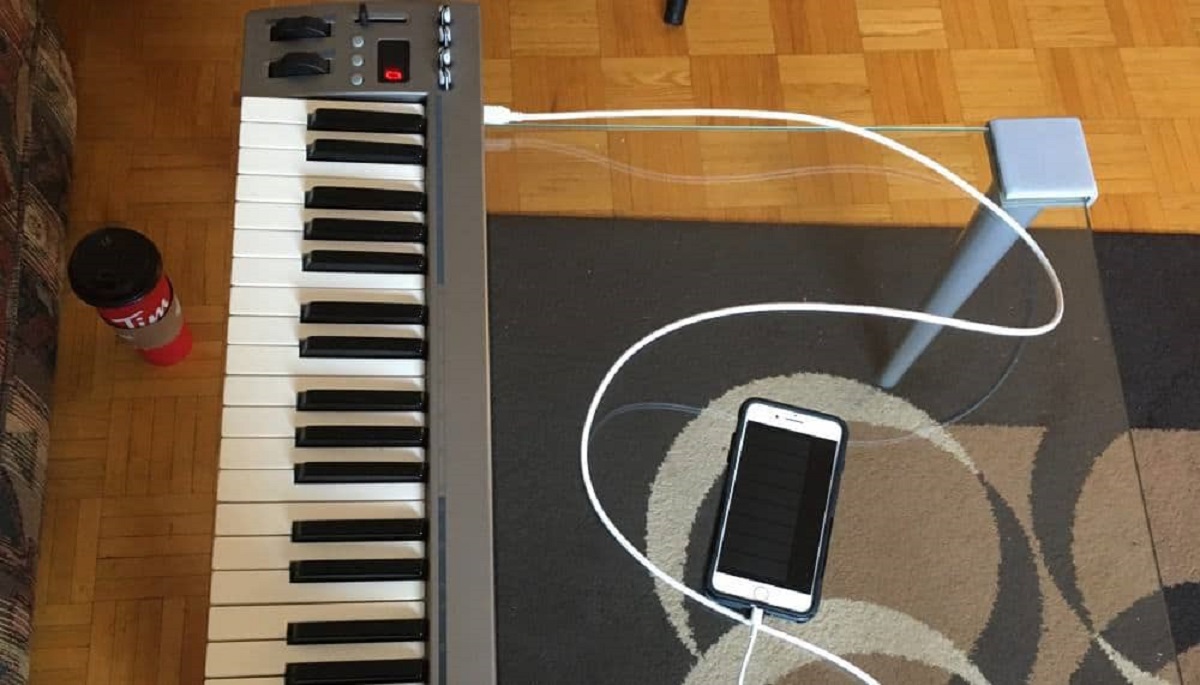
Physical connection is simple and identical across all MIUI versions. First, insert the Micro-USB or Type-C end of the OTG adapter into your phone's charging port. Then, plug your USB flash drive, keyboard, mouse, game controller, or other compatible peripheral into the standard USB Type-A end of the adapter. Your Xiaomi should recognize the device immediately, on older MIUI versions, ensure the OTG switch is on first; on newer versions, recognition is automatic.
Fix common OTG problems
If your device isn't recognized, check the flash drive's format first. The connected USB flash drive must be in a single partition and FAT32 file system format for the phone to support it; if it's NTFS or has multiple partitions, reformat it to FAT32. High-power drive failures happen because the standard OTG output current for Xiaomi phones and Mi Pads is 500mA, which is sufficient for most USB devices but not for certain mobile hard disks, those may require auxiliary power or simply won't work. Incompatible non-standard devices can also fail, including peripherals that use non-standard USB protocols or require separate driver installations like some drawing tablets, cameras, or printers; specific support depends on your system. Finally, remember that OTG functionality does not support non-USB interface functions like video output or projection, so don't expect to mirror your screen through this connection. If you plug in a USB hub with multiple storage devices, the built-in file manager will only recognize the first one, so avoid stacking drives. Using OTG to power other phones works as a temporary wired reverse charging method, but it's not recommended for long-term use because it increases power consumption and motherboard heat.