To find the IMEI on an Android tablet, the quickest method is to open the Phone or Dialer app and enter the code *#06#. This instantly displays the unique 15-digit IMEI number on your screen, which you can note down or screenshot for network activation, warranty checks, or reporting a lost device.
Before you start: does your tablet have an IMEI?
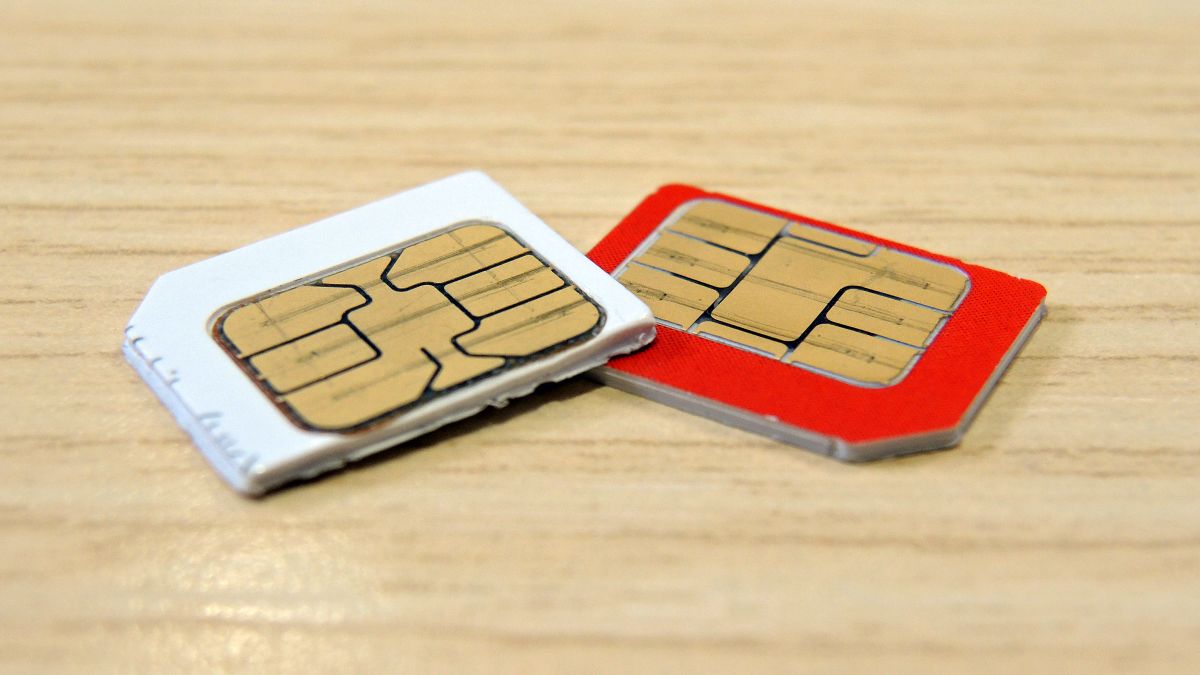
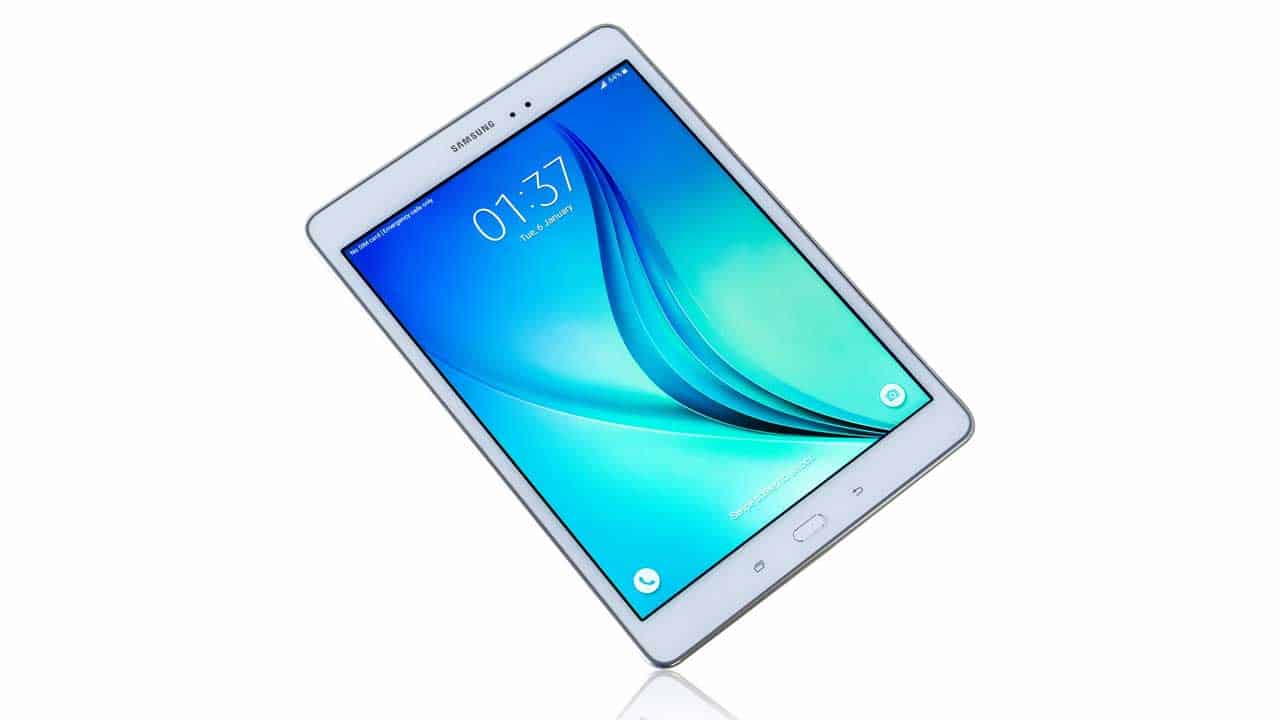
Only Android tablets with cellular capabilities (LTE or 5G) have an IMEI number. Wi-Fi-only tablets do not have an IMEI because they lack the hardware to connect to a mobile network. If your tablet has no SIM card slot and was sold as "Wi-Fi only," you can stop here, your device simply doesn't have this identifier. For tablets with cellular support, the IMEI is a unique 15-digit code that acts as your device's digital fingerprint, used by networks to authenticate it and by manufacturers to verify warranty status.
Find your IMEI by dialing a code
The fastest method to find your IMEI is using the hidden dialer code. Open the Phone or Dialer app on your tablet (typically found in the app drawer, even on LTE models), then type *#06# exactly as shown. Within seconds, a pop-up window will appear displaying your IMEI number(s). If your tablet supports dual SIM (Dual SIM Dual Standby), you'll see two numbers labeled IMEI1 and IMEI2, one for each SIM slot. This method works on all cellular-enabled Samsung Galaxy tablets and most other Android brands with a dialer app. Take a screenshot or write down the number immediately, as the pop-up disappears when you tap outside it. If you also need to locate hardware identifiers on other devices, you can find serial number on dell laptop through its command prompt or BIOS, and for drones you may need to find remote id serial number dji to comply with FAA registration rules.
Find your IMEI in the settings menu
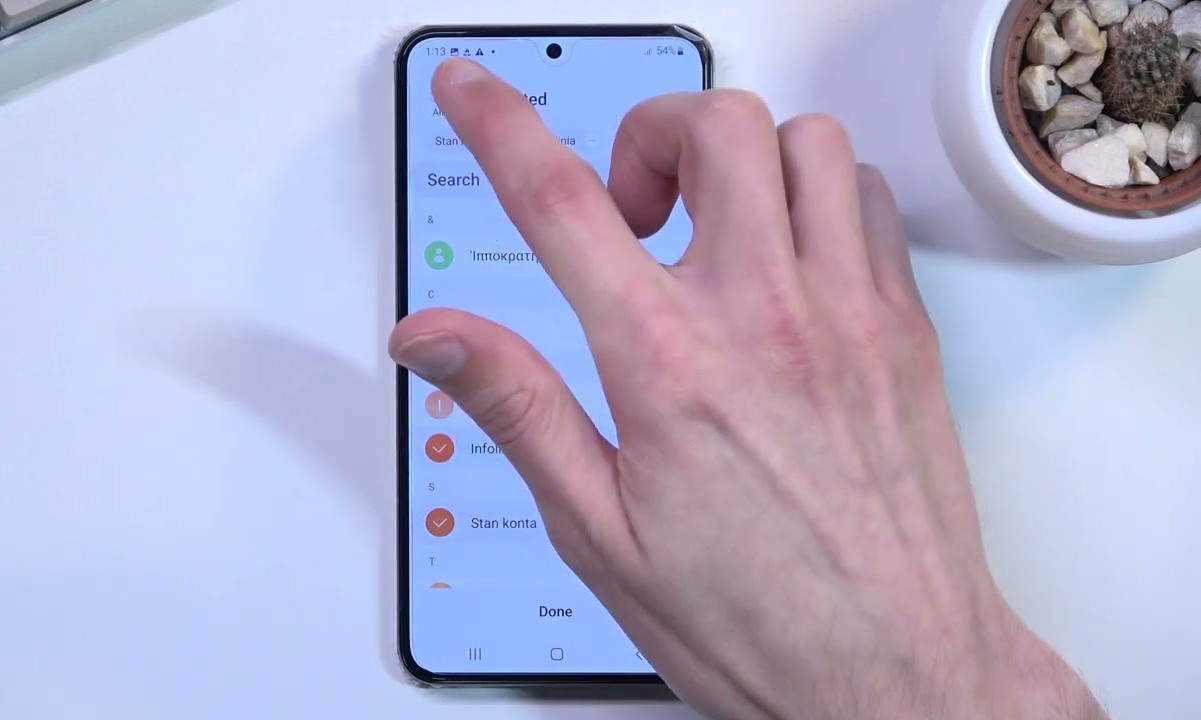
If you prefer not to use codes, the universal method is navigating through the Android settings. Here's the step-by-step path:
Standard path for most Android tablets
- Open the Settings app (gear icon).
- Scroll down and tap About tablet (or About phone on some models).
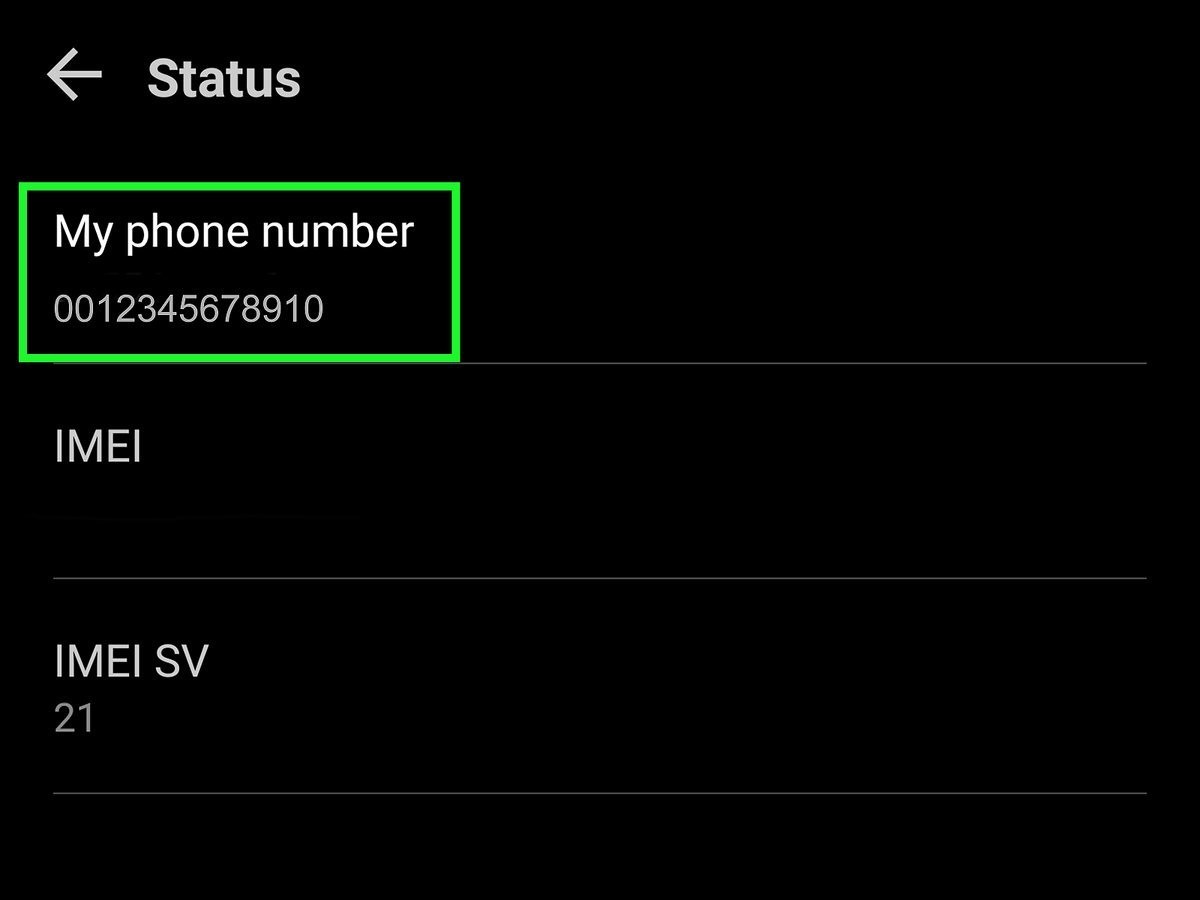
- Look for Status or Status information, on some versions, the IMEI is directly visible without tapping further.
- Tap Status to reveal IMEI information or simply IMEI.
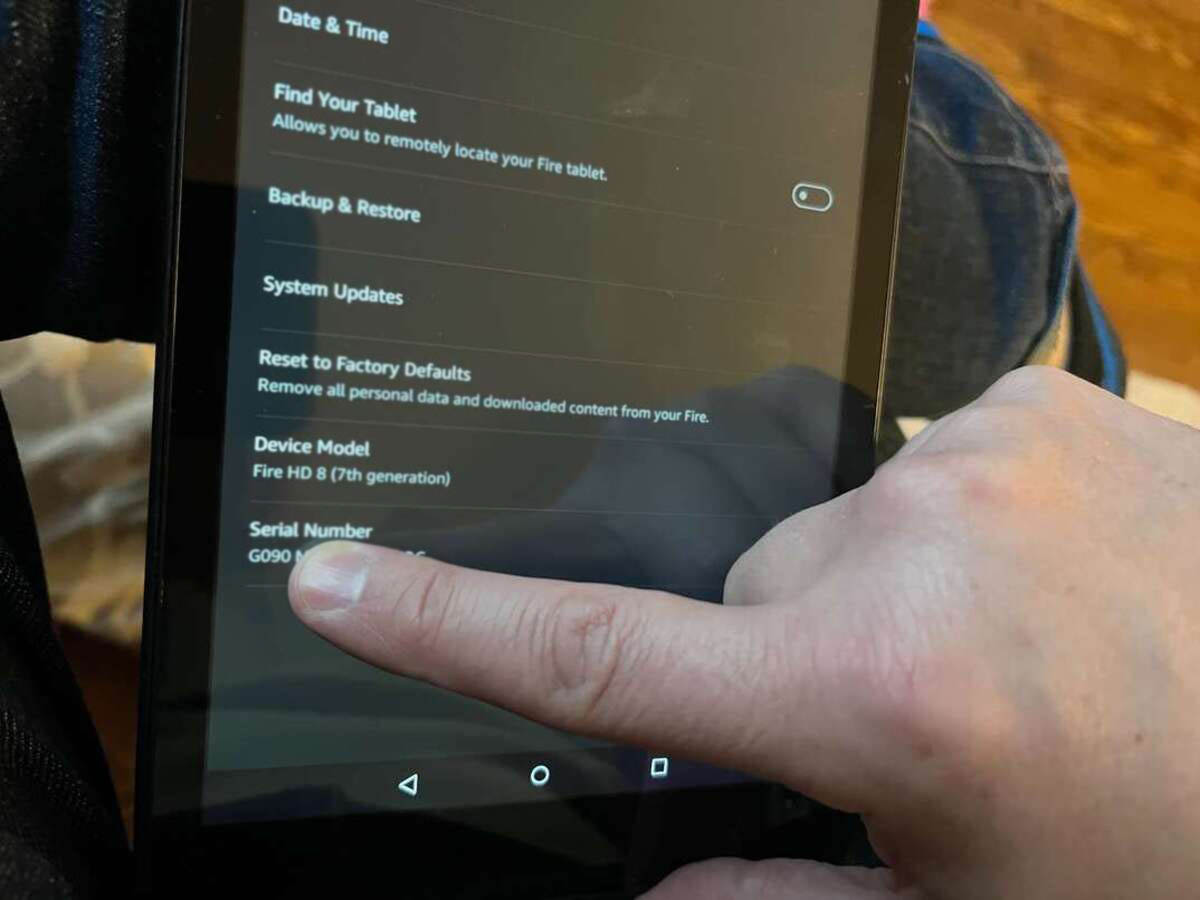
On devices like the Samsung Galaxy Tab S5e, the IMEI displays directly beneath the Serial number on the About Tablet screen. For Lenovo tablets, navigate to Settings > About phone > IMEI. The exact wording varies by manufacturer and Android version, but the IMEI is always listed under the "About" section. Note that available screens may differ based on your wireless carrier and software version.
Find your IMEI on the physical device or box
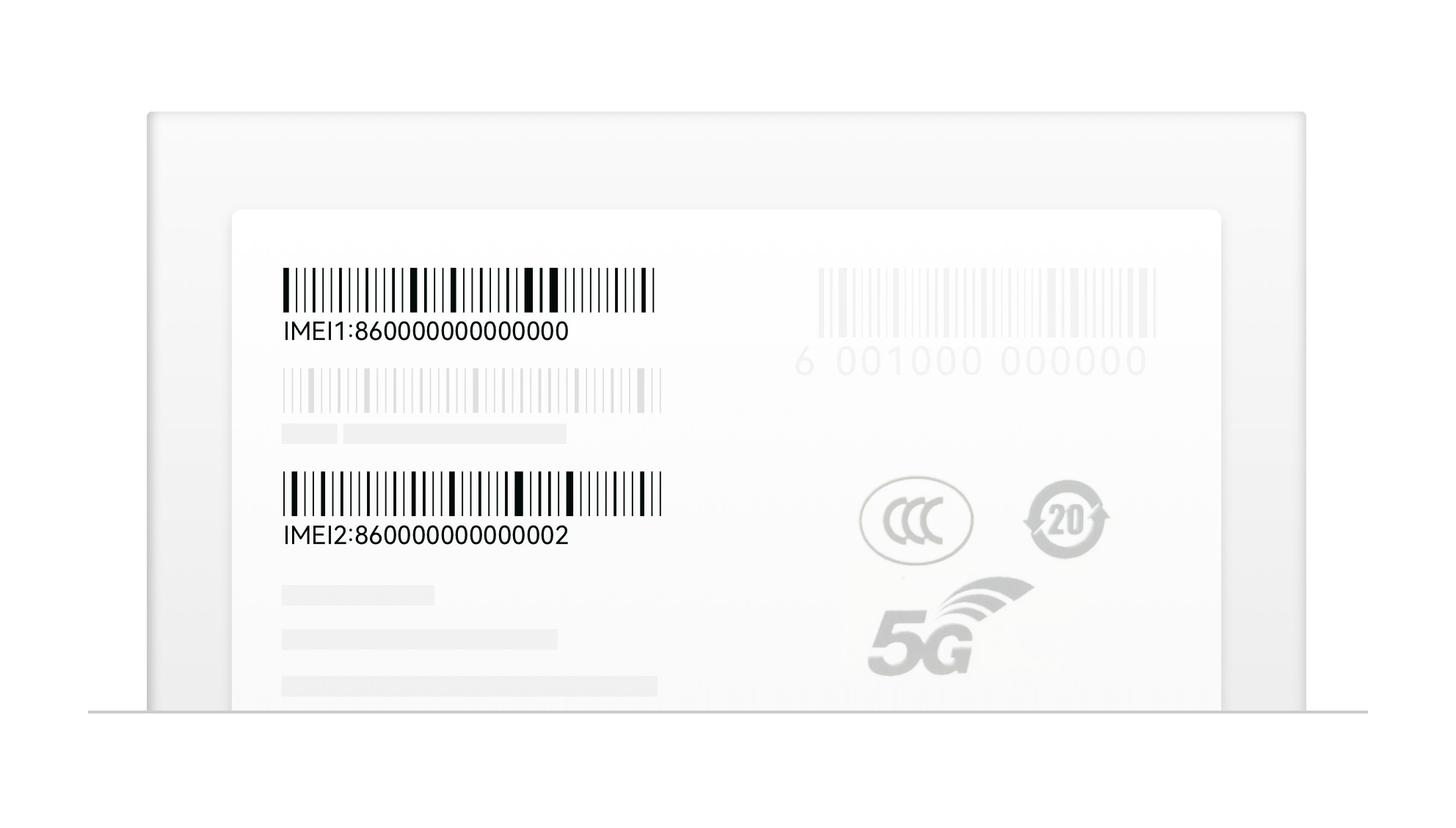
If you can't access the settings, check the physical surfaces of your tablet and its original packaging. The IMEI is often printed in these locations:
- Original Packaging: Look for a white or silver sticker on the side or bottom of the box. It lists both the IMEI and serial number.
- Back of the Device: Many tablets have the IMEI printed in tiny text near the bottom edge of the back panel. Use a magnifying glass if needed.
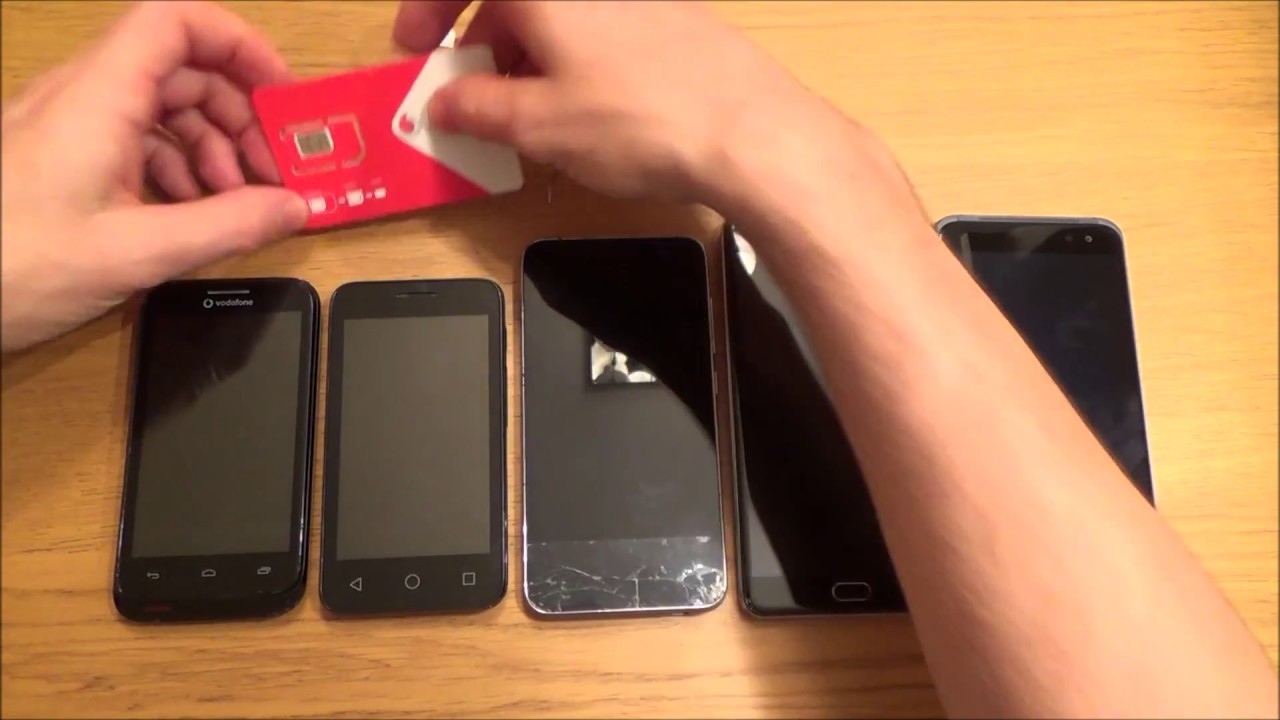
- SIM Card Tray: On newer models, the IMEI is etched directly onto the metal or plastic SIM tray. Eject the tray with a SIM tool to see it.
- Under the Battery: For older tablets with removable back covers and batteries, the IMEI appears on a white label beneath the battery. Power off the device, remove the back panel, and lift the battery to find it.
Always verify that the number on the physical label matches the one shown in your settings, mismatches can indicate a refurbished or tampered device.
Find your IMEI remotely with Google Find My Device
If you don't have your tablet in hand, use the Google Find My Device website to retrieve the IMEI remotely. This works only if the tablet is linked to your Google account and has been powered on recently. Follow these steps:
- On a computer or another device, go to Google.com/android/find and sign in with the same Google account used on your tablet.
- At the top left, click the drop-down menu and select your tablet from the list of linked devices.
- Click the Information (i icon) button, a panel will slide out showing device details, including the IMEI number.
- Note the 15-digit number or take a screenshot for your records.
This method is particularly useful if your tablet is lost or stolen, as you can still access the IMEI to report to your carrier or the police. Ensure your tablet has an active internet connection and location services enabled for this to work.