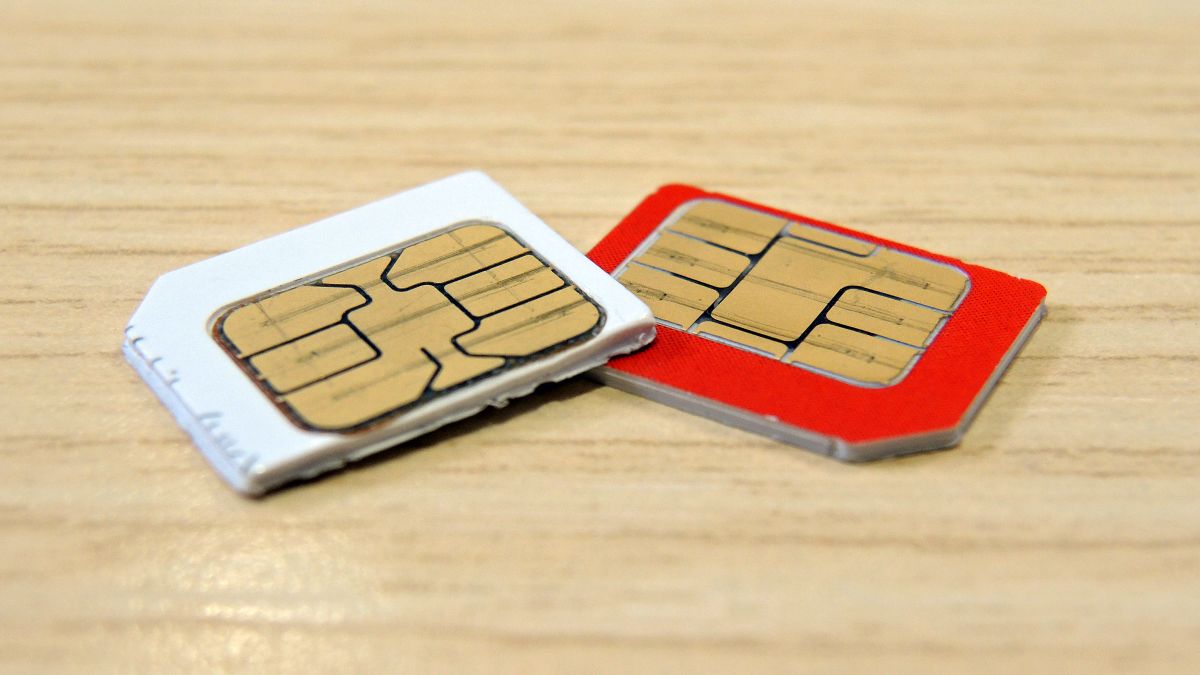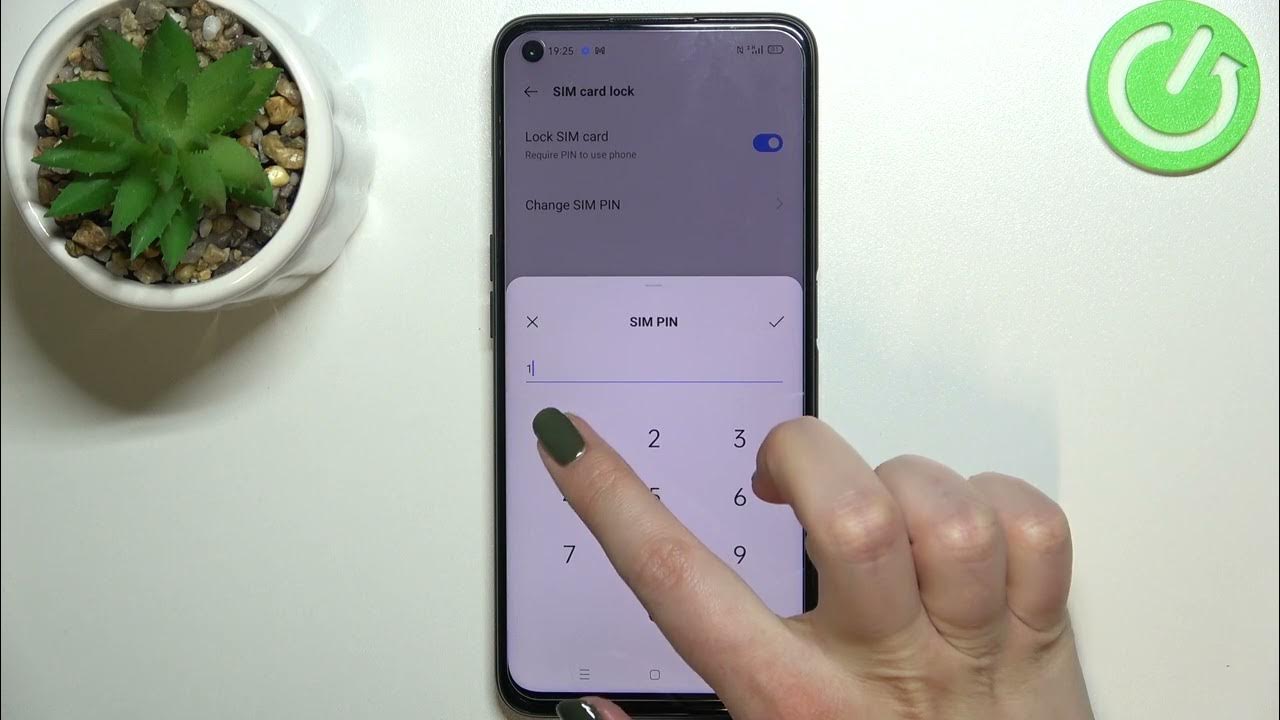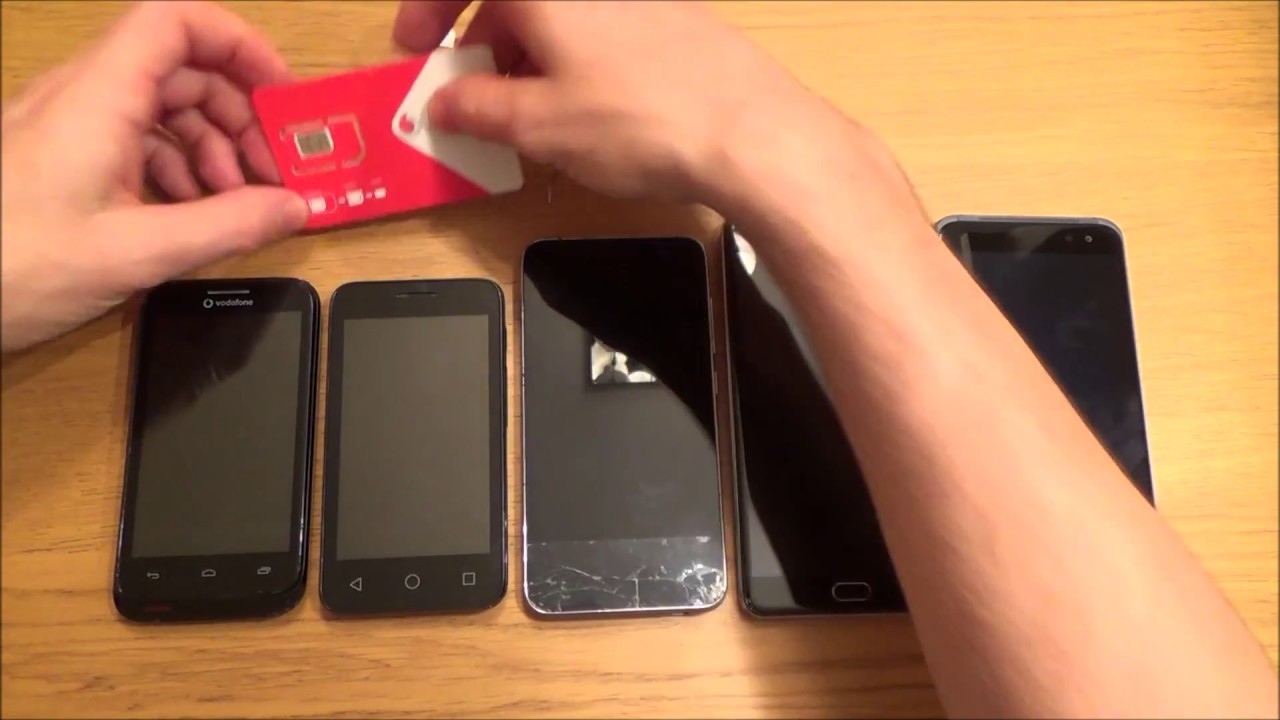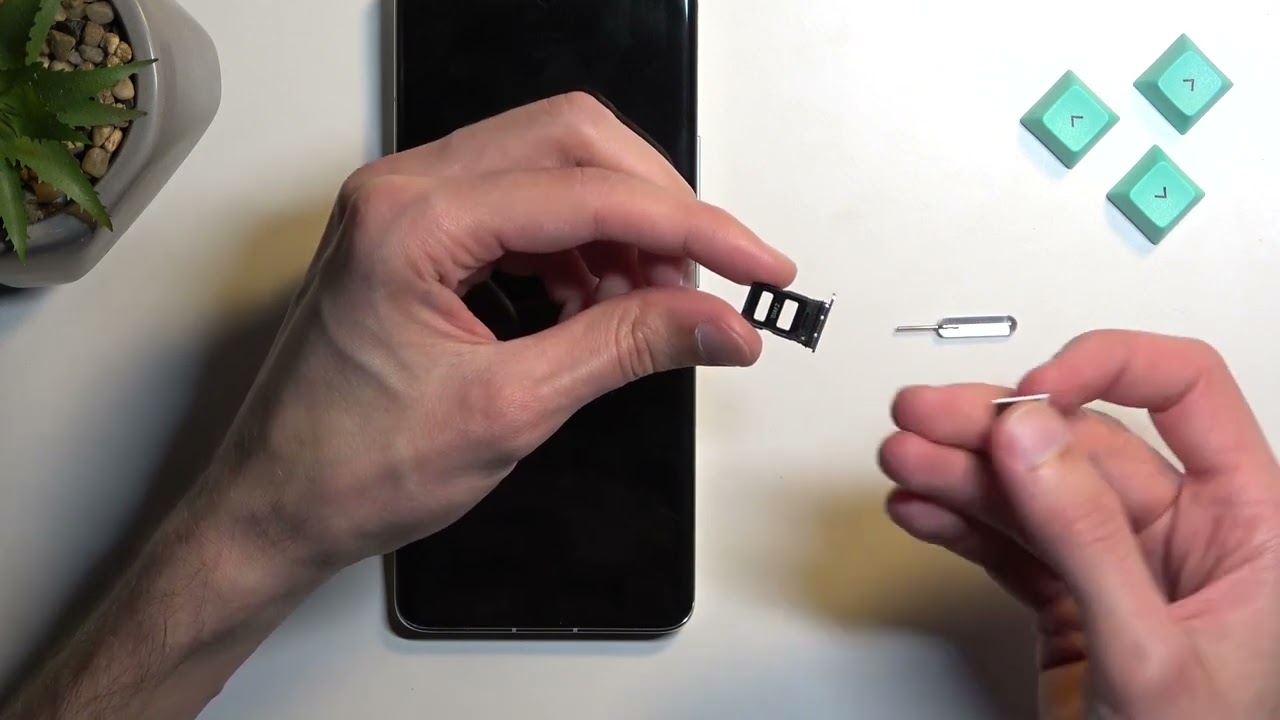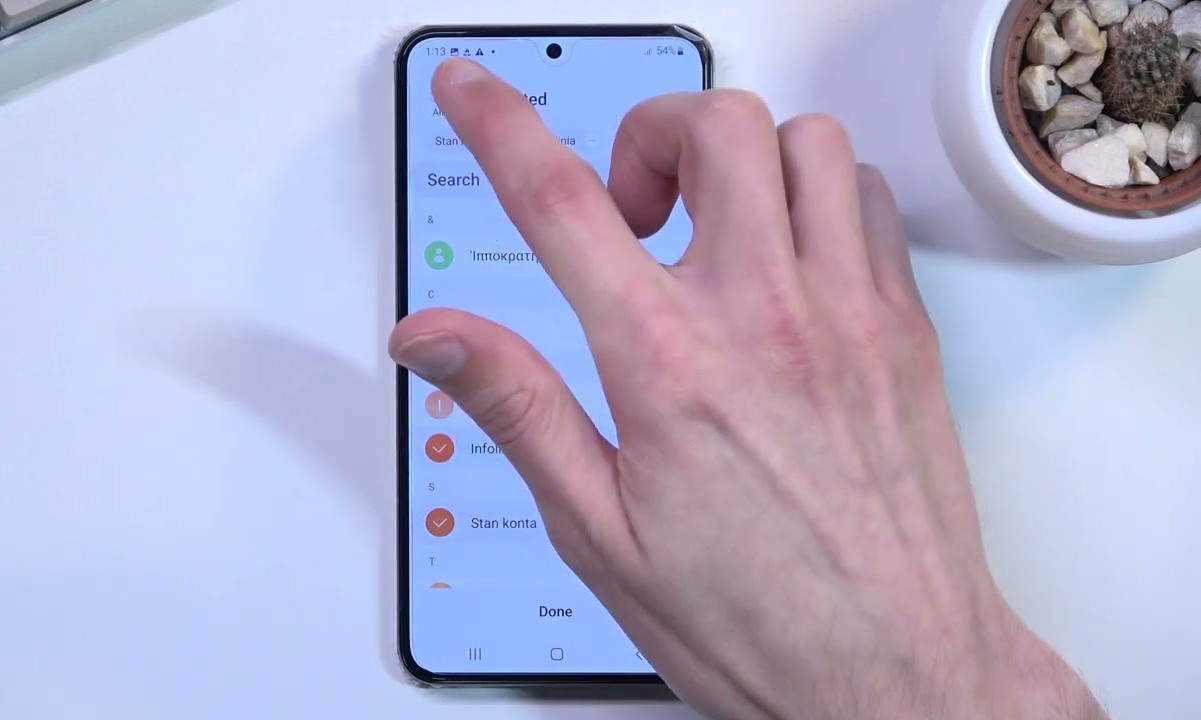
Viewing contents on your SIM card is a straightforward task, but it's important to know that SIM cards primarily store contacts and network identification data, not text messages, photos, or apps. This quick guide will show you exactly what you can access and how to view it on your current device.
What you can actually view on your SIM card
SIM cards are designed to hold a limited set of information essential for network authentication and basic user data. The core contents you can view are your stored contacts (names and phone numbers) and network-specific identifiers like the International Mobile Subscriber Identity (IMSI) and Integrated Circuit Card Identifier (ICCID). Contrary to common belief, modern SIM cards do not store text messages, photos, videos, or app data. If you are hoping to recover old SMS messages or media files, they are almost certainly saved in your phone's internal memory or cloud backups, not on the SIM. Setting this expectation upfront saves you time and effort when attempting to retrieve data.
How to view contacts on your SIM card
The method for viewing SIM contacts varies by device type. Below are the specific steps for Android, iPhone, and feature phones. Each approach gives you direct access to the contact list stored on the SIM.
For Android devices
- Open the Contacts app on your Android device.
- Tap the menu icon (often three vertical dots or lines) in the top corner.
- Select the "Import/Export" or "Manage contacts" option from the menu.
- The contacts stored on your SIM will then appear in your contact list.
For moving contacts onto the SIM, you can follow a dedicated tutorial on transferring contacts to SIM card on Android.
For iPhones
- Open the Settings app on your iPhone.
- Scroll down and tap "Contacts."
- Tap "Import SIM Contacts." Your iPhone will then display all contacts saved on the SIM card.
Note that iPhones do not allow you to save new contacts directly to the SIM card. If you need to move contacts onto the SIM from an iPhone, refer to a step-by-step guide on saving contacts to iPhone SIM card.
For feature phones
- Open the Contacts or Address Book menu on your feature phone.
- Look for an option labeled "SIM contacts" or "View SIM contacts."
- Select it to see all contacts stored on the SIM card.
Feature phones often rely on SIM storage as their primary contact database, making this the most direct method for accessing your data.
Why your SIM card looks empty
If you insert your SIM card into a new phone and see no contacts, it is likely because modern smartphones automatically sync contacts to cloud services like Google Contacts or iCloud. When you save a new contact on your phone, it is stored in the cloud or device memory, not on the SIM. To populate your SIM with contacts, you will need to manually copy them from your phone's storage. For help with this process, you can manually copy contacts from your phone's storage using the inserting a SIM card and transferring data steps. If you are hoping to recover photos, note that SIM cards do not store images; for that, you will need a dedicated resource on extracting photos from SIM card, though such files are almost never present on a SIM. Instead, check your phone's internal storage or cloud backups for your photos.