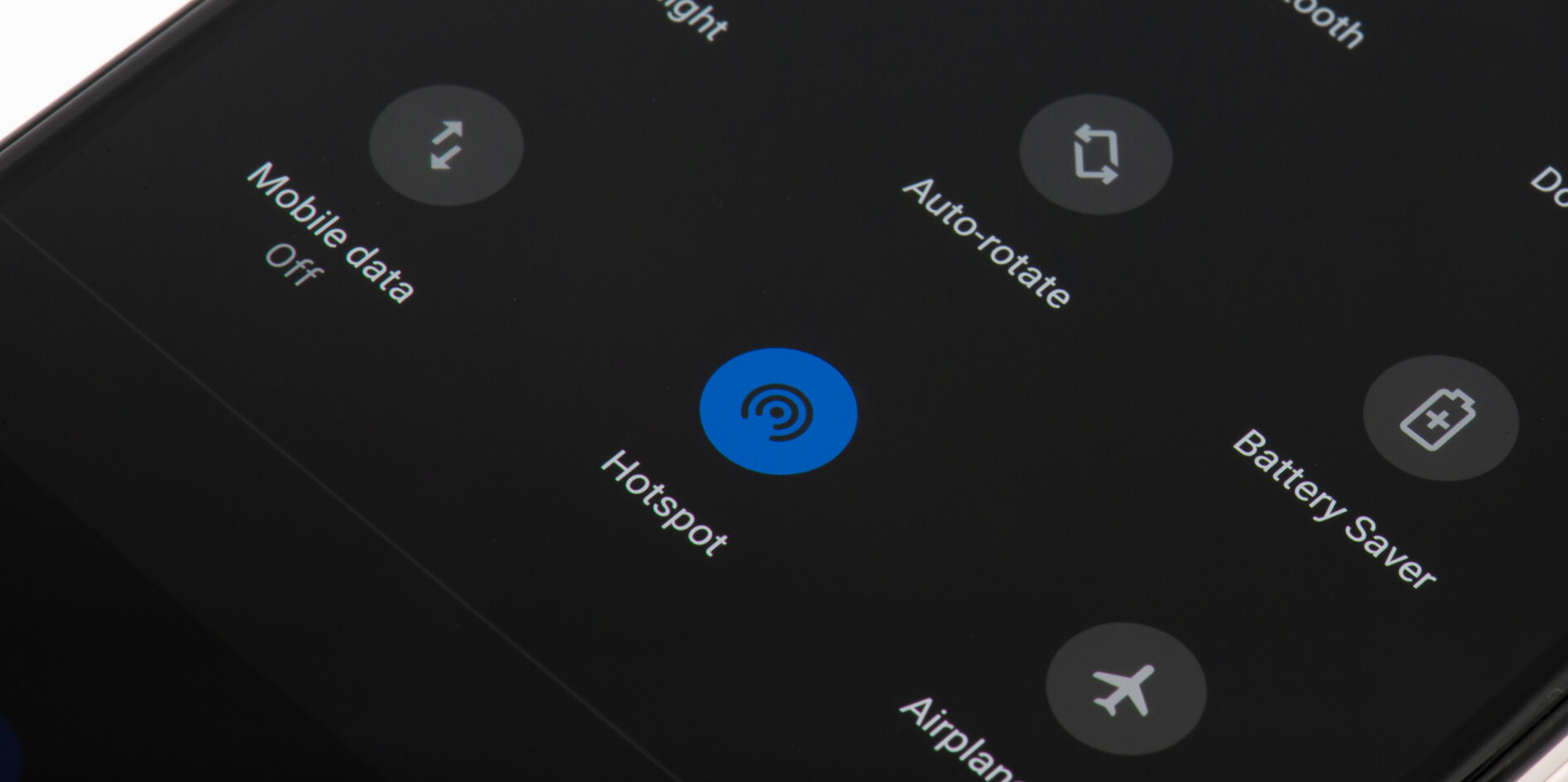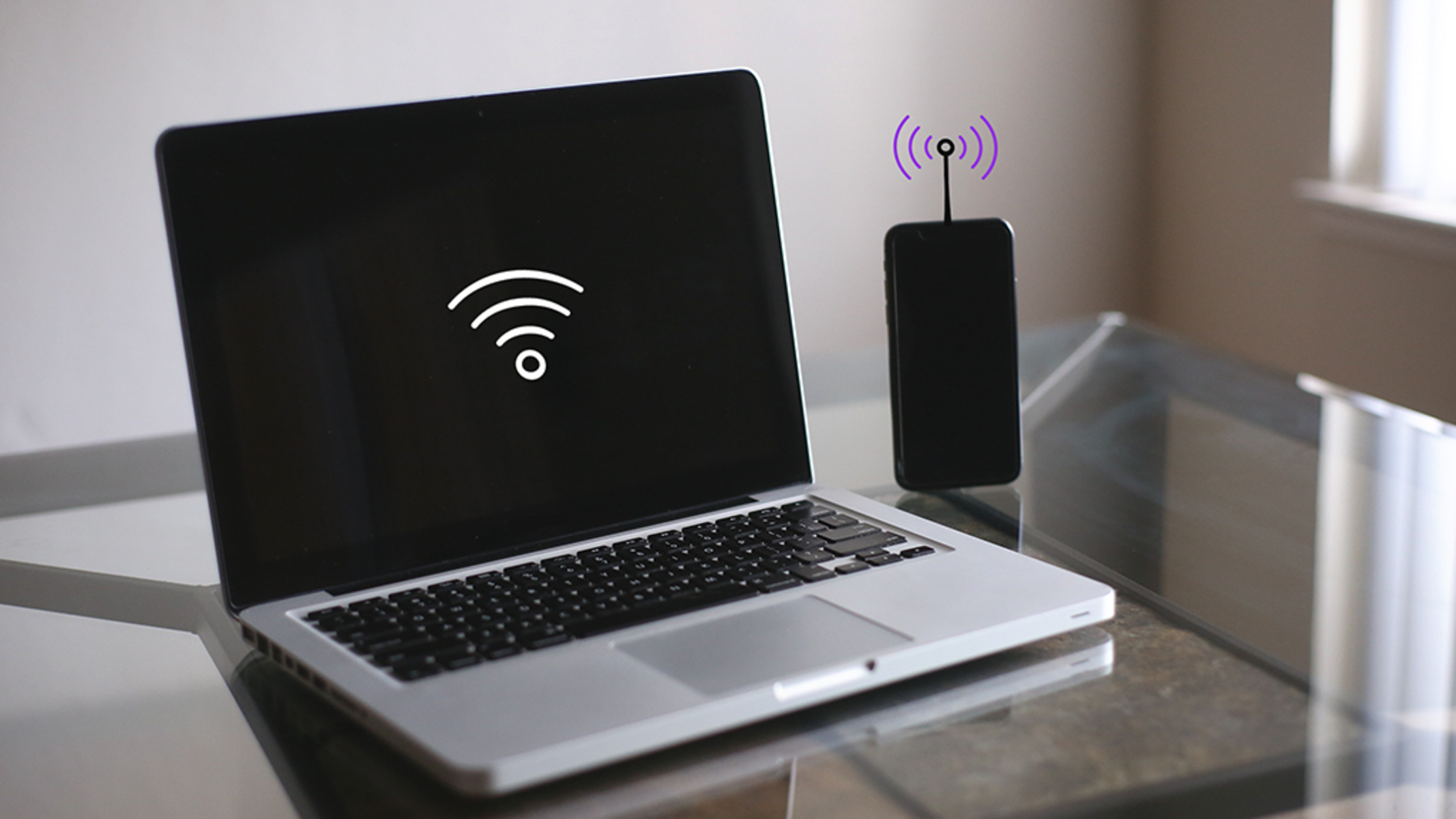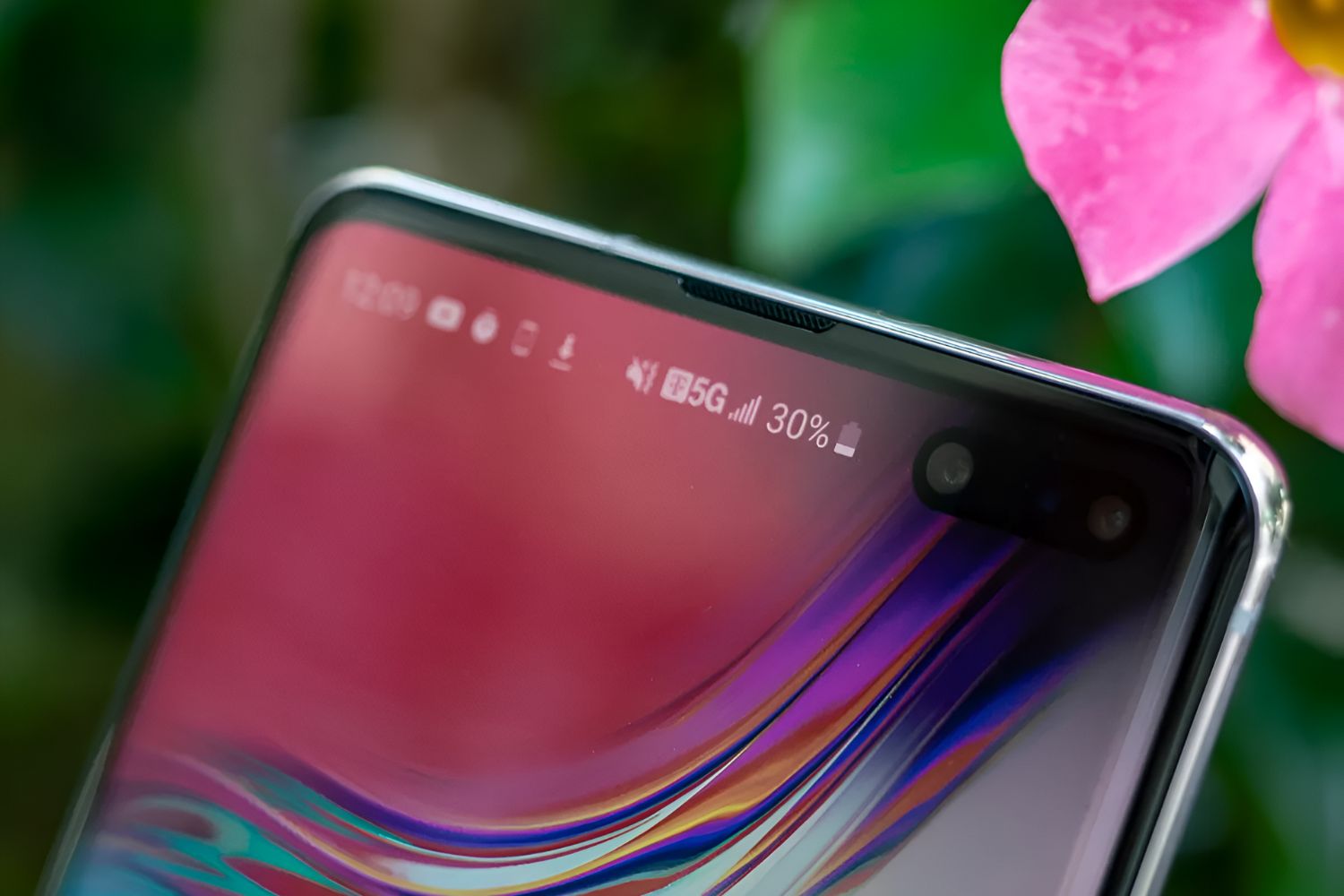
To turn Android into a hotspot, open your phone's Settings app, go to Network & internet (or Connections on Samsung), and tap Hotspot & tethering, then toggle on Wi‑Fi hotspot. This lets you share your phone's mobile data with a laptop, tablet, or any other Wi‑Fi device, effectively turning your phone into a portable router.
Before you turn your Android into a hotspot
First, confirm your mobile carrier plan supports tethering. Some carriers limit hotspot use or charge extra, so a quick check with your provider prevents surprises. Also, be aware of your data cap, using a hotspot can eat through your monthly allowance quickly. Finally, a critical step: if Data Saver mode is enabled on your Android device, it must be turned off to use Wi‑Fi tethering. Go to Settings > Network & internet > Data Saver and disable it before proceeding. If your connection still drops, the same timeout settings can affect an iPhone, so see preventing iPhone hotspot from turning off. If you're sharing the connection with an Android phone, you may need the reverse steps for connecting hotspot from iPhone to Android.
Enable the hotspot on your Android phone
The exact steps vary slightly by device, but the core process is the same. Follow the path for your phone below.
Google Pixel
- Open the Settings app.
- Tap Network & internet.
- Select Hotspot & tethering.
- Tap Wi‑Fi hotspot.
- Turn the switch to on.
Samsung Galaxy
- Open the Settings app.
- Tap Connections.
- Select Mobile Hotspot and Tethering.
- Tap the switch next to Mobile Hotspot to activate it.
Configure your hotspot name and password
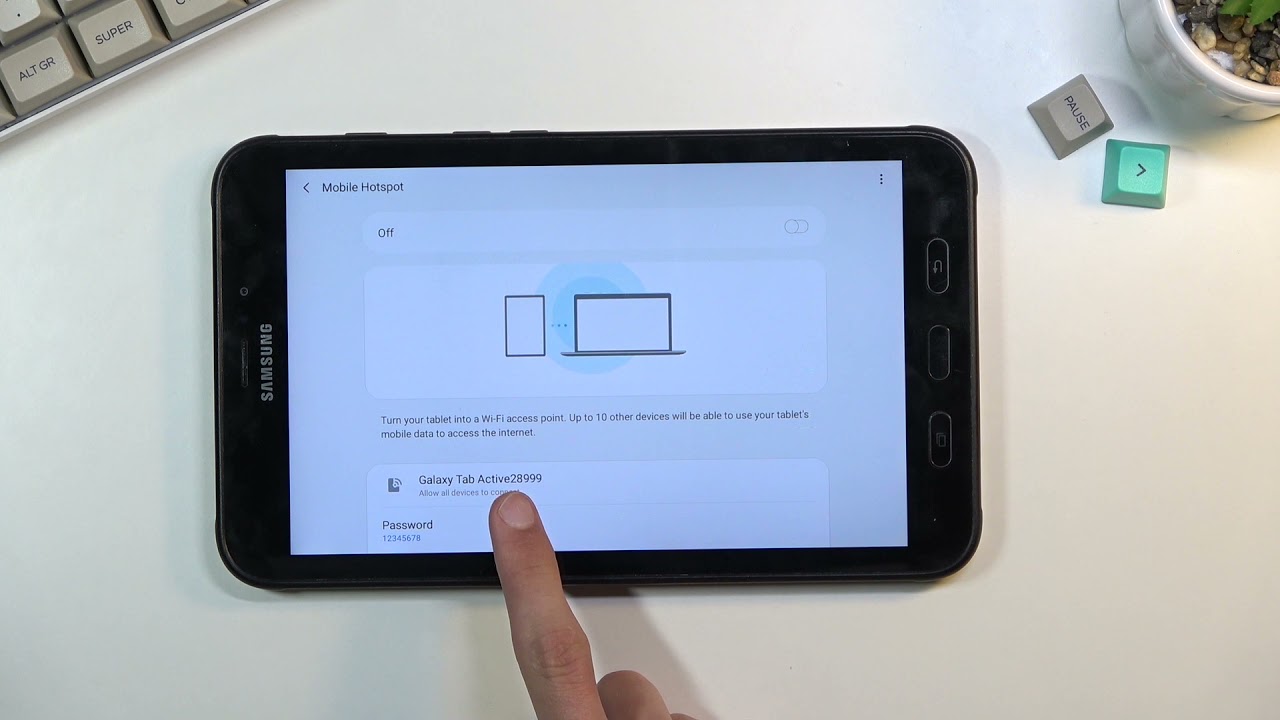
Once the hotspot is on, tap its name (Wi‑Fi hotspot on Pixel, or Mobile Hotspot on Samsung) to open configuration settings. Here you can set a custom network name (SSID) so you can easily find it later. Then, set a strong password, ideally 12-16 characters mixing letters, numbers, and symbols, using WPA2-Personal security. This keeps your connection private. Some Samsung Galaxy devices also offer a QR code for sharing the hotspot, making it simple for others to connect without typing a password.
You may also see an option to choose the frequency band. The 2.4 GHz band offers a wider range, while the 5 GHz band provides faster speeds over shorter distances. Pick the one that best fits your current situation.
Connect your laptop, tablet, or other device
On the device you want to connect, open its Wi‑Fi settings and look for the network name (SSID) you just set. Select it, enter the password, and tap Connect. Your phone can share mobile data with up to 10 other devices at once, though the exact limit may vary by device and carrier plan.
To use a phone hotspot with any device, the process is exactly this: find the network, enter the password, and you are online. No special app or extra setup is needed.
Manage battery life and other connection methods
Using a mobile hotspot drains your battery significantly faster, up to 65% faster than regular use, because the phone maintains a cellular connection and broadcasts Wi‑Fi at the same time. To stretch your battery, enable settings like "Turn off when no device connected for" or "Automatically turn off personal hotspot." Limit the number of connected devices, and in areas with weak signal, consider using 4G instead of 5G. The most effective fix is to keep your phone plugged into a charger while the hotspot is active.
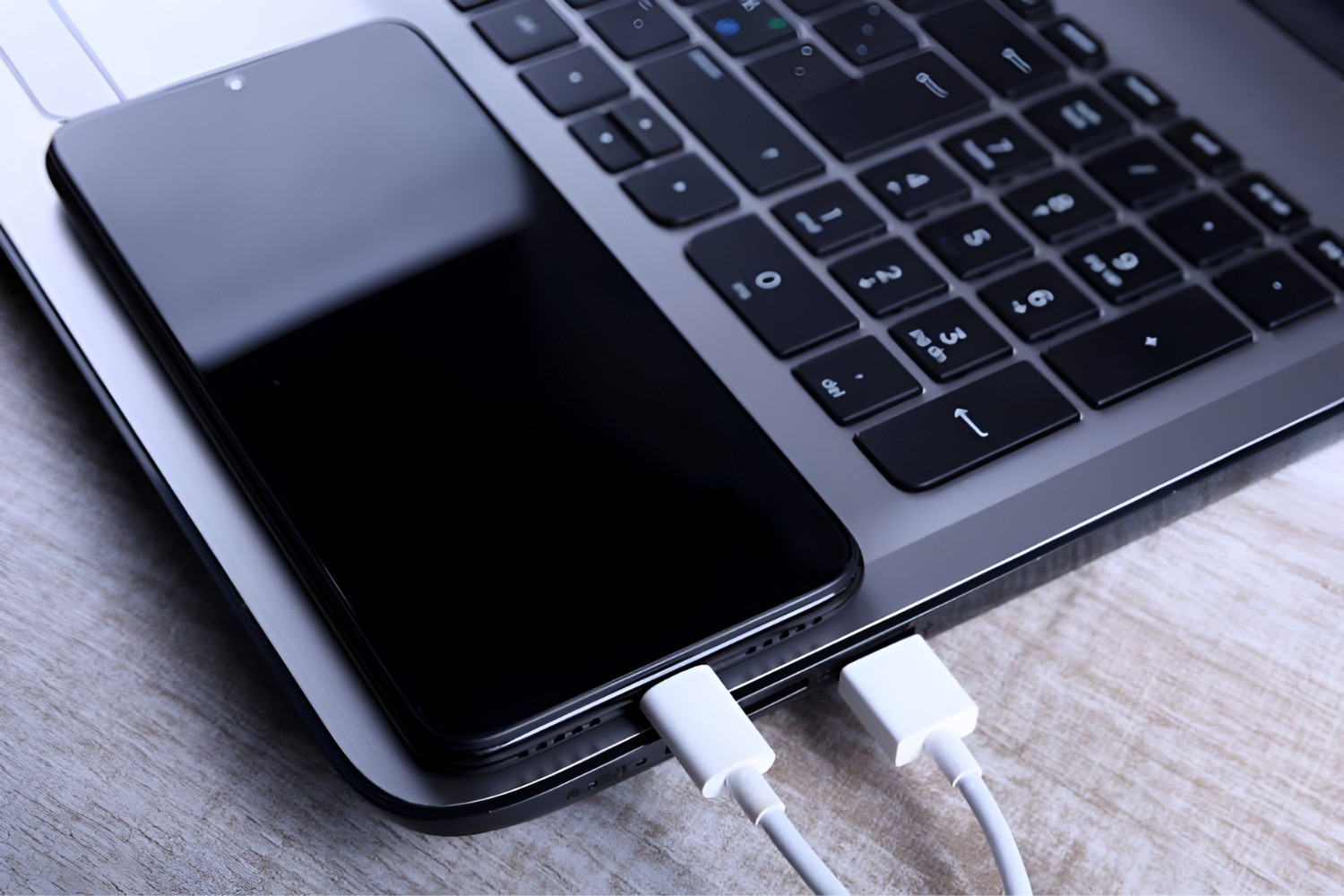
If battery life is a major concern, you have two alternatives. USB tethering connects your phone to another device with a USB cable, offering a more stable connection and less battery drain (note that Mac computers cannot tether with Android via USB). Bluetooth tethering is another option, it is slower than Wi‑Fi or USB but consumes even less power and requires pairing both devices first.
For the wider topic, see using a phone hotspot.