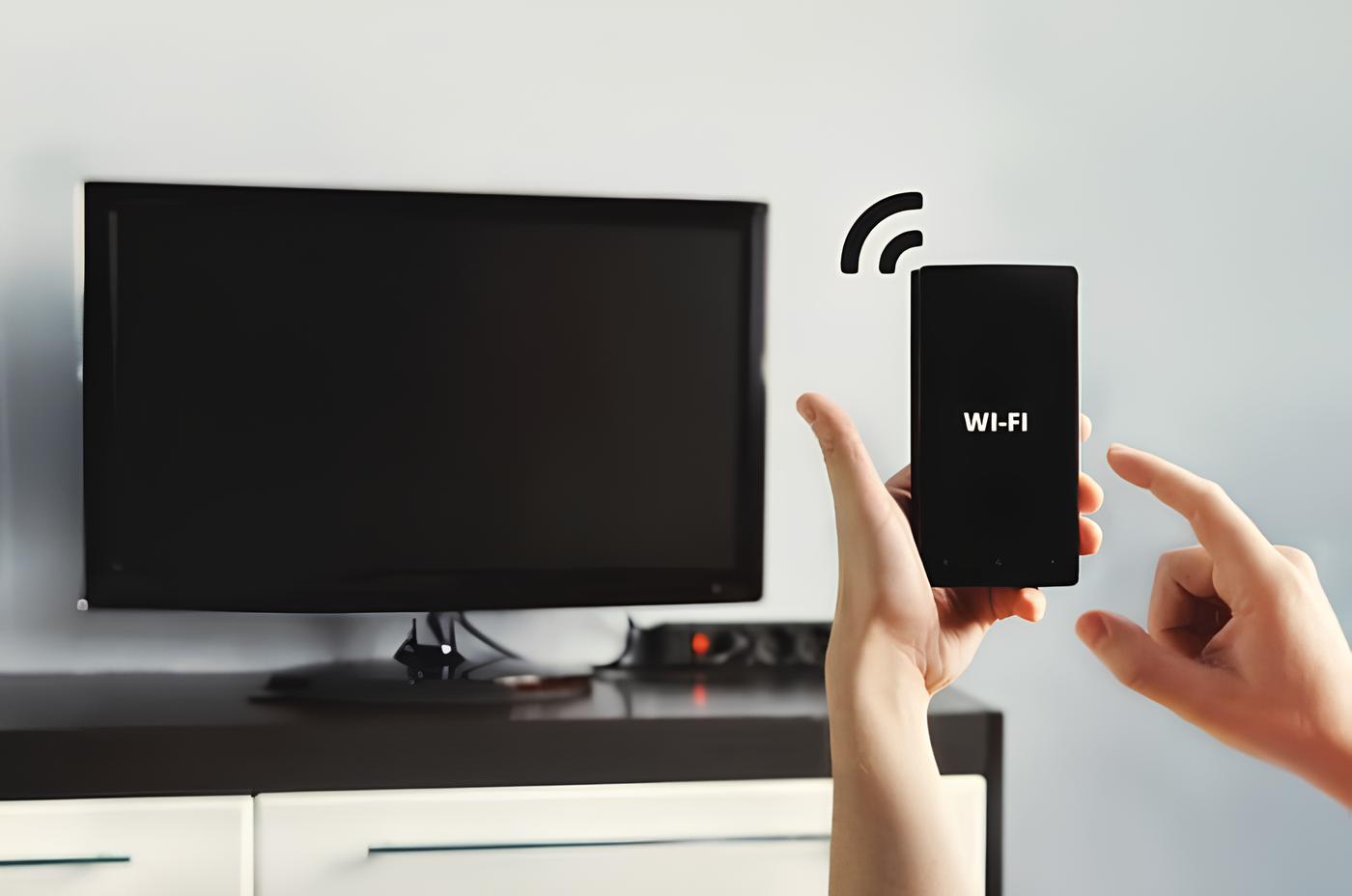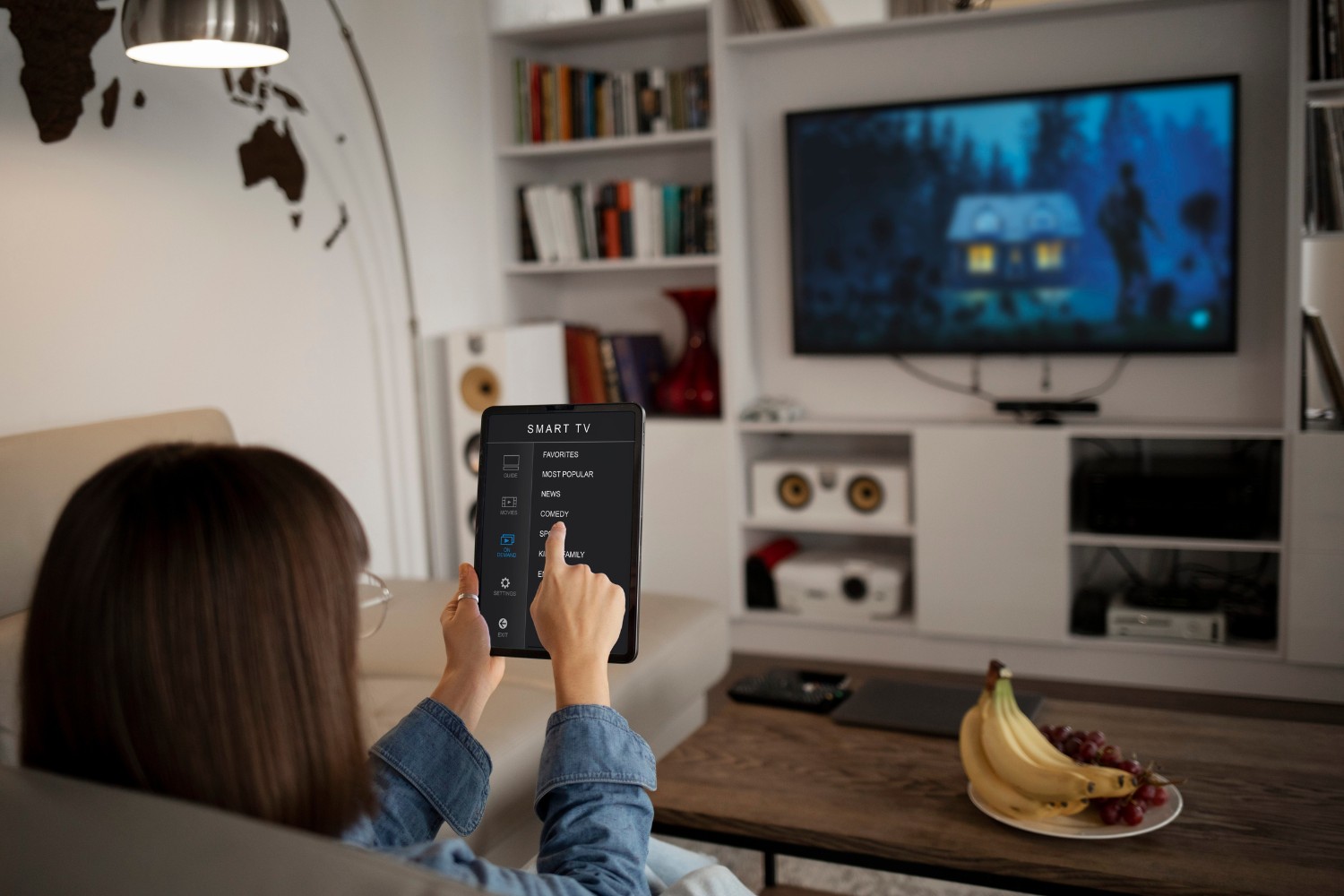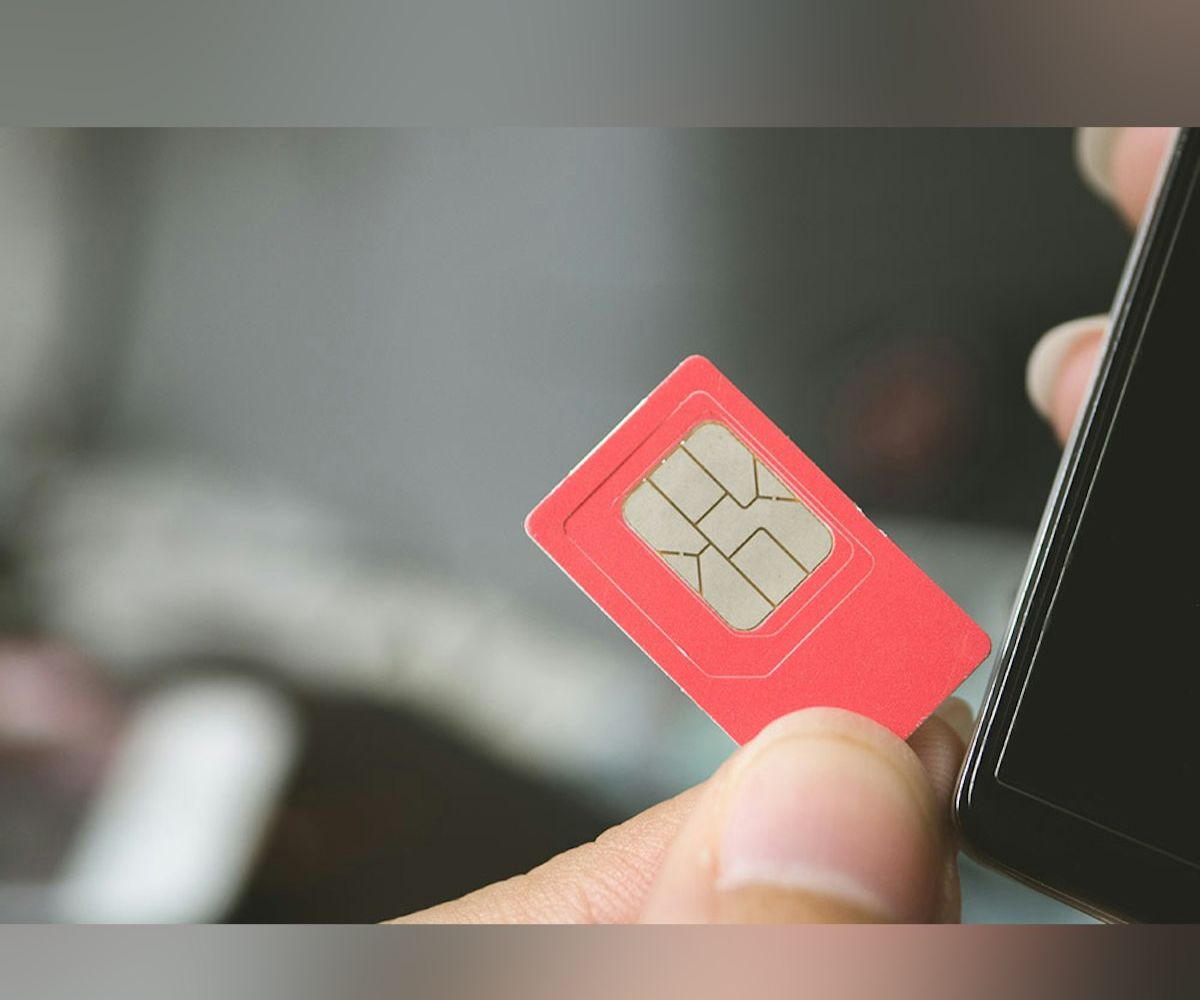
You can connect to the internet without a SIM card by using Wi-Fi or Bluetooth tethering from another device. Without a SIM card, your phone cannot make traditional cellular calls, send SMS text messages, or use mobile data outside of Wi-Fi coverage, but it can still access the internet normally over a wireless network.
What works on a phone without a SIM card
Modern smartphones are highly functional with Wi-Fi alone, and the idea that a phone is useless without a SIM card is outdated. Over a Wi-Fi connection, you can browse the web, stream videos, use social media apps, get GPS navigation, access cloud storage, and make internet-based video calls. Messaging apps like WhatsApp, Telegram, and Facebook Messenger also work over Wi-Fi, though some may require a phone number for initial account registration or verification. In short, anything that relies on an internet connection rather than the cellular network will operate normally.
Connect to Wi-Fi on an iPhone
To get your iPhone online without a SIM card, you need to join a Wi-Fi network. This is the most direct way to connect to the internet without a SIM card, and it works for any iPhone model that supports Wi-Fi.
- Open the Settings app on your iPhone.
- Tap Wi-Fi.
- Turn on Wi-Fi by toggling the switch at the top.
- Wait for available networks to appear, then tap the name of the network you want to join.
- If prompted, enter the password for that network.
- Tap Join to connect.
If the network you want is hidden, you will need to manually enter the network name (SSID), security type, and password. To do this, scroll to the bottom of the Wi-Fi list and tap Other, then enter the details. One troubleshooting tip: if the Wi-Fi setting is dimmed or grayed out on your iPhone, restarting the device usually fixes the issue. Once connected, your iPhone will remember the network and automatically reconnect when you are back in range.
Connect to Wi-Fi on an Android phone
Android phones follow a similar process for connecting to Wi-Fi without a SIM card. The exact menu names can vary slightly depending on the manufacturer, but the steps below are accurate for most devices.
- Open the Settings app on your Android phone.
- Tap Network & internet, then tap Internet. On some devices, you may need to tap Connections, then Wi-Fi instead.
- If the network has a lock icon, enter the password when prompted.
- Tap Connect to establish the connection.
For a hidden network on Android, you will need to manually add it. Tap Add network or the plus icon, then enter the network name, security type, and password. Once connected, your Android phone will remember the network and automatically reconnect when you are in range, so you won't need to re-enter the password each time.
Troubleshooting your Wi-Fi connection
If your phone connects to Wi-Fi but the internet is slow or not loading, start by checking that the router is on and that you are within range. Walls, doors, and distance can weaken the signal, so moving closer to the router often helps. If the problem persists, restart the router by turning it off, waiting a few seconds, and turning it back on. This clears temporary glitches and usually restores a stable connection. Also, verify that the Wi-Fi network you joined has an active internet connection, some public networks require you to accept terms or log in through a browser page before data flows. If your phone still won't connect, forget the network in your Wi-Fi settings and rejoin it by entering the password again.
Use Bluetooth tethering to get internet from another device
If Wi-Fi is unavailable, you can use Bluetooth tethering to share an internet connection from another device, such as a phone that has an active data plan. This method is useful when you need to get online without Wi-Fi but are near a device that already has connectivity. Bluetooth tethering works by pairing your SIM-less phone with the other device via Bluetooth, then using that device's mobile data as your internet source.
- On the device that has an active SIM card and data plan, go to Settings and find the tethering or hotspot options. This is usually under Network & internet, Connections, or Personal hotspot.
- Enable Bluetooth tethering on that device.
- On your phone without a SIM card, turn on Bluetooth and pair it with the other device. You may need to enter a pairing code or confirm a prompt on both devices.
- Once paired, your phone should automatically use the other device's internet connection. If not, go to your phone's Bluetooth settings, tap the connected device, and enable the Internet access option.
Bluetooth tethering is more energy-efficient than using a portable hotspot and provides a secure, localized connection between the two devices. It is slower than Wi-Fi, so it works best for basic tasks like checking email or messaging, not for streaming high-definition video. To share internet from an iPhone to an Android phone, the process is the same: enable Bluetooth tethering on the iPhone, pair the devices, and then connect. This approach avoids the need for inserting a SIM card into your phone, and it also works when setting up a phone without a SIM card for the first time, giving you instant internet access before you decide on a carrier.