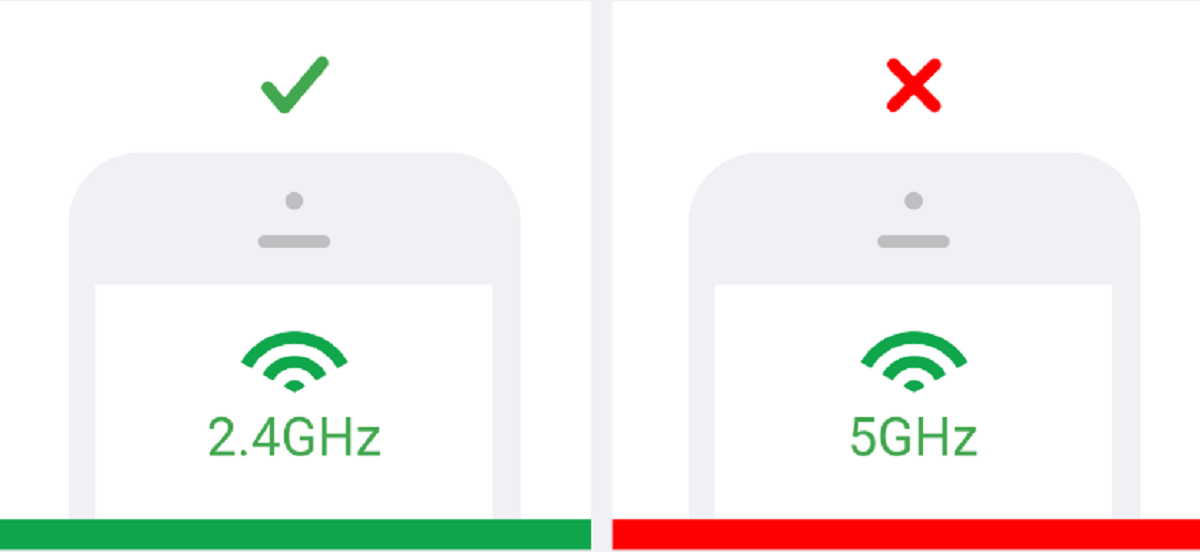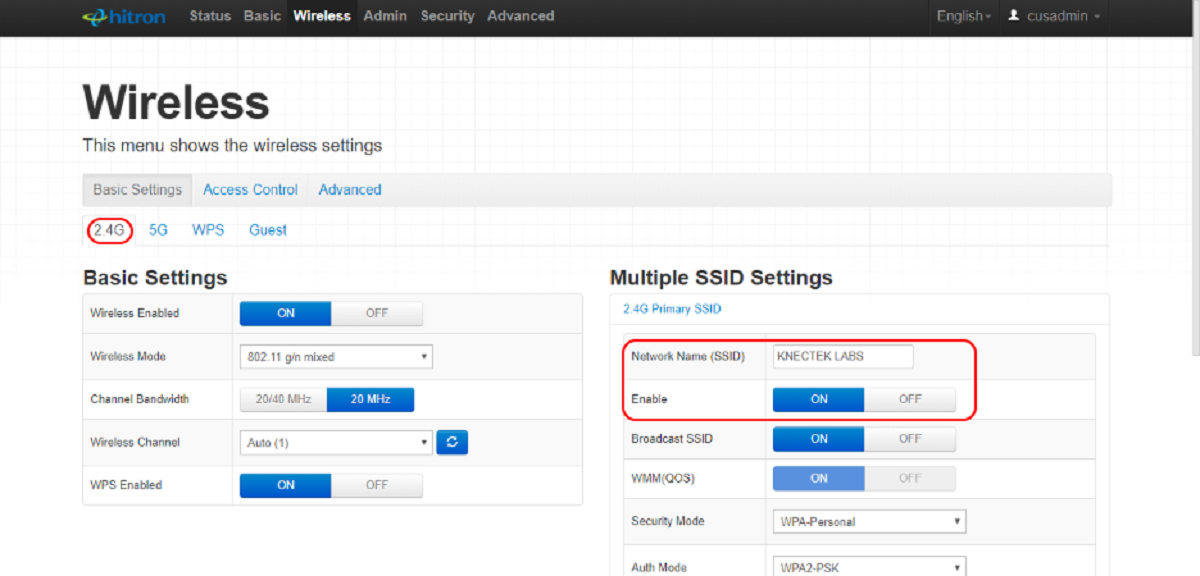
To change your wifi to 2.4GHz, you need to separate the 2.4GHz and 5GHz bands in your router settings so you can manually choose the 2.4GHz network. This is the only reliable way to connect to 2.4 GHz Wi-Fi instead of 5 GHz when your router combines both bands under a single network name.
Why you need to change your wifi to 2.4GHz
The 2.4GHz band provides a longer range and better penetration through walls and solid objects compared to 5GHz, making it suitable for larger homes or devices located further from the router. Many smart home devices, such as security cameras, smart plugs, and thermostats, require a 2.4GHz connection because they lack 5GHz support. The common problem is that modern routers broadcast a single, combined network name (SSID) for both bands, which prevents you from selecting 2.4GHz manually.
The real problem: your router's 'smart' combined network
Modern routers use a feature called Smart Connect or Wi-Fi Band Steering, which merges the 2.4GHz and 5GHz bands under one SSID. This feature automatically decides which band your device should use, but it often steers devices to the faster 5GHz band, even when a device needs 2.4GHz to function properly. This is the root cause of the issue because you cannot manually choose the 2.4GHz band when the router hides the separate networks.
Access your router's settings to make the change
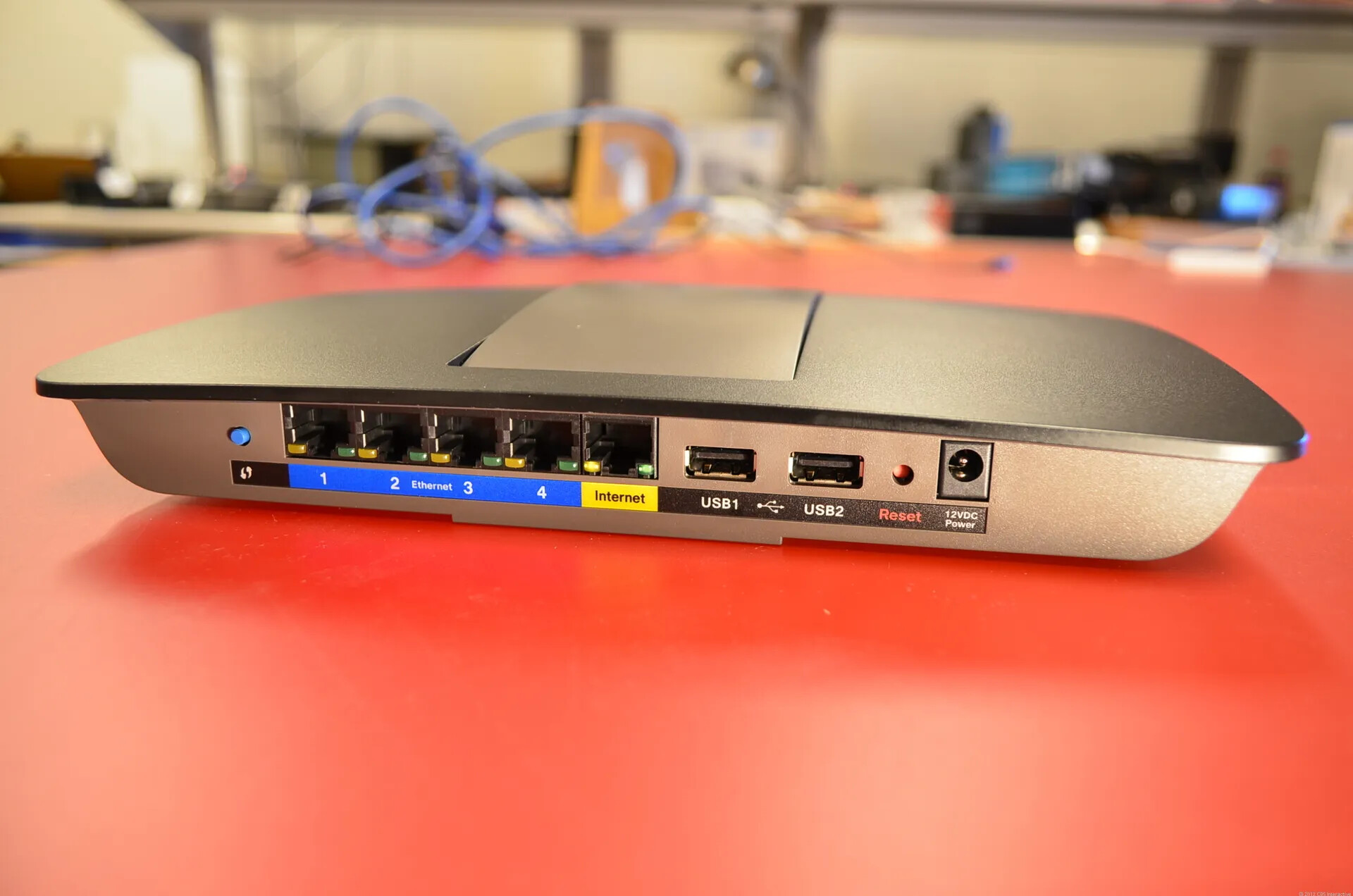
You must log into your router's admin interface through a web browser to adjust the wireless settings. Open a browser, type that IP address into the address bar, and press Enter. You will be prompted to enter a username and password; if you have not changed these, check the router's documentation or manufacturer's website for the default credentials. Once logged in, navigate to the wireless or Wi-Fi settings section.
Disable band steering and create a separate 2.4GHz network
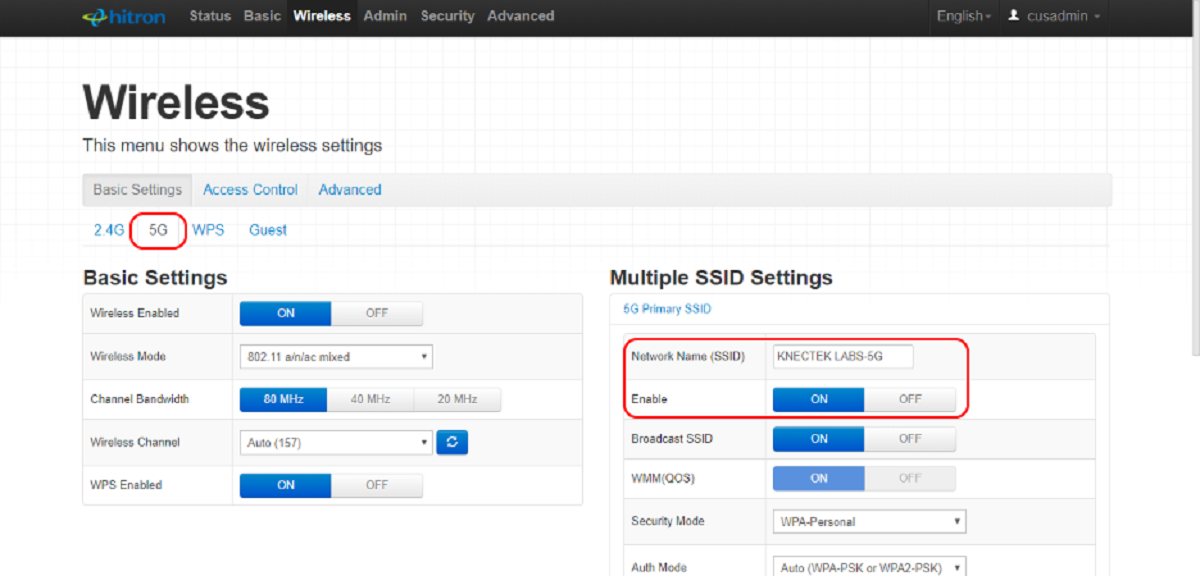
This is the core solution. Disable this feature to stop the router from merging the bands. After disabling band steering, you will see separate settings for the 2.4GHz and 5GHz bands, which is exactly what a dual band wireless router do to let you manage each frequency independently. Navigate to the 2.4GHz wireless settings and set a unique Network Name (SSID), such as "YourWiFiName-2.4G", and a different one for the 5GHz band, like "YourWiFiName-5G". Save the configuration and restart the router to apply the new settings.
Alternative: temporarily turn off the 5GHz band
If your router's interface makes it difficult to separate the SSIDs, you can use a secondary method. Find the 5GHz band settings, often labeled "Enable Wireless Radio" or "5 GHz Network", and toggle it to "Off" or "No." This forces your router to broadcast only the 2.4GHz band, so all devices will connect to it. If you are unsure which band your device is currently using, first know what GHz my wifi is to confirm the switch is necessary. Use this method only for the duration needed to set up a device that requires 2.4GHz. After the device is connected, re-enable the 5GHz band in the same settings and save the changes.
Connect your device to the new 2.4GHz network
Once the 2.4GHz and 5GHz bands have separate SSIDs, go to your device's Wi-Fi settings. Locate the 2.4GHz network name (e.g., "YourWiFiName-2.4G") in the list of available networks and connect using your Wi-Fi password. To verify the connection, check the network details on your device; it should display the frequency as 2.4GHz. If you still see 5GHz, forget the network and reconnect to the correct SSID. The 2.4GHz band is generally slower than 5GHz and more susceptible to interference from household devices like microwaves and Bluetooth, but its superior range makes it essential for devices far from the router or those that require it.