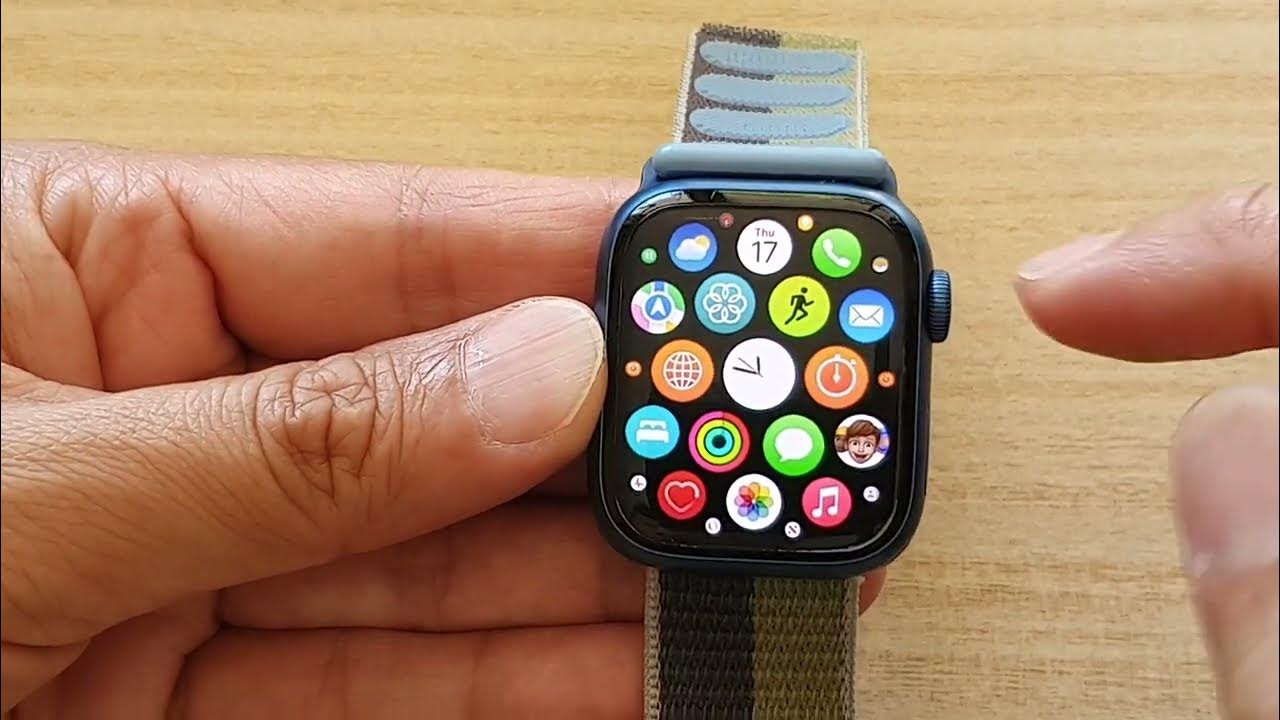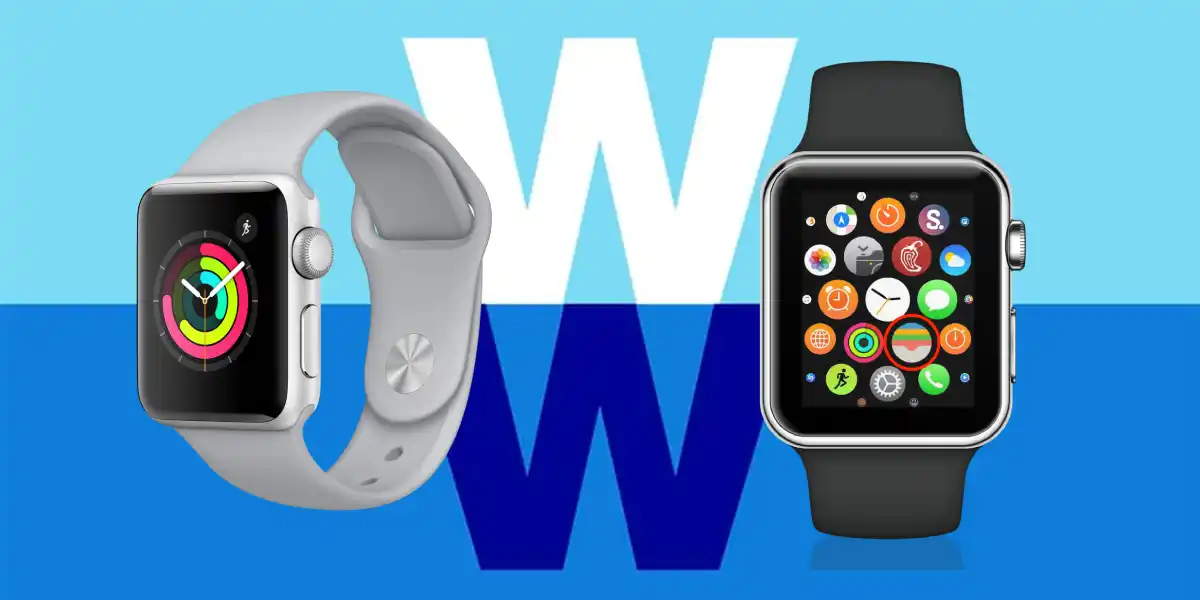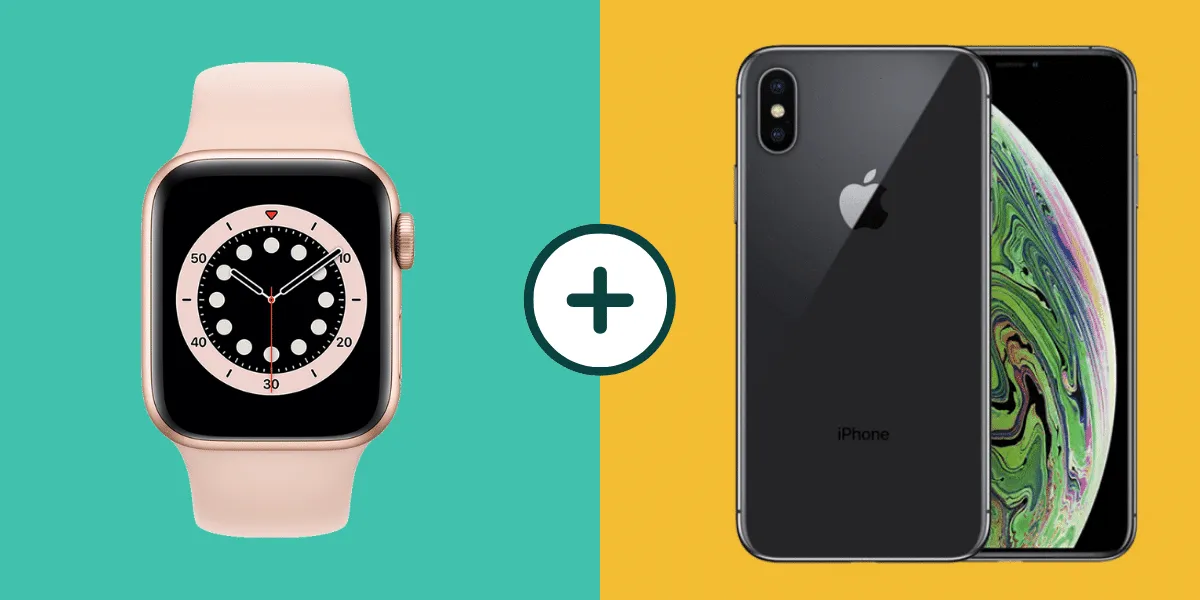
Every Apple Watch from the Series 3 through the latest Series 9, both generations of the Apple Watch SE, and the Apple Watch Ultra 1 and 2 is apple watch compatible with iPhone 13, provided your iPhone 13 runs a recent enough version of iOS. The exact model you choose only determines the minimum iOS version required on your iPhone 13, not whether it will work at all.
Every Apple Watch Compatible With iPhone 13
Here is the complete, scannable list of every Apple Watch that works with an iPhone 13, along with the minimum iOS version your phone must have. This list is your fastest way to confirm compatibility before you buy or pair.
- Apple Watch Series 9, Requires iPhone with iOS 17 or later.
- Apple Watch Ultra 2, Requires iPhone with iOS 17 or later.
- Apple Watch Series 8, Requires iPhone with iOS 16 or later.
- Apple Watch SE (2nd generation), Requires iPhone with iOS 16 or later.
- Apple Watch Ultra, Requires iPhone with iOS 16 or later.
- Apple Watch Series 7, Requires iPhone with iOS 15 or later.
- Apple Watch Series 6, Requires iPhone with iOS 14 or later.
- Apple Watch SE (1st generation), Requires iPhone with iOS 14 or later.
- Apple Watch Series 5, Requires iPhone with iOS 13 or later.
- Apple Watch Series 4, Requires iPhone with iOS 12 or later.
- Apple Watch Series 3, Requires iPhone with iOS 11 or later.
Because the iPhone 13 ships with iOS 15 and can be updated to the latest iOS version, every single model listed above will pair and function correctly. The only real question is whether your iPhone 13 is running the specific iOS version each watch requires.
How to Check Your iPhone 13's iOS Version
Before you buy or pair a watch, you need to verify your iPhone 13's current iOS version. This takes less than 30 seconds and ensures you meet the minimum requirement for the Apple Watch you want.
- Open the Settings app on your iPhone 13.
- Tap General.
- Tap About.
- Look next to Software Version, that is your current iOS version.
If your iOS version is lower than what your chosen watch requires, go to Settings > General > Software Update and install the latest iOS update. After updating, your iPhone 13 will be ready to pair with any compatible Apple Watch.
How to Pair Your Apple Watch With iPhone 13
Pairing is a straightforward process, but following the exact steps avoids common mistakes. Here is the complete pairing procedure for your iPhone 13.
Step 1: Prepare Both Devices
To begin pairing, ensure both your Apple Watch and iPhone 13 are powered on and kept close to each other. Keep them within a few inches of each other throughout the entire setup. Also, make sure Bluetooth is enabled on your iPhone 13 and that your watch has at least 50% battery.
Step 2: Open the Watch App and Start Pairing
On your iPhone 13, open the Watch app. This app is pre-installed on all iPhones. Tap "Pair New Watch" or "Add Watch" if you already have an Apple Watch paired to your iPhone. You will see the camera viewfinder appear on your iPhone screen.
Step 3: Use Automatic Camera Pairing
Position your iPhone 13's camera so that the watch face appears in the center of the viewfinder. Hold it steady for a few seconds until the pairing animation completes. Follow the on-screen instructions on both devices to complete the setup process. This includes agreeing to terms, choosing settings, and signing in with your Apple ID if prompted.
Step 4: If Automatic Pairing Fails, Pair Manually
If the automatic camera pairing fails, tap "Pair Apple Watch Manually" at the bottom of the iPhone screen and follow the prompts. You will see a six-digit code on your watch, enter this code on your iPhone to establish a manual connection.
Step 5: If the Watch Is Already Paired to Another Phone
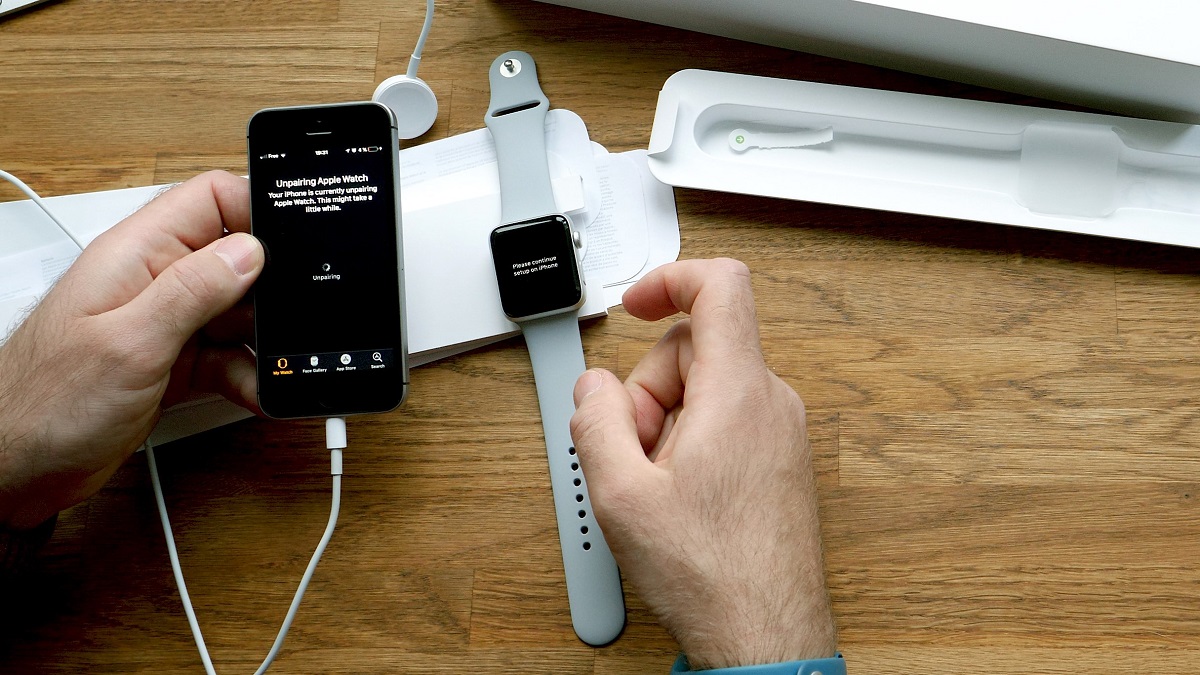
If your Apple Watch displays a watch face when attempting to pair, it is already paired with an iPhone and must be erased and reset before it can be paired with a new device. On your watch, go to Settings > General > Reset > Erase All Content and Settings. After the watch restarts, it will enter pairing mode and you can start from Step 2 above.
What to Do if Your Apple Watch Won't Pair
If you've followed the steps above and the pairing still fails, work through these troubleshooting tips in order. They resolve the vast majority of pairing issues.
- Charge both devices. Ensure both your iPhone 13 and Apple Watch have at least 50% battery. Low battery is a common cause of pairing failure.
- Keep them close. Place both devices within a few inches of each other and keep them there during the entire process. Do not move them apart.
- Restart both devices. Turn off your iPhone 13 and your Apple Watch, then turn them back on. Try pairing again.
- Reset the watch if it was previously paired. If your watch still shows a watch face and won't enter pairing mode, it is still connected to another iPhone. Go to Settings > General > Reset > Erase All Content and Settings on the watch itself, then wait for it to restart and try pairing again.
- Update iOS. Confirm your iPhone 13 is running at least the minimum iOS version required for your specific watch model (see the list above). Go to Settings > General > Software Update to check and install any available updates.
- Toggle Bluetooth. On your iPhone 13, open Control Center and turn Bluetooth off, wait 10 seconds, then turn it back on. Try pairing again.
If you've tried all of these steps and the watch still won't pair, your Apple Watch may have a hardware issue. Contact Apple Support or visit an Apple Store for further assistance.
\nRelated reading: How To Set Up An Apple Watch Without An iPhone, How To Get Voice Memos From Apple Watch To iPhone, and How To Factory Reset A Apple Watch.