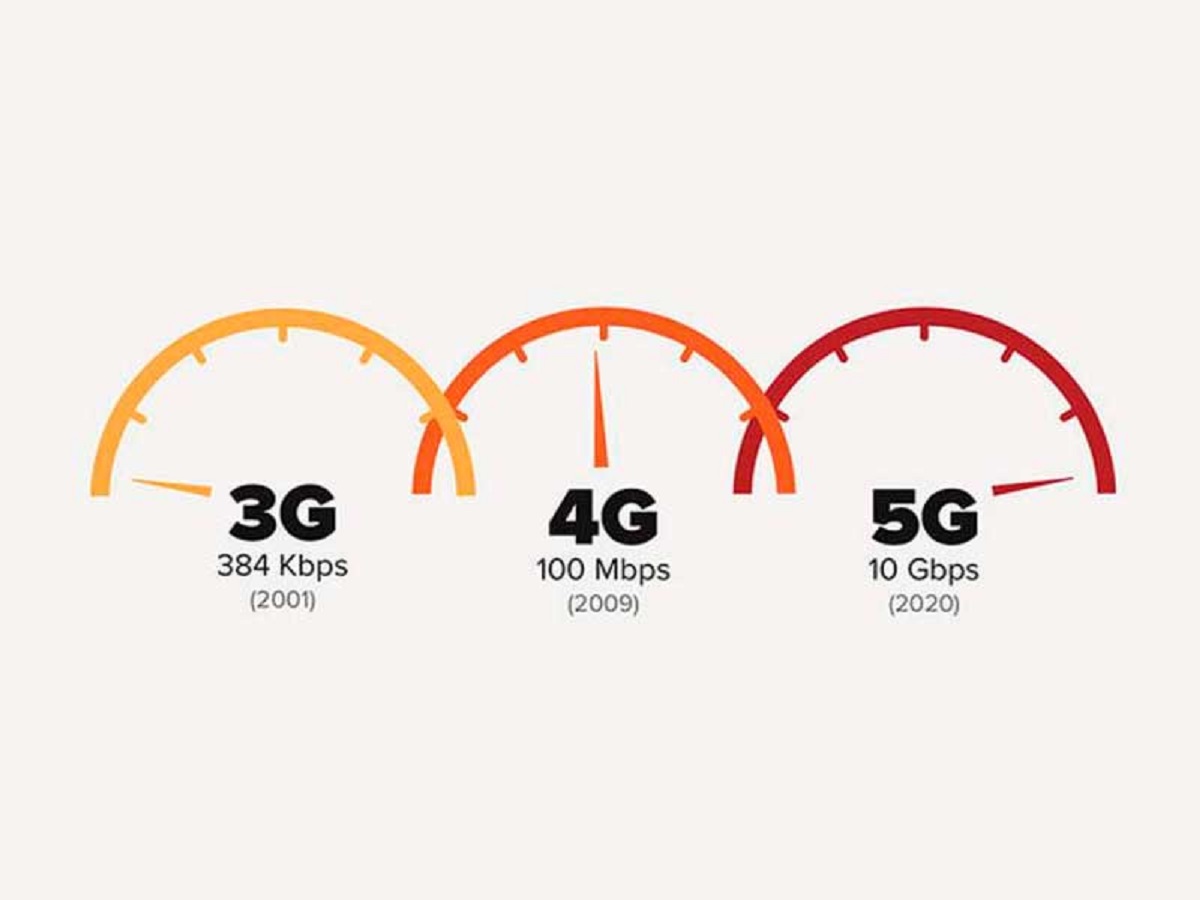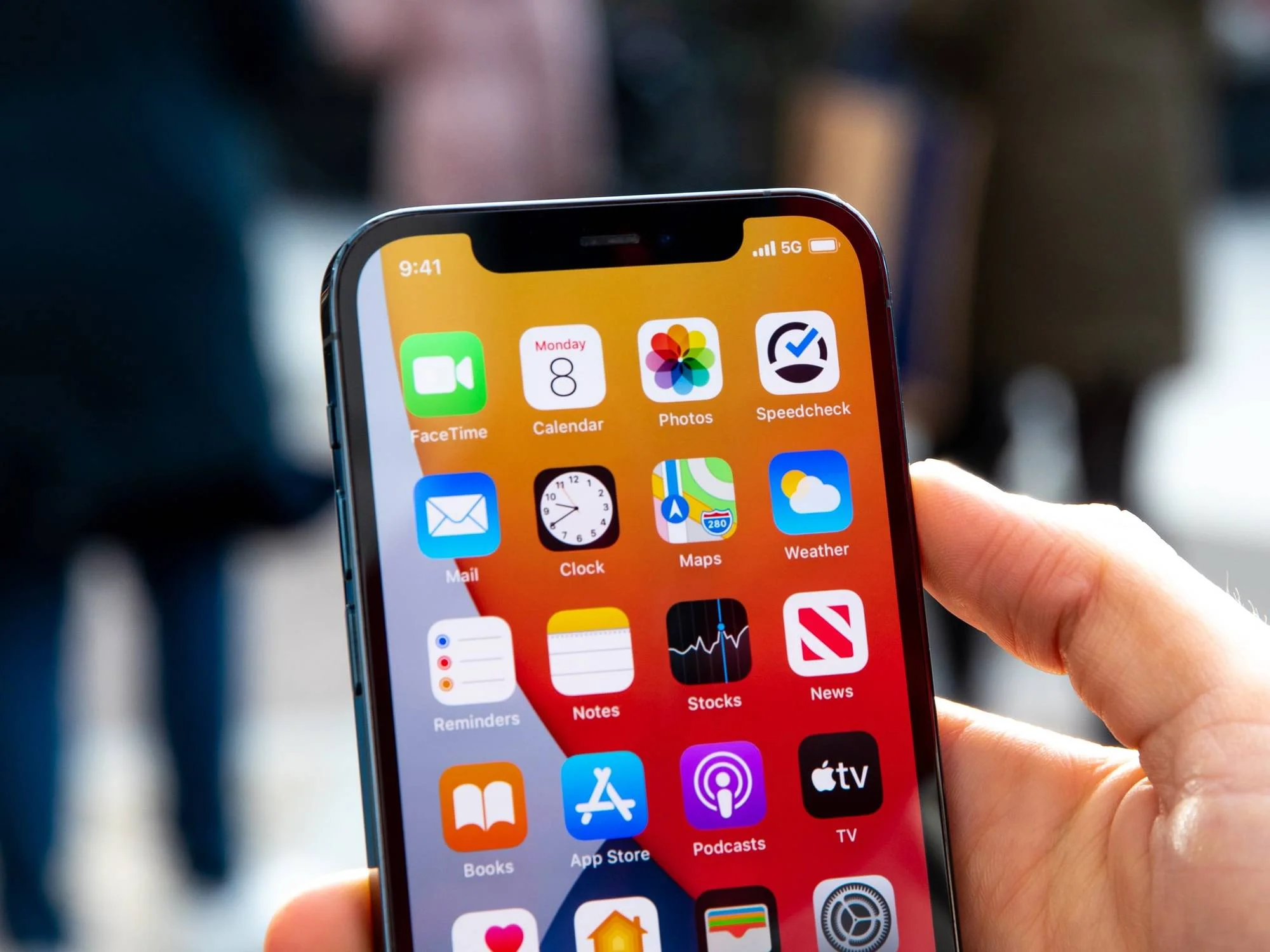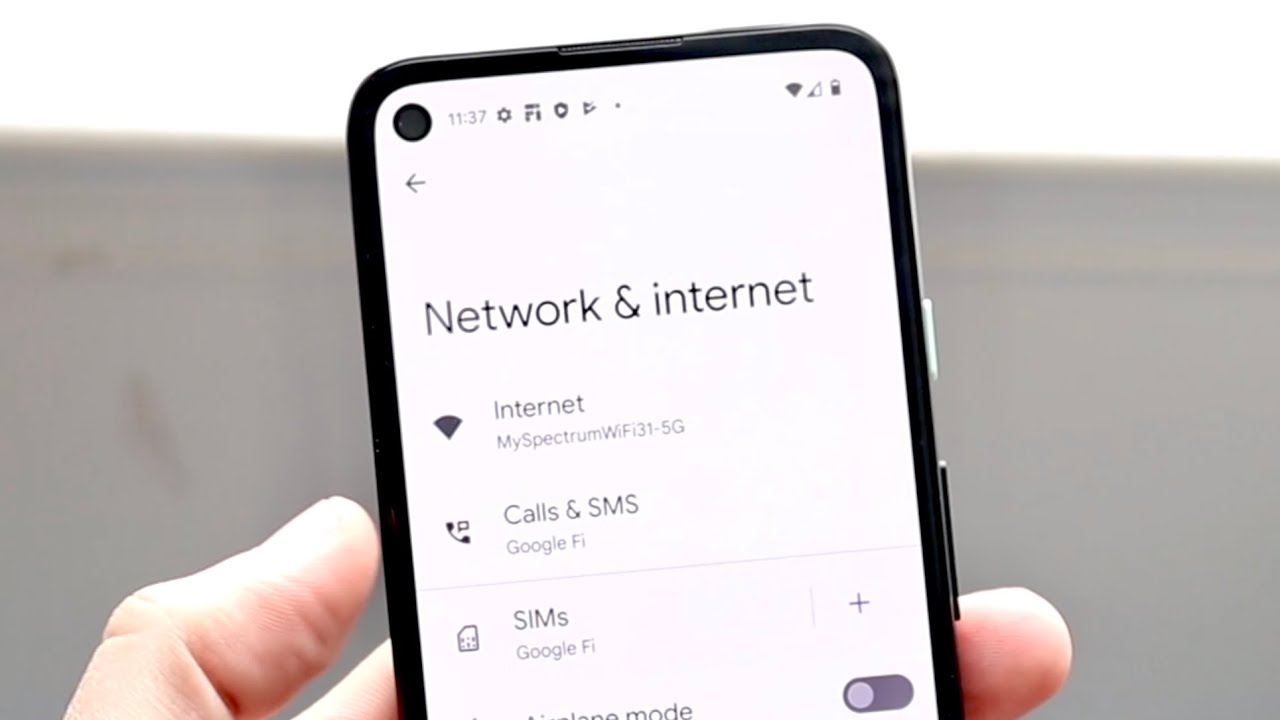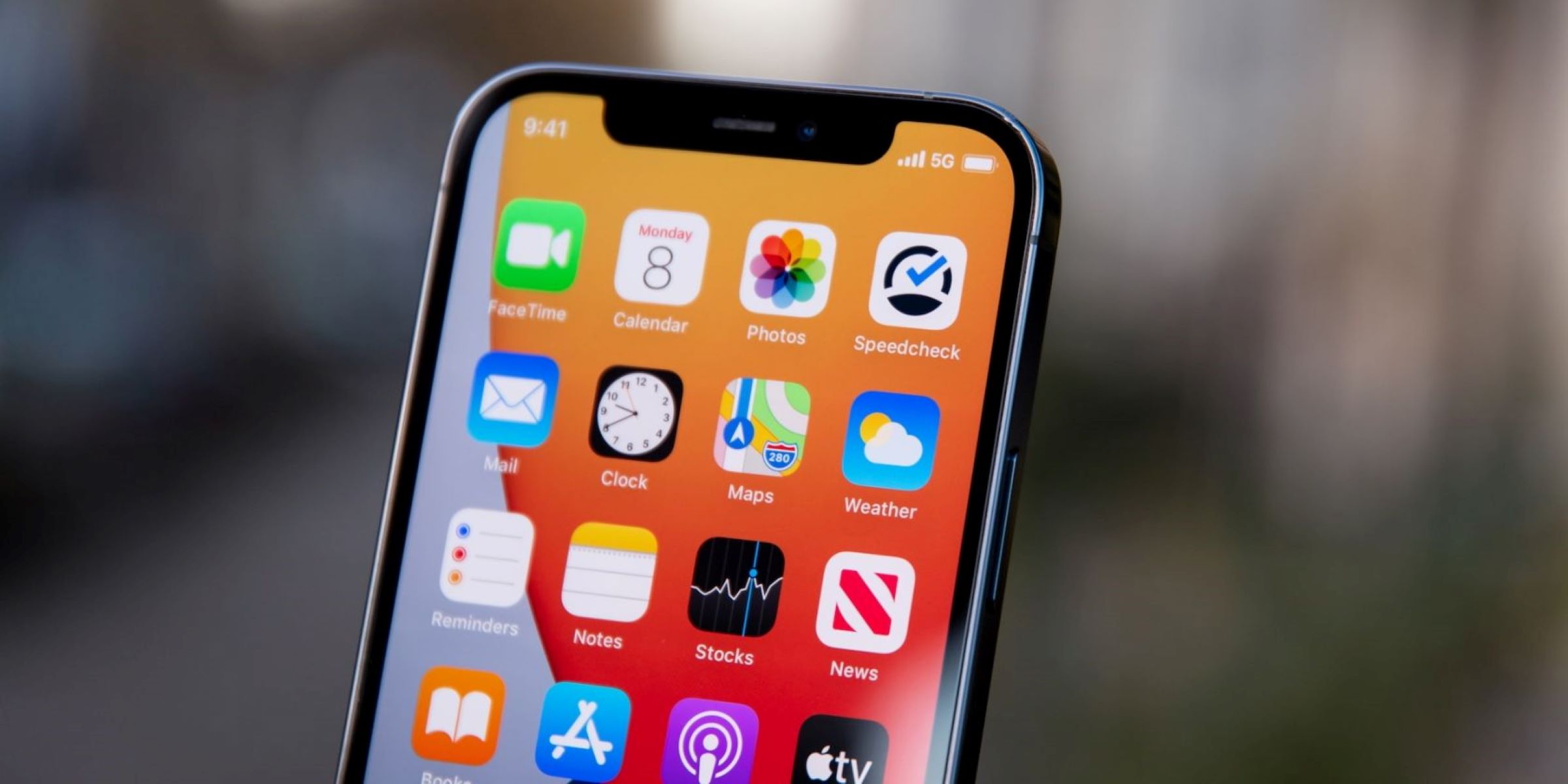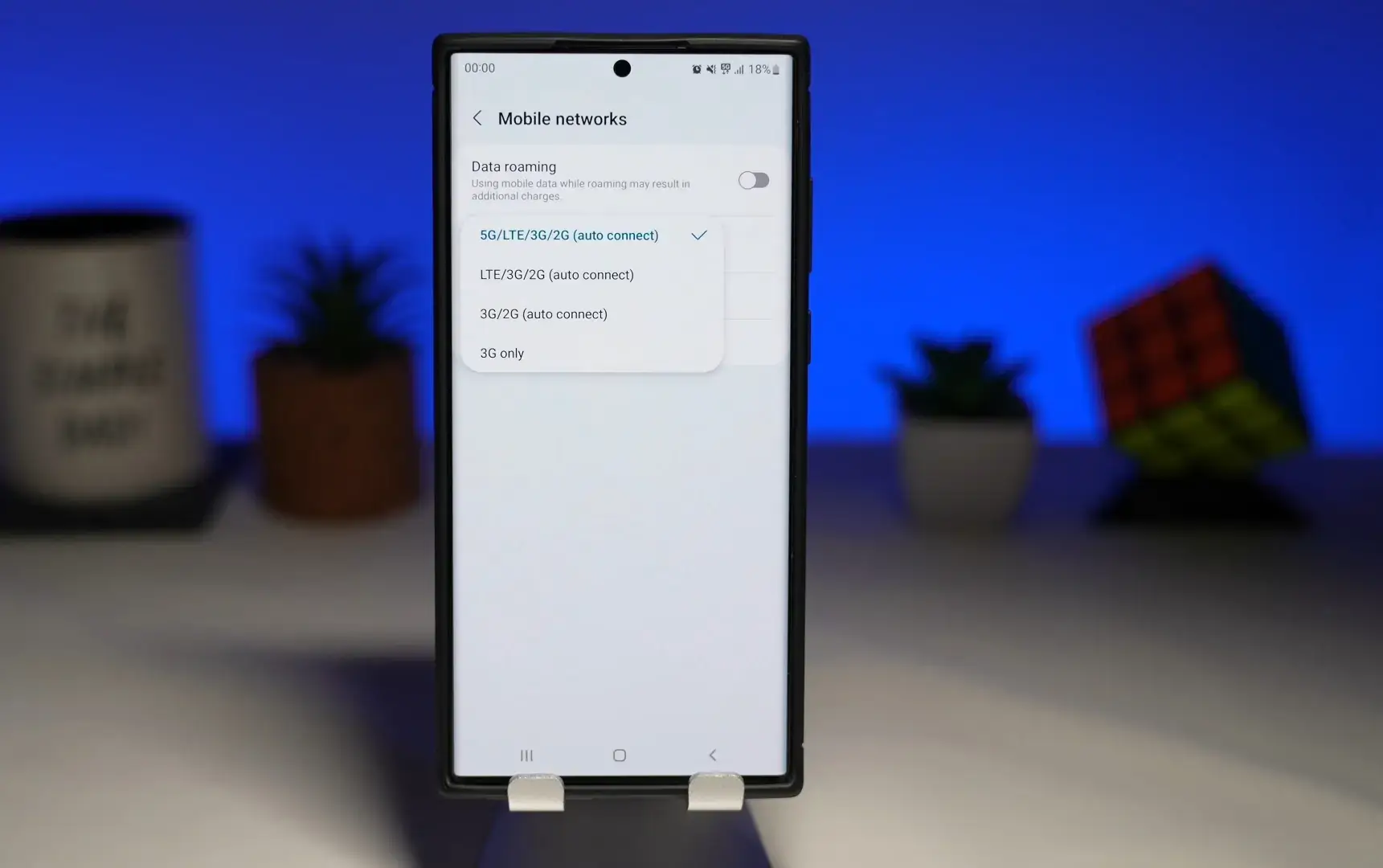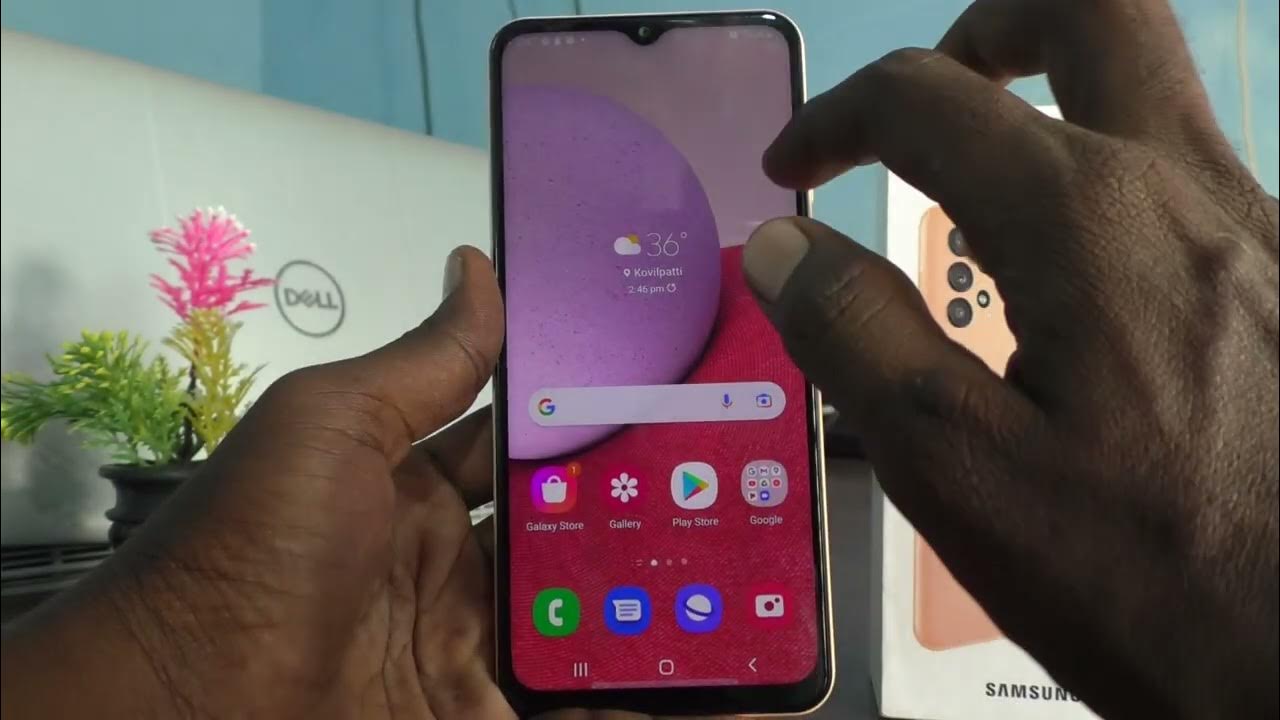
The fastest way to tell if your phone is 4G or 5G is to look at the status bar at the top of your screen when you are connected to mobile data. If you see a "5G," "5G+," "5G UW," or "5G UC" icon, your phone is connected to a 5G network; if you see "LTE" or "4G," it is connected to a 4G network, though there are several reasons your my phone say 4g instead of 5g even in an area with 5G coverage. If your device supports it, you can change 4g to 5g on Android phone by adjusting the preferred network type in your settings.
The fastest way: check your status bar for a 4G or 5G icon
This is the most direct method for determining your current connection. When your phone's mobile data is turned on, glance at the top of the screen. The network icon appears next to your signal bars. A "5G" icon (or a variation like "5G+" or "5G UW") means your phone is currently using a 5G network. If you see "LTE" or "4G," your phone is using a 4G network. Different 5G icons, such as "5G+" (often used by AT&T), "5G UW" (Verizon), or "5G UC" (T-Mobile), typically signify faster or specific types of 5G service offered by particular carriers. This method is instant and requires no digging through menus.
How to check your phone's settings for 4G or 5G
If you want to know whether your phone is capable of using 5G, even if it isn't connected to one right now, checking the settings is the most reliable way. This shows you the network types your phone's hardware supports.
On an Android phone
- Open the "Settings" app.
- Navigate to the section labeled "SIM card & mobile data," "Connections," or "Network & Internet." The exact name varies by manufacturer.
- Look for an option called "Mobile Network" or "Preferred network type."
- Tap on it to see the list of available network modes.
On an iPhone
- Open the "Settings" app.
- Tap "Cellular" (or "Mobile Data").
- Tap "Cellular Data Options" (or "Mobile Data Options").
- Tap "Voice & Data." If you see "5G Auto" or "5G On" as an available selection, your iPhone is 5G capable.
A quick note for iPhone users
If you own an iPhone, there is a very simple rule: all iPhones released since 2020, starting with the iPhone 12 series (including the iPhone SE 3rd generation and all subsequent models), are 5G-compatible. This means if you have an iPhone 12 or any newer model, your phone has the hardware for 5G. One feature you will see in the settings is "5G Auto." This is a battery-saving feature that automatically switches between 5G and LTE when 5G speeds do not provide a noticeably better experience, helping to preserve your battery life.
Other ways to confirm your phone's network generation
If you cannot access your phone's settings or want a second confirmation, there are other reliable methods. You can check the manufacturer's official specifications online. Look up your phone's exact model number on the manufacturer's website or the product page for that specific model; the technical specs will list whether it supports 4G LTE or 5G. Another option is to contact your mobile carrier. A customer service representative can verify your device and your current plan to tell you if your phone is compatible with their 5G network.
Why your 5G phone might not connect to 5G
Having a 5G-compatible phone is only one part of the equation. Even if your phone has the hardware, you need two other things to actually use 5G. First, you must have a 5G cellular plan from your carrier; some older plans may not include 5G access. Second, you must be in an area with active 5G network coverage. If you are outside a 5G coverage zone, your phone will automatically fall back to 4G. Additionally, if you find that 5G is draining your battery or you are in a weak 5G area, you may want to know how to change from 5g to 4g in your phone's network settings to manually select a more stable 4G connection.