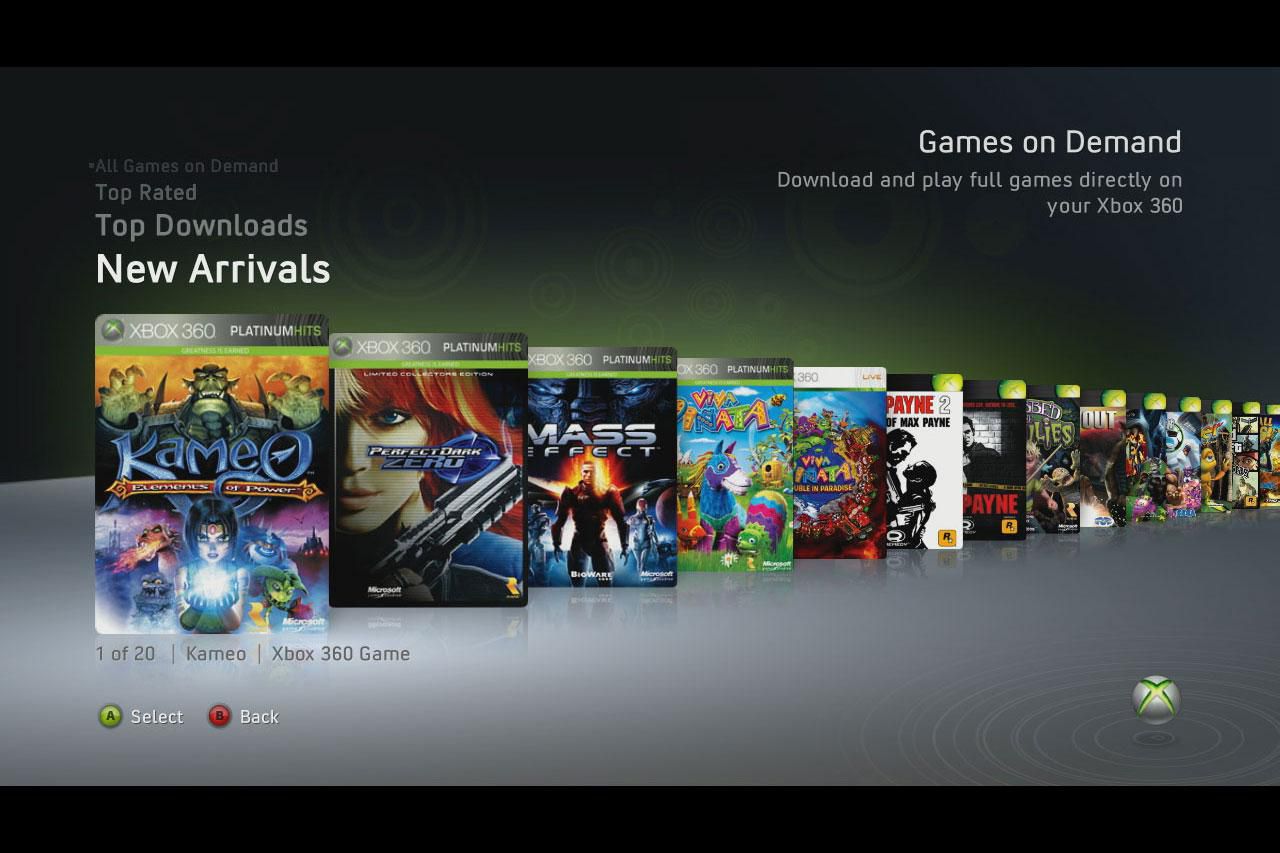
You can still download full games on Xbox 360, but only if you previously purchased them or have a valid redemption code, because the Xbox 360 Marketplace closed on July 29, 2024, and new direct purchases are no longer possible. The store shutdown means you cannot browse or buy new titles from your console, but Microsoft continues to support re-downloading and installing any full game already attached to your Xbox Live profile, so your existing digital library remains accessible.
Can you still download full games on Xbox 360?
The Xbox 360 Marketplace officially closed on July 29, 2024, ending all direct purchases of new games, DLC, and other content from the console. However, this does not mean you lose access to games you already own. The key change is that new purchases are no longer possible, and your personal download history becomes the primary way to reinstall previously owned games. If you never bought a specific game digitally and have no code, you cannot obtain it through official means on the console itself, your path forward is limited to what you own or can redeem.
What you need to re-download your games
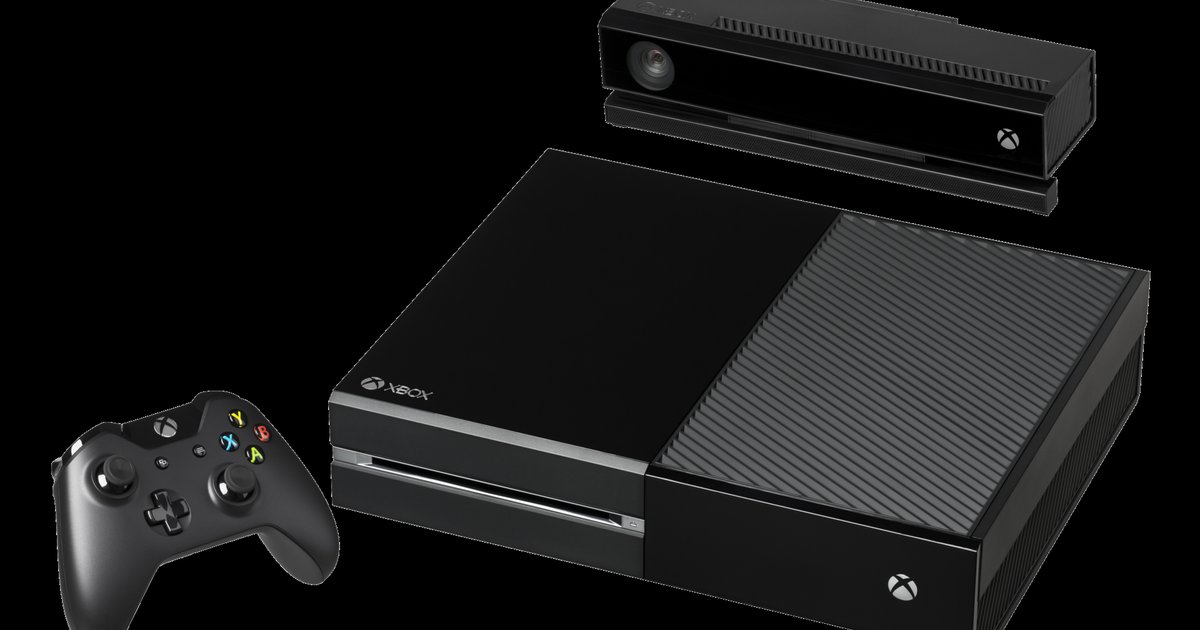
To successfully re-download full games on Xbox 360, you need four essential things. First, an operational Xbox 360 console, any model works, including the original, Slim, or E edition, as long as it powers on and connects to the internet. Third, sufficient hard drive space on your console; the Xbox 360 requires internal storage or a compatible external USB drive formatted for Xbox content, and you need free space equal to the game's full install size. Fourth, and most critically, an active Xbox Live profile with a prior purchase history, the account that originally bought the game must be signed in on the console, and that profile must have the game attached to its download history. If you lack a purchase record, you can still download free games to Xbox 360 through official demos and free-to-play titles. Without that purchase record, the game will not appear as available for download, even if it is installed on another console.
How to set up your Xbox 360 for re-downloading
Before you attempt to re-download anything, you must confirm that your console is properly configured for online access and current firmware. Start by connecting your Xbox 360 to the internet: plug an Ethernet cable directly into the back of the console and your router, or go to Settings, then System, then Network Settings, and select your Wi-Fi network to enter the password. Finally, configure your display and region settings correctly: go to Settings, System, Console Settings, and set your language, locale, and region to match the account that owns the games, because some titles are region-locked and will fail to download if your settings do not align with the purchase region.
Finding your games in the download history
Since the Marketplace is gone, your download history is now the only official way to locate and reinstall your full games. This screen displays every piece of content ever purchased or redeemed on that account, including full games, DLC, arcade titles, and even free promotional items. The list is sorted by date, with the most recent purchases at the top, but you can scroll through it manually to find older games. Each entry shows the game's cover art, title, and file size, so you can easily identify what you want to reinstall. Note that this history is tied to your profile, not your console, so you can access it on any Xbox 360 as long as you sign in with the same account.
Step-by-step: Downloading and installing games from your history
Once you have located a game in your download history, the re-download process is straightforward but requires patience for larger titles. Select the game you want to install from the download history list, and a confirmation prompt will appear asking if you want to download the item again. Choose "Yes" or "Download" to confirm, and the console will immediately queue the game for download. You can continue using your Xbox 360 for other tasks while the download runs in the background, but be aware that playing games or streaming media will slow the download significantly. For the best results, leave the console idle on the dashboard and let the download proceed uninterrupted. To avoid waiting, you can set Xbox to download while off so large files finish overnight. Do not power off the console or unplug it during installation, as this can corrupt the files and force you to restart the download from scratch. When installation completes, a notification appears, and the game is immediately added to your "My Games" library, ready to launch.
Managing your installed games and freeing up space
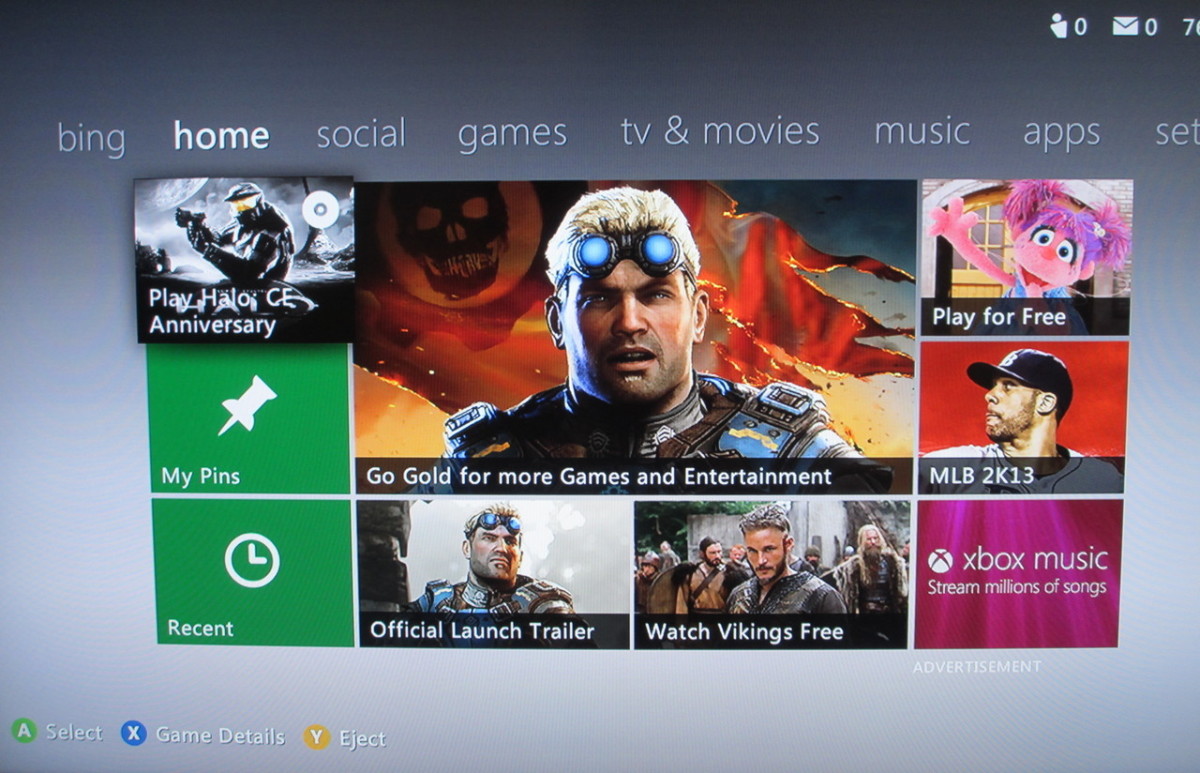
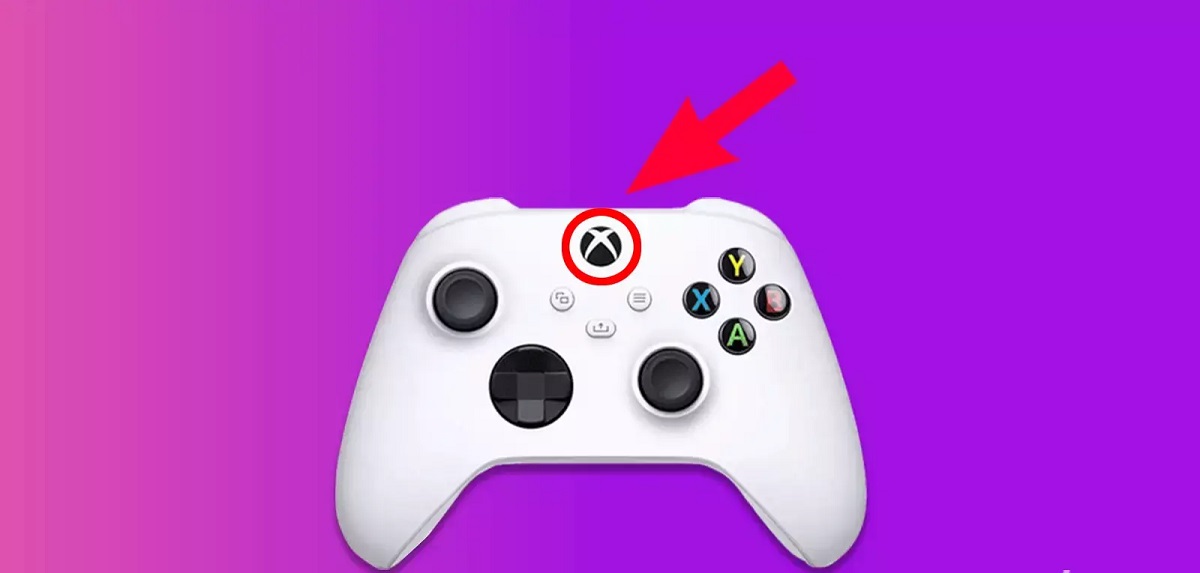
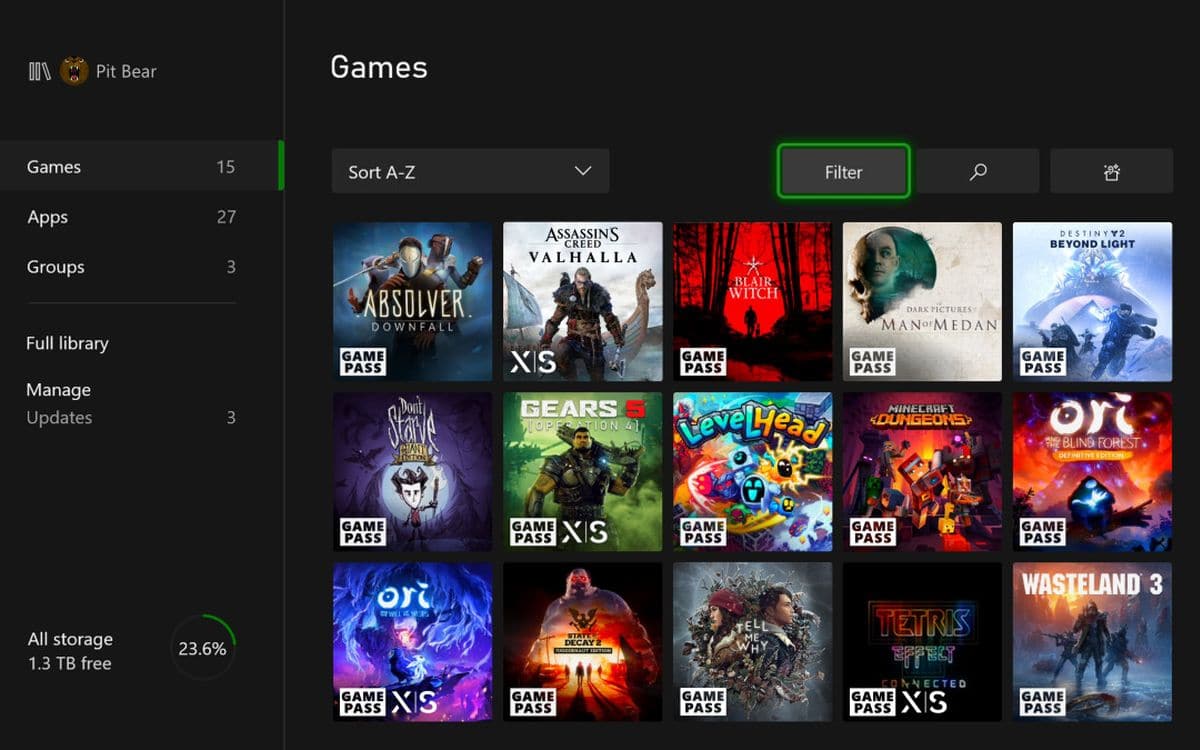
After you have re-downloaded your games, you need to manage your library effectively because the Xbox 360's storage capacity is limited, especially on older models with 20 GB or 60 GB hard drives. To access your installed games, navigate to the "My Games" section from the dashboard's home screen, where every downloaded title appears as a tile. You can sort this library alphabetically, by genre, or by most recently played using the filter options at the top of the screen. For game updates, highlight a title, press the Menu button, choose "Manage Game," and then select "Updates" to see any pending patches; download and install them to ensure the game runs correctly, as many titles require mandatory updates before they will launch. To free up space for other re-downloads, highlight a game you no longer play, press the Menu button, select "Manage Game," and choose "Uninstall", this removes the game files from your hard drive but does not remove it from your download history, so you can reinstall it anytime. Prioritize uninstalling the largest games first, as they free up the most space, and always check your remaining storage by going to Settings, System, and selecting "Storage" to see how much free space you have before starting a new download.
Troubleshooting common download and playback issues
If you encounter problems during re-downloading or playing games, several practical fixes address the most common issues. alternatively, schedule downloads during off-peak hours, typically late at night or early morning, when network traffic is lower, and consider switching from Wi-Fi to a wired Ethernet connection for a more stable signal. If a game fails to install, first check that you have enough free storage space by going to Settings, System, and Storage, if space is low, uninstall other games or delete old save data, then restart your console and attempt the installation again. For broken payment or subscription prompts, such as messages asking you to renew Xbox Live Gold or enter a payment method when you try to launch a game, ignore these prompts because the store is closed and no purchases are possible; these messages appear due to expired subscription status but do not block access to games you own. If a game fails to launch after installation, restart the console, sign out and back into your profile, and check that the game has no pending updates by going to Manage Game and selecting Updates. For persistent errors, consult official Xbox support resources, but know that most issues stem from network instability or storage limitations that you can resolve locally.
For the wider topic, see remote download Xbox games.