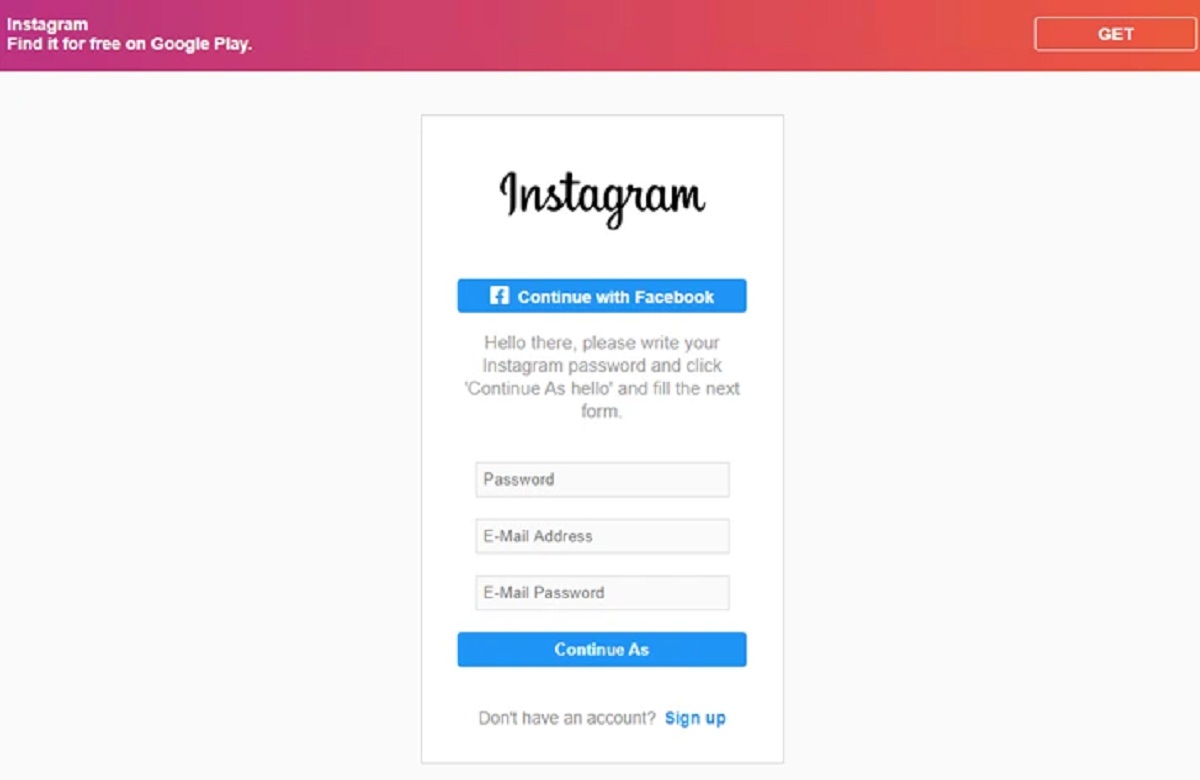
The safest way to learn how to secure an Instagram account is to first understand how attackers break into accounts, and then take concrete steps to lock the door against them.
How Hackers Typically Take Over Instagram Accounts (And How to Spot It)
Account takeovers generally follow a small number of repeatable patterns. The attacker’s goal is to obtain your password and, if you have two-factor authentication (2FA), to bypass or disable that second layer. Here are the most common methods, described only in enough detail to help you recognise them:
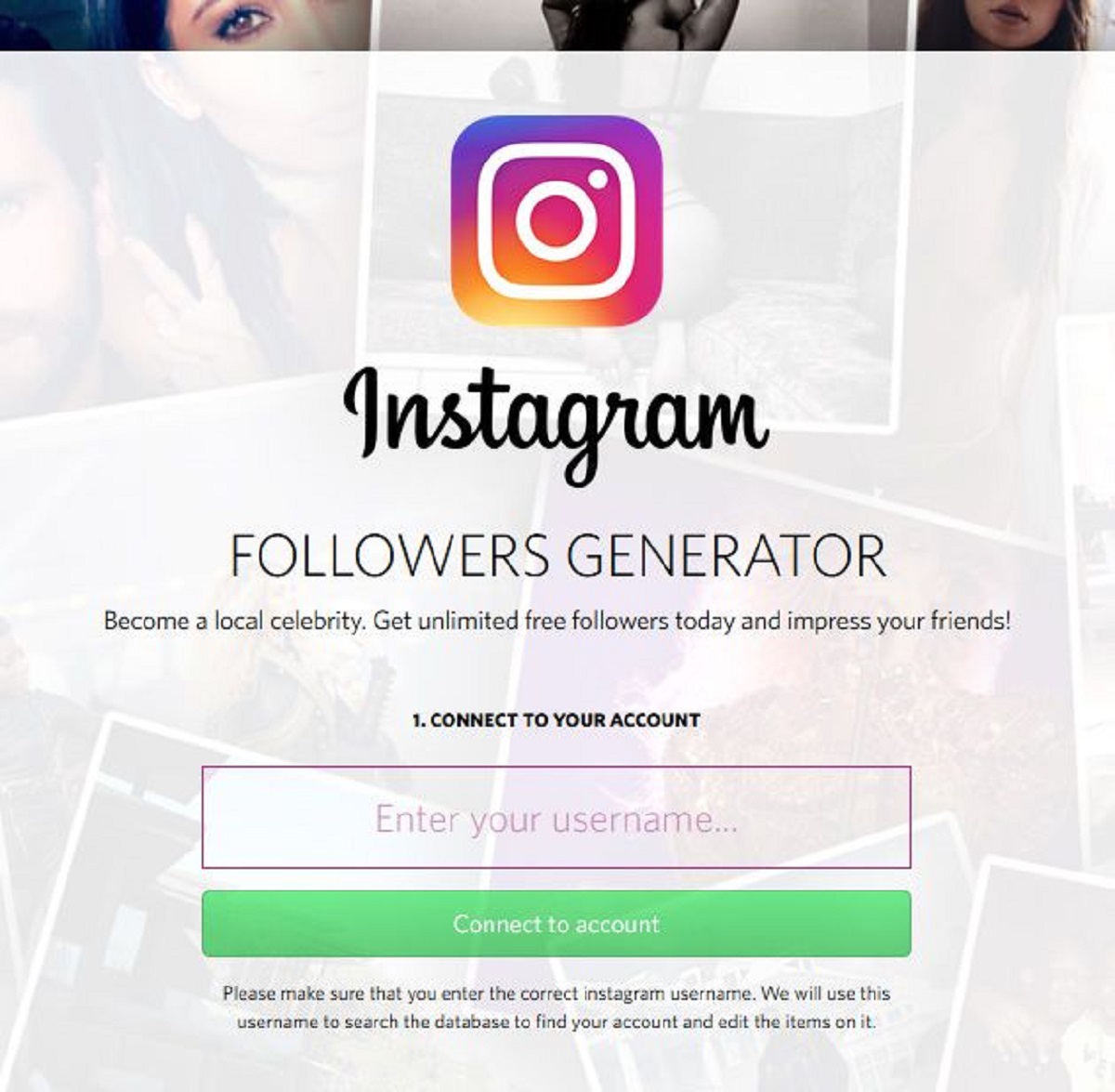
Phishing, fake login pages. You receive an email, text, or DM that looks like it’s from Instagram. It says your account has been reported or needs urgent verification. A link leads to a page that looks exactly like the Instagram login screen. When you enter your username and password, the attacker captures them. Warning sign: Any unsolicited message asking you to “verify” or “secure” your account is almost certainly fraudulent. Instagram will never send you a Direct Message about security issues; official communications appear only in the “Emails from Instagram” tab inside your Settings.
Credential stuffing. Attackers use usernames and passwords leaked from other websites (data breaches). If you reuse the same password on Instagram that you used for another service, an automated script can test that combination until it works. Warning sign: You receive unexpected “new login” email alerts from Instagram, or you notice login activity from devices or locations you don’t recognise.
SIM swapping (SIM jacking). An attacker contacts your mobile carrier, claims to be you, and gets them to transfer your phone number to a new SIM they control. Once they have your number, they can request a password reset via SMS and receive the code. Warning sign: Your phone suddenly loses cellular service (no calls, no texts, no data) while the phone itself appears normal. If this happens, contact your carrier immediately, do not assume it is a network glitch.
Recovery email compromise. If an attacker gains access to the email address linked to your Instagram, they can request a password reset and take over the account. Warning sign: You receive a password reset email you did not request. Never click the “reset” link in an unsolicited email; instead, go directly to Instagram’s own website or app to check your account status.
Warning Signs Your Instagram Account Has Been Targeted
Most attacks leave footprints before a full takeover occurs. If you see any of these signs, act immediately:
- Unexplained password reset emails. Even one unsolicited reset request means someone is trying to break in.
- Login alerts from unknown devices. Instagram will notify you (by email or in-app notification) when a new device logs in. The notification will show the device type and location. If you don’t recognise it, someone else has your password.
- Your profile or bio changes. Username, display name, profile photo, or bio text altered without your knowledge is a clear sign of unauthorised access.
- Messages sent from your account you did not write. Attackers often use a compromised account to send spam, phishing links, or blackmail attempts to your followers.
- Followers you don’t recognise, or that you suddenly lose. An attacker may follow new accounts to spread spam, or unfollow everyone to disrupt your network.
- You cannot log in with your password, even though you haven’t changed it. This is the most obvious sign of a full takeover.
How to Secure an Instagram Account: Immediate Protective Actions
Use these steps in order. Do not skip any, they each cover a different vulnerability.
1. Turn on Two-Factor Authentication (2FA), Preferably With an Authenticator App
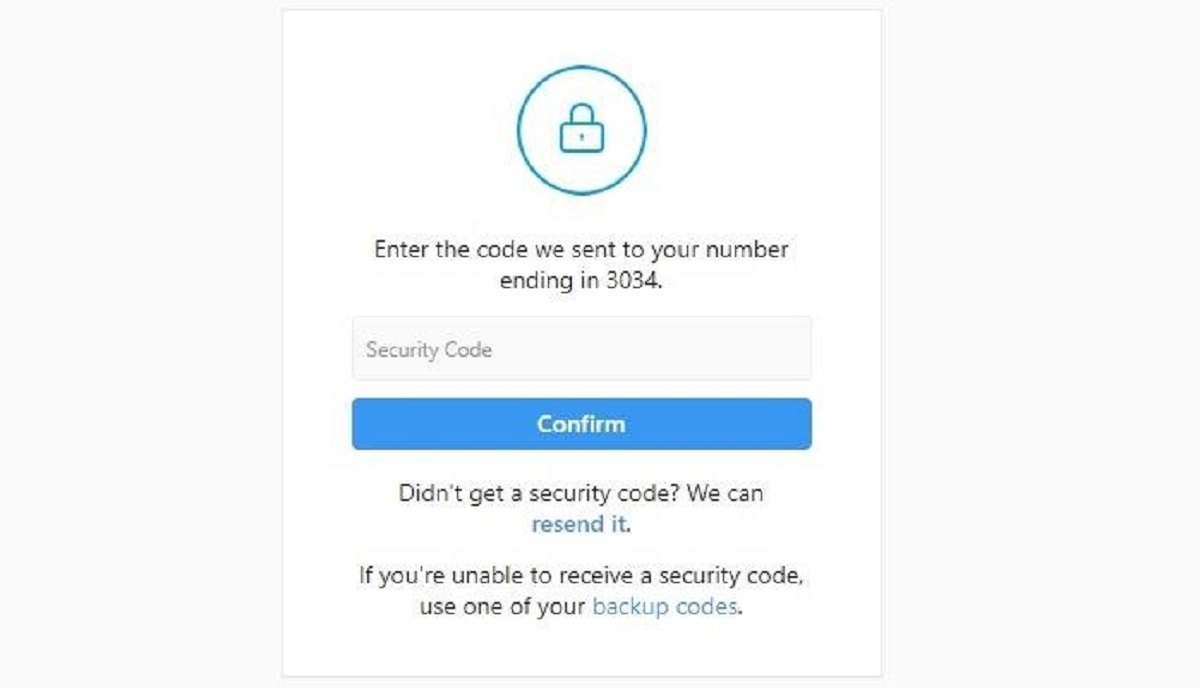
Open your Instagram app or go to the website. Navigate to Settings > Security > Two-Factor Authentication (or Accounts Center > Password and security > Two-factor authentication). Choose Authentication App (such as Google Authenticator or Duo Mobile) rather than SMS. Apps generate codes offline and cannot be intercepted by a SIM swap. If you must use SMS, it is still far safer than no 2FA, but upgrade to an authenticator app as soon as possible.
2. Create a Strong, Unique Password
Your Instagram password should be at least six characters long and include a mix of uppercase letters, lowercase letters, numbers, and special characters (e.g., !@#$%). Do not use any personal information such as your name, birthday, pet’s name, or common words. Do not reuse this password on any other website. Change it regularly, every few months is a good habit. Use a password manager to generate and store complex passwords if remembering them is a challenge.
3. Secure the Email Account Linked to Your Instagram
Your recovery email is the master key to your Instagram. If an attacker gets into that email, they can reset your Instagram password and disable your 2FA. Give your email account a strong, unique password (following the same rules above) and enable 2FA on the email provider itself. Most major email services (Gmail, Outlook, Yahoo) offer free 2FA via authenticator app.
4. Review Your Login Activity and Log Out Unknown Sessions
Go to Settings > Security > Login Activity (or Accounts Center > Password and security > Where you're logged in). You will see a list of every device, browser, and app that has access to your account. Look for devices you don’t own, locations you’ve never visited, or browsers you never use. Tap or click “Log out” on any suspicious session. If you see a login from a city or country you don’t recognise, change your password immediately after logging it out.
5. Revoke Access to Untrusted Third-Party Apps
Many account takeovers happen through malicious third-party apps (e.g., “follower boosters,” “who viewed your profile,” or “free filters”). In Settings > Security > Apps and Websites (or Accounts Center > Your information and permissions > Apps and websites), remove any app you do not recognise or no longer use. If an app asks for your Instagram password directly, do not enter it. Instagram’s API does not require your password; legitimate apps use Instagram’s official login screen.
How to Recover a Hacked Instagram Account
If you suspect or confirm that your account has been taken over, act fast. Here is the only safe recovery process:
- Use the official “Forgot password” link. On the Instagram login screen, tap “Forgot password?” (or “Get help logging in”). Enter your username, email, or phone number. Instagram will send a recovery link to your email or phone. If the attacker changed the contact information, select “Try another way” and choose “Log in with Facebook” if you connected your accounts, this can bypass a changed email.
- Request a security code or login link from Instagram. Follow the prompts. If you have 2FA enabled, you will need your authenticator app code. If you no longer have the app, Instagram may offer to send a recovery code to your email or phone (if the attacker hasn’t changed them).
- Use Instagram’s “My account was hacked” form. Visit Instagram’s Help Center directly (do not search for the link, go to help.instagram.com). Look for “My account was hacked” and fill in the form with your email address and a brief description. Instagram will verify your identity and, if successful, send you a link to reset your password and regain control.
- Check and re-lock everything after recovery. Once you get back in, immediately change the password to a new, strong, unique one. Turn on 2FA with an authenticator app if it was turned off. Review Login Activity and log out all sessions. Check your linked email account and change its password and 2FA settings as well.
Important: Do not pay a ransom or pay someone who claims they can “hack back” your account. These are almost always scams that will take your money and vanish.
Legal and Ethical Reality
Gaining unauthorised access to someone else’s Instagram account, regardless of your motive, is illegal in virtually every jurisdiction. In the United States, it violates the Computer Fraud and Abuse Act (CFAA) and can carry felony charges, including prison time. In the European Union, it violates the General Data Protection Regulation (GDPR) and national cybercrime laws. Even “just looking” without permission is a crime. To attempt, assist, or encourage such an act puts you at serious legal risk. Protect your own account, and respect others’.