To get your mouse back on Chromebook, start by pressing Esc a few times, this often unsticks a frozen cursor caused by a browser glitch. If that fails, drumroll your fingers on the touchpad for ten seconds to dislodge debris, then restart your device. These two steps solve the majority of cases before you need deeper troubleshooting.
Why your mouse cursor disappears on a Chromebook and how to get your mouse back on Chromebook quickly
The most common reasons your cursor vanishes are accidental touchpad toggles, a temporary software freeze, or dirt and moisture blocking the touchpad’s sensor. External mice fail due to loose USB connections, dead batteries, or Bluetooth pairing errors. The fixes below are ranked from fastest to most involved, so you can try the zero-effort solutions first and only escalate if needed. In most cases, you’ll restore control in under two minutes without losing any data.
Press the Esc key to unfreeze your cursor
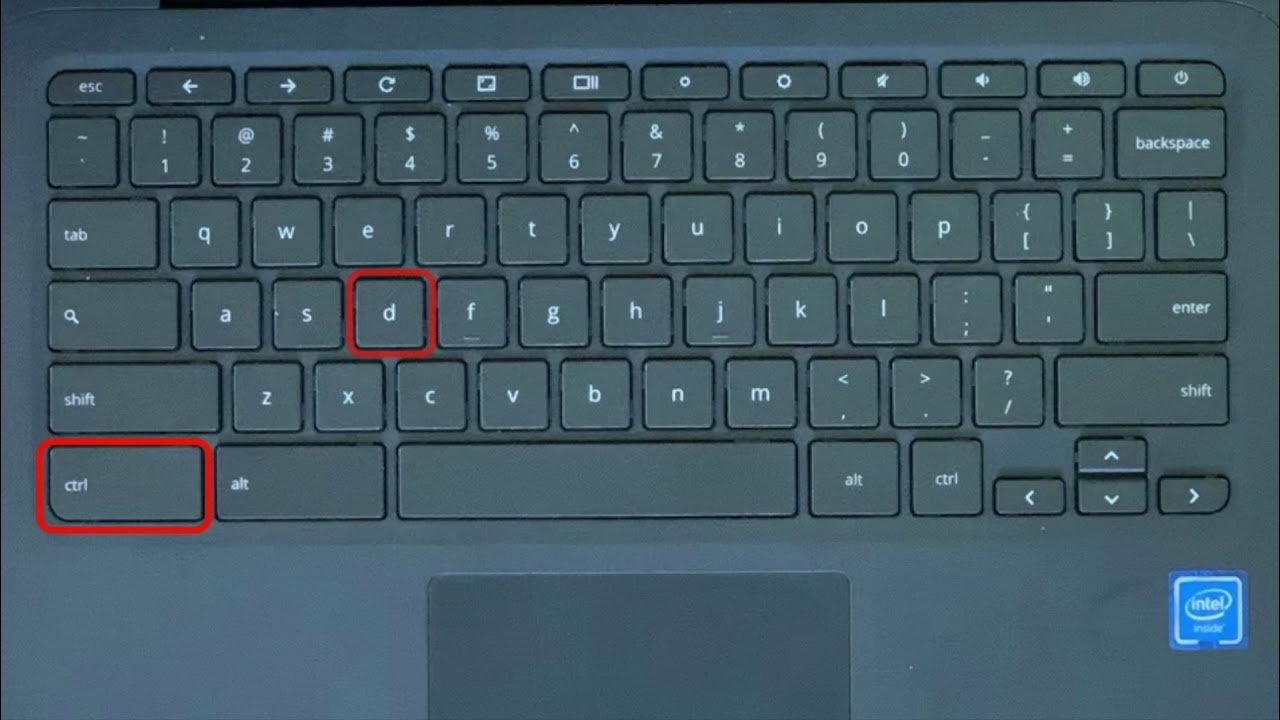
When your cursor freezes mid-motion, it’s often because a webpage or browser extension is overloading the system. Press Esc several times rapidly, this interrupts loading processes and cancels stuck commands that can lock the pointer. It’s the zero-effort first step before anything else, and it costs nothing to try. If the cursor remains frozen, move to the next fix.
Drumroll your fingers on the touchpad
For a touchpad that’s physically unresponsive, use the ten-second finger drumroll technique: place all four fingers flat on the touchpad and tap them rapidly like you’re playing the piano. This vibration dislodges stuck debris or dust particles that block the capacitive sensor. It’s surprisingly effective for intermittent cursor drops, especially if you’ve been eating or working in a dusty environment. Repeat twice if needed.
Clean the touchpad the right way
Dirt, oil, and moisture are silent cursor killers. Use a microfiber cloth slightly dampened with a 50-50 solution of isopropyl alcohol and distilled water, never spray directly on the touchpad. Wipe in gentle circular motions, then dry with a clean section of the cloth. This removes the grime that interferes with touchpad function without damaging the surface. Avoid using paper towels or harsh chemicals, which can leave scratches or residue.
Restart your Chromebook normally or force a hard reset
If cleaning doesn’t help, a standard restart clears minor software glitches. Click the time in the bottom-right corner (Quick Settings), then select the Power icon and choose Restart. For a frozen system where the cursor is completely dead, perform a hardware-level hard reset: hold Refresh (circular arrow) + Power for about 5 seconds, then release. This restarts unresponsive touchpad components directly and often revives the cursor instantly.
Check that tap-to-click is enabled and adjust touchpad settings
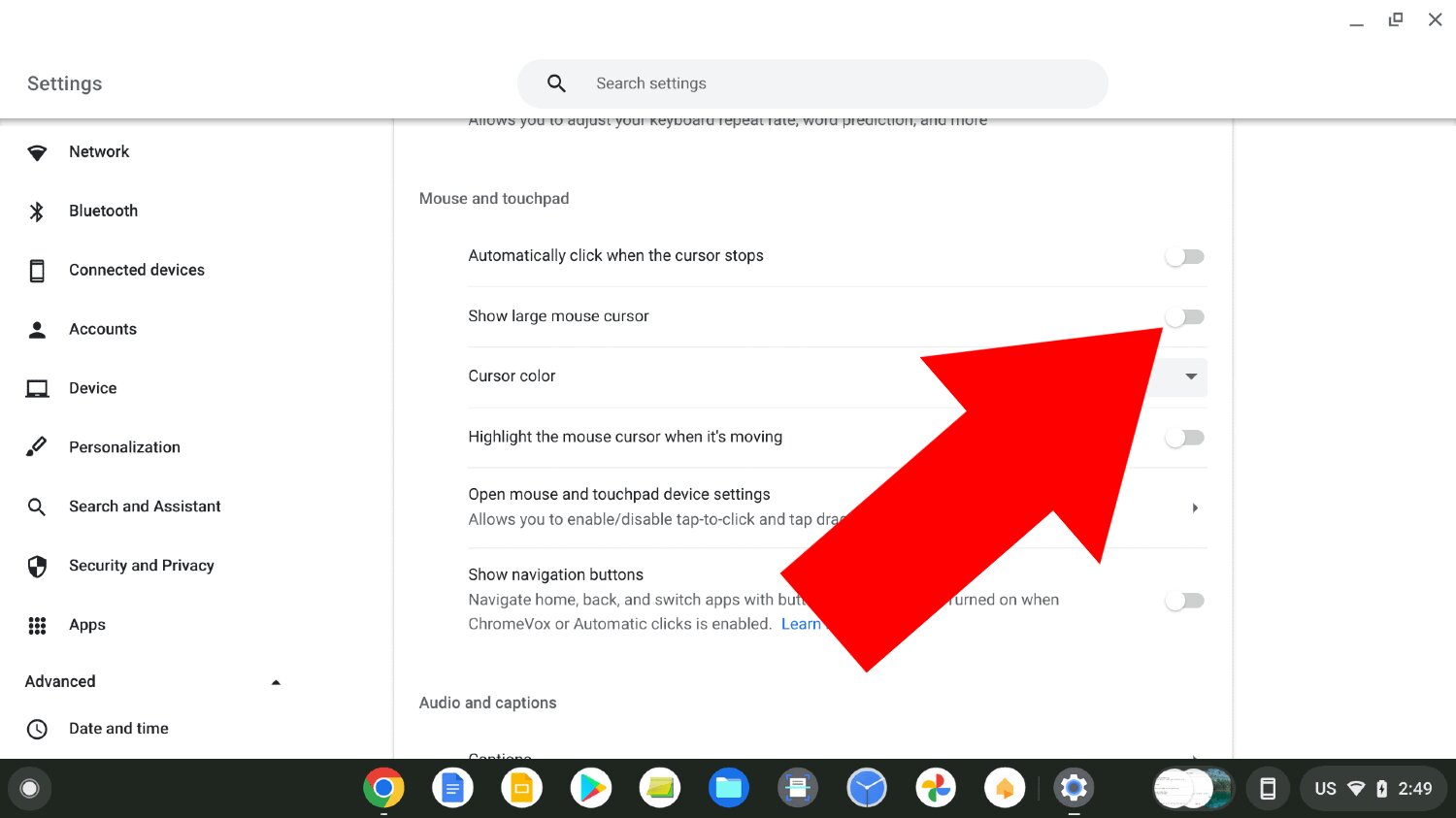
Sometimes the cursor works but clicks don’t register. Navigate to Settings (gear icon) > Device > Touchpad. Verify “Enable tap-to-click” is toggled on, if it’s off, tapping does nothing. While here, adjust the Pointer speed slider to your preference and test the touchpad. If the settings page shows “Touchpad” as an option, your device recognizes it; if not, the hardware may need the hard reset from the previous step.
Test in Guest mode to isolate account-specific problems
Sign out of your profile and click “Browse as Guest” on the login screen. If the mouse works perfectly in Guest mode, the issue is tied to your user account, likely a corrupted extension or setting. To fix this, you may need to delete and re-add your account, but first back up any local files. If the cursor still fails in Guest mode, the problem is system-wide, so skip to the next steps.
Use mouse keys as a keyboard fallback to regain cursor control
When both touchpad and external mouse are dead, enable Mouse keys to control the cursor with your keyboard. Go to Settings > Accessibility > Cursor and touchpad and toggle on “Mouse keys”. Once active, use the number pad or letter keys: 7, 8, 9, U, J, K, L move the cursor diagonally and horizontally, while I acts as a click. This gives you full navigation capability without any pointing device.
Connect an external wired or Bluetooth mouse as a long-term workaround
If your built-in touchpad is permanently damaged, plug in a USB mouse, ensure the connector is firmly seated in a direct USB port, not a hub. For Bluetooth mice, remove the device from Chromebook’s Bluetooth settings, put the mouse in pairing mode, and reconnect after a full reset of the mouse (often holding the pairing button for 10 seconds). If a wired mouse is unresponsive, try a different USB port or a different cable. An external mouse lets you continue working while you decide on repairs, but persistent port issues might require you to reset an acer Chromebook to rule out software conflicts, especially if a remove school administrator from Chromebook policy is blocking USB access.
Check for system updates and powerwash if nothing else works
Outdated Chrome OS can cause driver conflicts. Go to Settings > About Chrome OS > Check for updates and install any pending updates, this often patches touchpad bugs. If the cursor still fails after updating, a Powerwash (factory reset) is the final resort. This erases all local data, apps, and settings, so back up everything first. To Powerwash, go to Settings > Advanced > Reset settings > Powerwash and follow the prompts. After the reset, your Chromebook will restart fresh, if the mouse works, the issue was software-related; if not, it’s likely hardware.
Remember, most cursor issues resolve with the first three quick fixes. For persistent problems, the external mouse workaround keeps you productive, and a Powerwash should be your last step before contacting support. If you ever need to restart your device after a full shutdown, simply press the power button to turn on your Chromebook when it’s completely off. With these steps, you’ll rarely be stuck without a cursor for more than a few minutes.