To change discord voice region, you need to set a Region Override for a specific voice channel rather than changing a server-wide setting. This method directly reduces lag and improves call quality for everyone in that channel.
How to change Discord voice region with a channel override
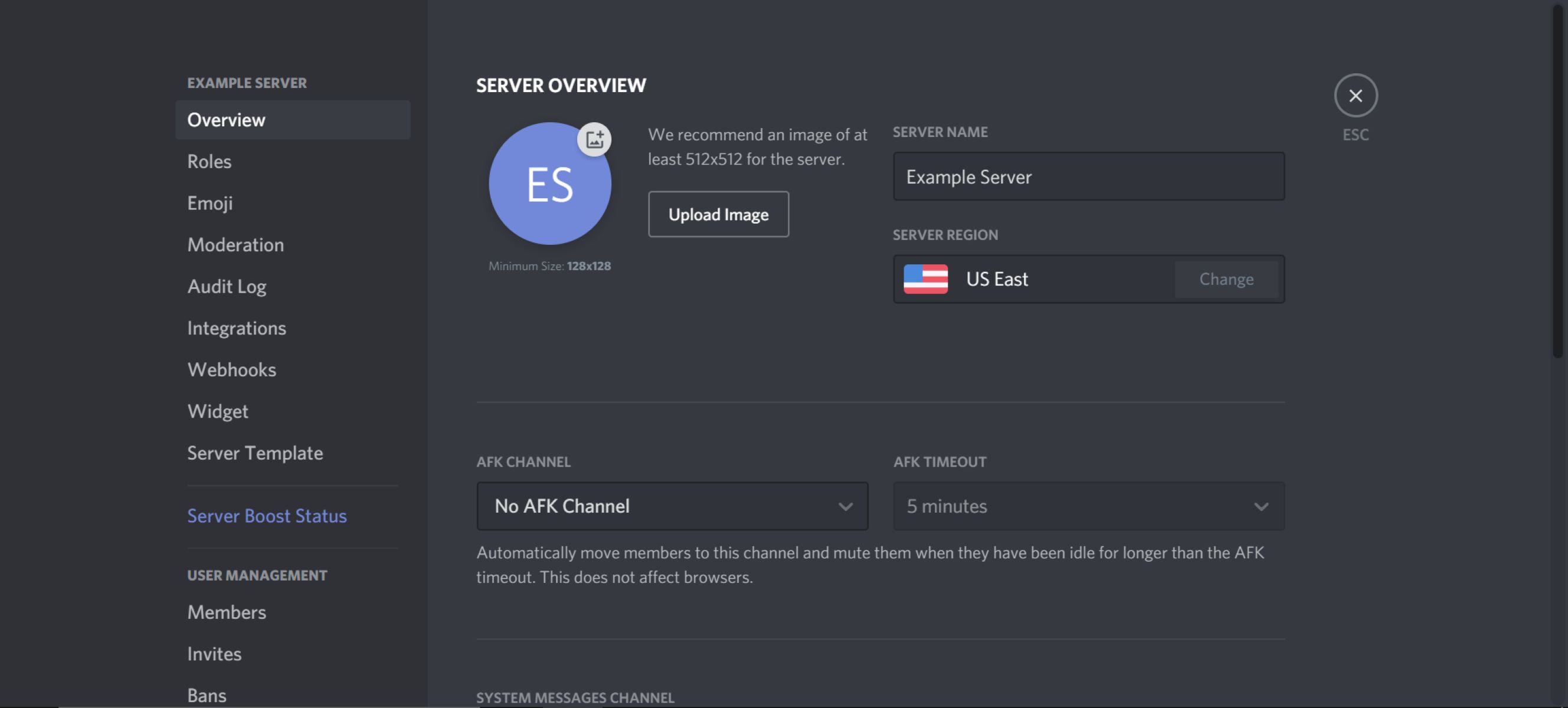
The old "Server Region" setting for the entire server is now largely outdated for voice communication. The current and recommended method is to use the "Region Override" setting for individual voice channels. This lets you fine-tune the voice region for each channel, which is especially useful if different channels in your server serve different groups of people.
Why the automatic voice region might cause lag
Discord automatically sets the voice region for any voice channel to "Automatic" by default. When the voice region is set to "Automatic," Discord determines the region based on the first person who connects to that empty voice channel. If that first person lives in Europe but you and your friends are in North America, everyone else will experience high latency and poor call quality. Changing the voice region can improve the quality of voice chats, especially if participants are located in different geographical areas, because you can manually select a region that is central to your group.
Step-by-step: Override the voice region on desktop
You must have "Manage Channel" permissions within the server to change a voice channel's region. If you do, follow these steps:
- Right-click the specific voice channel you want to modify.
- Select "Edit Channel" from the menu.
- Find the "Region Override" dropdown menu and click it.
- Choose a new voice region from the list. Discord shows the estimated latency for each option.
- Click "Save Changes" at the bottom of the window.
Step-by-step: Override the voice region on mobile
To change a voice channel's region on mobile:
- Navigate to your server and find the voice channel you want to adjust.
- Touch and hold (or long-press) the specific voice channel.
- Tap "Channel Settings" (or "Edit Channel") from the pop-up menu.
- Tap "Region Override."
- Select the desired region from the list.
Troubleshooting after changing your voice region
After changing the region, you may be temporarily disconnected from the voice channel while the switch takes place. This is normal and should resolve within a few seconds. If you still experience lag or high latency, the issue might be your personal internet connection rather than the Discord voice region. Check your network stability and consider asking others in the channel if they are also having problems. If the "Region Override" option is missing entirely, you likely do not have the "Manage Channel" permission for that channel, which is tied to your identity, you can change Discord tag to make yourself easier to find when asking for help. Contact the server owner or an administrator to grant you the permission or to make the change for you.
\nRelated reading: How To Change Discord Ringtone and How To Boost Discord Server.