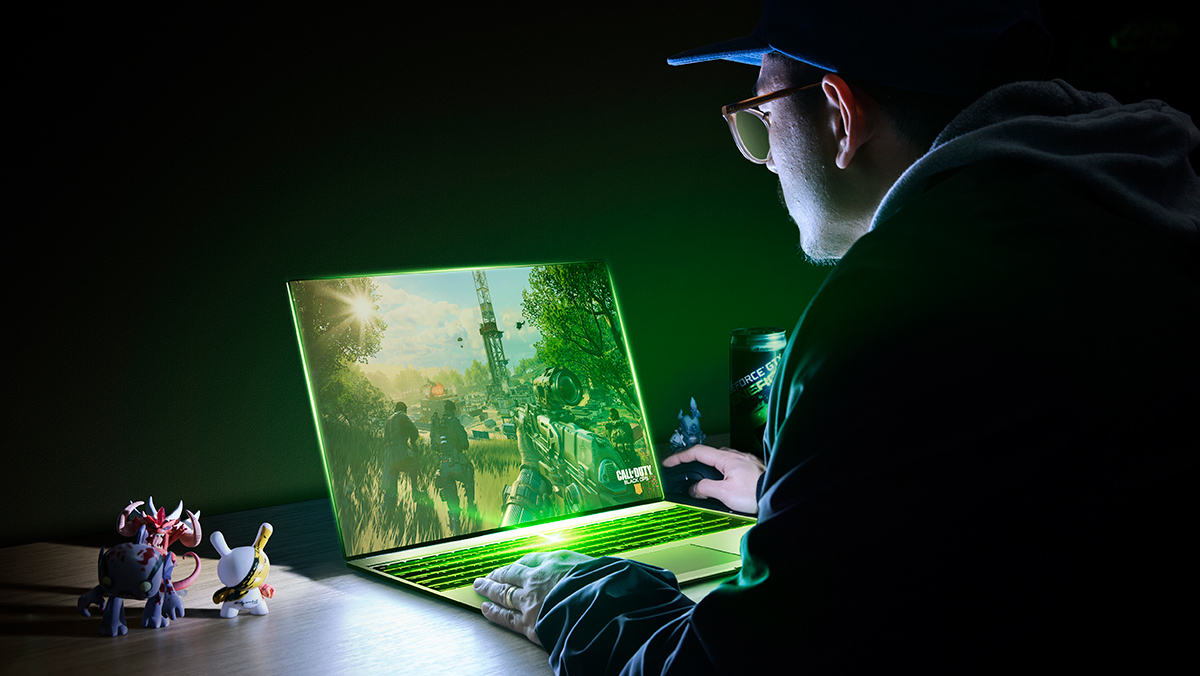
You can improve laptop gaming performance for free with software by optimizing system resources and graphics settings, which helps your existing hardware run games more smoothly. These tweaks won't turn a basic laptop into a high-end gaming machine, but they can make a real difference in frame rates and responsiveness.
How to improve laptop gaming performance for free with software: Introduction
Software optimizations can improve existing performance by managing system resources and graphics settings more efficiently on your current hardware. This means you can get more out of the components you already have without spending money on upgrades, much like how you can make a gaming console from repurposed hardware. The steps below focus on free, built-in tools and settings that help your laptop prioritize gaming tasks.
Before you start: essential system updates
Before making any changes, update your system to create a stable foundation. This includes updating Windows, your BIOS, and confirming that your laptop meets the minimum system requirements for the games you want to play. Keeping everything current ensures compatibility and stability, which is critical for gaming performance.
Update your graphics drivers for peak performance
Graphics drivers are the software that lets your operating system communicate with your graphics card. Updating them regularly ensures you have the latest bug fixes and performance improvements. To update:
- Identify your graphics card manufacturer (NVIDIA, AMD, or Intel) through Device Manager.
- Visit the manufacturer's website and download the latest driver for your specific card model and operating system.
- Run the installer and follow the on-screen instructions.
- Restart your laptop to complete the installation.
Regular driver updates can significantly improve frame rates and reduce graphical glitches in games.
Force your game to use the dedicated graphics card
Many laptops have both an integrated graphics chip (for battery life) and a dedicated graphics card (for performance). Games sometimes default to the weaker integrated chip. To ensure games use the high-performance GPU:
- Open Windows Settings and go to System > Display > Graphics.
- Find your game in the list or browse to add it.
- Click on the game, select Options, and choose High performance (your dedicated GPU).
This simple switch can dramatically boost gaming performance by ensuring your game runs on the hardware designed for it.
Enable Windows Game Mode to prioritize gaming
Windows Game Mode optimizes your PC for gaming by reducing background processes and granting games priority access to hardware resources. To enable it:
- Open Windows Settings and go to Gaming > Game Mode.
- Toggle Game Mode to On.
This built-in feature helps allocate more CPU and GPU power to your game, reducing stutters and improving responsiveness.
Optimize windowed games in Windows 11
If you play games in borderless or windowed mode on Windows 11, enabling a specific optimization can reduce latency and improve performance. To do this:
- Open Settings and select System > Display > Graphics.
- Toggle Optimization for windowed games to On.
This setting helps your game run more smoothly when it's not in full-screen exclusive mode.
Switch to the high-performance power plan
Power settings control how your laptop uses energy. For gaming, you want maximum performance, not battery savings. To adjust:
- Open Control Panel and go to Hardware and Sound > Power Options.
- Select the High performance power plan.
- If you have OEM software like Armoury Crate, also set the performance mode to its highest setting.
This ensures your CPU and GPU run at full speed while plugged in, which is essential for gaming.
Reduce background processes manually
Background applications consume CPU, memory, and disk resources that your game needs. To free them up:
- Press Ctrl + Shift + Esc to open Task Manager.
- Go to the Processes tab and look for apps using high CPU or memory.
- Select non-essential programs (like web browsers or chat apps) and click End task.
Closing these processes before launching a game can immediately improve performance.
Fine-tune in-game graphics settings
Adjusting in-game settings is one of the most effective ways to balance performance and visual quality. Start by lowering the resolution or selecting a lower graphics preset (Low or Medium). Then, manually reduce settings that have a high performance cost, such as shadows, anti-aliasing, and texture quality. Test each change to find a smooth frame rate without sacrificing too much visual quality.
Keep your system clean and updated
Long-term performance requires regular maintenance. Use Disk Cleanup to remove temporary files, uninstall unused programs, and keep Windows updated. This prevents your system from slowing down over time and ensures you have the latest performance patches. Knowing how does online gaming works (how online gaming works) also highlights the importance of reducing latency through these tweaks.