Practical, hands-on guides aimed at everyday computer users who want to get more done without calling a technician. Whether you are setting up a new PC, troubleshooting a frustrating error, or trying to connect your devices, these articles focus on clear steps and real-world solutions. The audience is broad: beginners who need a gentle introduction to basic tasks, and more experienced users looking for specific fixes or performance tweaks.
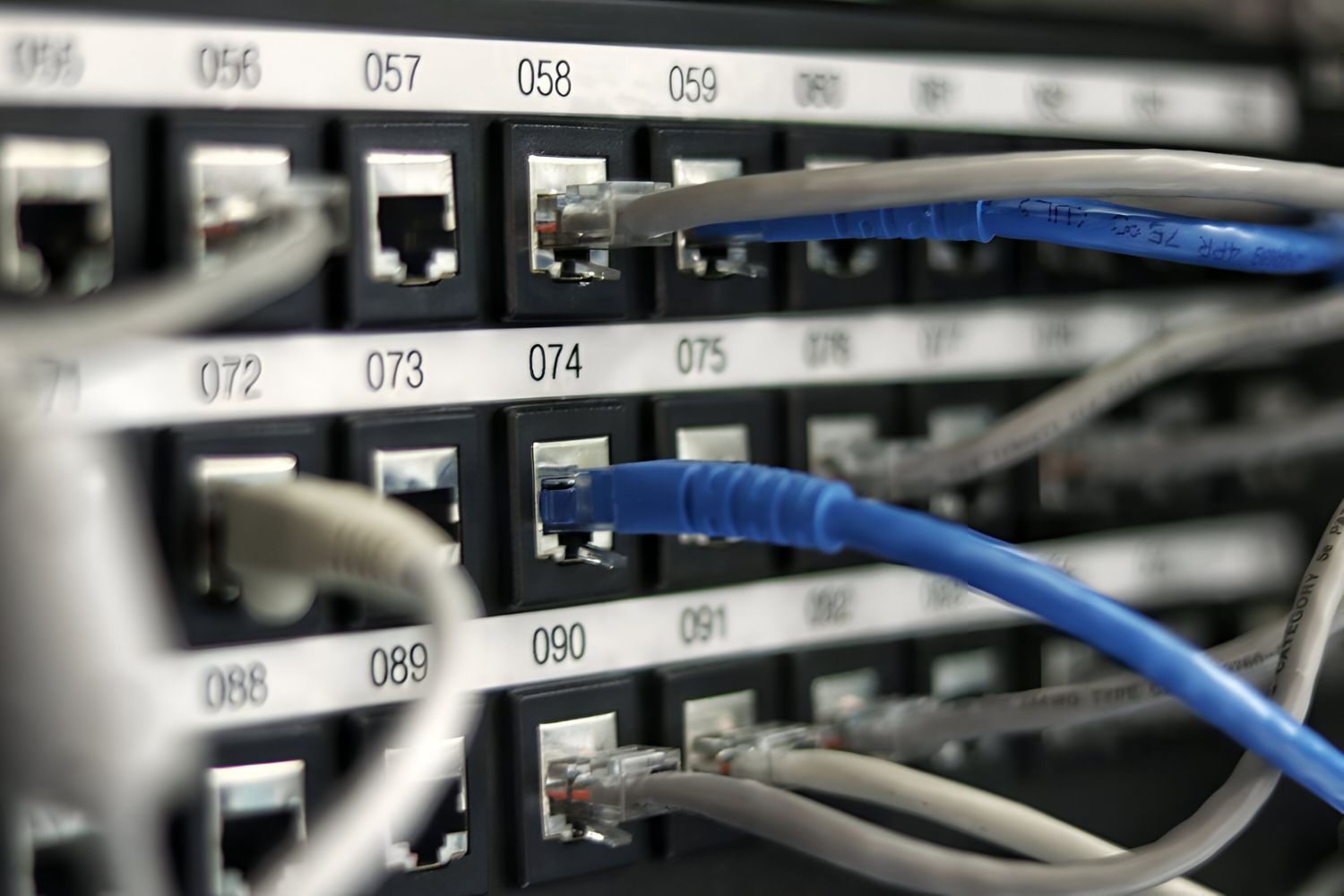
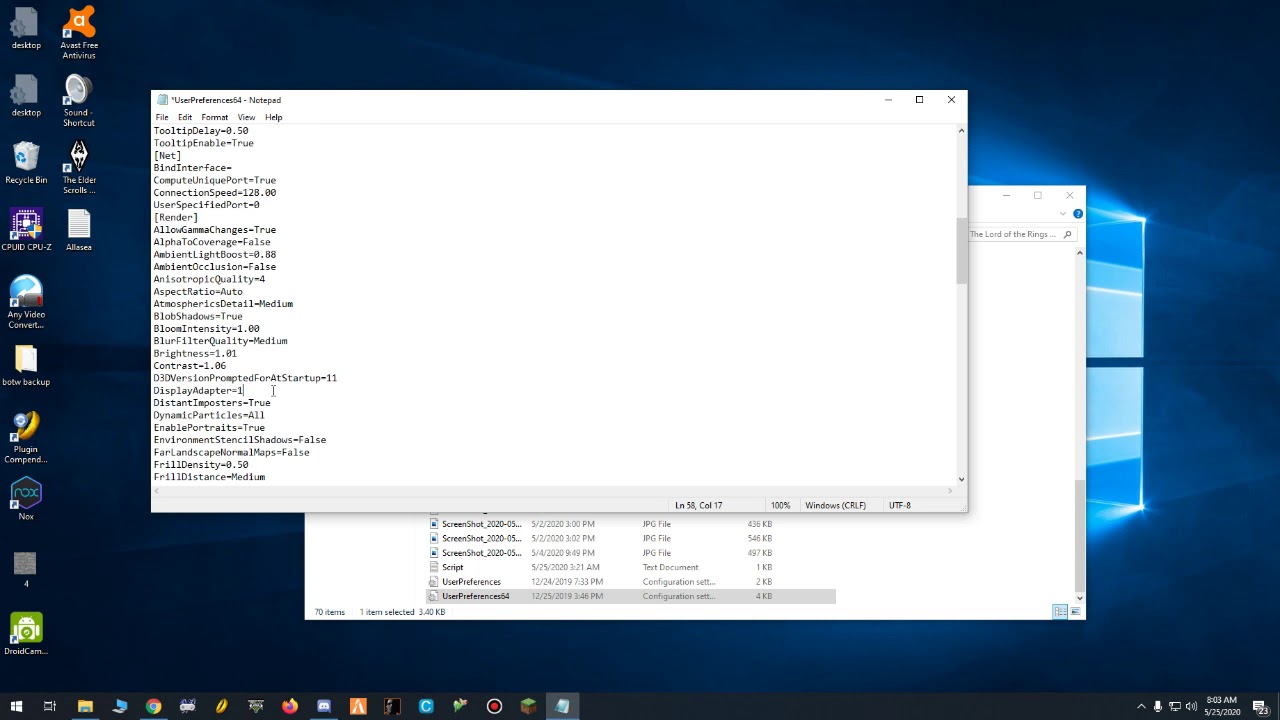
The articles cluster around a few recurring themes. One major theme is connectivity and hardware, you will find guides on connecting a PC to Wi‑Fi, finding an Ethernet IP address, transferring files between PCs using a cable, and using WhatsApp Web on a Mac or Windows machine. Another theme is system maintenance and performance: articles explain how to format a hard drive, check CPU temperature in Task Manager, allocate more CPU to a game, or clear out the Downloads folder. A third theme covers everyday input and display tasks, such as taking a screenshot, enabling keyboard backlights, typing a squared symbol, or switching to a Spanish keyboard layout.
Several articles also address topics from a safety, security, or legal-alternatives perspective. For example, the guide on recycling an old laptop focuses on proper disposal rather than data recovery, and the review of Hide.me evaluates a VPN service for privacy-conscious users. Similarly, articles about Android emulators, BeeTV, and Amazon Music downloads are framed around legitimate use, installing apps on a PC, using streaming services on a supported device, or downloading music you own, not circumventing protections. The tag is a practical resource for solving everyday Windows problems, with an emphasis on doing things correctly and safely.