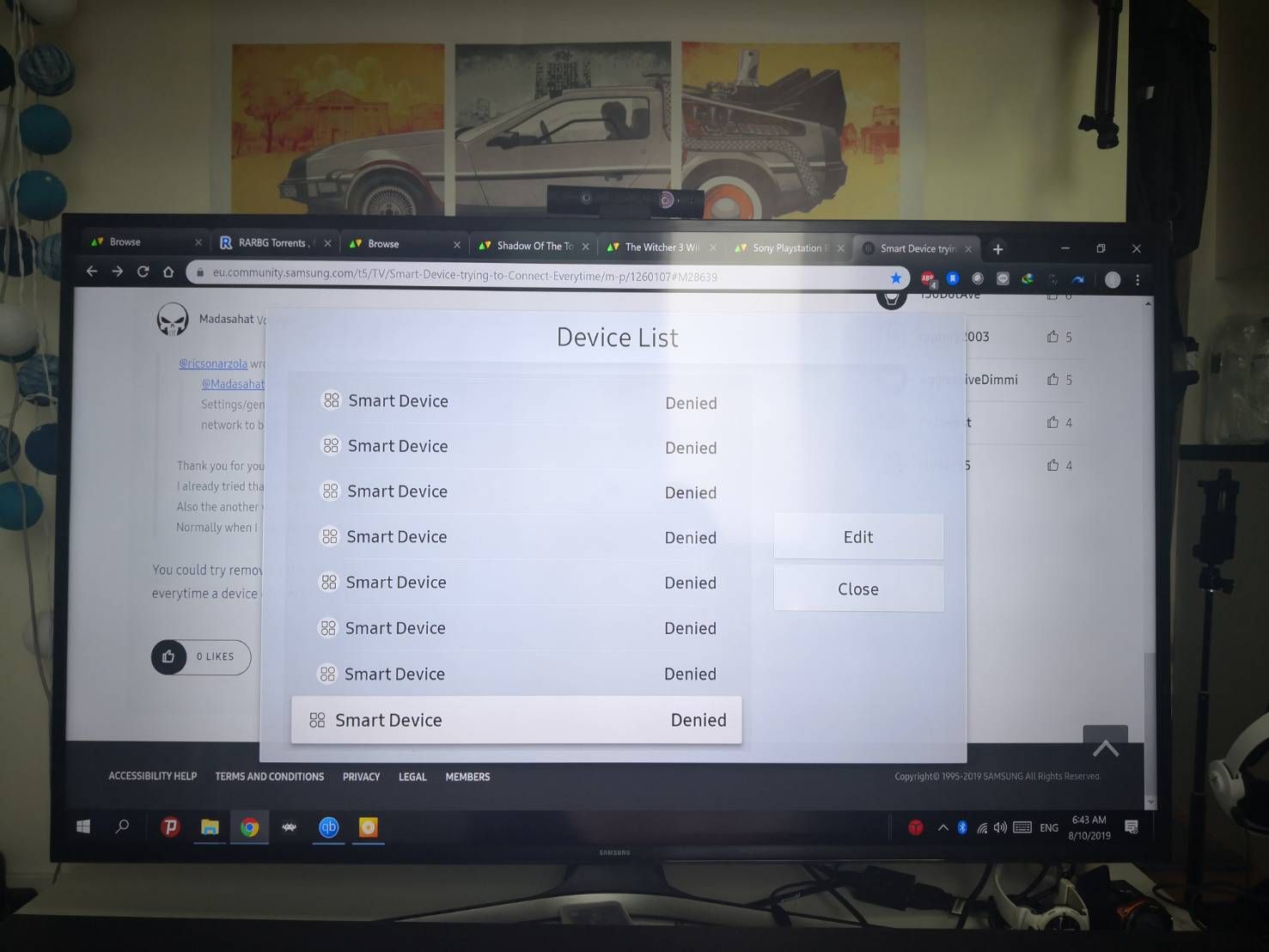
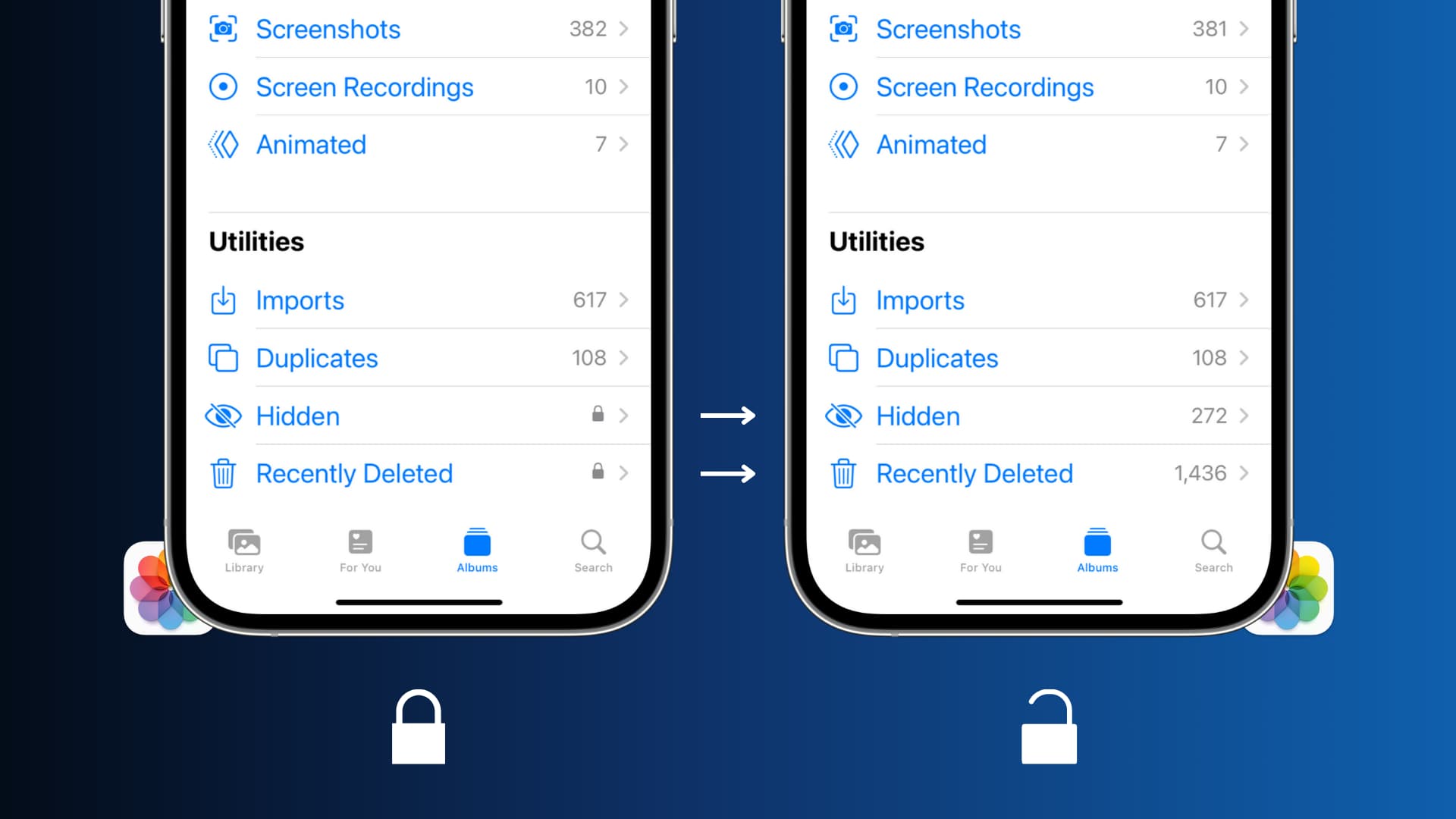
Privacy Settings is the tag to turn to when you want to control what your apps, devices, and online accounts reveal about you, or what they keep stored on your behalf. It is written for everyday consumers who use streaming services, social platforms, payment apps, and smart home gear, and who want straightforward guidance on managing their digital footprint without digging through obscure support menus. The articles here focus on practical actions: deleting viewing history, hiding transactions, removing yourself from shared photo streams, or deciding who can connect to your TV.
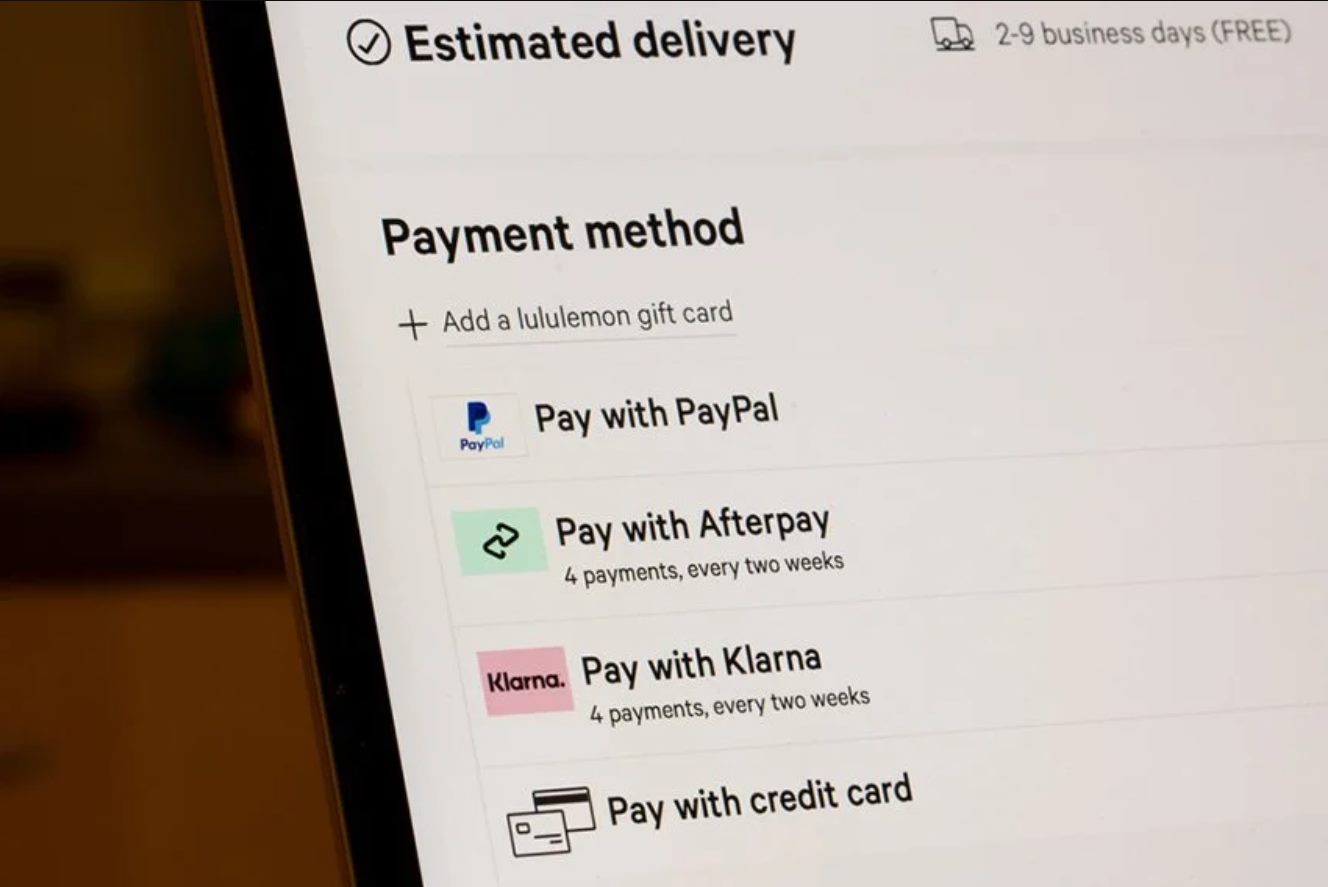
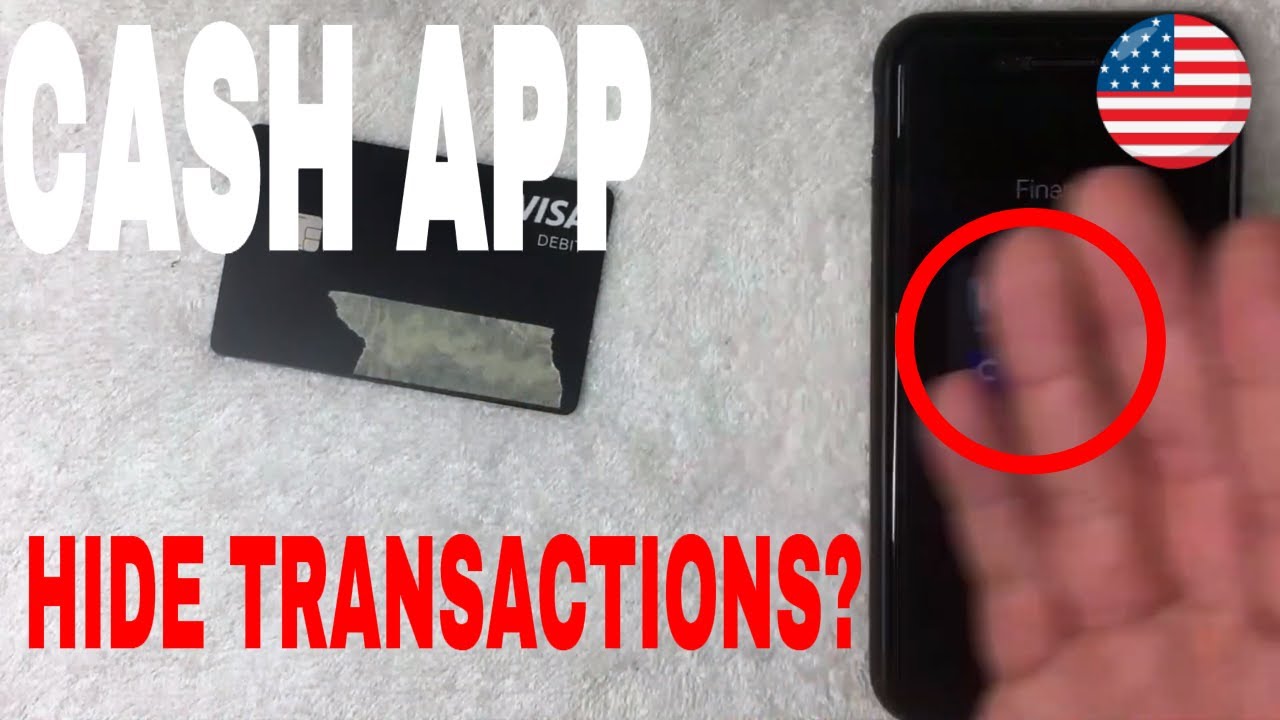
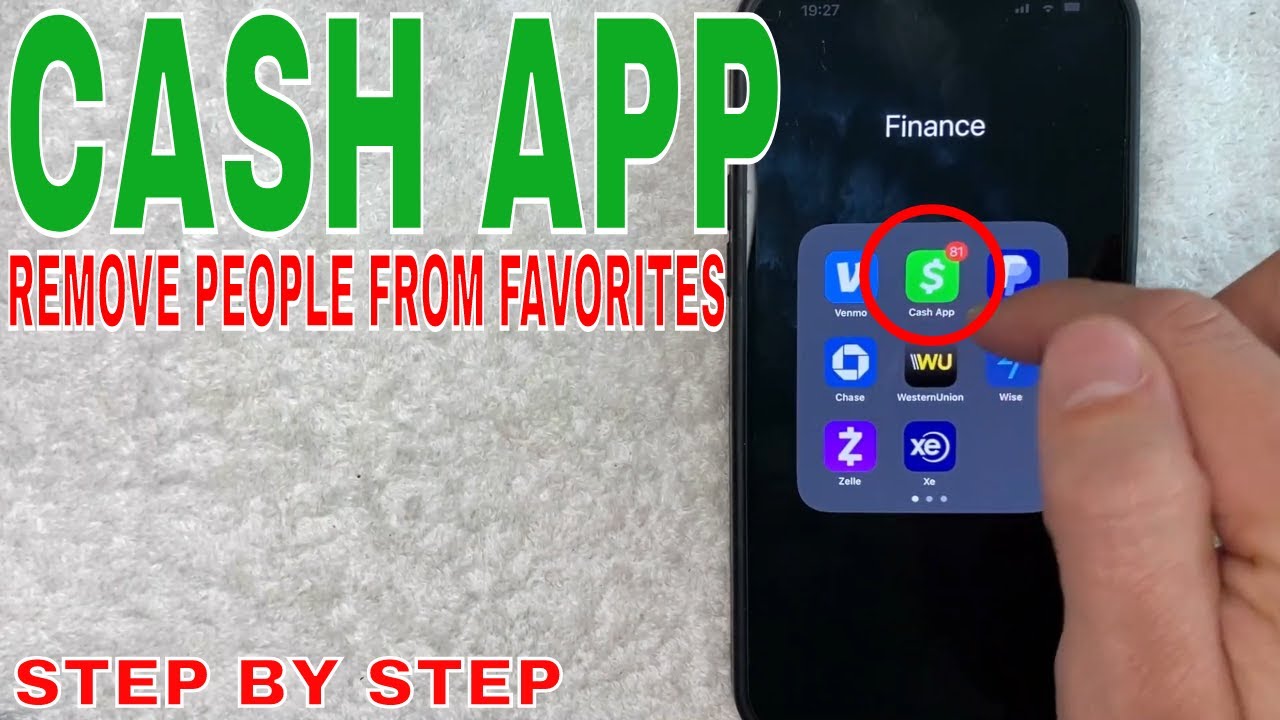
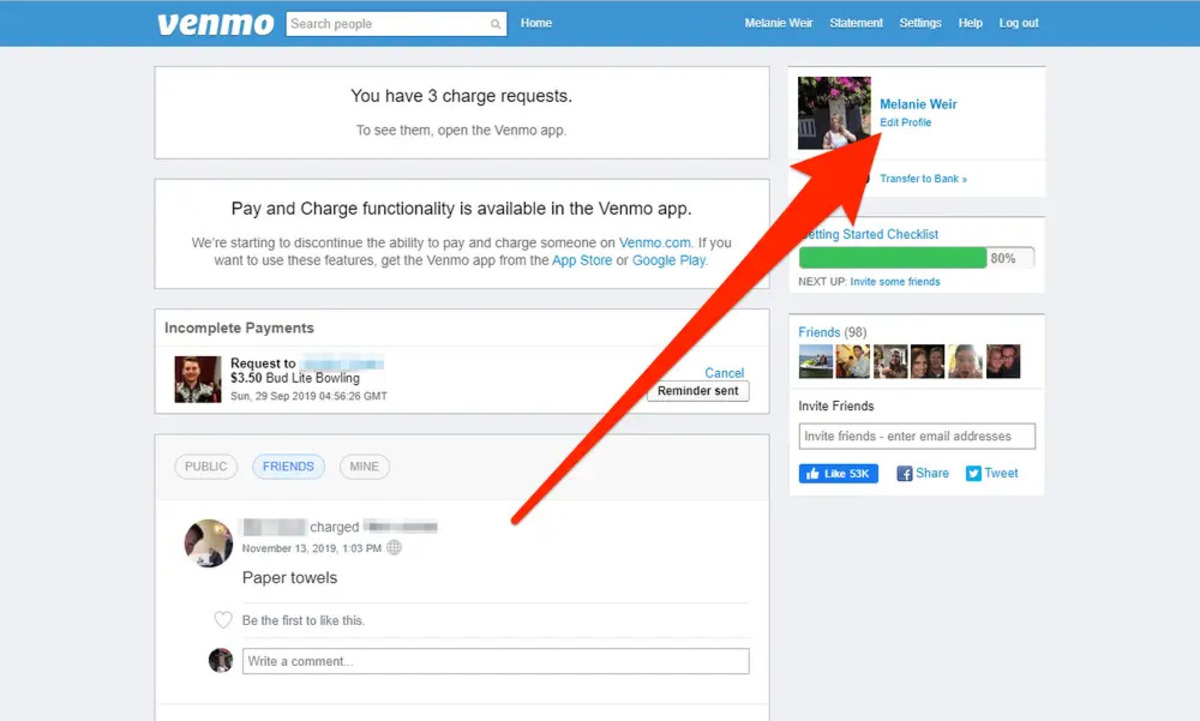
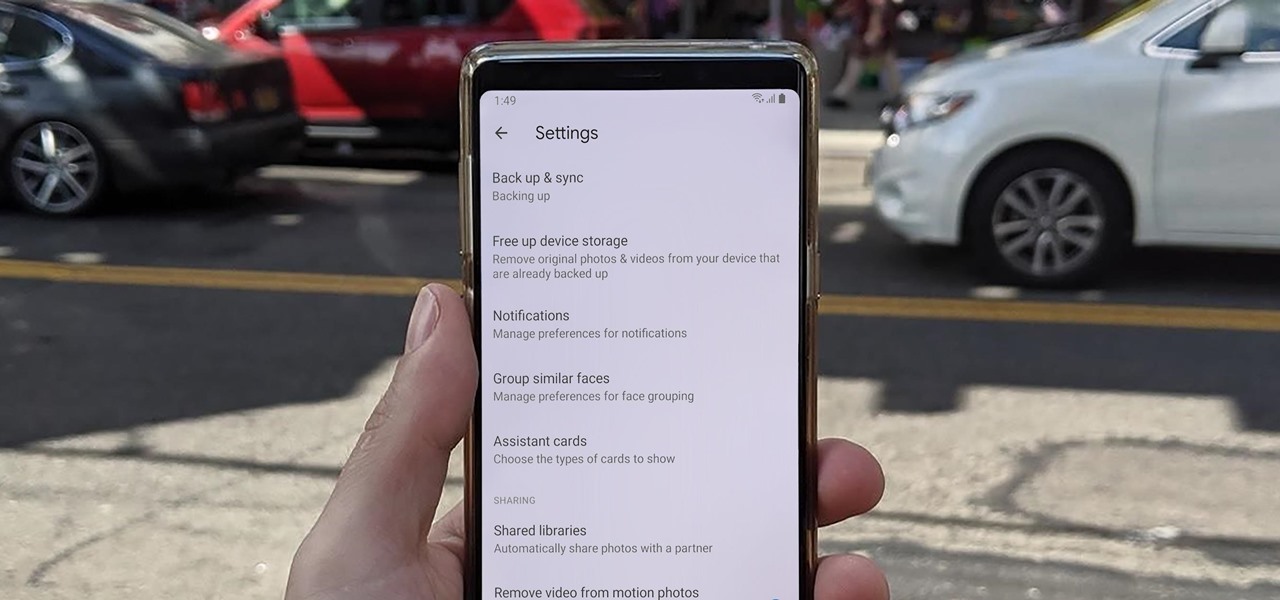
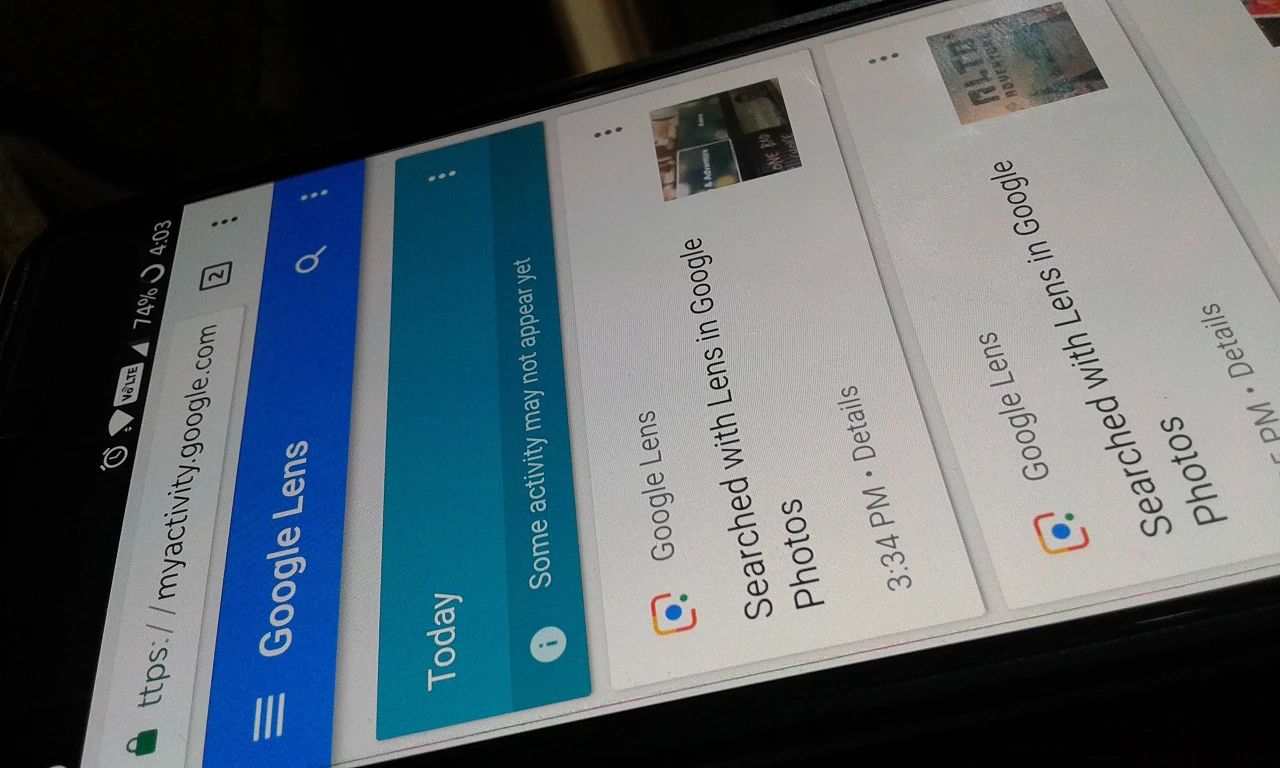
A clear theme is cleaning up your digital trail on media and social platforms. You will find guides on erasing watch history from Netflix, HBO Max, and other streaming apps, as well as removing photos from Google Lens or stopping Google Photos from sharing them. Another cluster centers on payments and peer-to-peer apps: articles walk you through hiding or deleting Venmo transactions, blocking someone on Cash App, or stopping payments on PayPal. A third group tackles access and visibility, granting or denying camera and webcam permissions on your browser or laptop, adding trusted sites in Safari, and understanding what happens when you deactivate Instagram.
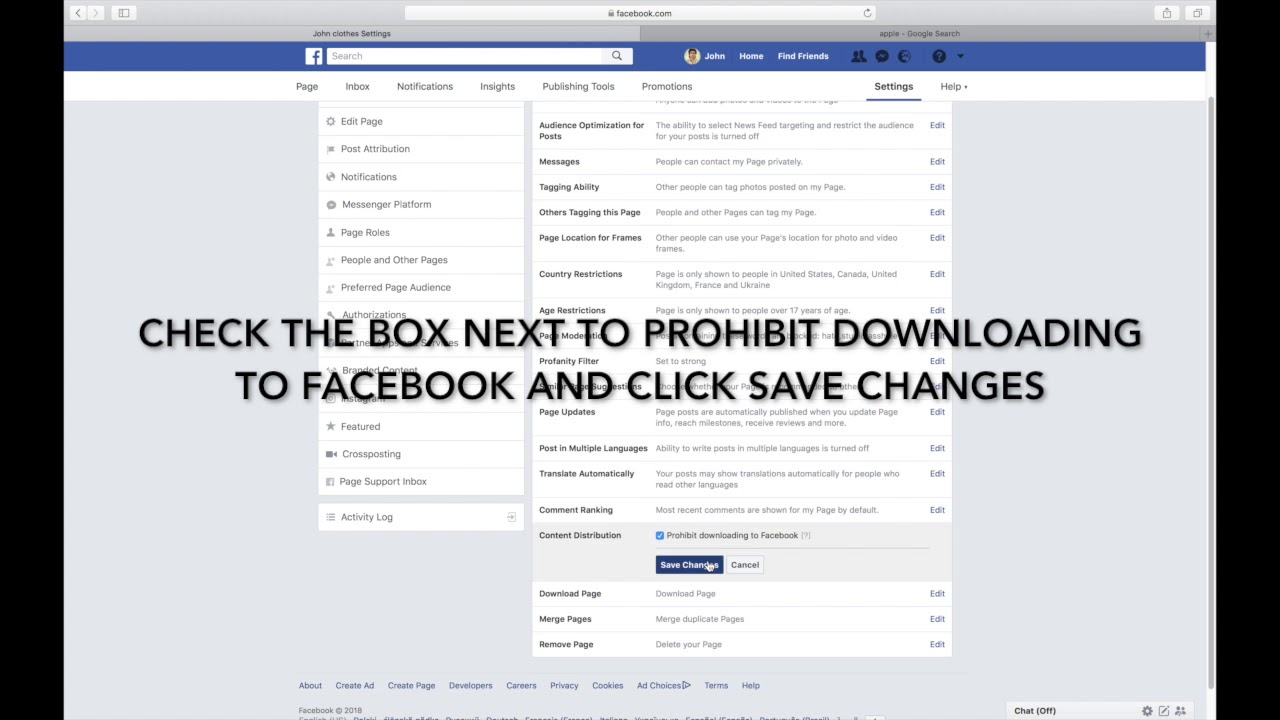
Several pieces also address safety and boundary-setting rather than “how to” tricks. For example, the article on webcam hacking explains how such intrusions happen and how to protect yourself, not how to break in. Similarly, guides on blocking people on Discord or removing someone from your Google Calendar help you manage unwanted contact, while the piece on stopping others from downloading your Facebook photos is about locking down your content. Throughout, the tag aims to give you control over your own accounts and devices, not to bypass anyone else’s.