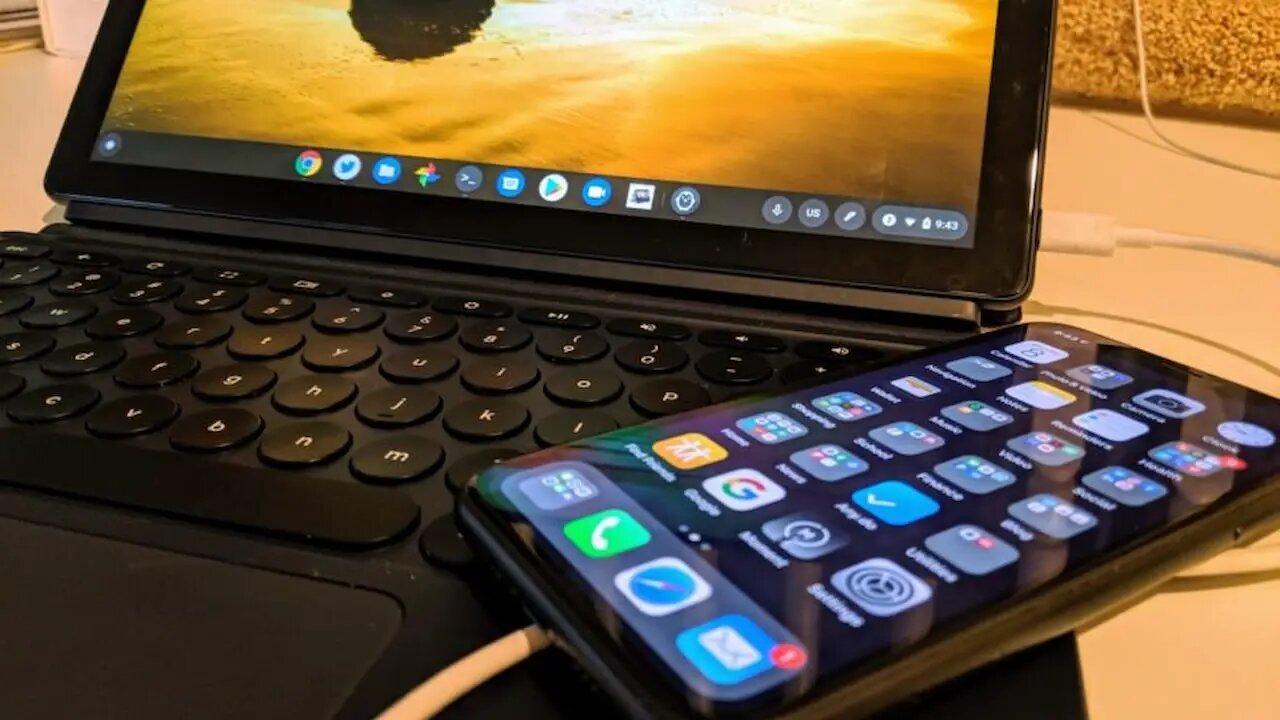
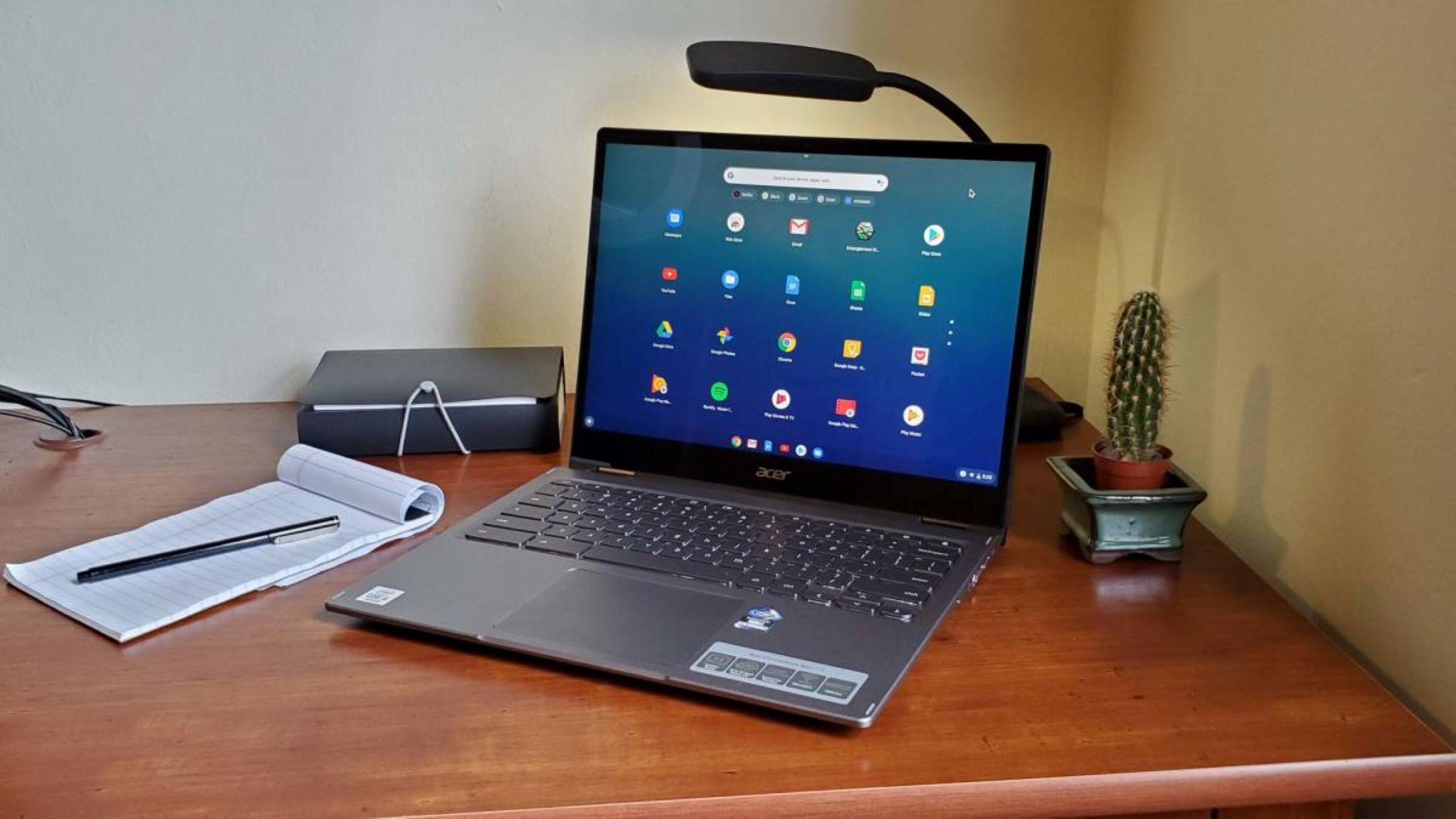
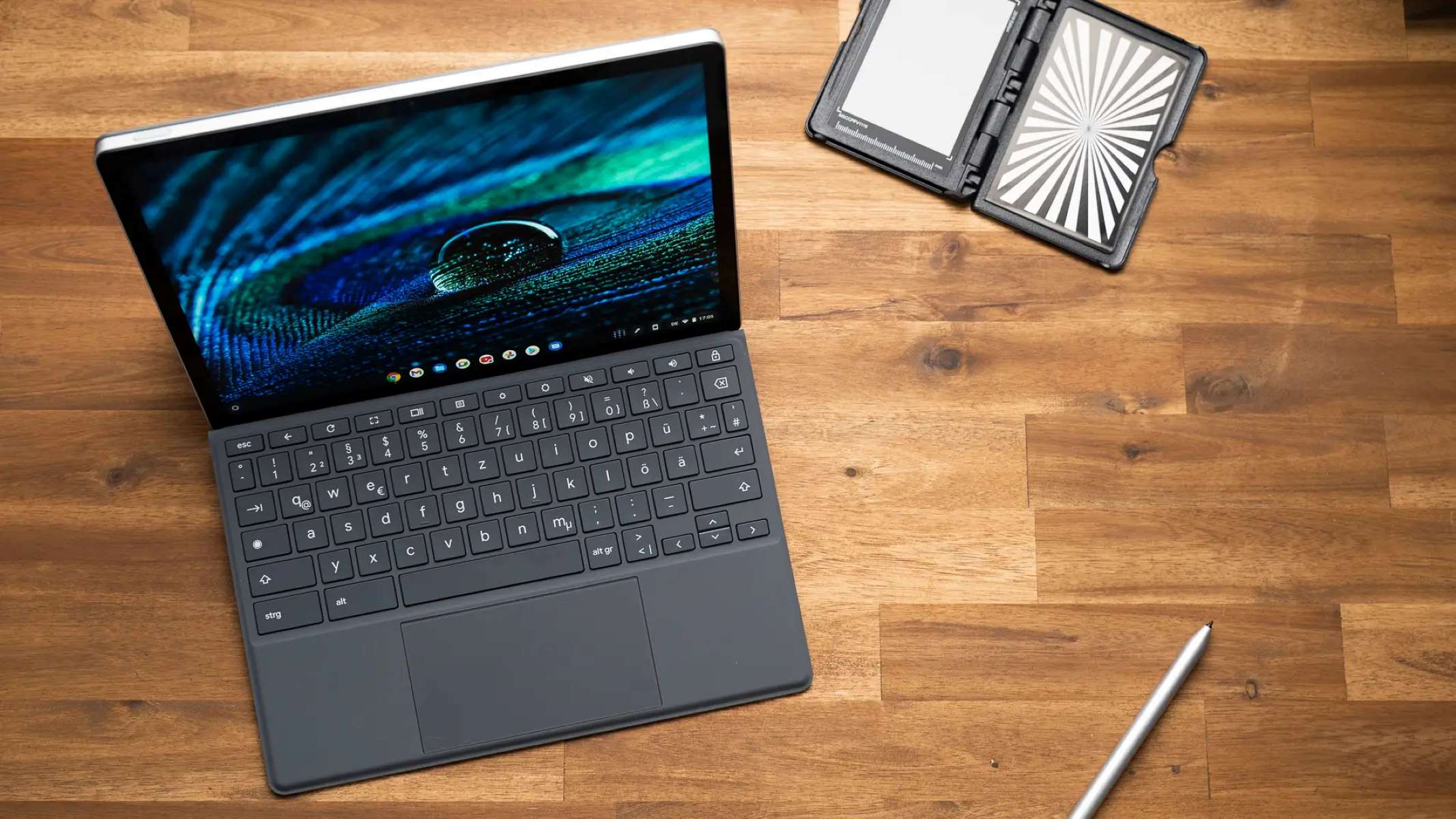
This tag collects 45 practical, step-by-step guides for anyone using a Chromebook, whether at home, at school, or in a workplace. The articles are written for everyday users who need clear instructions for common tasks, from connecting external devices to managing system settings, without assuming prior technical knowledge. If you own a Chromebook or use one regularly, these pieces are meant to help you solve specific problems quickly and safely.
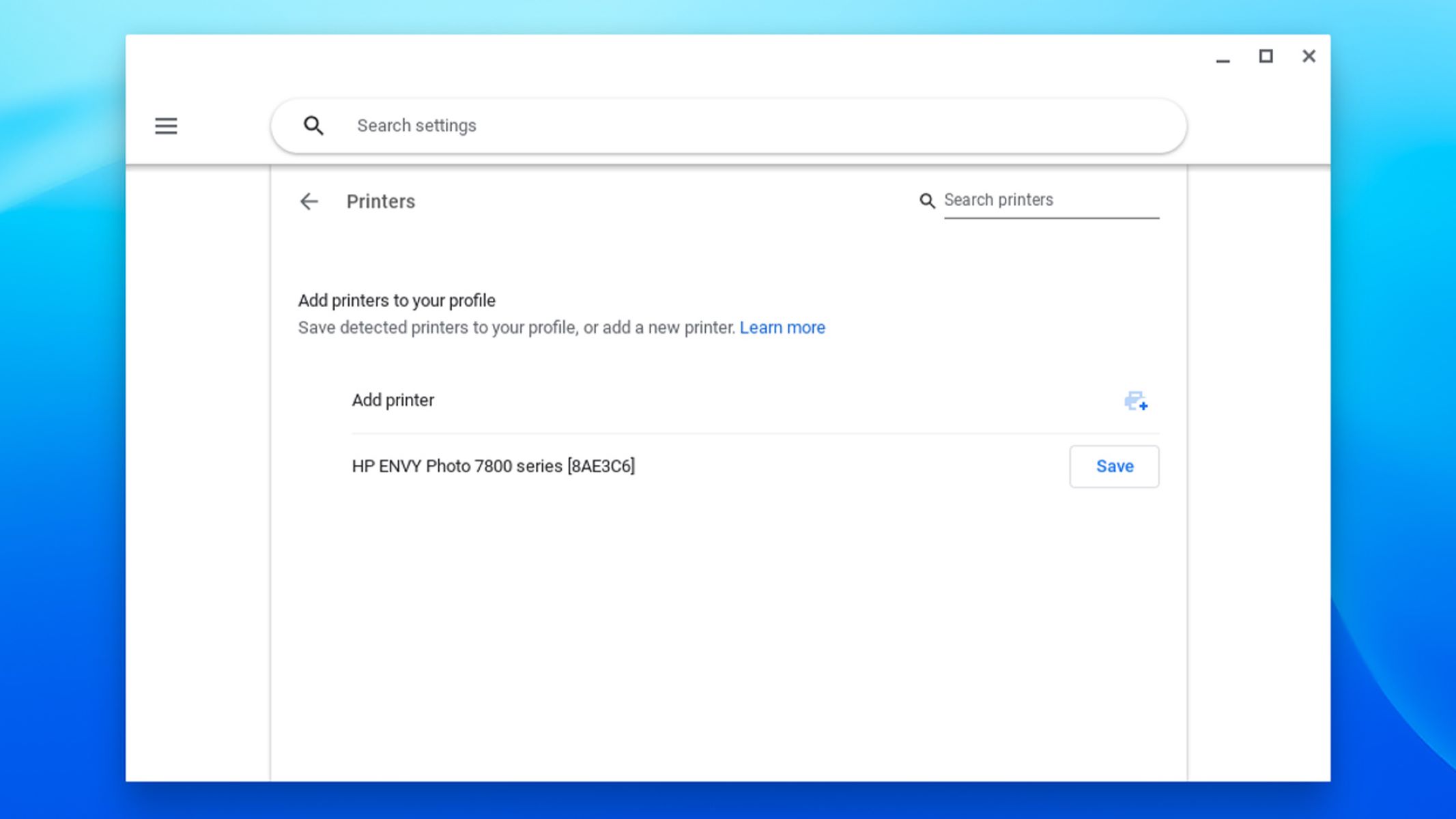
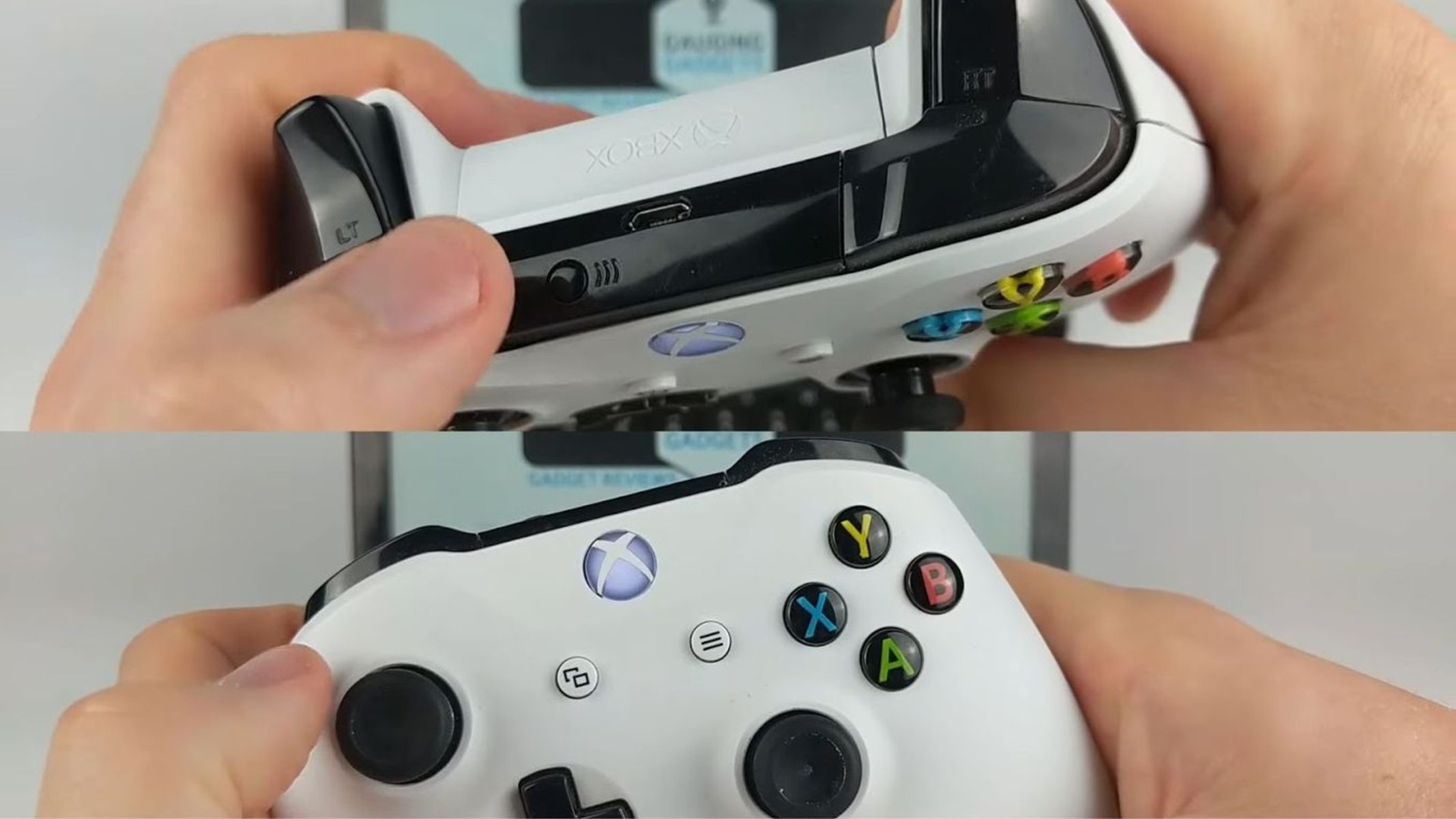
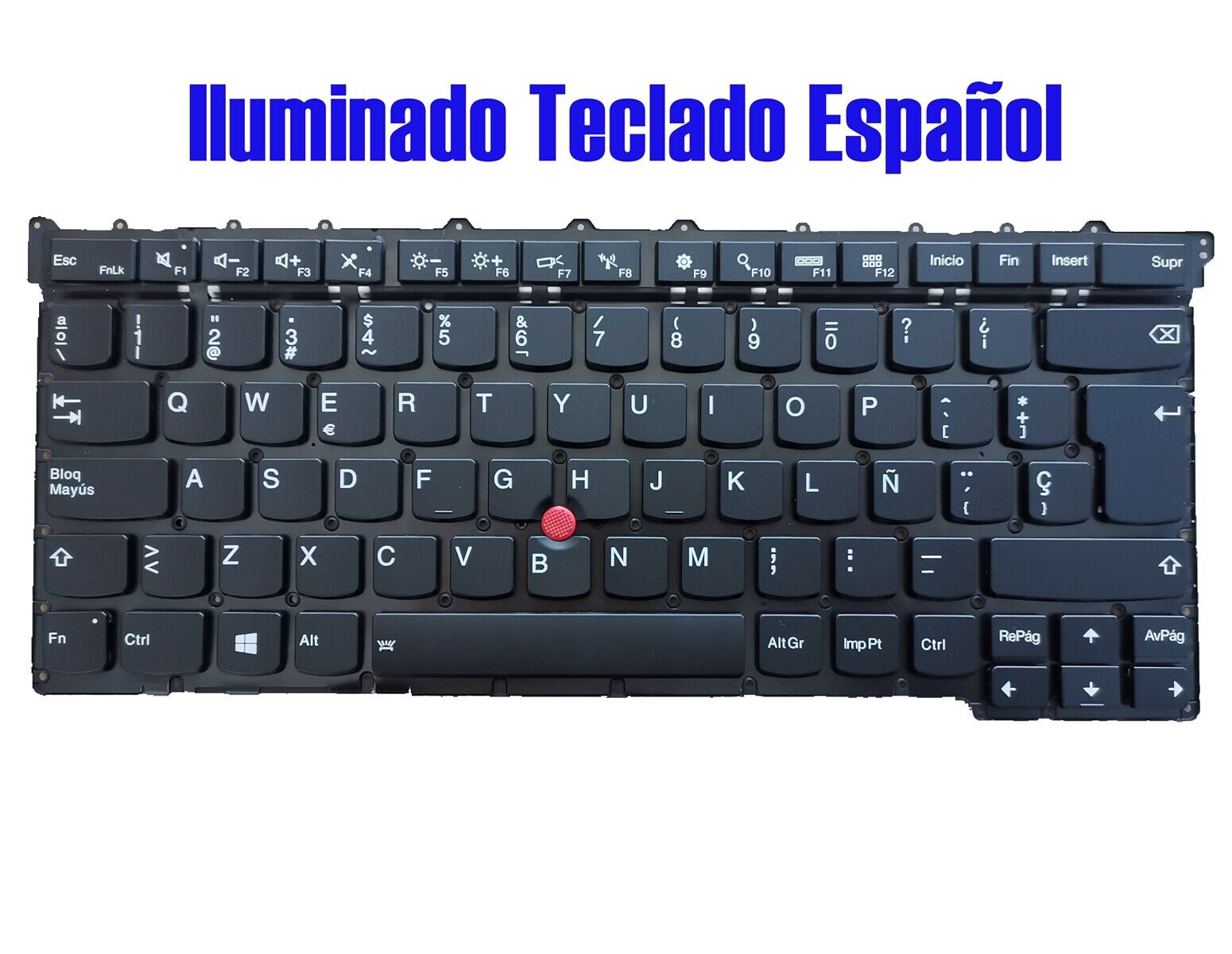
The articles fall into two main themes. The first is everyday hardware and connectivity: setting up printers, pairing an iPhone or Xbox, accessing an SD card, finding a Wi‑Fi password, or switching to a Spanish keyboard. The second theme is system control and recovery: turning the device on or off without the power button, performing a factory reset on Acer, Lenovo, or Samsung models, changing the time, adding shortcuts, or recovering a missing mouse cursor. Several guides also cover account and enrollment issues, such as removing a school administrator, unenrolling a managed device, or disabling monitoring software, but these are framed from a legitimate ownership or authorized-user perspective, not as ways to bypass security. Instead, they explain the proper, supported methods for restoring a device to a personal configuration or troubleshooting access problems.
Specific topics include how to sign out of a Google account, use Control‑Alt‑Delete, access iMessage, and download games or apps like Roblox or Sims 4, always through official channels like the Google Play Store or developer mode where permitted. The collection also addresses practical questions like connecting an iPhone, adding a shortcut, and turning on a Chromebook when the power button is broken. None of the articles encourage hacking, piracy, or cheating; they focus on legitimate fixes, safe alternatives, and clear steps for common user dilemmas.