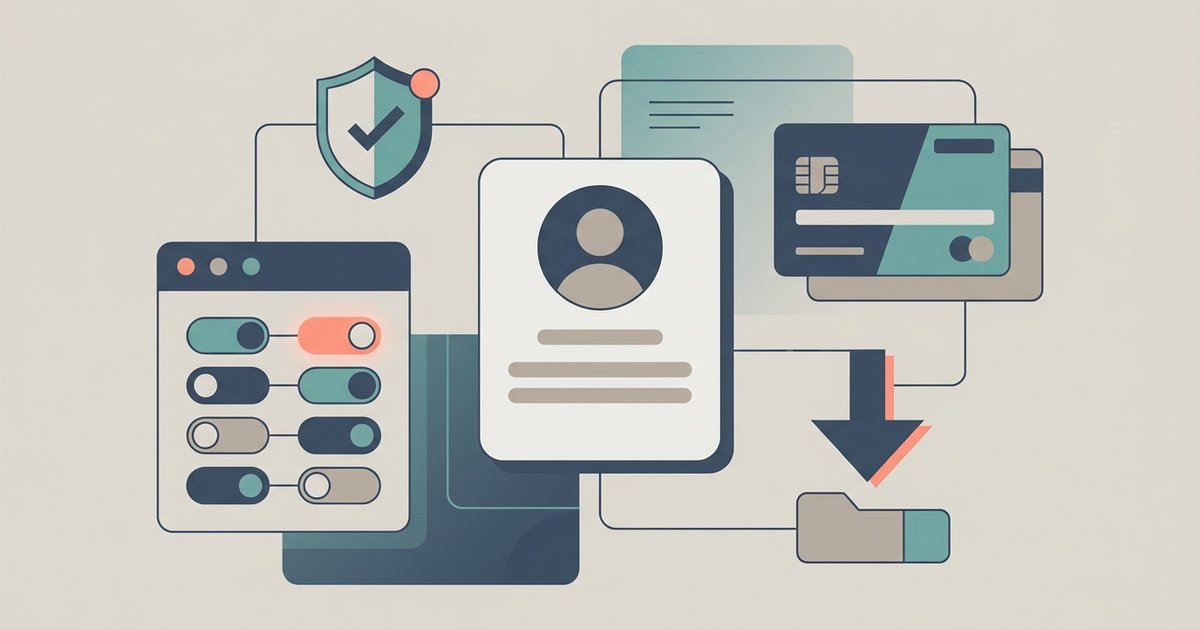
Facebook's privacy and account controls are scattered across several menus, and Meta moves them often enough that any set of instructions ages fast. This guide is a map of the parts most people actually need: who can see what you post, what data Facebook holds on you, how ad targeting works, how payments and logins are secured, and what happens when you leave. Each section explains what a setting genuinely changes, because several of the best known Facebook privacy controls do less than their names suggest.
Where Facebook settings live now
Most account-level controls have moved into the Accounts Center, a shared settings area that covers Facebook, Instagram and other Meta apps linked to the same person. On a computer you get there by clicking your profile picture in the top right, choosing Settings and privacy, then Settings. Some regions spell it Accounts Centre, and the mobile apps put the same entry under the menu icon rather than a profile picture. If a path in any Facebook guide does not match what you see, open Settings and read the section headings instead of hunting for an exact click sequence.
Who can see your posts
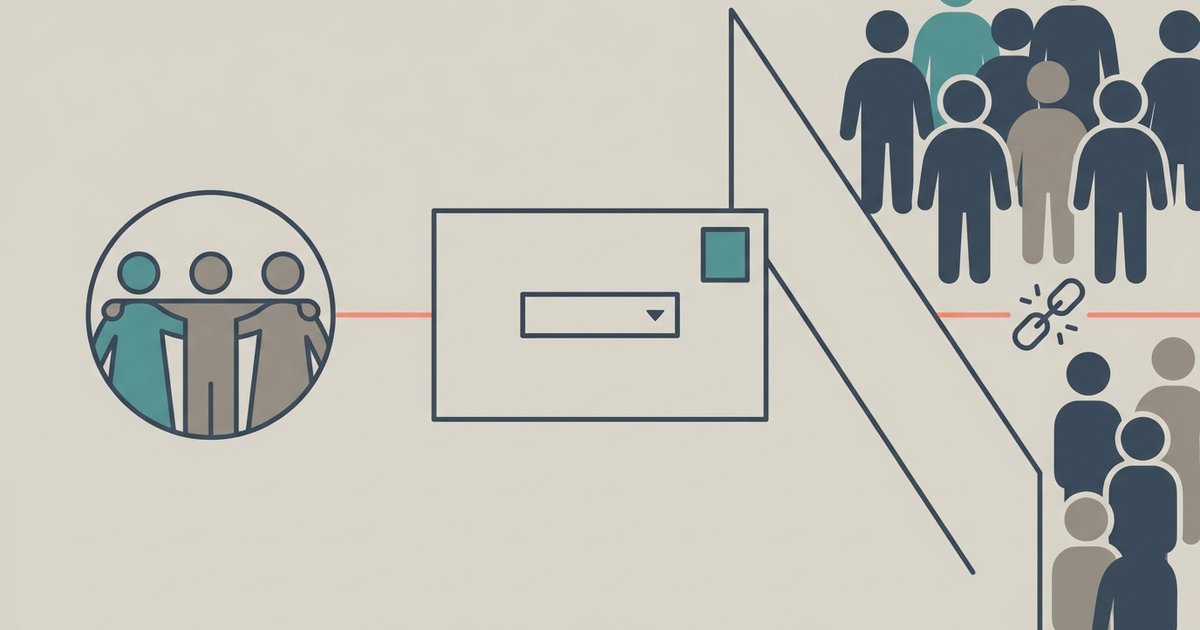
Every post has its own audience, chosen from the selector that sits under your name in the post box. The core options are Public, Friends, Only me and Custom, and if you have set up friends lists you can share with one of those instead. Whatever you pick for a single post applies only to that post, and the next one reverts to the default audience set in your privacy settings. Changing the default is a separate step from changing what you already posted.
Limiting posts you already shared
Facebook has a bulk control called Limit past posts. It takes everything you previously shared with a wider audience, such as Public, and changes it to Friends. It is one directional: there is no single click that puts the old audiences back, so reversing it means editing posts individually. It also only covers posts you shared yourself, not posts other people made that you were tagged in.
Downloading a copy of your Facebook data
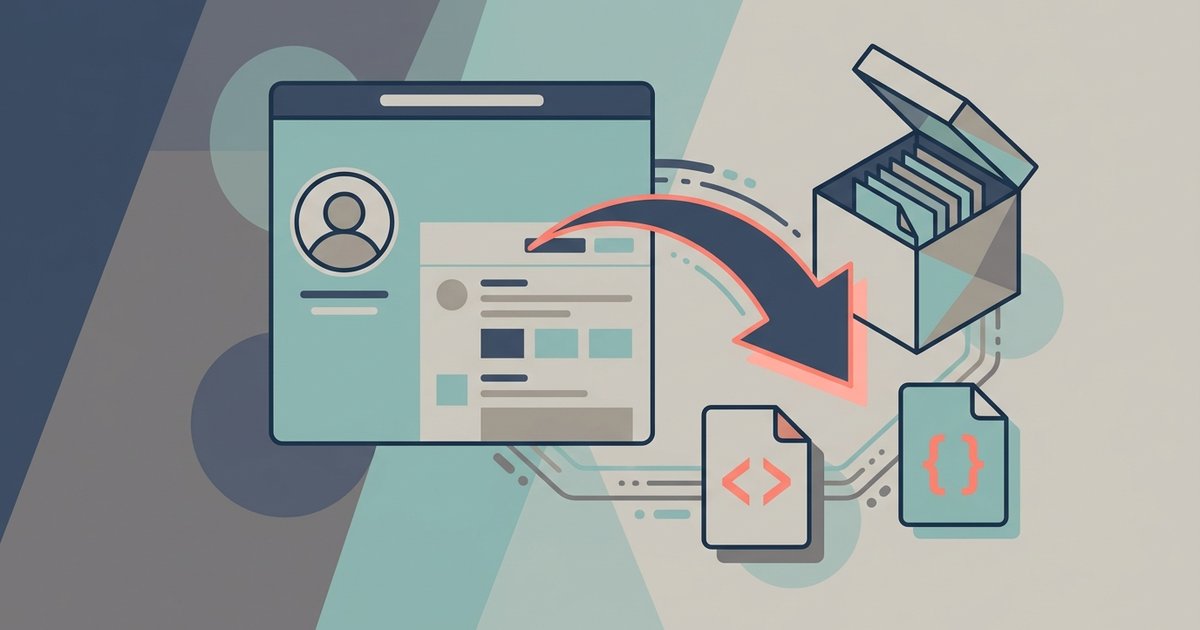
Facebook can build you an archive of your account through the export tool in Accounts Center, under Your information and permissions. You choose which categories to include, a date range, the media quality and whether you want the archive as HTML for reading or JSON for feeding into another tool. Facebook emails you and posts a notification when the file is built, and the download stays available for four days before it expires. The archive is a copy of what Facebook still holds, not a complete record of everything that ever passed through your account.
Deactivating or deleting your account
Deactivating hides your profile but keeps it recoverable: you log back in and it returns. Deleting starts a countdown instead, and you can cancel it by logging in within 30 days. After that the deletion proceeds, and Facebook says it can take up to 90 days to remove everything you posted, with copies possibly remaining in backup storage beyond that. The two choices also treat Messenger very differently, which catches people out.
Ads and what tracking controls really do
Ad settings sit in Accounts Center under Ad preferences, split between a tab for customizing ads and a tab for managing the information used to target them. You can tell Facebook to show you less of particular ad topics, review the advertisers whose ads you have seen, and turn off the use of activity that other businesses report about you. Facebook is explicit that these choices change which ads you see rather than how many. Turning off the activity setting also does not stop businesses sending that activity to Meta in the first place.
Private browsing on Facebook
A private or incognito window in your browser keeps Facebook out of that device's history and clears its cookies when you close it, which is useful on a shared computer. It does not make you anonymous to Facebook: once you log in, your activity is attached to your account exactly as usual. For message privacy the relevant control is inside Messenger, where personal chats and calls are end-to-end encrypted by default and disappearing messages are available. If you want to cut off old sessions on devices you no longer use, look for the logged-in devices list under Password and security rather than relying on private windows.
Stopping other people downloading your photos
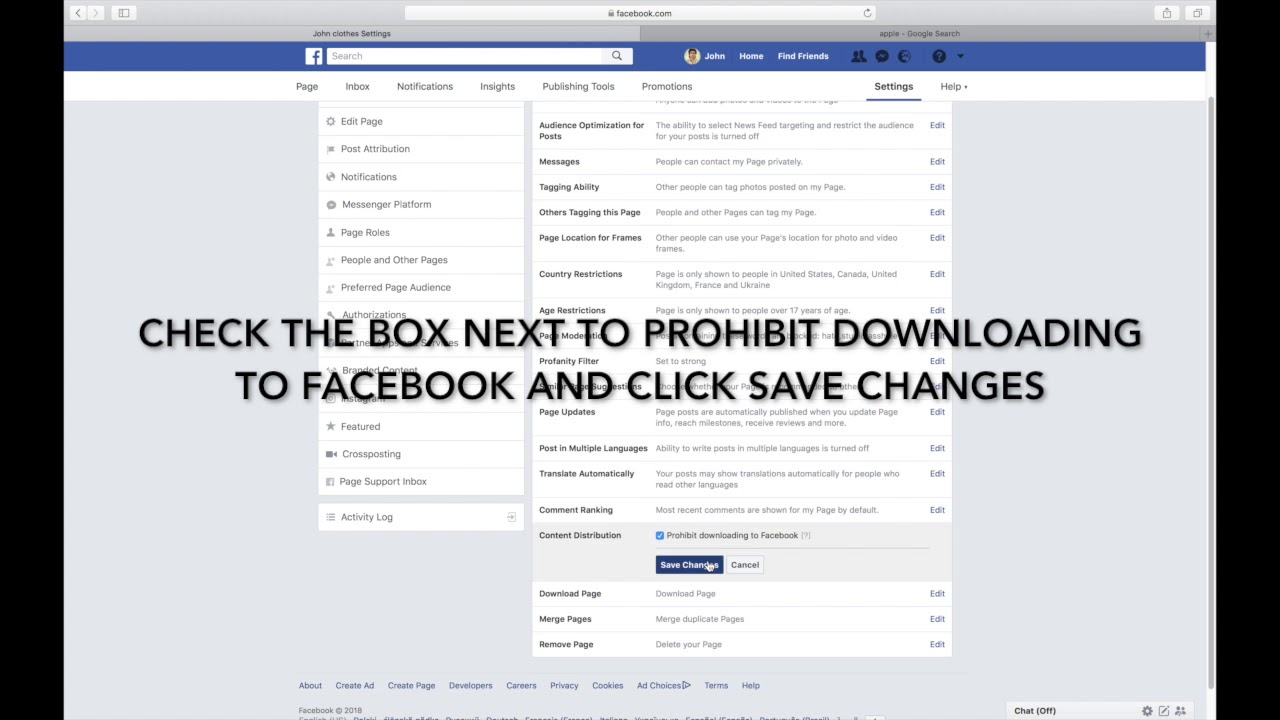
This is the section where expectations and reality part company. Facebook gives you audience controls for individual photos and for whole albums, reached through Options on a photo and then Edit post audience, but nothing that stops a person who can already see an image from saving or screenshotting it. Your current profile picture and cover photo are always public, and cannot be restricted. The practical control is deciding who sees the photo at all, and for photos in most albums that decision is made at album level rather than picture by picture.
Payments and Meta Pay
Facebook Pay was renamed Meta Pay, and older articles and screenshots still use the old name. Meta says the rename was cosmetic: existing payment methods and information carried over and nothing needed to be reconnected. Meta Pay covers payments across Facebook, Messenger, Instagram, Meta Horizon and Meta.com, and its settings live in Accounts Center under Meta Pay. You can require a PIN before a payment is confirmed, and on some devices you can add biometric confirmation on top of that.
Two-factor authentication and Face ID
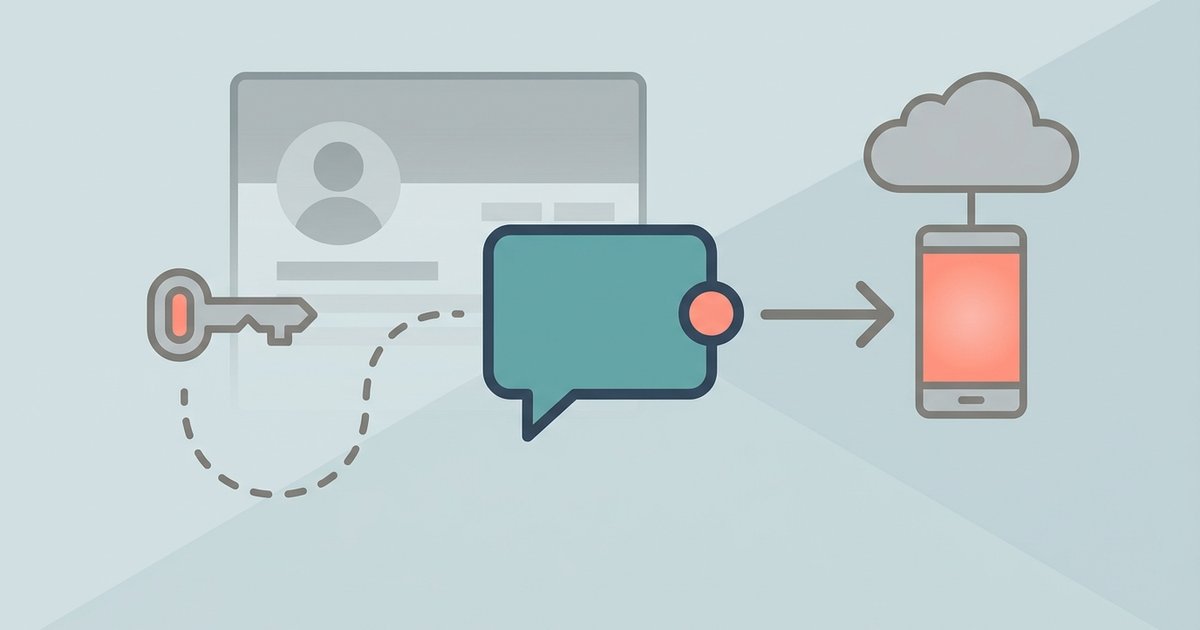
Two-factor authentication is set up in Accounts Center under Password and security. Facebook supports a hardware security key, codes from a third-party authenticator app and text message codes, and it will issue ten recovery codes for the times you cannot reach your phone. A security key or an authenticator app is stronger than SMS, which can be intercepted or lost with your number. Face ID is not a Facebook setting as such: it is your device unlocking a passkey or confirming a Meta Pay payment, and the face or fingerprint data stays on the device rather than going to Meta.
Facebook on a smart TV or tablet
The Facebook Watch app for TVs has been discontinued and can no longer be used. Video now goes to a TV either through a browser at the Facebook Watch page, or by streaming from the Facebook mobile app to a TV on the same network. Devices that cannot handle a normal login, including some TVs and cameras, use a code that you type into Facebook's device login page from a phone or computer. On tablets the ordinary Facebook app applies, and so do all the privacy settings above, because they are attached to your account rather than the device.
Reviewing your profile as other people see it
Audience settings are easier to trust when you check them from the outside. Facebook offers a view of your profile as the public sees it, which is the fastest way to catch an old post or a profile field that is more visible than you assumed. Profile fields such as your workplace, hometown and birthday each carry their own audience, separate from your post default. Some details, including your name, profile picture, cover photo, username and account number, stay public no matter what you set.
Changing your name
Your Facebook name is edited in Accounts Center under Profiles, and Meta allows one change every 60 days. The name has to be the one you use in everyday life, without titles, numbers, symbols or unusual capitalization. If you want to change your name on Facebook after marriage or to show a nickname, adding another name is often a better route than replacing your main one.
Controlling your Feed
Facebook ranks your Feed, but the Feeds tab shows the most recent posts from people and Pages you follow, newest first. Favorites puts up to 30 friends and Pages higher, while snooze hides someone for 30 days and unfollow hides them indefinitely without unfriending. Most of these Facebook feed settings live under Content preferences in Settings and privacy.
Facebook Dating
Facebook Dating is still running inside the Facebook app for adults in a list of supported countries, using a separate Dating profile that your Facebook friends cannot see. It can suggest friends of friends as matches unless you switch that off, and blocking in Dating does not block someone on Facebook. Meta is clear that it does not run background checks, so its safety tips for meeting in person matter.
Managing friend requests
Facebook gives you two choices for who can send you friend requests: Everyone or Friends of friends, set under How people find and contact you. Deleting a request is silent, and the sender cannot try again for a year, while blocking stops requests for good. Meta also warns that scammers use fake accounts to send requests, so unknown ones are best deleted.
Buying and selling safely on Marketplace
Most Facebook Marketplace scams rely on a few tricks: moving the chat off Messenger, fake payment screenshots, overpayment refunds and requests for verification codes. Meta advises confirming every payment in your own account and never paying in advance for an item you have not seen. Only eligible purchases made with checkout on Facebook carry Purchase Protection, so cash and payment app deals are on you.
Locking your profile
In some countries Facebook lets you lock your profile, which limits posts, stories and full-size photos to friends and switches past public posts to Friends in one step. Meta does not publish the list of countries, so the only test is whether the option appears on your own profile. Where it is missing, you can lock your Facebook profile in practice by combining post audiences, Limit past posts, tag review and friend request settings.
Recovering a hacked account
If someone has taken over your account, Meta's recovery flow starts at facebook.com/hacked, and it works best on a phone or computer you have used for Facebook before. When the attacker has changed your email or phone number, Facebook sends a reversal link to the old address, and the account identification page offers another way back in. Once you recover a hacked Facebook account, log out unfamiliar devices and turn on two-factor authentication so it does not happen twice.
Who has looked at your profile
Facebook does not show who viewed your profile, and Meta says third-party apps cannot provide that either, so any app offering a visitor list is a scam worth reporting. The one place you can see viewers is your story, where Facebook lists the people who watched it. Browsing someone's profile is private in both directions, but watching their story is not.
A sensible order to work through this
If you only have half an hour, do these in order: request your data export first so it builds while you work, set the default audience for future posts, run Limit past posts if your older material was public, turn on two-factor authentication with an app or a key, then go through ad preferences and the activity from other businesses setting. Check the results by viewing your profile as the public sees it. Then make a note to repeat the review in six months, because the menus will have moved and settings sometimes reappear after an app update.
\nRelated reading: Who Can See Your Facebook Posts: Audience Settings Explained, How to Use Messenger Without a Facebook Account, How Can I Stop Others To Download My Photos On Facebook?, and How to Download Your Facebook Data.