Chrome flags reset on a personal device because the browser's safe-mode failsafe detects a previous crash or improper shutdown and reverts experimental settings to ensure stability. To make them stick, you must force a clean exit before rebooting, or manually lock the flag state via the Local State file, a process that requires the same local file access you enable with Chrome extensions and developer mode.
The real reason Chrome flags revert on personal devices
The silent reversion stems from Chrome's built-in crash detection logic. The browser stores a crash flag in its user data directory when it closes without a proper "quit" signal. This happens when you power off your PC without closing Chrome first. It also occurs when the browser freezes and you kill it via Task Manager. On the next launch, Chrome reads that flag and automatically disables all experimental flags to protect against instability. This is not a group policy or managed device issue. It's a safety feature that users frequently misinterpret as an admin lock, but if your flags are actually grayed out by policy, see Chrome flags not working on managed device how to bypass. The failsafe is aggressive. Even a single unexpected shutdown can erase flags like "Override software rendering list" that you painstakingly enabled.
Force a clean browser exit before shutting down
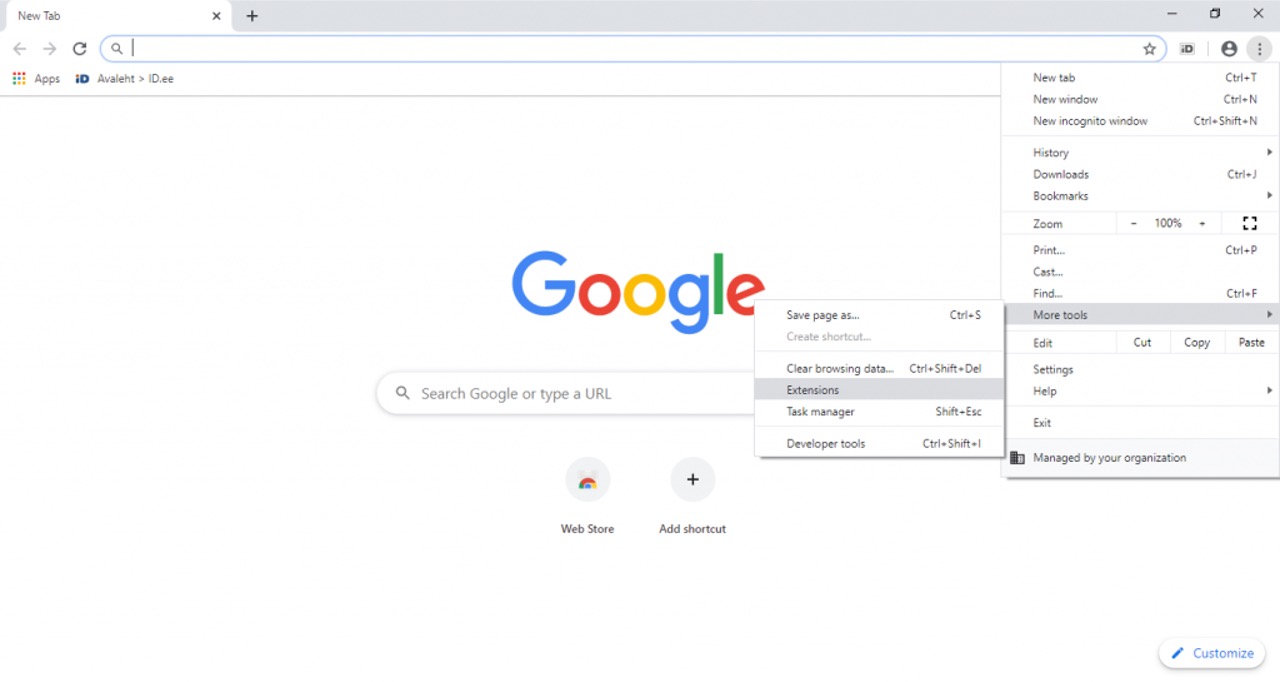
The most reliable method to preserve flags across reboots is to perform a clean exit before you shut down your computer. Instead of simply clicking the X button on the window, go to the Chrome menu in the top-right corner and select "Exit" or "Quit Chrome." Alternatively, type chrome://restart into the address bar and press Enter. This command gracefully closes all Chrome processes and relaunches the browser, saving the current flag state in the process. After this clean exit, you can safely shut down your PC. Chrome will not detect a crash on next startup. This works because a clean exit writes the current flag configuration to disk and clears the crash marker, so the failsafe never triggers.
Lock the flag state when clean exits don't work
If you still see flags resetting despite always using a clean exit, you can hard-code the enabled flag string by editing Chrome's Local State preferences file. First, fully close Chrome. Then navigate to your Chrome user data folder, typically %LOCALAPPDATA%\Google\Chrome\User Data on Windows or ~/Library/Application Support/Google/Chrome on macOS. Open the "Local State" file in a text editor like Notepad. Search for the browser key and locate the entry that stores the last enabled experimental flags. Replace its value with the exact flag string you want to lock, such as "OverrideSoftwareRenderingList". Save the file and relaunch Chrome. This forces the flag to stay enabled even after a crash, because the browser reads this file before checking its crash detection. Note that this technique is also useful if you want to enable html5 in Chrome persistently, as the same Local State file can lock HTML5-related flags.
When nothing helps
If flags continue to reset despite clean exits and Local State edits, the culprit is likely a third-party tool or a corrupted user profile. Some antivirus software, system cleaners like CCleaner, or privacy tools automatically clear Chrome's user data on shutdown, including the Local State file. Check your cleanup software's settings and exclude the Chrome user data folder from automatic cleaning. A corrupted profile can also cause persistent reversion. In that case, create a new Chrome profile by going to Settings > You and Google > Manage other profiles. Then add a new profile and re-enable your flags there. If the problem still persists, consider a full uninstall and reinstall of Chrome after backing up your bookmarks. In rare cases, a Windows registry entry or a leftover group policy from a former work device can force flag resets. Run gpedit.msc and check for any Chrome-related policies under the Administrative Templates section. Removing those entries can finally stop the reversion cycle.