How To Rotate Screen In Chrome
To rotate screen in Chrome, you need to know which type of rotation you actually want, because the browser itself has no built-in button for flipping web page content. The quickest way to rotate the entire screen on a Chromebook is to press Ctrl + Shift + Refresh, but if you want to rotate just the contents of a single web page, you'll need to install a dedicated Chrome extension.
Can you rotate screen in Chrome?
Chrome does not include a native feature that lets you rotate the content of a web page, such as turning a standard article sideways or flipping an image 90 degrees. The browser relies on your operating system's display settings for full-screen orientation, and for page-level rotation, you must use a third-party extension. This is an important distinction: rotating the entire device display (which affects everything on the screen) is handled by your OS or hardware, while rotating just the content inside a Chrome tab (like a single image or a video player) requires a separate tool. If you only need to flip your monitor back to normal after an accidental rotation, the system-level shortcut is usually the fix; if you need to read a long page in portrait mode or view a specific element from a different angle, an extension is the answer.
Rotate a web page with a Chrome extension
For those who want to rotate the actual content of a web page, whether it's a full page, a single image, or an embedded video, the "Webpage Rotator" extension from the Chrome Web Store is a reliable choice. This extension is designed to keep scrolling functional after rotation, so you can still navigate the page normally even when it's flipped sideways. To get started, open the Chrome Web Store and search for "Webpage Rotator," then click "Add to Chrome" and confirm the installation. Once installed, you'll see the extension's icon in your toolbar. Click it to access a small menu where you can choose a rotation angle, such as 90°, 180°, or 270°. The extension will immediately apply the rotation to the current tab, and you can switch back to 0° to restore the original orientation. This is particularly useful when you want to view a long article in portrait mode without tilting your head, or when you need to inspect a wide image that doesn't fit on your screen in its default position.
Rotate the screen on a Chromebook
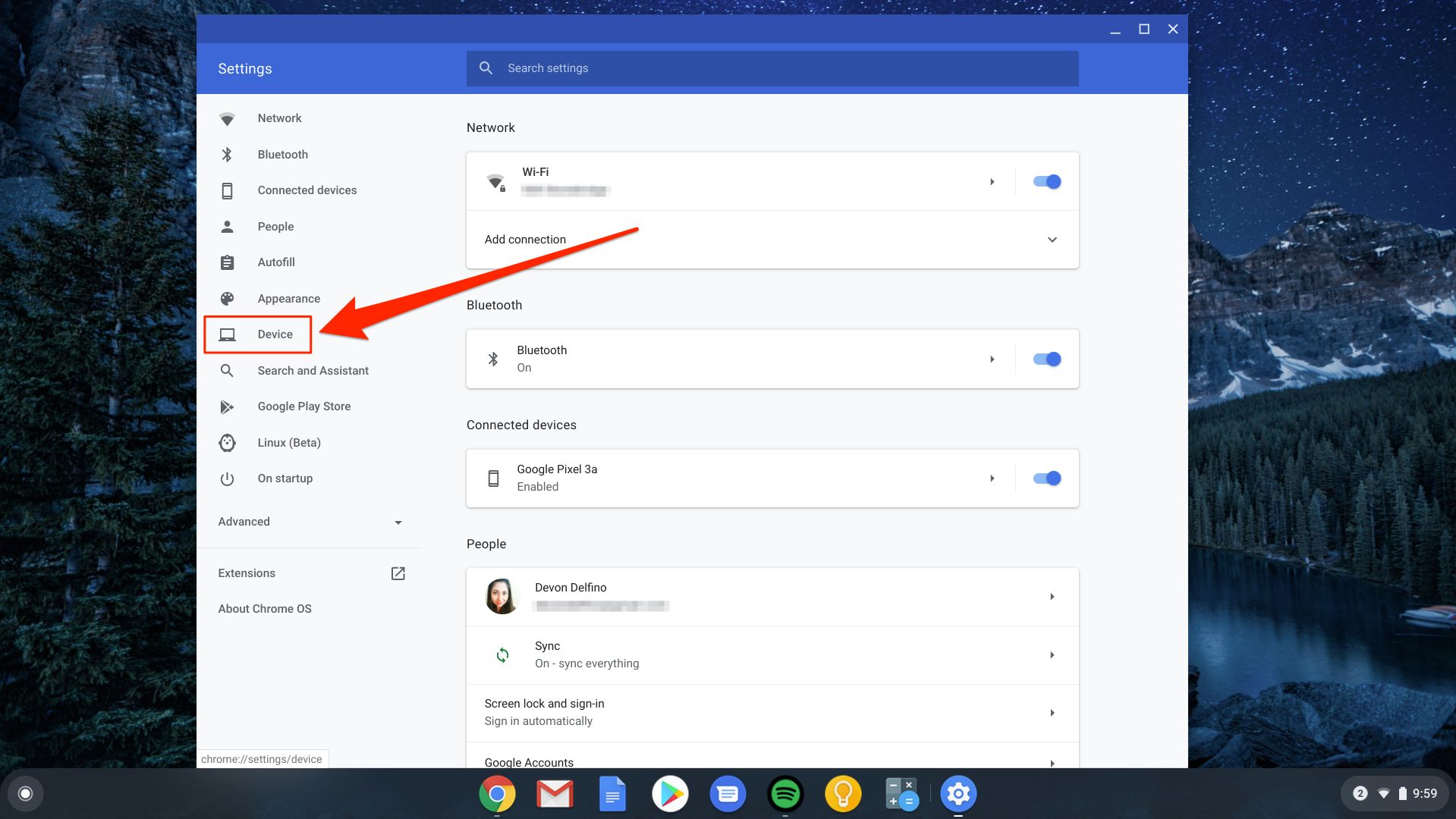
If you're using a Chromebook and want to rotate the entire display, not just a single tab, the process is straightforward and doesn't require any extensions. The quickest method is to press Ctrl + Shift + Refresh simultaneously. This keyboard shortcut will rotate the screen 90 degrees each time you press it, cycling through landscape, portrait, and upside-down orientations. If you prefer to use the graphical interface, navigate to Settings > Device > Displays. This is the most reliable way to fix an accidentally rotated Chromebook screen, as it gives you a clear visual indicator of which orientation you're selecting. The keyboard shortcut works instantly, but the Settings menu is better if you need to choose a specific angle rather than cycling through all of them.
Emulate screen rotation for web development
For web developers, Chrome's built-in Developer Tools offer a way to test how a website responds to different screen orientations without physically rotating your device. This is essential for checking responsive designs on mobile phones and tablets. To access this feature, open DevTools by pressing Ctrl + Shift + I on Windows/Linux or Cmd + Option + I on Mac. Then, toggle the Device Toolbar by pressing Ctrl + Shift + M (or Cmd + Shift + M on Mac). This toolbar simulates a mobile device's viewport. At the top of the toolbar, you'll see a "Rotate" button (it looks like a screen rotation icon). Click it to switch between portrait and landscape orientations for the simulated device. This doesn't change your actual screen, it only changes how the page is rendered in the simulated viewport. This is a powerful tool for developers because it lets you test breakpoints, touch targets, and layout shifts in both orientations without ever leaving your desk.
What about Ctrl+Alt+Arrow?
You might have heard that pressing Ctrl + Alt + Arrow keys rotates the screen, but this shortcut does not affect Chrome content at all. Instead, it rotates the entire Windows display by sending a command to your graphics driver (typically Intel). This is a system-level function, not a browser feature. When you press Ctrl + Alt + Right Arrow, for example, Windows flips the whole monitor 90 degrees, which means every window, including Chrome, is rotated. This can be handy if you want to physically turn your monitor into portrait mode, but it won't help if you only want to rotate a single web page or a video inside a tab. Additionally, this shortcut may not work on all systems, it depends on whether your graphics driver supports it. On some laptops or desktops with dedicated GPUs, you might need to use the graphics control panel (like Intel Graphics Command Center) instead.
Related reading: How To Play .Swf Files On Chrome, How To Download Videos From Any Website In Google Chrome, and Google Chrome Not Responding When Trying To Print.