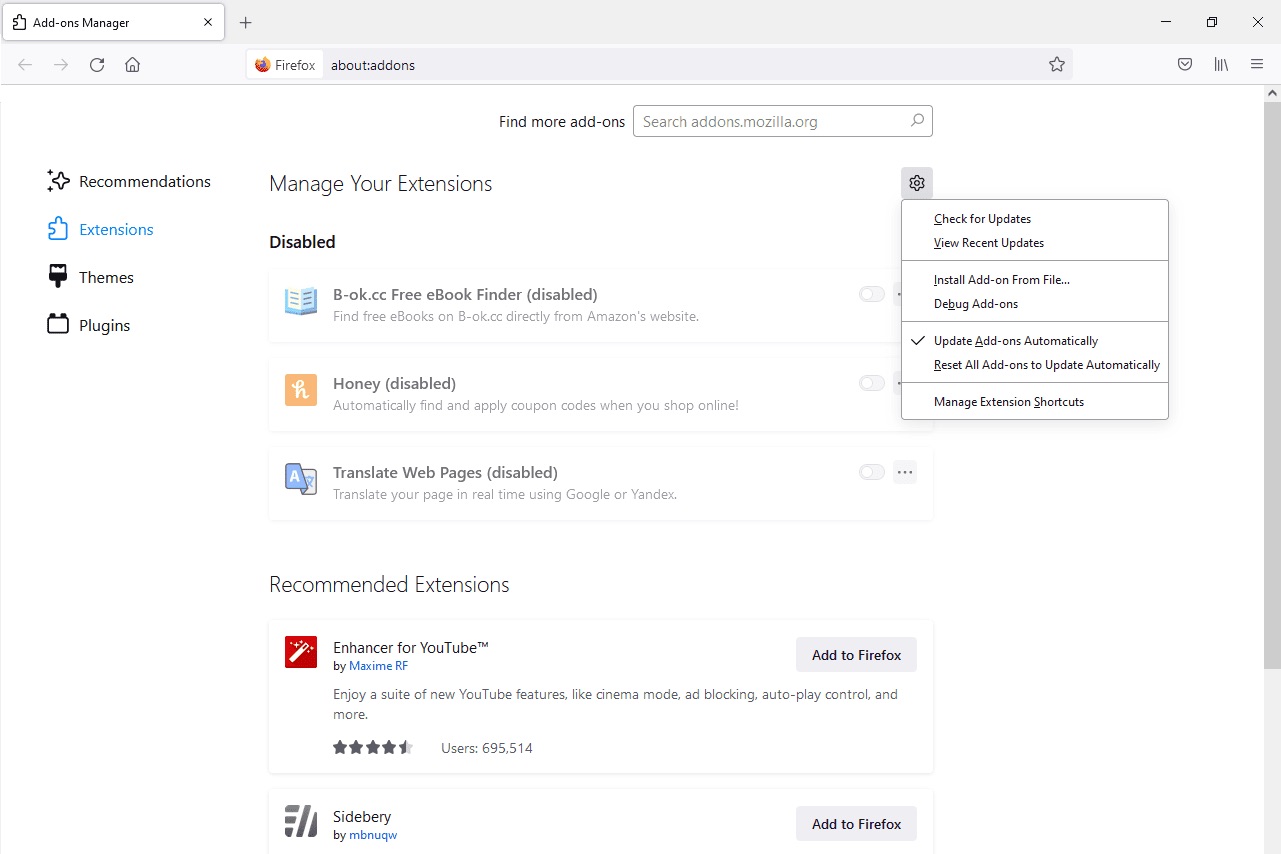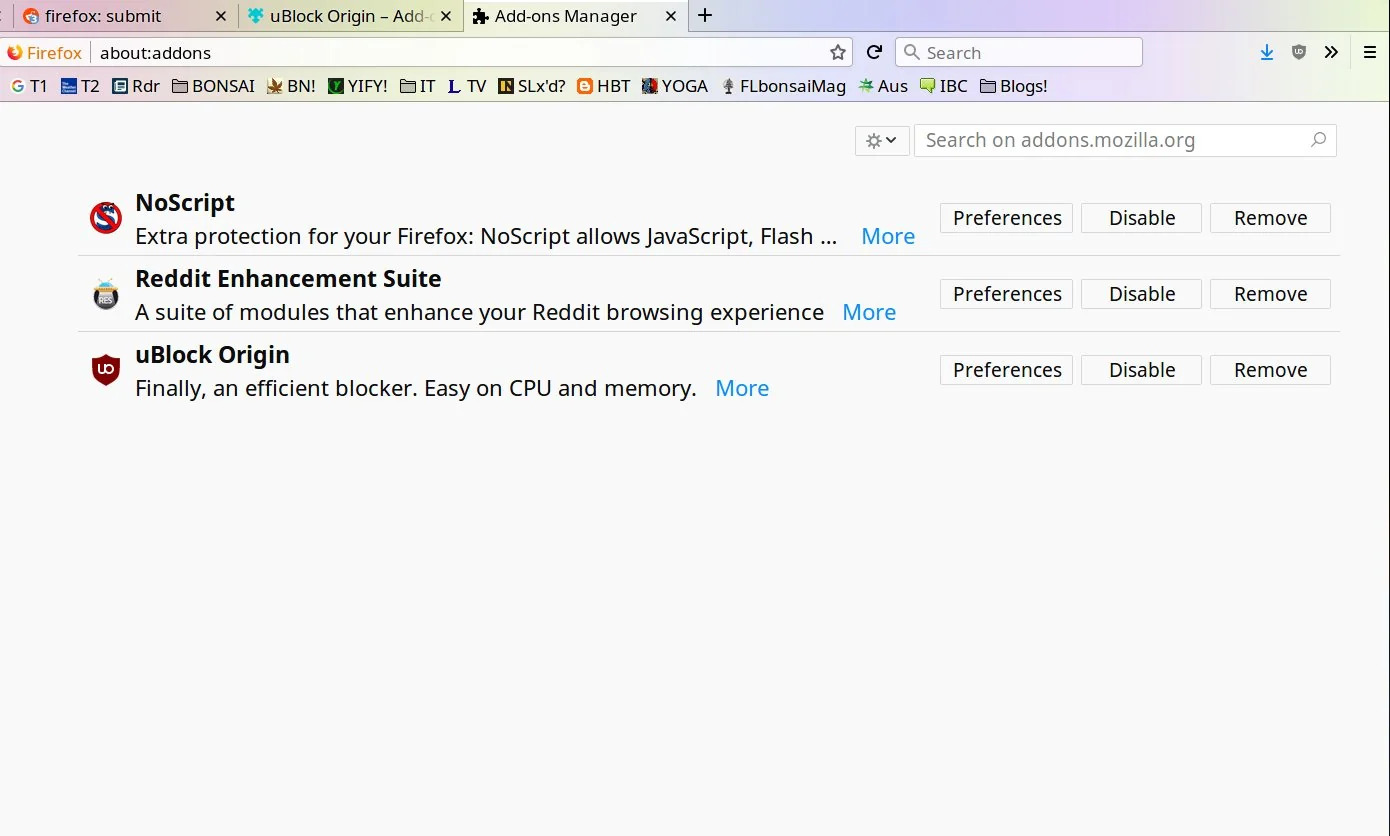
To remove NoScript from Firefox, open the browser, click the menu button (three horizontal lines) in the top-right corner, and select “Add-ons and themes” to open the Add-ons Manager. From there, find NoScript in your Extensions list, click the three-dot icon next to it, and choose “Remove” to uninstall it completely.
How to remove NoScript from Firefox: Step-by-step instructions
Removing NoScript follows the same standard process used for any Firefox extension. The Add-ons Manager gives you full control over what stays and what goes in your browser, and once you know the navigation, the whole task takes less than a minute.
- Open Firefox and click the menu button (three horizontal lines) in the top-right corner of the window.
- Select “Add-ons and themes” from the dropdown menu. This opens the Add-ons Manager in a new tab.
- Alternatively, press Ctrl+Shift+A on Windows or Linux, or Command+Shift+A on Mac, to open the Add-ons Manager directly with your keyboard.
- In the Add-ons Manager, click “Extensions” in the left sidebar to see all installed extensions.
- Locate “NoScript” in the list of installed extensions. It will appear with its icon and a brief description.
- Click the three-dot (ellipsis) icon next to the NoScript entry to open a dropdown menu.
- Select “Remove” from the menu. Firefox may ask you to confirm the action, click “Remove” again if prompted.
- Restart Firefox if the browser asks you to, then check the Extensions list again to confirm NoScript is gone.
After the restart, the extension will no longer block scripts or interfere with any websites. If you ever want it back, you can reinstall it from the official NoScript website or the Firefox Add-ons store.
How to disable NoScript temporarily
If you are not ready to delete NoScript but need it out of the way for a specific site or a short period, you can turn it off without uninstalling it. This is useful when you want to keep the extension installed but stop its script-blocking behavior immediately. To do this, open the Add-ons Manager as described above, find NoScript in the Extensions list, and click the blue toggle switch next to its name so it turns gray. The extension will stop running until you click the toggle again to re-enable it. Disabling is also a good first step if you suspect NoScript is causing problems but want to test that theory before committing to a full removal.
What to do if NoScript won't remove normally
In rare cases, an extension may refuse to be removed through the standard Add-ons Manager method. This can happen if a file is corrupted, if Firefox is mid-update, or if the extension is locked by another process. If NoScript does not disappear after following the steps above, you can force-remove it by deleting its files directly from your Firefox profile folder. Start by opening the menu, clicking “Help,” then “More Troubleshooting Information.” Under “Application Basics,” find the row labeled “Profile Folder” and click “Open Folder” (on Windows) or “Show in Finder” (on Mac). This opens your profile directory in your file manager. Inside, locate a folder named “extensions” and open it. Look for a file or folder that corresponds to NoScript, typically named with the extension’s ID, which you can find in the Troubleshooting Information tab under “Extensions.” Delete that file or folder, then restart Firefox. The browser will treat the extension as gone, and you can reinstall it later if needed. This manual method is a last resort, but it works when the normal removal path fails.
\nRelated reading: How To Install XPI File In Firefox, How To Cast From Firefox To Chromecast, and How Do I Get Rid Of Yahoo Search In Firefox.