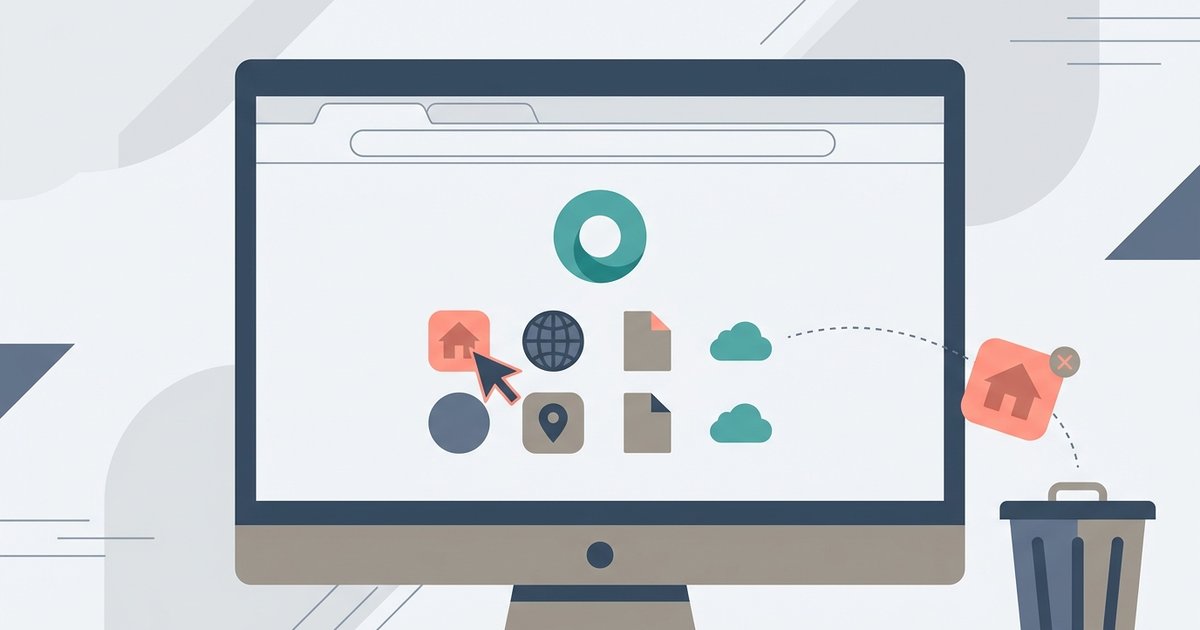
Hover over the shortcut icon, click the three-dot menu in the top-right corner of the icon, and select 'Remove shortcut'. If you don't see the menu, you are likely trying to click a website logo that isn't actually pinned.
How to remove a pinned shortcut from Chrome
This action instantly removes the tile from your new tab page without affecting your browsing history or bookmarks.
The difference between a pinned shortcut and a frequent site
Chrome's new tab page displays two types of tiles. Manually pinned shortcuts stay in place until you remove them. Automatically generated "Most visited" sites shift based on your activity. The three-dot menu appears only on manually added shortcuts. A frequent site has no three-dot menu at all. If you hover over a tile and see no three-dot icon, that tile is a "Most visited" site, not a pinned shortcut. To remove a frequent site, you must clear your browsing history or visit other sites until Chrome replaces it. This distinction explains why many users believe the removal option is missing, a frustration you can avoid entirely by customising the Chrome homepage and shortcuts to show only what you want. They are simply looking at the wrong type of tile.
Hover and click the three-dot menu
Look for a small three-dot icon that appears when you move your cursor directly over the shortcut tile. It sits in the top-right corner of the tile, usually above the website icon or initial. This icon is subtle. It shows as three faint gray dots that become slightly darker when you hover over them. Click that icon, and a small menu drops down with two options: 'Edit shortcut' and 'Remove shortcut'. Selecting 'Remove shortcut' deletes the tile immediately. The space it occupied will either remain blank or be filled by a frequent site later. You can also choose 'Edit shortcut' to change the name or URL instead of removing it. This process works identically whether you want to remove a link you added manually or one you imported when you chose to make msn my homepage in Google Chrome, as that action pins a new shortcut tile to your page.
Chrome separates pinned shortcuts from frequent sites with distinct visual controls, making removal impossible unless you first identify which type of tile you are targeting.
What to do when the remove option is missing
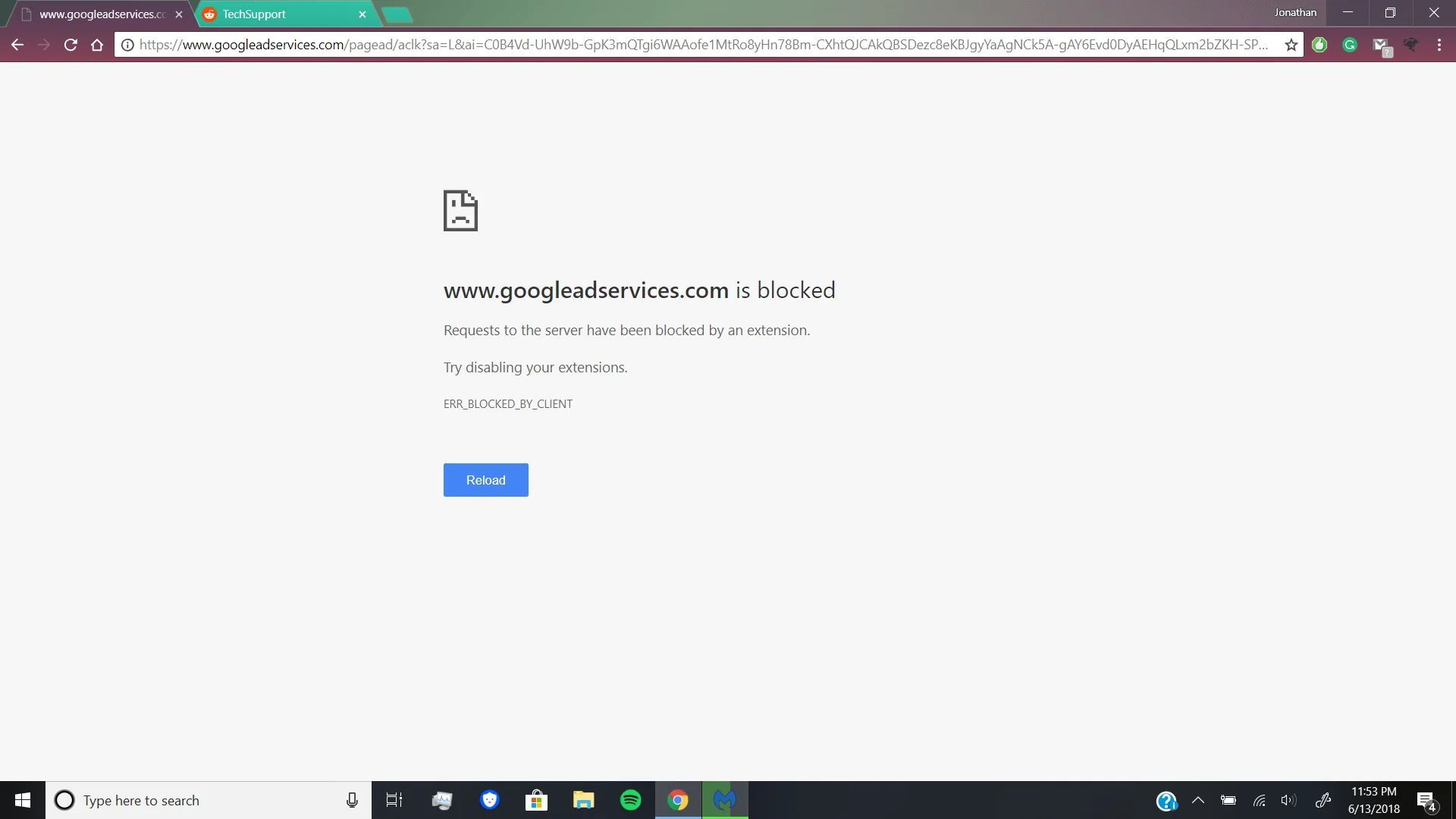
If you are certain you pinned the shortcut manually but the three-dot menu still does not appear, the issue is usually caused by a Chrome extension that modifies the new tab page. Extensions that replace the default page with custom dashboards, wallpaper tools, or productivity boards often hide or override Chrome's native shortcut controls. To troubleshoot, open Chrome's menu, go to Extensions, and disable any extension that changes the new tab page. The three vertical dots for the browser menu sit in the top-right corner of the window. After disabling, open a new tab. The default layout should return, and the three-dot menu should become visible on your pinned shortcuts. If the problem persists, reset the new tab page to its default by navigating to chrome://settings/reset and clicking "Restore settings to their original defaults." This does not delete bookmarks or passwords. For users who have previously configured Chrome to add a shortcut on Chromebook, this reset also restores the ability to manage those shortcuts. Additionally, if you have used the browser to set up tabs to automatically open in Chrome, those settings remain intact after the reset. Finally, if you need to re-pin a search engine shortcut, you can use the same 'Add shortcut' box to make Google the default search engine in Chrome by entering its URL manually.