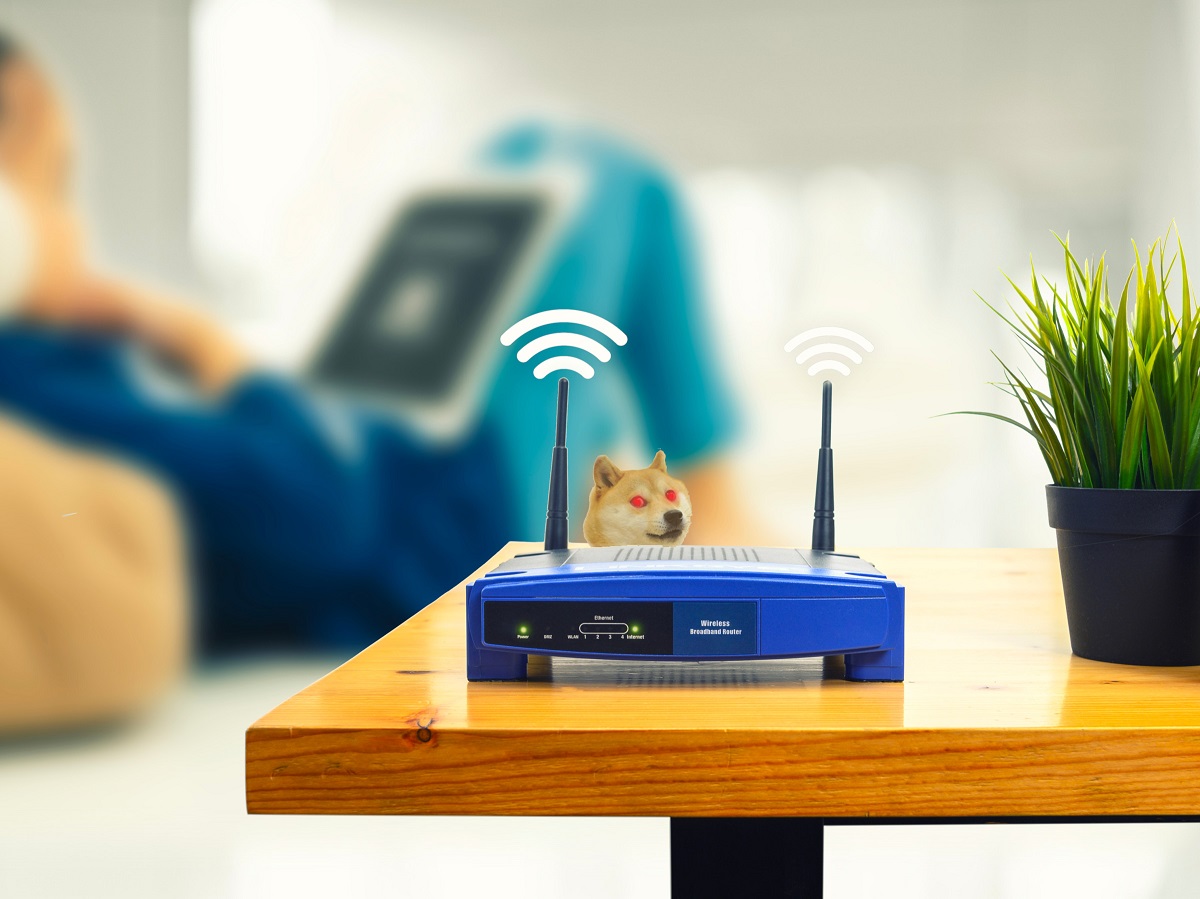
To connect a SIM card to a WiFi router, you need a 4G/5G LTE router that accepts cellular SIM cards and an active data plan from your mobile provider. If you need to retrieve the SIM from your phone first, see locating the SIM card on Android phones. Insert the activated SIM into the router, configure the APN settings, and your router will create a WiFi network using cellular data instead of wired broadband.
Before you connect a SIM card to a WiFi router
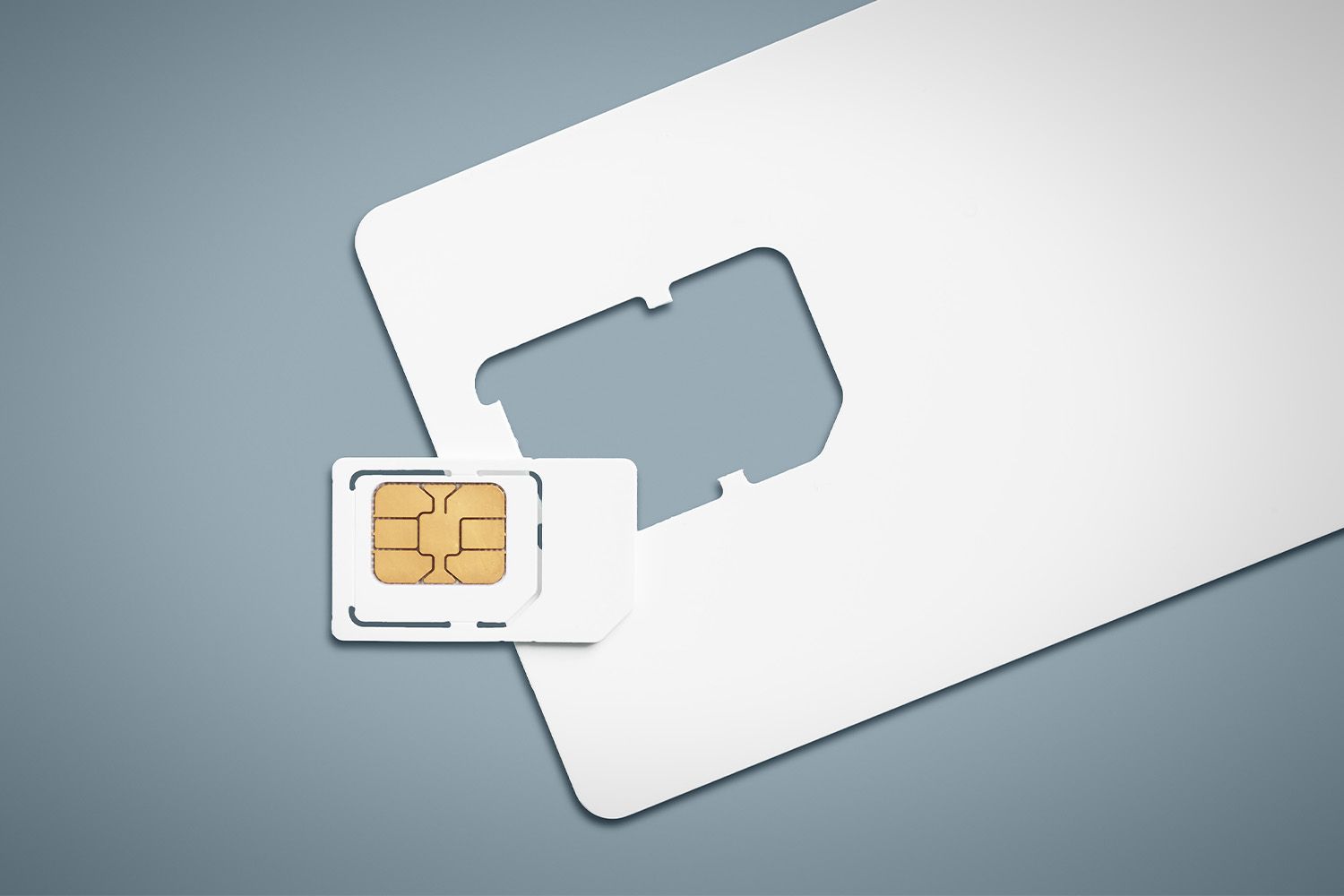
Only specific routers, 4G/5G LTE routers, mobile broadband routers, or cellular routers, are designed to accept a SIM card. Standard WiFi routers without a cellular modem cannot use a SIM. Before starting, confirm your SIM is activated with an active data plan from your mobile network operator. SIM card sizes vary (Standard, Micro, Nano); check your router’s slot size and use an adapter if needed, but never insert an empty adapter.
Insert the SIM card into your router
- Power off the router completely to prevent damage to the device or SIM card.
- Locate the SIM card slot, typically on the back, bottom, or side of the router, sometimes under a removable cover or battery.
- Gently insert the SIM card with the gold contacts facing down or as indicated by the diagram on the router, pushing until it clicks into place.
- Power on the router and wait a few minutes for it to boot and connect to the cellular network, indicated by LED lights.
For guidance on handling different devices, consider inserting a SIM card (How to Insert, Move and Fix a SIM Card) and activating your SIM card (Activating Your SIM Card: A Step-by-Step Guide) before insertion.
Access the router's administration panel
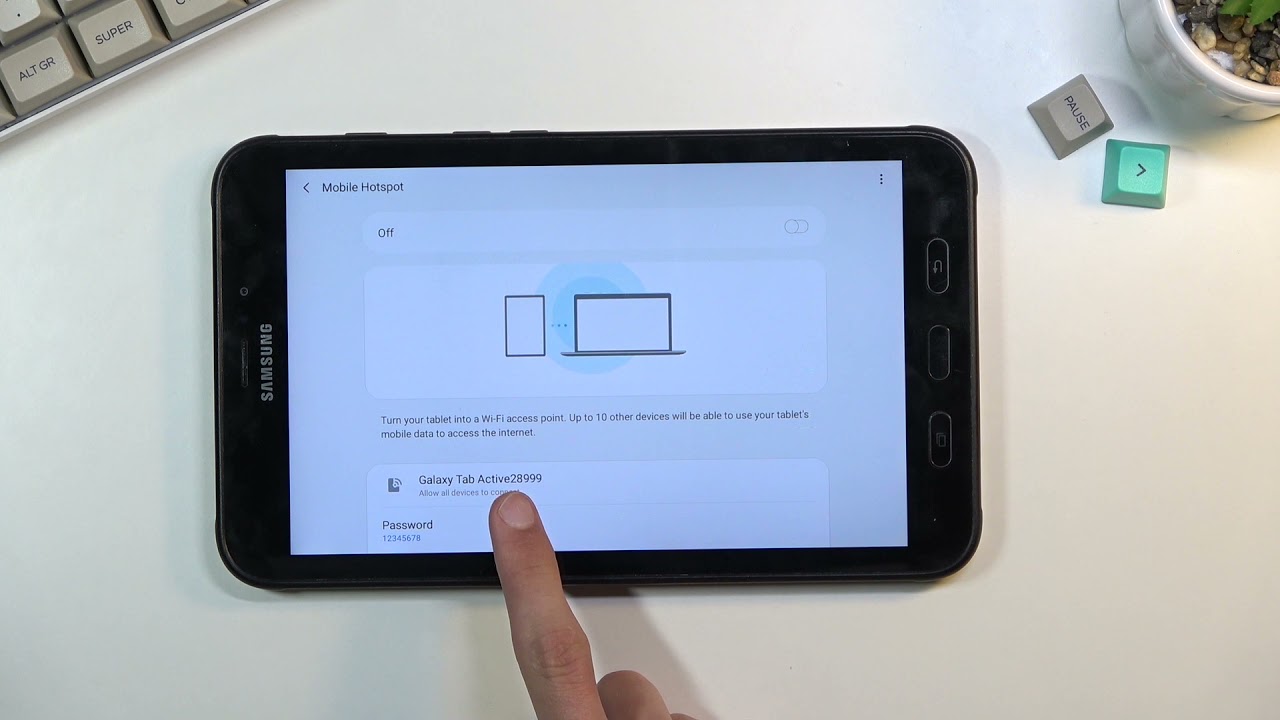
- Connect a device (computer, phone, or tablet) to the router’s default WiFi network (SSID) or via an Ethernet cable.
- Open a web browser and enter the router’s default IP address (e.g., 192.168.1.1, 192.168.0.1, or 192.168.8.1) or a specific URL (e.g., http://routerlogin.net or http://tplinkmodem.net).
- Log in using the default username and password, usually “admin” for both or found on a label on the router itself. Change these credentials immediately for security.
Configure APN settings for cellular data
- In the router’s admin panel, navigate to “Network Settings,” “Cellular,” or “WAN Settings.”
- Enter the Access Point Name (APN) details provided by your mobile network operator.
- Save the configuration. The router will then establish a data connection using the SIM card.
Optimize placement and secure your network
Position the router centrally and, if possible, near a window for better cellular signal. Ensure external antennas are properly connected and oriented upwards. For security, change the default admin password and set a strong WiFi password with encryption enabled. These steps protect your network and improve performance.
Troubleshooting common setup issues
No signal or weak signal: Relocate the router to an area with better reception, such as near a window or elevated spot. Check external antenna connections.
Incorrect APN errors: Verify the APN details from your mobile operator are entered exactly as provided. Restart the router after saving changes.
SIM compatibility problems: Ensure the SIM is activated, has an active data plan, and is the correct size for the router’s slot. Confirm the router is unlocked or compatible with your network provider’s bands.
Firmware updates: Check the router manufacturer’s website for firmware updates that may resolve connectivity or compatibility issues. Install updates as needed.
For the wider topic, see inserting a SIM card.