To download Twitter videos, copy the direct link to the post containing the video, paste it into a free third-party downloader, and save the file to your device, this three-step method works on any PC, Android phone, or iPhone. Whether you want to keep a funny clip for offline viewing or archive a tutorial for later, knowing how to download Twitter videos takes less than a minute once you have the post URL, but remember that some shared content may disappear with features like the end of a brief era.
How to download Twitter videos: the essential steps
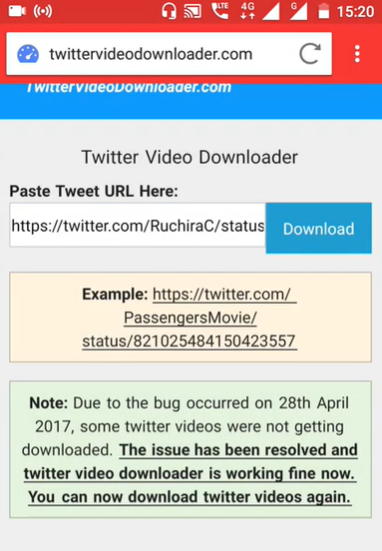
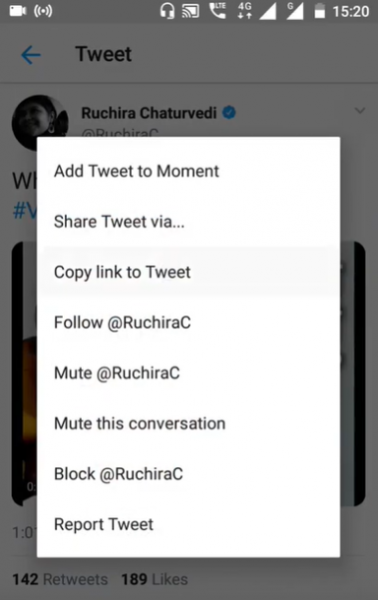
The universal method for saving any public Twitter video is identical across every device. First, open the tweet that contains the video you want. Second, copy the post’s direct link by tapping the Share icon and selecting “Copy link,” or by copying the URL from your browser’s address bar. Third, paste that link into the input field of any third-party video downloader website or app, then choose your preferred quality and save the file. That’s it, no software installation is required for desktop users, and the same process works in a mobile browser.
Important legal and privacy notes
Downloading videos for personal, non-commercial archiving is generally considered permissible under “Fair Use” in many jurisdictions. However, re-uploading or using downloaded X videos for commercial purposes without the creator’s explicit permission is likely to constitute copyright infringement. Also, third-party downloaders can only save videos from public X posts; they cannot access content from private accounts, protected tweets, or age-restricted videos due to privacy safeguards. If a tweet or video has been deleted, third-party downloaders will not be able to retrieve the content, so grab what you need while it’s still live.
How to download Twitter videos on a PC or Mac
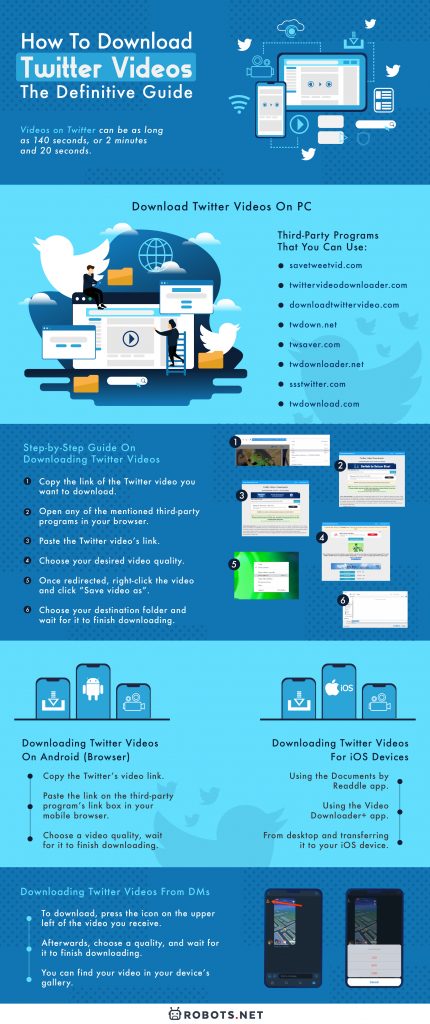
Desktop users have the simplest route because the browser does most of the work. Start by navigating to the tweet with the video and copying the link from the address bar. Then open any third-party downloader site in a new tab, paste the link into its input box, and press the download button. After the site processes the link, you’ll see a video player appear. Right-click on that video and select “Save video as” to choose your destination folder. The file will download in MP4 format, ready for offline viewing. This method works identically on Windows and macOS, and you can repeat it for as many videos as you need.
How to download Twitter videos on Android
Android users have two reliable options. The first is to use your mobile browser exactly as you would on a desktop: copy the tweet link via the Share icon, paste it into a third-party downloader site, and save the file to your device’s download folder. The second option is to install a third-party app from the Play Store that handles the same copy-paste-download flow. Most of these apps are free, though some display ads, if you prefer an ad-free experience, you may need to pay for the app. Either way, the core steps remain the same: copy the link, paste it, choose quality, and download. Your saved video will appear in your device’s Downloads folder or the app’s designated output folder.
How to download Twitter videos on iOS
First, copy the tweet link by tapping the Share icon and selecting “Copy link to tweet.” Then open Documents by Readdle, tap the browser icon in the bottom right corner, and navigate to any third-party downloader site. Paste the link into the downloader’s input box, tap Download, and choose a name and destination folder for the video. Tap Done to start the download, and the file will be saved inside the Documents app. Alternatively, you can download the video on a computer using the desktop method above, then transfer it to your iPhone or iPad via AirDrop or a USB cable. This file transfer approach works for Mac users via AirDrop and for Windows users via a standard USB connection.
Downloading Twitter videos from direct messages
Saving videos from DMs is significantly harder than saving public posts because most third-party tools cannot access private message content. If you need to download Twitter DM videos, the process requires a dedicated workaround, and on Android, there is no known method that works reliably. For iOS, a specialized tool can add a download button directly to videos received in DMs, but this solution only functions on older jailbroken devices. If you’re on a modern iPhone or Android phone, your best option is to ask the sender to share the video as a public post, then use the standard download method. For a full breakdown of the limited DM-specific options, see the dedicated sibling guide on how to download Twitter DM videos.