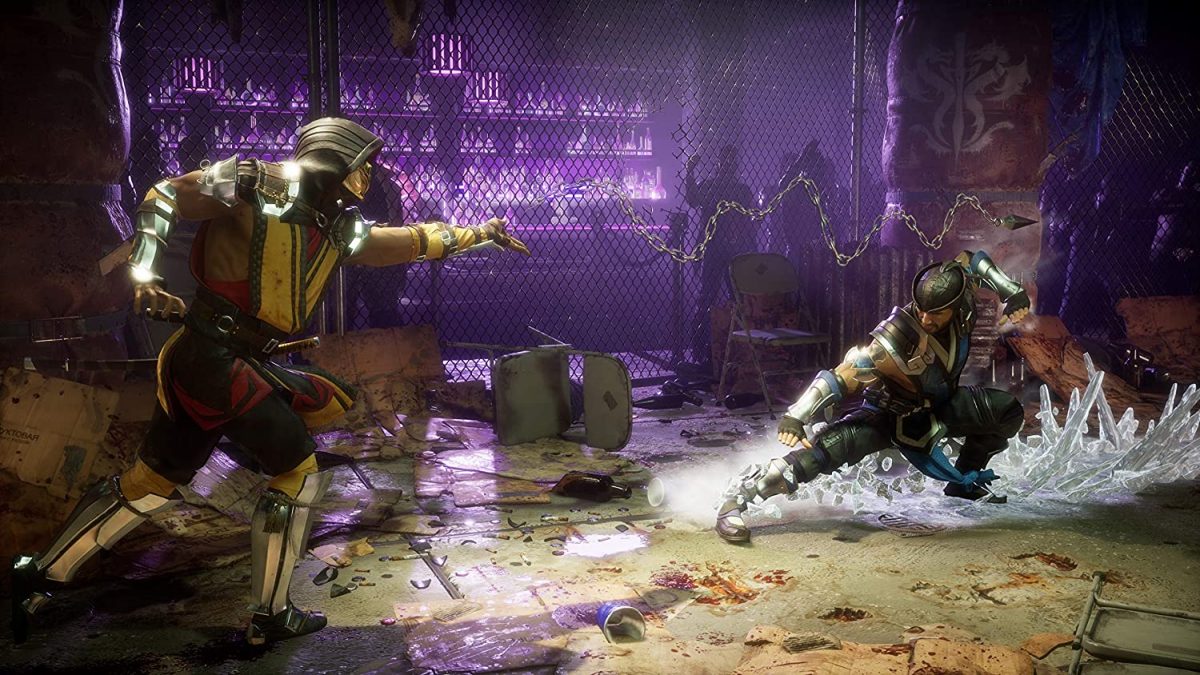
To do special moves in Mortal Kombat 11, you input a directional sequence followed by an attack button, and every fighter follows the same universal control logic. The exact command changes per character and equipped variation, but the core system, direction plus attack, applies across the entire roster. Once you grasp this foundation, you can pick up any character and instantly know how to read their move list.
How to do special moves in Mortal Kombat 11
An introduction to the importance of special moves and the universal control system that governs them for every fighter
Special moves are the signature attacks that define each fighter's playstyle, from Scorpion's spear to Sub-Zero's ice blast. They are not random button mashing, they require a specific sequence of directional inputs followed by an attack button. Because the system is universal, the same rules apply whether you're playing as a ninja, a cyborg, or a god. This means that once you learn the pattern for one character, you only need to memorize the unique directions and buttons for others. The universal control system is your key to unlocking every character's potential without relearning the basics.
Understanding universal attack buttons and notations
Mortal Kombat 11 uses a standardized notation system that labels the four attack buttons as 1, 2, 3, and 4. This makes it easy to share combos and special moves across all platforms, regardless of whether you're on PlayStation, Xbox, Switch, or PC. Here's the exact mapping:
- 1 (Front Punch): Square on PlayStation, X on Xbox, Y on Switch, J on PC keyboard.
- 2 (Back Punch): Triangle on PlayStation, Y on Xbox, X on Switch, I on PC keyboard.
- 3 (Front Kick): Cross on PlayStation, A on Xbox, B on Switch, K on PC keyboard.
- 4 (Back Kick): Circle on PlayStation, B on Xbox, A on Switch, L on PC keyboard.
These numbers appear in every move list and combo guide, so memorizing them lets you understand any character's special moves instantly. The notation is platform-agnostic, meaning you'll never be confused by a guide that says "1, 2" when you're playing on a different console.
How directional inputs work for special moves
Directional commands in Mortal Kombat 11 are always relative to your character's position on screen. "Forward" means pressing toward your opponent, while "Back" means pressing away from them. This is crucial because a move that requires "Forward, Down, Forward" will change depending on which side you're on. The game's input reader automatically adjusts, so you don't need to reverse the inputs manually, just remember that the directions are based on your fighter's facing. This relative system is consistent across every character, so once you internalize it, you'll never fumble a special move because you were on the wrong side.
How to find your character's special move list
Every character's complete move list, including all special moves and equipped abilities, is available in the in-game pause menu. Navigate to the "Move List" or "Combos" section while in a match or from the main menu's "Kustomize" option. There, you'll see each special move with its exact input sequence, damage values, and whether it can be amplified. The list also shows which moves require a specific ability to be equipped in your variation. If you're using a custom variation, double-check that the ability you want is slotted, otherwise, the move won't appear in the list. This is your reference for every directional input and button press you need to execute.
How to amplify special moves for extra damage
Many special moves can be amplified by pressing the Interact/Amplify button (R1 on PlayStation, RB on Xbox, R on Switch, or Semicolon on PC by default) at the right moment, usually immediately after the move lands. This costs one bar (or half) of your Offensive Gauge, which refills over time as you deal and take damage. Amplifying a special move typically results in increased damage, additional hits, better positioning, or a combo extension. The timing is strict: you must press the button as the first hit connects, not before or after. If you time it correctly, the move becomes more powerful; if you mistime it, you'll waste the gauge. Practice the timing in training mode until you can amplify consistently, as this is a key layer of offensive pressure.
Essential control settings for consistent execution
To make special moves come out reliably, adjust two key settings in the Controls menu. First, disable "Release Check." This ensures that releasing an attack button doesn't count as an additional input, which can accidentally trigger a different move. Second, set the "Input Window" to "Long." This gives you more time between directional inputs and the attack button, making it easier to execute the full sequence without rushing. These two settings eliminate most execution errors, especially if you're playing on a controller with a loose analog stick or a keyboard with a high actuation point. With these enabled, your inputs will register exactly as you intend, every time.
Practice tips for mastering special moves
For the most precise directional inputs, use the D-pad instead of the analog stick. The D-pad gives you distinct, tactile presses for each direction, reducing the chance of accidentally hitting a diagonal or dropping a "forward" input. Spend dedicated time in practice mode, not just doing the move once, but chaining it into combos and practicing the amplify timing. Set the training dummy to block randomly so you learn when to use special moves in neutral and when to save them. Build muscle memory by repeating the input slowly at first, then speeding up until it's second nature. The goal is to execute special moves without thinking, so in a real match, your fingers already know what to do. With these habits, you'll land special moves consistently and dominate your opponents.
\nRelated reading: How Many Realms In Mortal Kombat, Why Cant I Play Mortal Kombat 11 Story Mode, and 20 Games Like Mortal Kombat for Fighting Game Lovers.