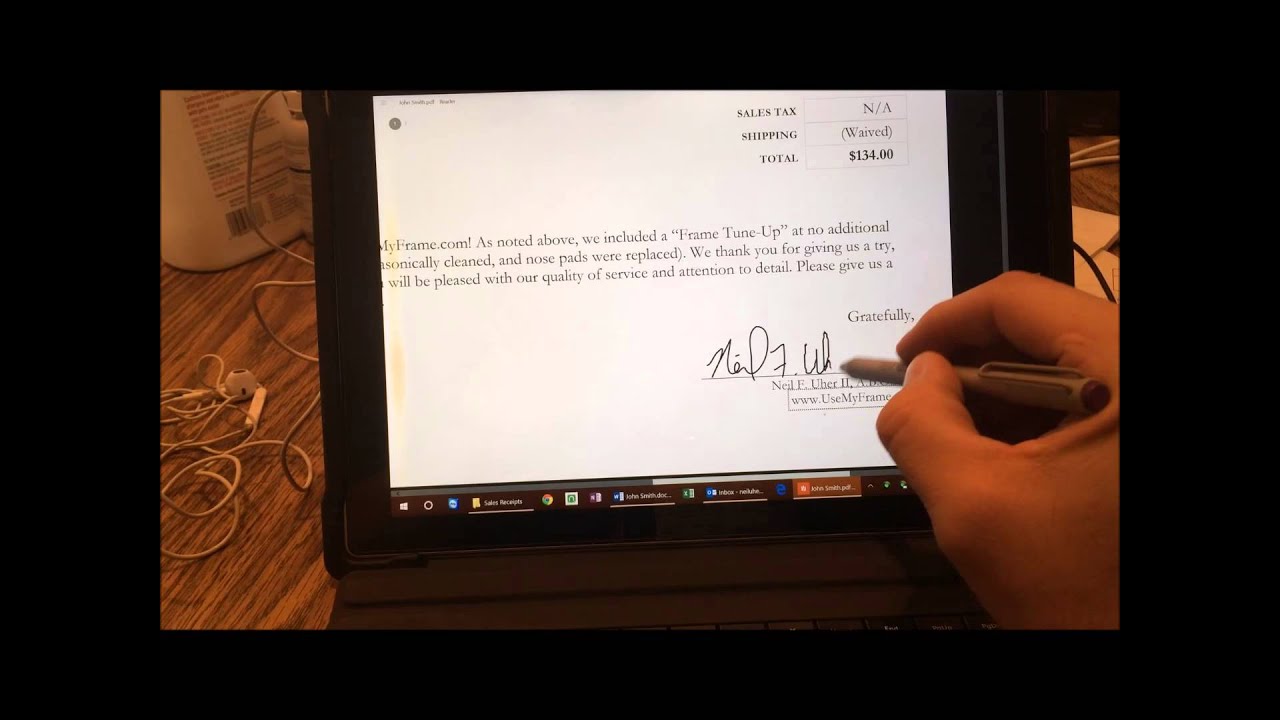
To write a signature with a mouse pad on a laptop, you use free software to draw your signature with your trackpad or mouse, then place it onto a PDF document. This method works on both Windows and Mac without needing a stylus or touchscreen.
How to write a signature with a mouse pad on Windows
Adobe Acrobat Reader DC is a free application that lets you draw a signature directly onto a PDF. This is the most immediate way to sign documents without extra hardware.
- Open your PDF document in Adobe Acrobat Reader DC.
- Click Fill & Sign in the right panel.
- Select Sign Yourself, then click Add Signature.
- Choose the Draw option.
- Use your mouse or touchpad to create your signature by dragging the cursor across the drawing area.
- Click Apply to insert the signature onto your document, then drag and resize it as needed.
You want to use Adobe Acrobat Reader DC because it saves your created signature for reuse, so you won't have to redraw it every time you sign a new document.
How to write a signature with a trackpad on Mac
Mac's built-in Preview app allows you to sign with your finger on the trackpad, making the process feel more natural. This method works without installing any extra software.
- Open your document in Preview.
- Click the Show Markup Toolbar button (it looks like a crayon or pen tip inside a circle).
- Click the Sign button (a scribble icon).
- Choose Trackpad as the signature creation method.
- When prompted, sign your name on the trackpad using your finger.
- Press any key on your keyboard, then click Done.
- Your signature is now saved. Click it to drag, resize, and place it on your document.
If your Mac has a Force Touch trackpad, pressing more firmly can create a heavier, darker signature line, which gives you greater control over the appearance of your digital signature.
Adjusting your mouse pad settings for better control
Fine-tuning your trackpad settings makes drawing with a mouse pad steadier and more precise. Small adjustments prevent jerky cursor movements that can ruin a signature.
- Slow the cursor speed: In your system settings (Windows: Settings > Devices > Touchpad; Mac: System Settings > Trackpad), reduce the cursor speed. A slower cursor gives you more control over each stroke.
- Adjust sensitivity: Lower the touchpad sensitivity to avoid accidental marks from light touches. This helps maintain a consistent line weight.
- Disable gestures: Turn off pinch-to-zoom, two-finger scrolling, and palm rejection features while signing. These gestures can interrupt your drawing or move the document unexpectedly.
You want to adjust your mouse pad settings for better control because even a small reduction in cursor speed can dramatically improve the accuracy of your signature strokes.
Practicing your signature for a professional look
Dedicate a few minutes to practice before signing an important document. A practiced signature looks consistent and legible, which conveys professionalism.
- Use the software's preview feature: In both Adobe Acrobat Reader and Preview, you can see your signature as you draw it. Watch the preview to adjust your speed and pressure in real time.
- Experiment with pen thickness: Some software allows you to change line thickness. Try a medium thickness, too thin looks faint, too thick can appear messy.
- Practice strokes: Draw your signature several times until the curves and loops feel natural with the trackpad. Focus on making each attempt look the same.
You want to practice your signature for a professional look because a consistent, legible signature builds trust and ensures your documents appear properly executed.
\nRelated reading: How To Install Zoom On Laptop, How To Connect Logitech M310 Wireless Mouse, and How To Connect Laptop To Samsung Smart TV Using Allshare.