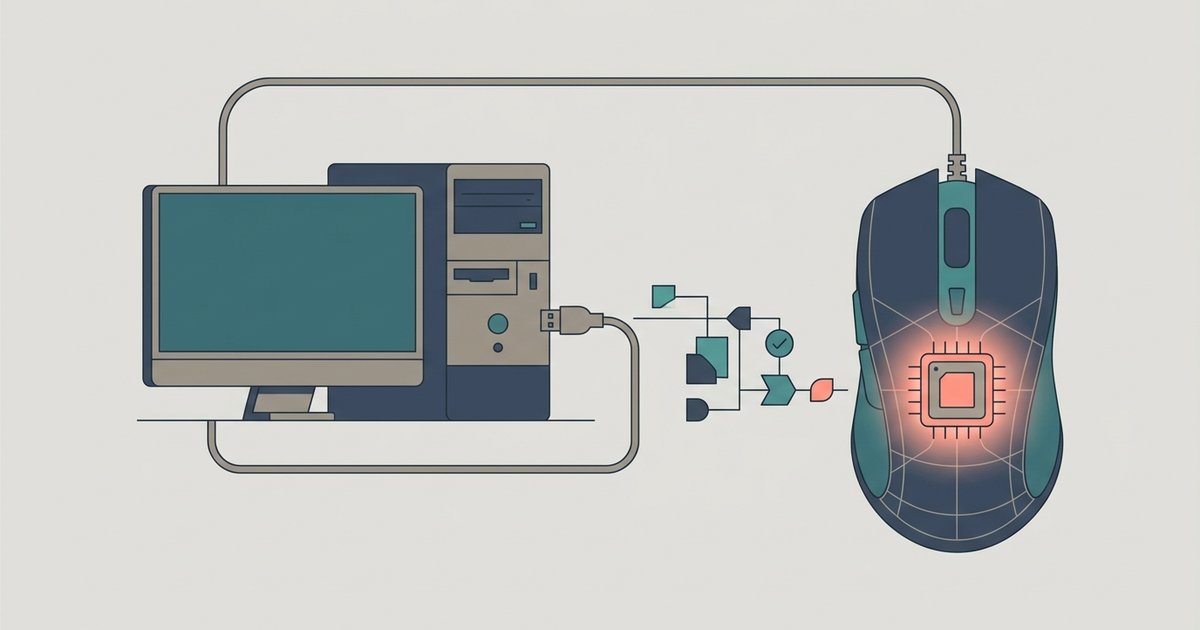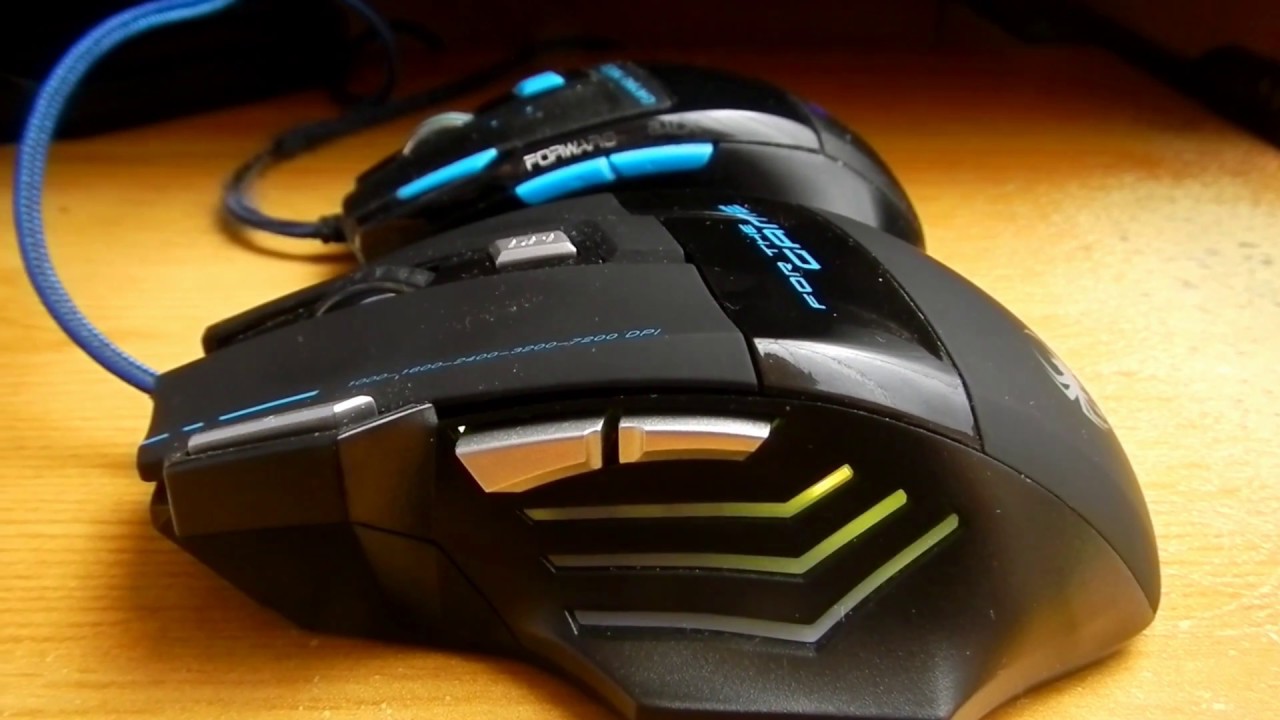
To configure your Zelotes gaming mouse, you need to download the official software from the manufacturer and use it to adjust DPI, reassign buttons, create macros, and customize RGB lighting. This article covers every step required to configure your Zelotes gaming mouse, from finding the correct driver to fine-tuning your settings for gaming performance.
Before you start: download the official Zelotes software
Every customization option for your Zelotes mouse depends on having the correct software installed. The essential first step before any configuration can happen is to visit the official Zelotes website (zelotes.cn) and navigate to the DOWNLOAD section. Under "Software driver download," select the package that matches your exact Zelotes mouse model. Installing the wrong driver can cause settings to fail or the mouse to behave unpredictably, so verify the model number before downloading. Once the software is installed, connect your mouse and launch the program to access the configuration interface.
How to customize button assignments on your Zelotes mouse
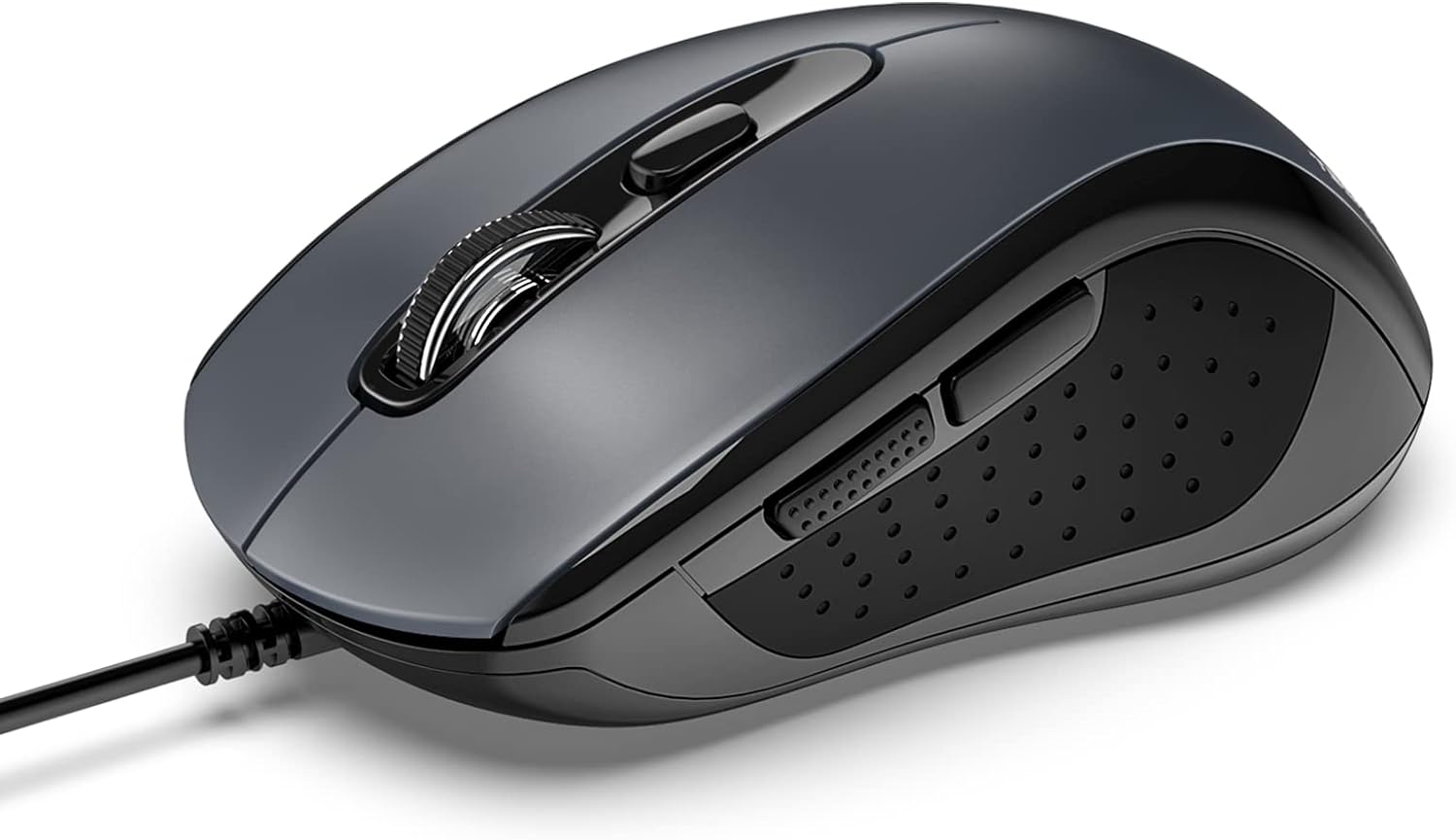
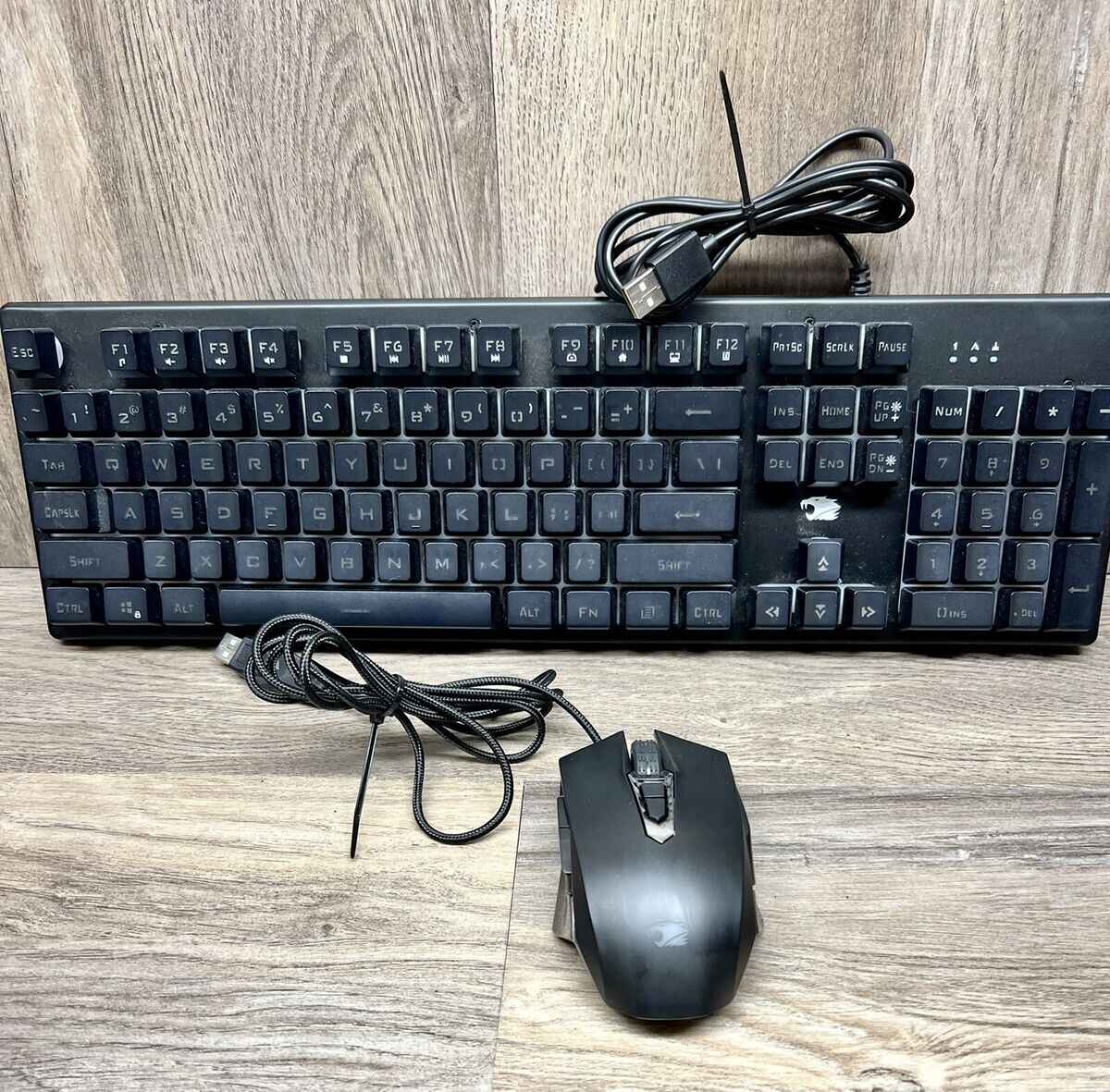
Reassigning buttons lets you place your most-used commands exactly where you want them. For example, the ZELOTES C-12 Gaming Mouse features 12 programmable buttons that can be customized using the included software. To begin, open the software and find the button customization section. Click on any button in the on-screen mouse diagram to select it. You can then assign a new function from the available options, such as keyboard shortcuts, multimedia controls, or mouse actions. This is especially useful for programming gaming mouse buttons and macros to perform complex actions with a single press, much like when you set up macros on ibuypower standard gaming mouse to streamline repetitive tasks. If your setup involves a different brand, you can similarly program the buttons on a tecknet gaming mouse using its own configuration tool. After making your assignments, test them in your game to ensure they respond as expected.
How to adjust DPI settings for speed and precision
DPI (dots per inch) controls how fast your cursor moves across the screen. The C-12 offers adjustable DPI settings ranging from 1000 to 9200, allowing you to switch between slow, precise movements and fast, sweeping motions. In the software, locate the DPI configuration section. Here you can set multiple DPI levels and assign them to specific buttons for on-the-fly switching during gameplay. For example, you might use a lower DPI for sniping and a higher DPI for close-quarters combat. The software also supports profile-specific settings, so you can save different DPI configurations for different games and load them automatically.
How to create macros for complex in-game actions
Macros allow you to record a sequence of keystrokes or mouse actions and play them back with a single button press. The C-12 supports macro functionality, making it easy to automate combos, building sequences, or inventory management. To create a macro, open the macro editor within the software. Click "Record" and perform the actions you want to capture. You can refine the timing by adjusting delays between each recorded step. Once the macro is complete, assign it to any programmable button on your mouse. This turns a multi-step process into an instant command, giving you a competitive edge in fast-paced games.
How to customize the RGB lighting on your Zelotes mouse
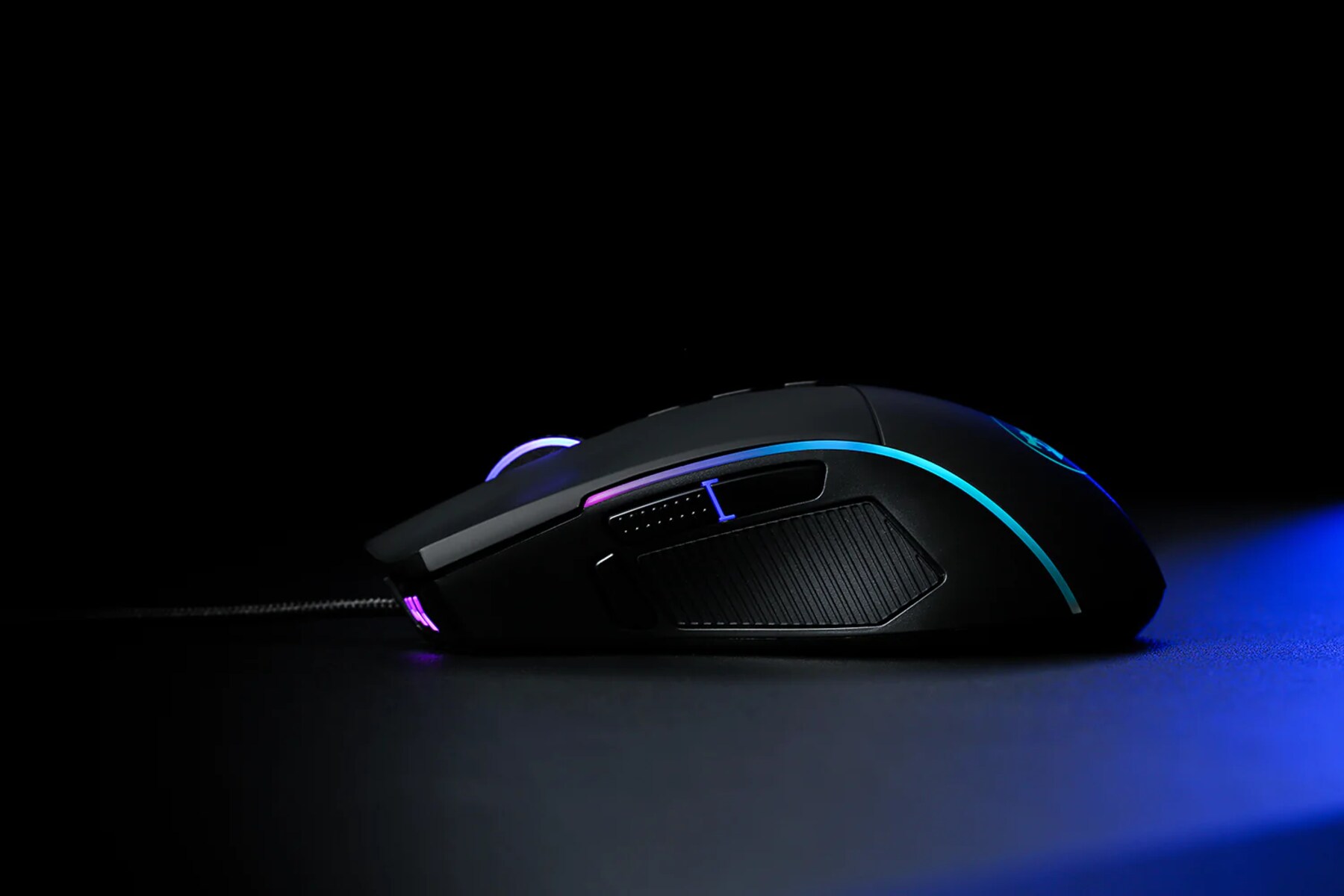
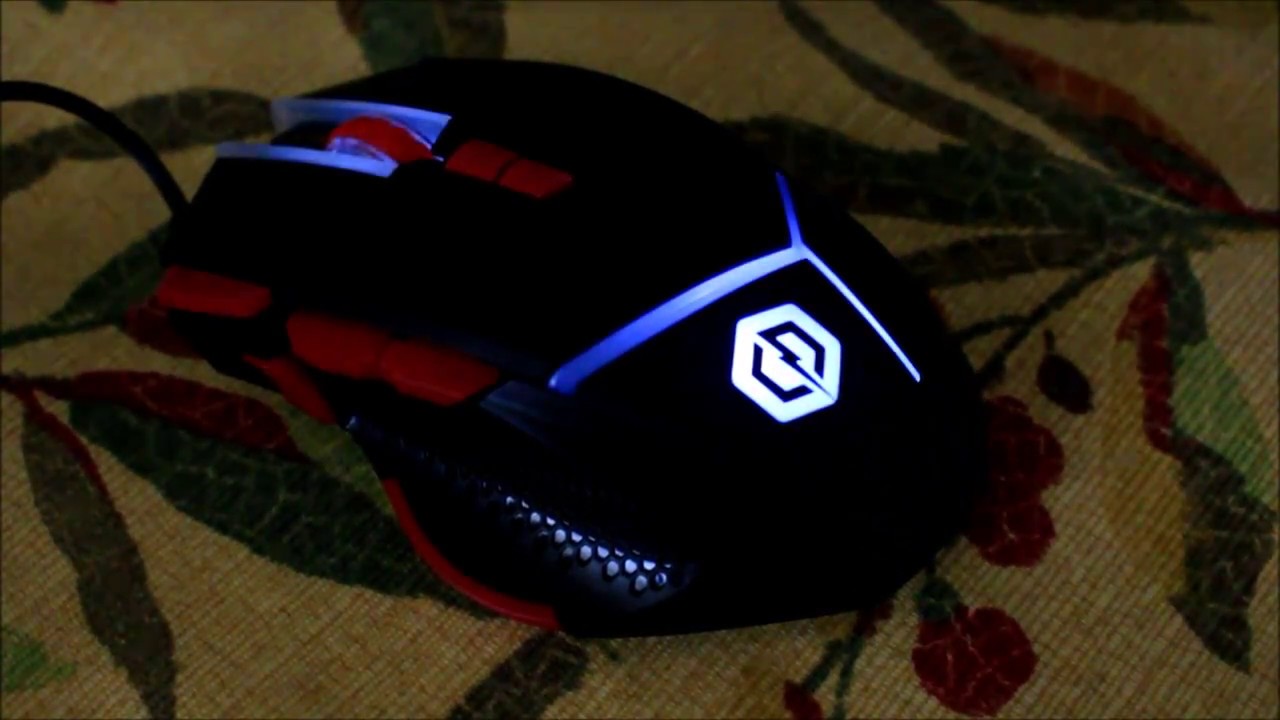
The mouse is equipped with RGB lighting that can be customized to match your setup or provide visual cues during gameplay. In the software, navigate to the lighting controls section. Here you can change the color from a full spectrum, adjust the brightness, and apply dynamic effects such as breathing or color cycling. Some models also allow you to link lighting effects to specific profiles or DPI settings, so your mouse visually indicates which configuration is active. Experiment with different effects to find a style that suits your preferences without being distracting during play.
Next steps and troubleshooting
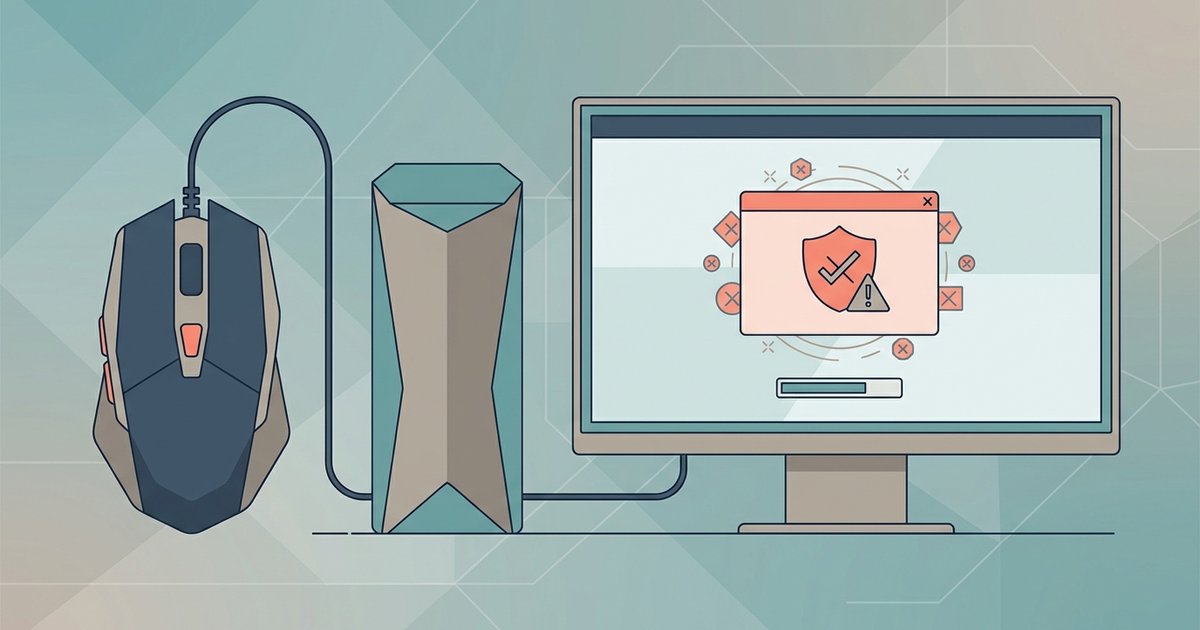
After configuring your mouse, you may want to save your settings to the onboard memory so they persist even when the software is not running. If buttons reset after a restart, check that the profile is saved to the device rather than only in the software. Some antivirus programs may flag the Zelotes driver software as a false positive due to its low-level system access; adding an exception for the software in your antivirus settings typically resolves this. With your mouse fully configured, you can now enjoy a personalized gaming experience tailored to your play style.
For the wider topic, see programming gaming mouse buttons and macros.