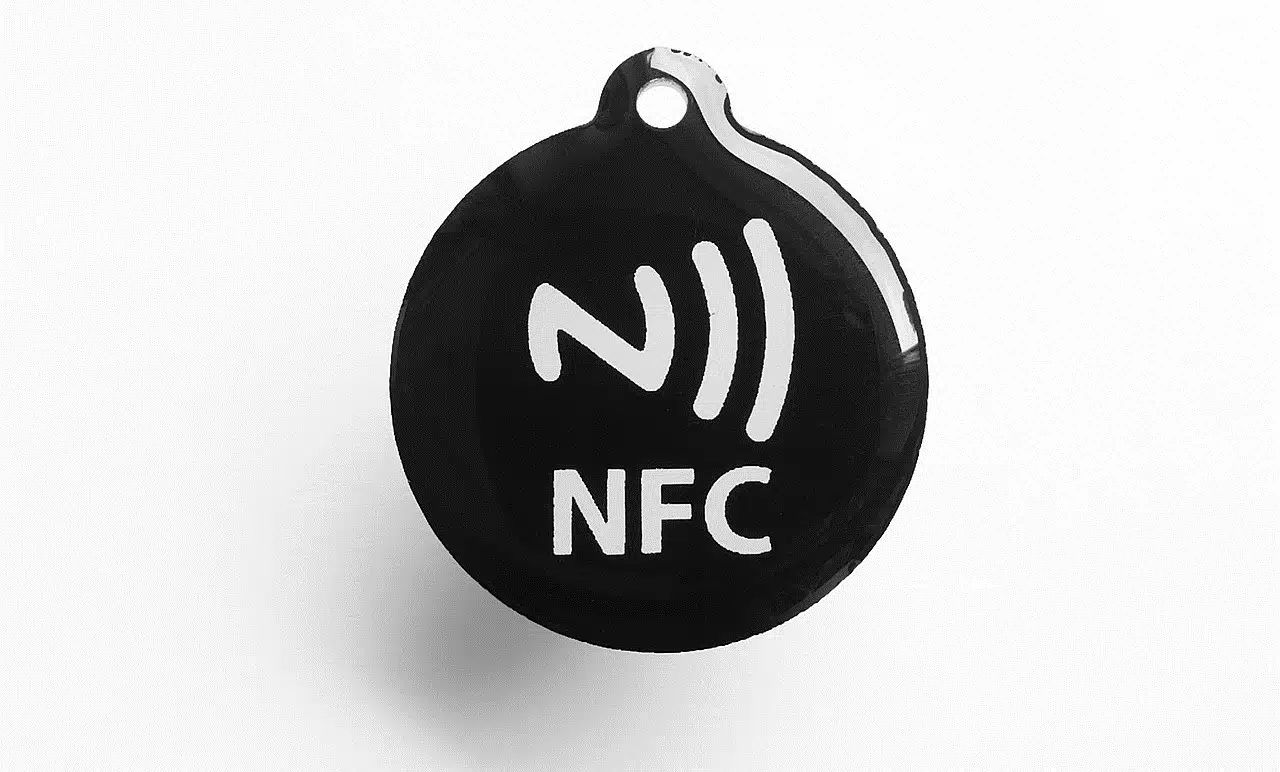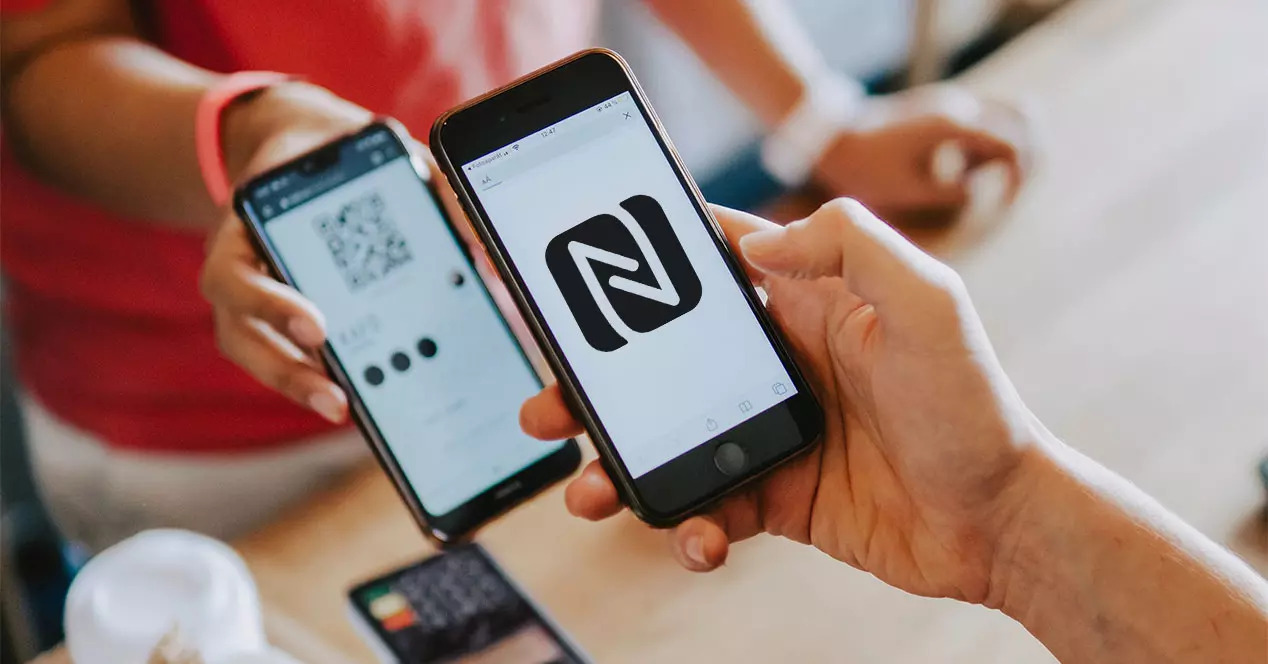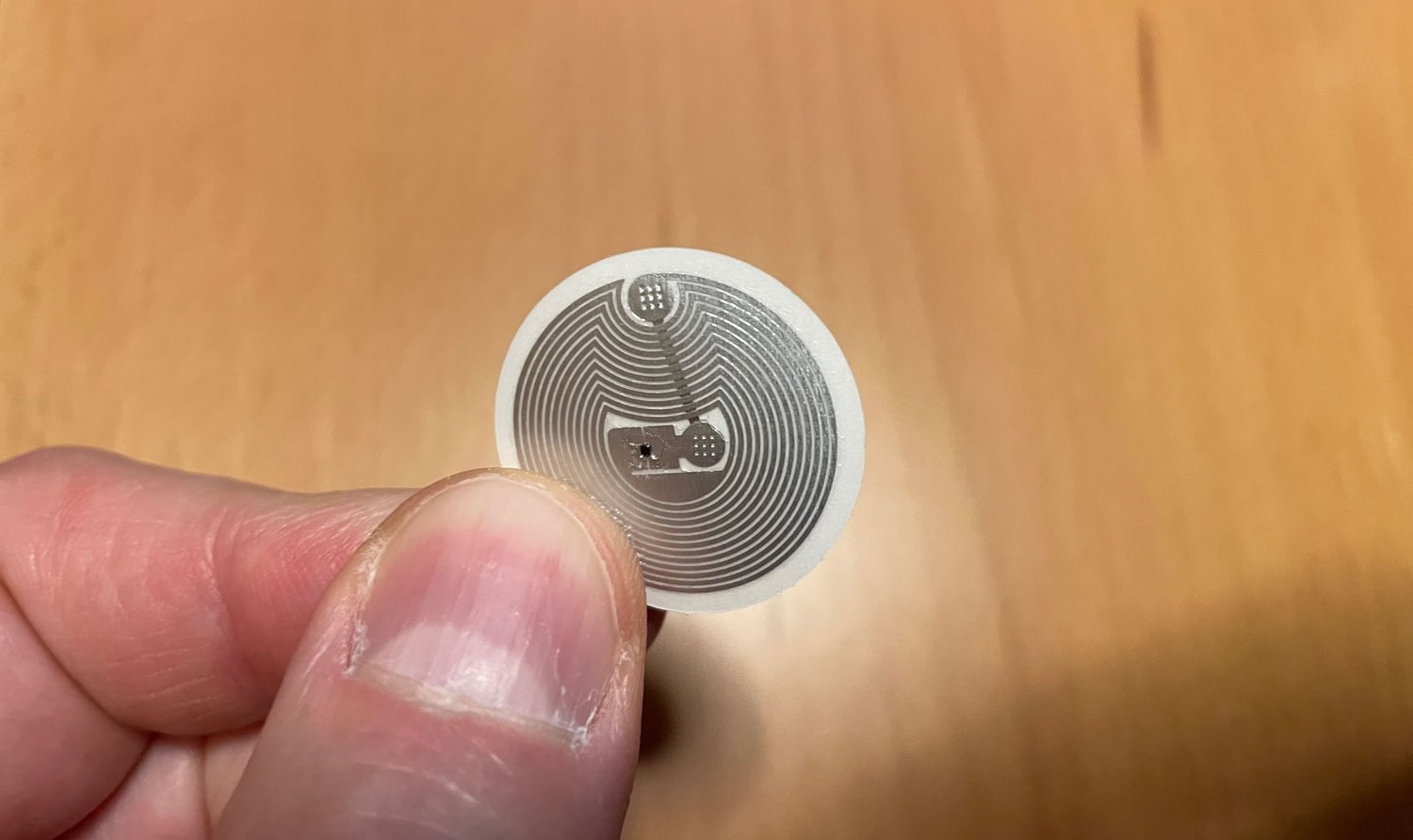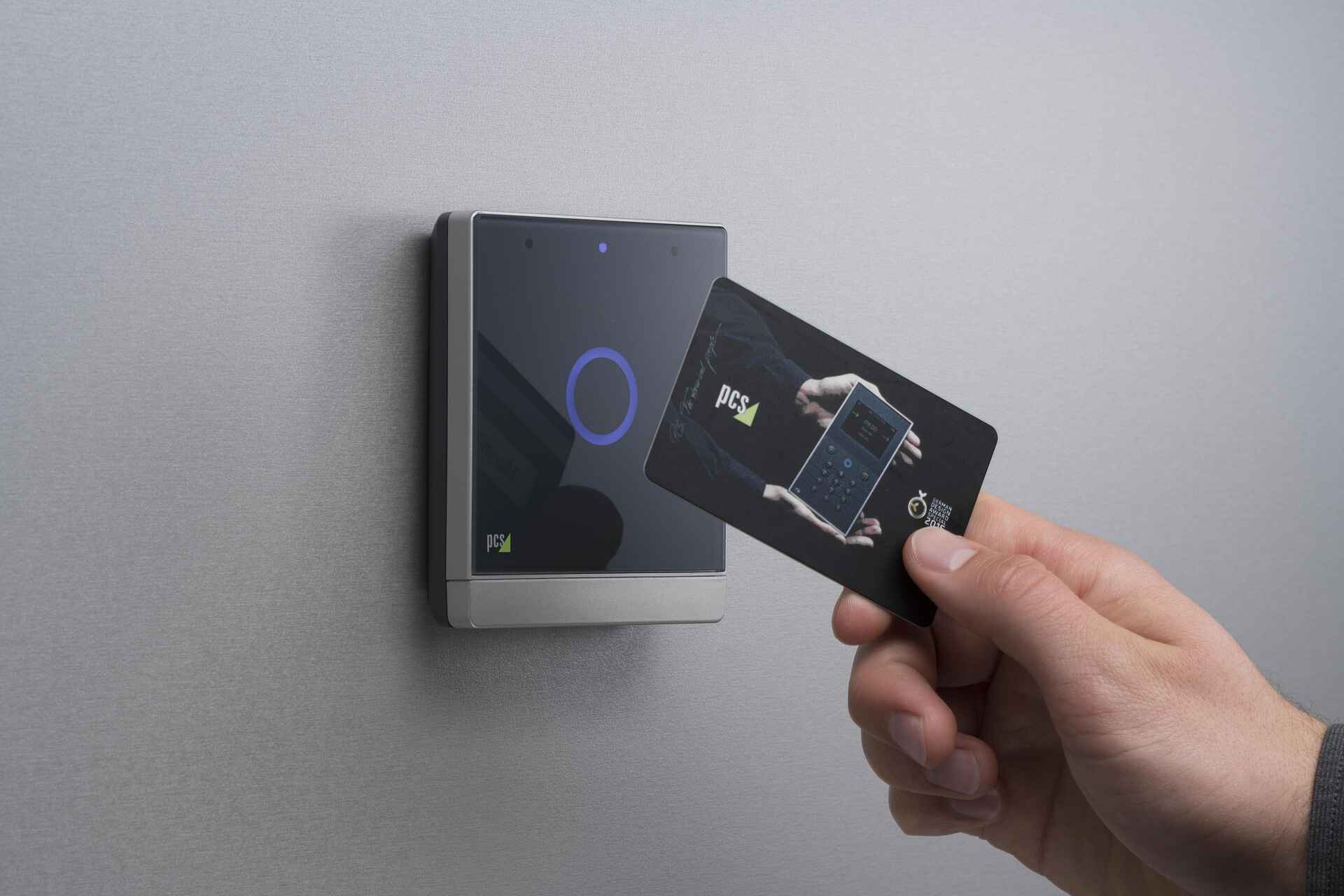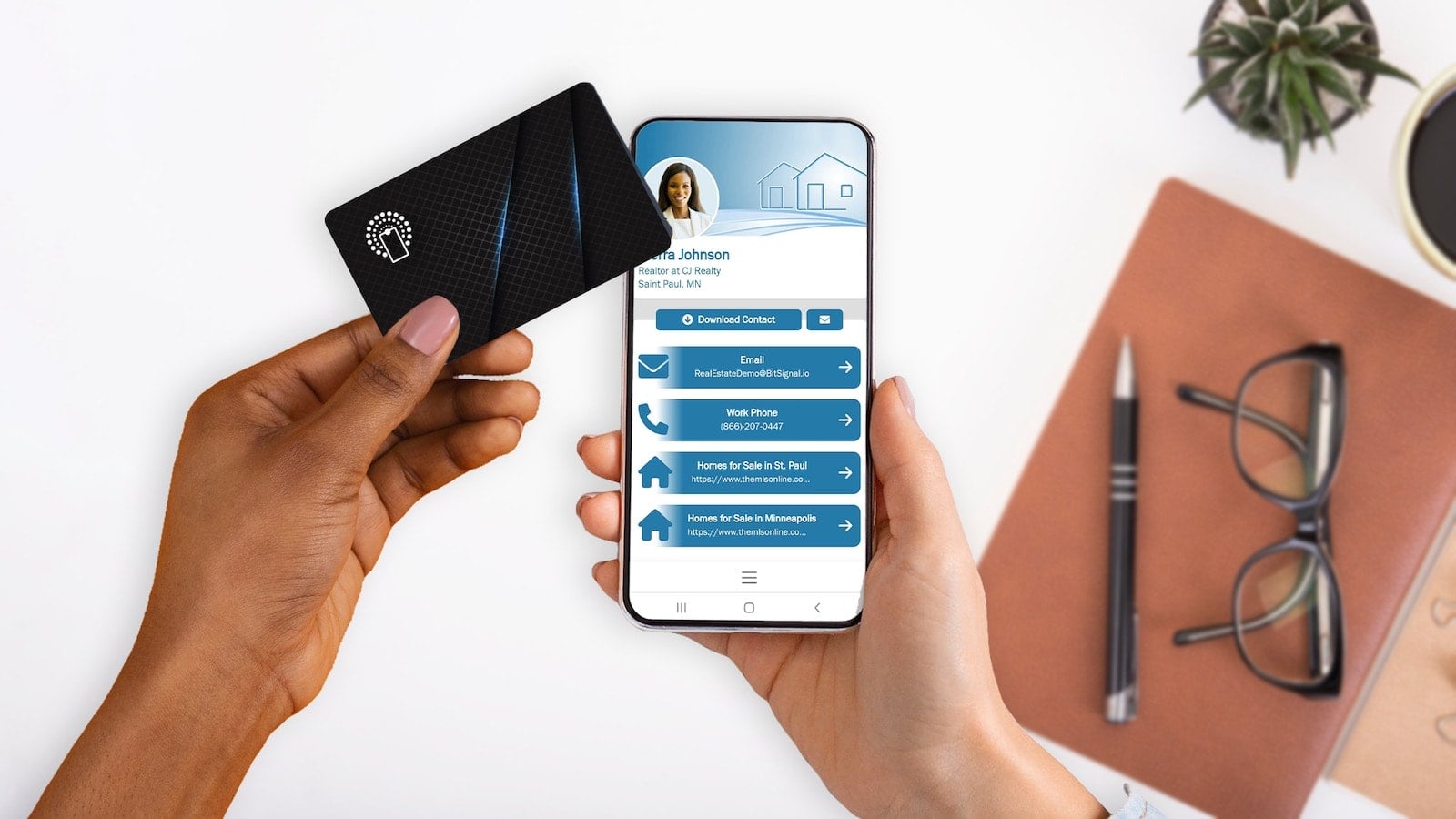
To use your phone as an NFC card, you primarily need to set it up for contactless payments through a mobile wallet app like Google Wallet or Apple Pay. Near Field Communication (NFC) technology lets your phone communicate with payment terminals, access readers, and transit systems, replacing the need to carry physical cards.
What you need to use your phone as an NFC card
Before you can use your phone as an NFC card, you need a few essentials. Your phone must have an NFC chip, which is standard on most modern devices. For Android, you need Android 9 or higher; for iPhone, you need an iPhone 6 or newer. A secure screen lock, such as a PIN, pattern, password, or biometric like a fingerprint or Face ID, is mandatory for security. Finally, you need a compatible payment app: Google Wallet for Android or the built-in Wallet app for iPhone.
Check if your phone has NFC and enable it
To verify NFC support on Android, go to Settings and search for "NFC" or check your phone's specifications. On stock Android, enable it by navigating to Settings > Connected devices > Connection preferences > NFC and toggling it on. On Samsung phones, go to Settings > Connections > NFC and contactless payments and enable it. On iPhone, NFC is always active for Apple Pay; no separate enabling is needed.
Set up mobile payments on Android with Google Wallet
- Download the Google Wallet app from the Google Play Store.
- Open the app and add a credit or debit card by scanning it with your camera or entering the details manually.
- Complete the bank verification process, which usually involves a text message or phone call from your bank.
- Set Google Wallet as your default payment app by going to Settings > Connected devices > Connection preferences > Contactless payments and selecting Google Wallet.
Set up mobile payments on iPhone with Apple Wallet
- Open the Wallet app on your iPhone.
- Tap the "+" icon in the upper-right corner.
- Add a debit or credit card by scanning it or entering the details manually.
- Follow the on-screen instructions for bank verification, which may include a call or text from your bank.
No separate NFC enabling is required; Apple Pay activates automatically when you hold your phone near a terminal.
How to pay with your phone at a terminal
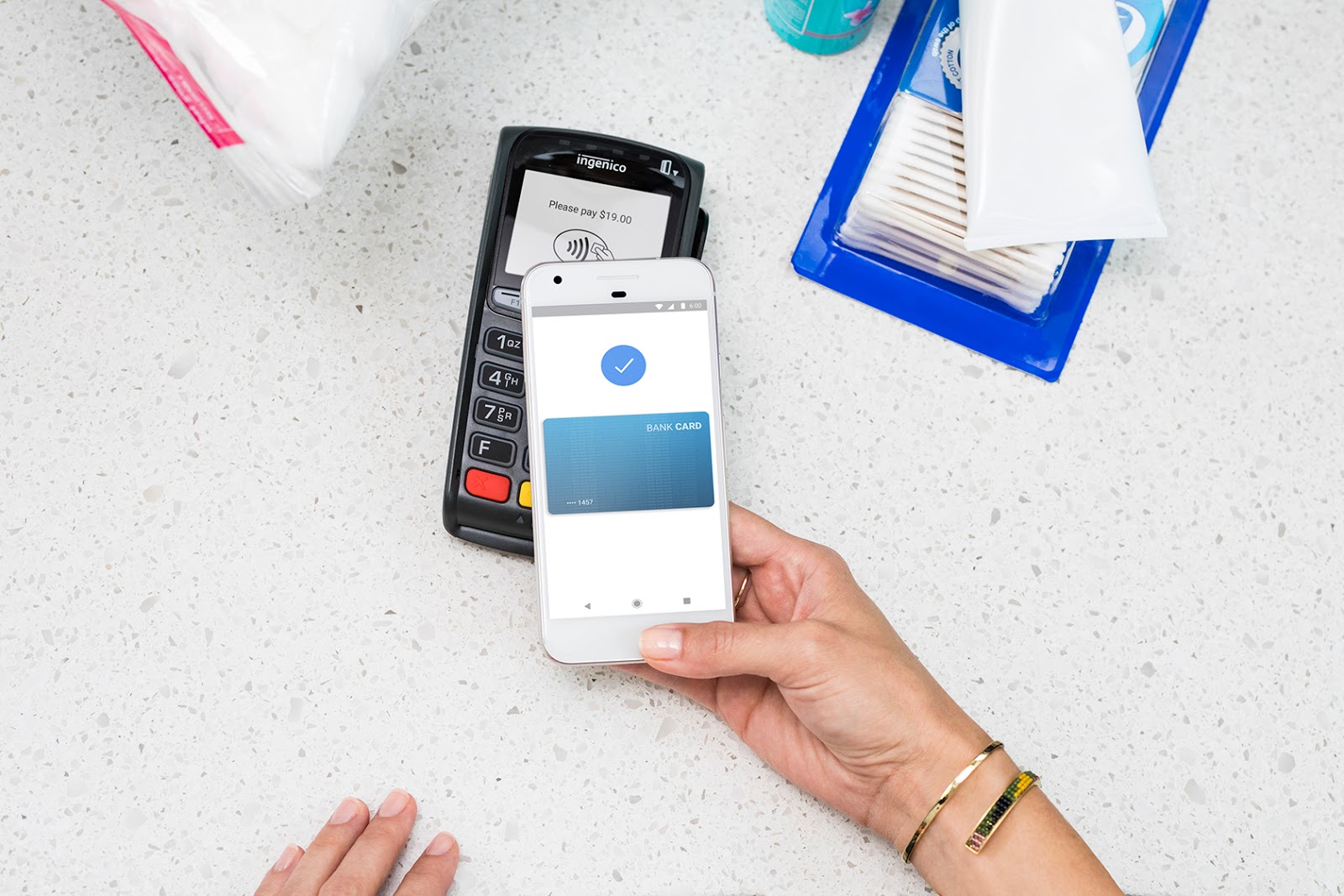
For Android, unlock your phone and hold the back of it near the contactless payment terminal. Wait for a blue check mark on the screen to confirm the transaction. For iPhone, double-click the side button (or Home button on older models), authenticate with Face ID, Touch ID, or your passcode, then hold the top of your iPhone near the contactless reader. Both methods work within a range of about 4 centimeters (1.5 inches).
Security tips and limitations to know
A secure screen lock is mandatory for mobile payments on both Android and iOS. Google Wallet will not work on rooted Android devices or with work profiles. To minimize risk, disable NFC when not in use by toggling it off in settings. Keep your Wallet app and phone software updated to ensure security patches are applied. On Android 10 and higher, you can enable Secure NFC, which allows NFC card emulation only when the screen is unlocked, providing an optional security enhancement.
If you need to make an RFID protector, you can use a phone case with built-in shielding or a separate RFID-blocking sleeve. For those wondering how to copy an NFC card to iPhone, note that Apple restricts card emulation to Apple Pay; third-party apps cannot copy access cards or transit passes directly. If you want to use Google Pay without NFC, that is not possible because Google Wallet relies entirely on NFC hardware for contactless payments.