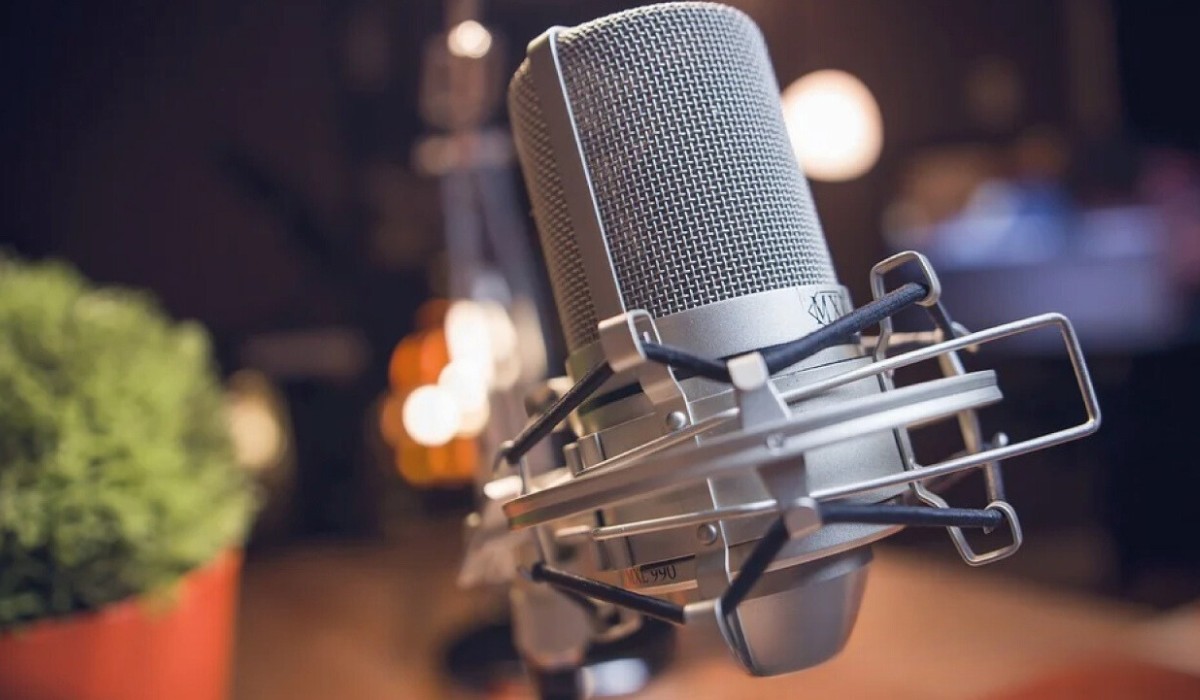
To activate a BM 800 condenser microphone on your computer, you must first understand that it requires 48V phantom power and cannot be powered by a standard 3.5mm computer port. The correct way to activate your BM 800 microphone is to use an external phantom power supply or an audio interface, such as the commonly included V8 sound card, to deliver the necessary power and convert the signal for your computer.
What you must know before you activate your BM 800 microphone
The BM 800 is a condenser microphone that typically requires 48V phantom power to operate correctly. Connecting the BM 800 directly to a computer's 3.5mm microphone input will often result in seriously compromised sound quality and low recording volume due to insufficient power, as standard computer ports usually provide only about 5V. To achieve optimal performance and sound quality, you need an external phantom power supply or an audio interface or mixer with built-in phantom power. Many BM 800 kits include a "live sound card" (like a V8 sound card) which acts as an audio interface, supplies phantom power, and connects to your computer via USB. If you prefer a simpler, plug-and-play USB microphone that doesn't require extra gear, you can set up the blue snowball ice USB microphone in minutes. If you are still evaluating your options, you might compare its performance against the best cheap condenser microphone alternatives before buying the required accessories. This is the essential hardware you need to activate your microphone properly.
Unboxing and assembling the microphone kit
Start by checking the package contents. A typical kit includes the BM 800 microphone, a shock mount, a foam windscreen, a pop filter, a microphone cable, and the V8 sound card or phantom power supply. Secure the clip holder mount to a stable surface, such as a desk edge. Screw the anti-shock mount onto the top of the arm stand. Gently place the condenser microphone into the anti-shock mount, ensuring it is securely held. Clamp the pop filter to the arm stand and position it approximately 2-3 inches in front of the microphone. Place the foam cap over the microphone head to reduce plosive sounds.
Connecting the BM 800 to the V8 sound card or audio interface
Use the provided microphone cable (often XLR to 3.5mm or XLR to XLR) to connect the microphone to the designated input on the live sound card. If using a separate phantom power supply, connect the BM 800 microphone to the phantom power supply using an XLR cable, then connect the output of the phantom power supply to your computer via a USB audio adapter or an external sound card. For the V8 sound card, use a USB cable to connect the sound card to your computer. The sound card may have a "Live Port 1" for this connection. After physical connection, ensure the sound card or phantom power supply is powered on.
Configuring your computer to recognize the BM 800
After connecting the sound card or audio interface, you need to select it as your input device. Drivers are generally not required for standard USB audio devices, but if using a specific audio interface or sound card, you might need to install drivers from the manufacturer's website.
Windows
- Open your Control Panel.
- Click on "Sound" to open the sound window.
- Select the "Recording" tab.
- Verify that the microphone (often appearing as "PnP Audio Device") is listed. Double-click the microphone to access and set its properties.
- Set the connected audio interface or sound card as the default input device.
Mac
- Click "System Preferences."
- Select "Sound."
- Go to the "Input" tab.
- Select the connected microphone or sound card as the input device.
Adjusting sound card controls and input levels
Once your computer recognizes the device, adjust the microphone input level or gain within your computer's sound settings or directly on your audio interface or sound card to achieve a strong signal without clipping. For the V8 sound card, the key controls are:
- MIC (Min/Max): Adjusts the microphone input volume.
- ECHO (Min/Max): Controls the echo effect level. Set this to minimum for a clean recording.
- TREBLE: Adjusts the high-frequency response.
- BASS: Adjusts the low-frequency response.
- RECORD: Controls the recording output volume.
- MONITOR: Controls the volume of audio output to headphones or speakers.
Start with MIC at a moderate level and ECHO at zero. This gives you a clean initial recording level to test with.
Testing the microphone and troubleshooting issues
Open your preferred recording software or the built-in recording utility. Speak into the microphone at a normal distance and monitor the audio levels. If you experience low volume or no sound, check all cable connections, ensure the sound card or phantom power is on, and verify the audio input settings on your computer. If there is a hissing sound, try re-plugging the cable into the microphone, as a loose cable can generate noise. If the microphone is not working, check whether the pins at the bottom of the mic are loose, restart your computer, and re-plug the mic into another USB port. Some variations of the BM 800 microphone exist, with some models being battery-powered or phantom-powered, so checking the specific product's specifications is important if issues persist.
\nRelated reading: How To Record With A USB Microphone In Reaper.