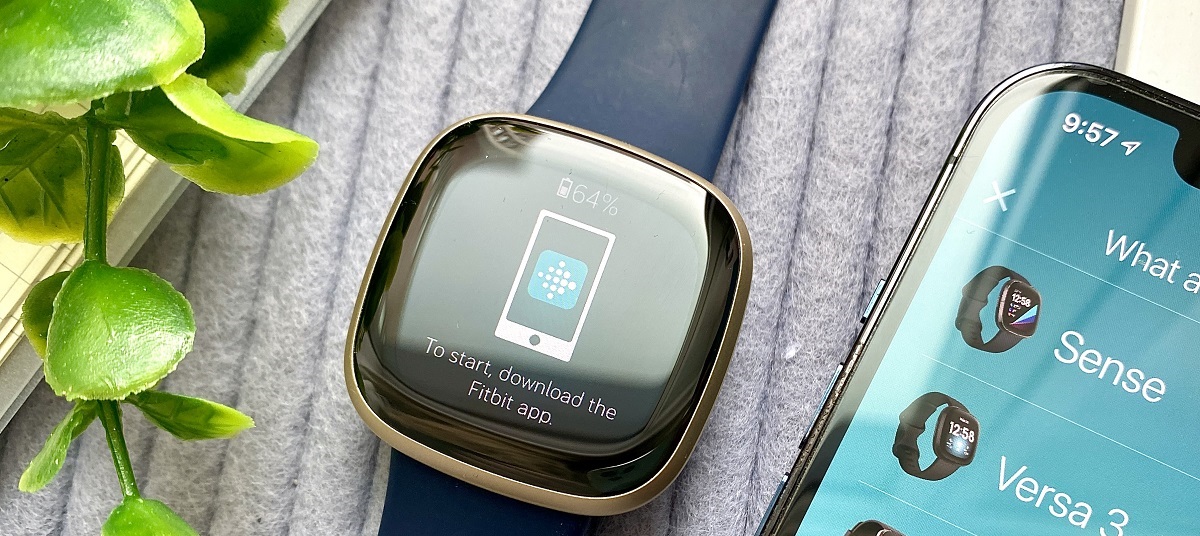
To pair Fitbit Sense with your phone, you must use the official Fitbit app, this is the only method that works reliably. Your phone's Bluetooth and, for Android, location services must be active before you start, and you should never attempt to pair from your phone's Bluetooth settings menu.
Before you pair your Fitbit sense: Crucial prerequisites
Before you begin, update the Fitbit app on your phone and make sure your phone's operating system is also up to date. Running outdated software on either side can cause compatibility or syncing issues that block the pairing process entirely. The most important warning to remember: do not try to pair your Fitbit Sense directly from your phone's Bluetooth settings. That method will fail or create a broken connection. Always initiate pairing through the Fitbit app, which handles the secure handshake between your watch and phone correctly. If you run into trouble, the general steps for pairing your Fitbit can help you spot common setup mistakes.
Enable Bluetooth and location services on your phone
Bluetooth is the wireless bridge between your Sense and your phone, so it must be on before you open the app. On any phone, swipe down from the top of the screen to open the quick settings panel, then tap the Bluetooth icon to turn it on. Your phone will then be discoverable to your Fitbit Sense.
For Android users, there is a non-negotiable extra step: you must enable Location Services and grant the Fitbit app permission to access your location. This is a verified requirement, without it, the app cannot detect or connect to your Sense, even if Bluetooth is on. Go to your phone's Settings, tap "Location" or "Location Services," and switch it on. Then open the Fitbit app, go to its app permissions (usually under Settings > Apps > Fitbit > Permissions), and allow location access. While you are customizing your device, you might also want to follow a step-by-step guide on changing your Fitbit band to refresh its look.
Open the Fitbit app and select your device
Launch the Fitbit app on your phone. If you already have a Fitbit account, sign in with your credentials. If you're new, the app will guide you through creating an account during the setup flow. From there, choose "Fitbit Sense" from the list of available devices. This selection tells the app exactly which model you're pairing, so it can send the correct instructions to your watch.
Follow the on-screen instructions to complete pairing
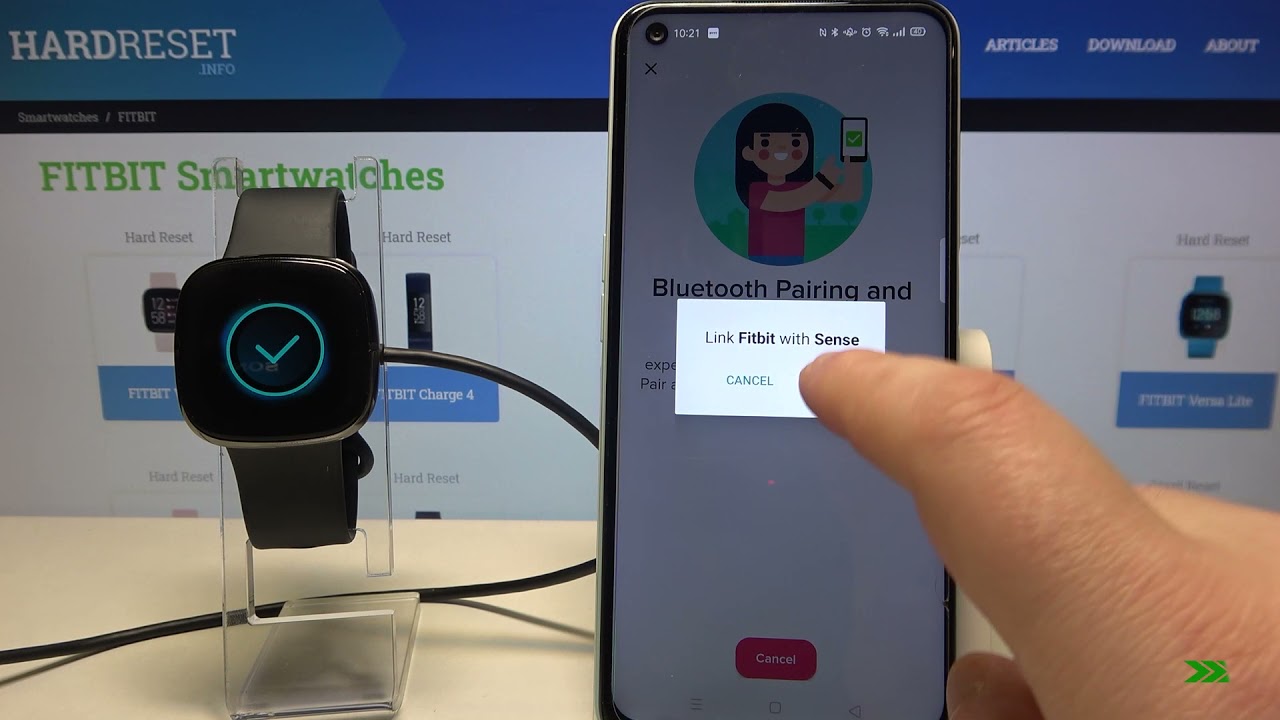
After you select your Fitbit Sense, the app will display a series of on-screen instructions. These steps are designed to finalize the connection securely. This confirmation ensures that your phone is connecting to your Sense and not to a different nearby device. The app may also prompt you to allow notifications or grant additional permissions, approve these to get the full experience. Once the code is confirmed, the app will begin syncing data between your phone and watch. Wait for the sync to finish without closing the app or turning off Bluetooth. The pairing is complete when the app shows a success message and your watch displays a connected indicator, such as a checkmark or a sync animation.
During this step, the app might also check for software updates for your Sense. If an update is available, let it install before proceeding, as this ensures your watch has the latest features and bug fixes. The on-screen prompts will guide you through any additional setup, such as choosing a watch face or setting your dominant hand, these are optional but can be customized later.
Pairing complete: what's next
Your Fitbit Sense and phone are now securely paired and syncing. You can immediately start receiving call, text, and app notifications on your wrist, and your daily activity, heart rate, and sleep data will flow automatically to the Fitbit app. To adjust settings, change watch faces, manage alarms, or troubleshoot any future connection issues, use the Fitbit setup and syncing hub inside the app, this is the central place for all device management. From there, you can also re-pair your Sense if you ever reset it or switch to a new phone. Your devices are now working together, so go ahead and explore the full range of health and fitness features your Sense offers.