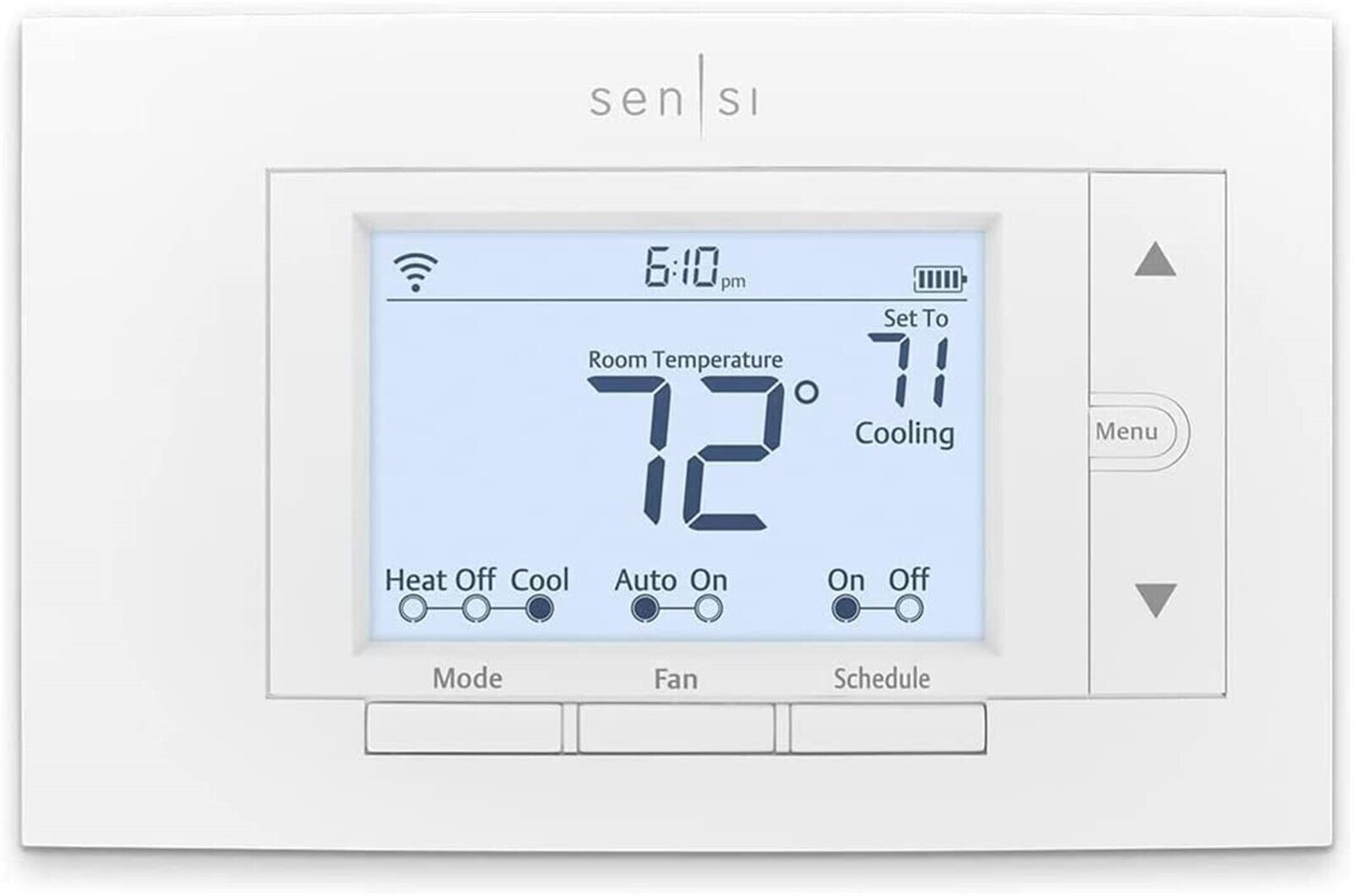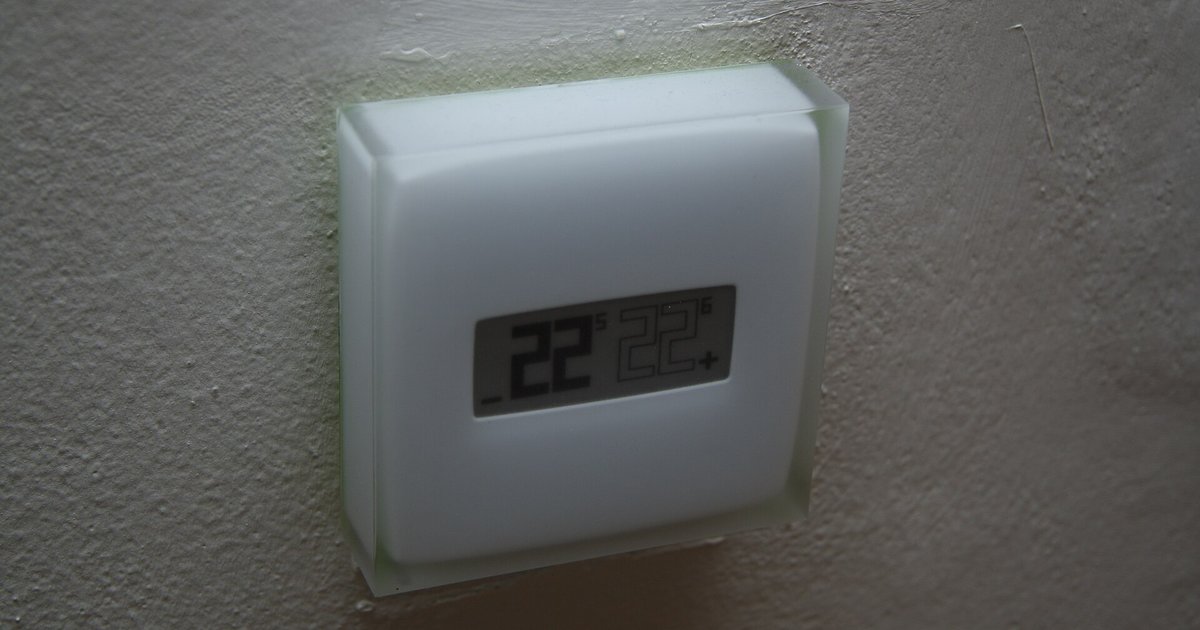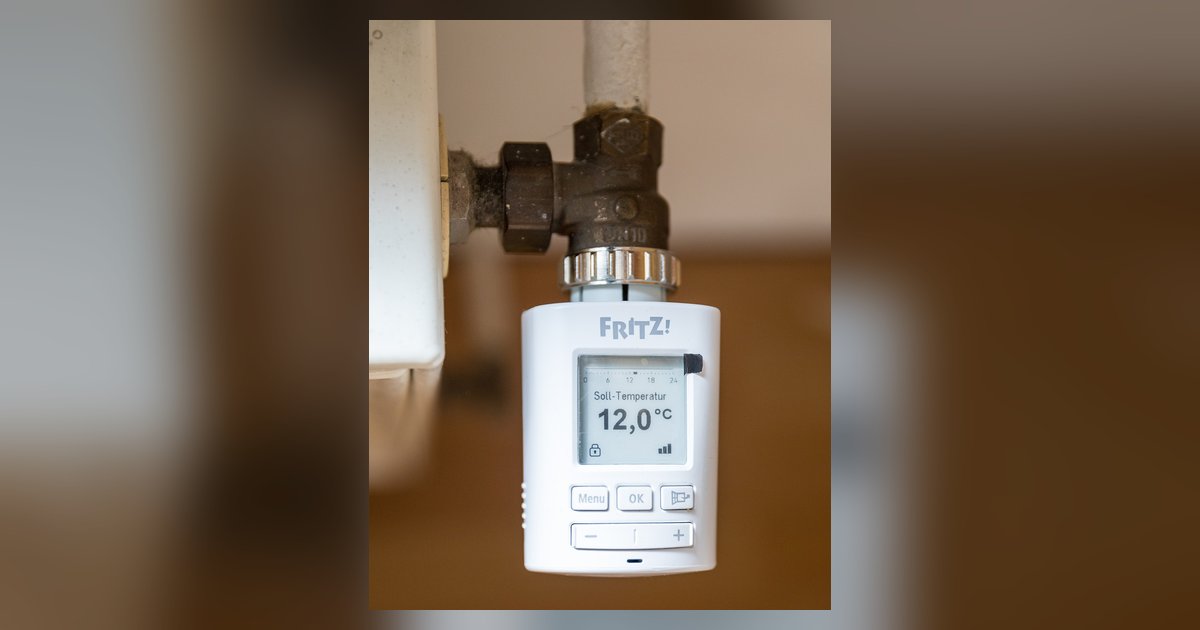
To reconnect a smart thermostat to a new Wi-Fi network after a factory reset, you may need to manually remove the device from the manufacturer’s app account before adding it back. A factory reset clears the device’s memory, but the cloud account’s record of it may still exist and could block re-pairing. This is why your thermostat appears to be in setup mode but the app keeps failing or says the device is already registered. The cloud still sees the old serial number tied to your account. It will reject a second enrollment until that link is severed. If you haven’t performed the wipe yet, follow the steps to reset Sensi smart thermostat first so you have a clean device to re-enroll.
Remove the old thermostat to reconnect smart thermostat
Open your thermostat’s companion app (Ecobee, Nest, Honeywell Home, or Sensi) and navigate to the device settings or equipment list. Look for an option labeled “Remove Device,” “Delete Thermostat,” or “Unlink.” Confirm the deletion. This sends a command to the manufacturer’s cloud server to release the thermostat’s MAC address and serial number from your account. Do not skip this step; a factory reset alone never touches the cloud record. For example, in the Ecobee app you tap the gear icon, select your thermostat, scroll to “Remove Thermostat,” and enter your password. After removal, the thermostat will show as “unregistered” on the server, allowing a fresh pairing.
Force the thermostat into pairing mode
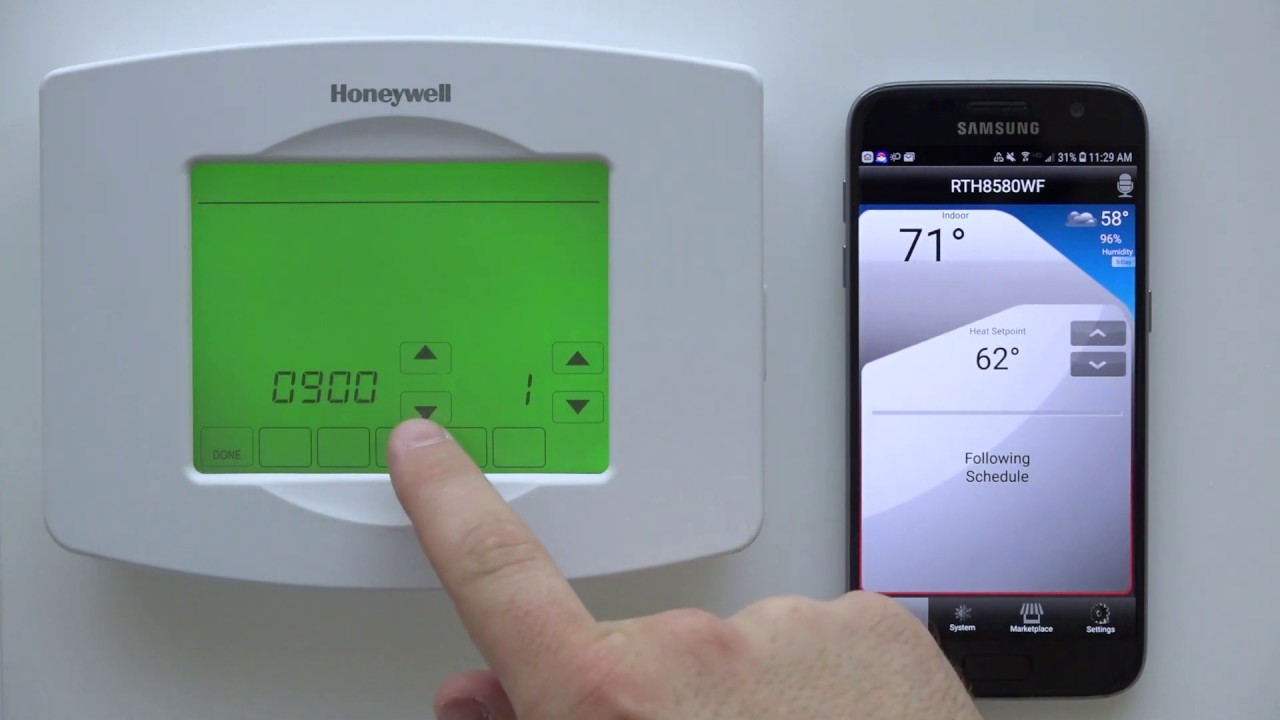
After the cloud removal, you must manually trigger the thermostat’s Wi-Fi setup broadcast. Most models do not automatically re-enter pairing after a reset. You must press a specific button or navigate a menu. On a Honeywell thermostat, press and hold the “Wi-Fi” icon or the “Menu” button until the screen flashes “Pairing” or a blinking Wi-Fi symbol appears. For a Nest Thermostat, go to Settings > Network, then select the new Wi-Fi network and enter the password. On a Trane XL824, after the reset, follow the manufacturer's instructions to enter pairing mode. This forces the device to broadcast a temporary Wi-Fi network (e.g., “Honeywell-XXXX”) that your phone must join to complete the pairing. The exact button sequence for your model is covered in the steps to reset a smart thermostat. The specific menu path for Honeywell units is detailed in the instructions to connect a Honeywell smart thermostat to a Wi-Fi network.
When the app still won't connect
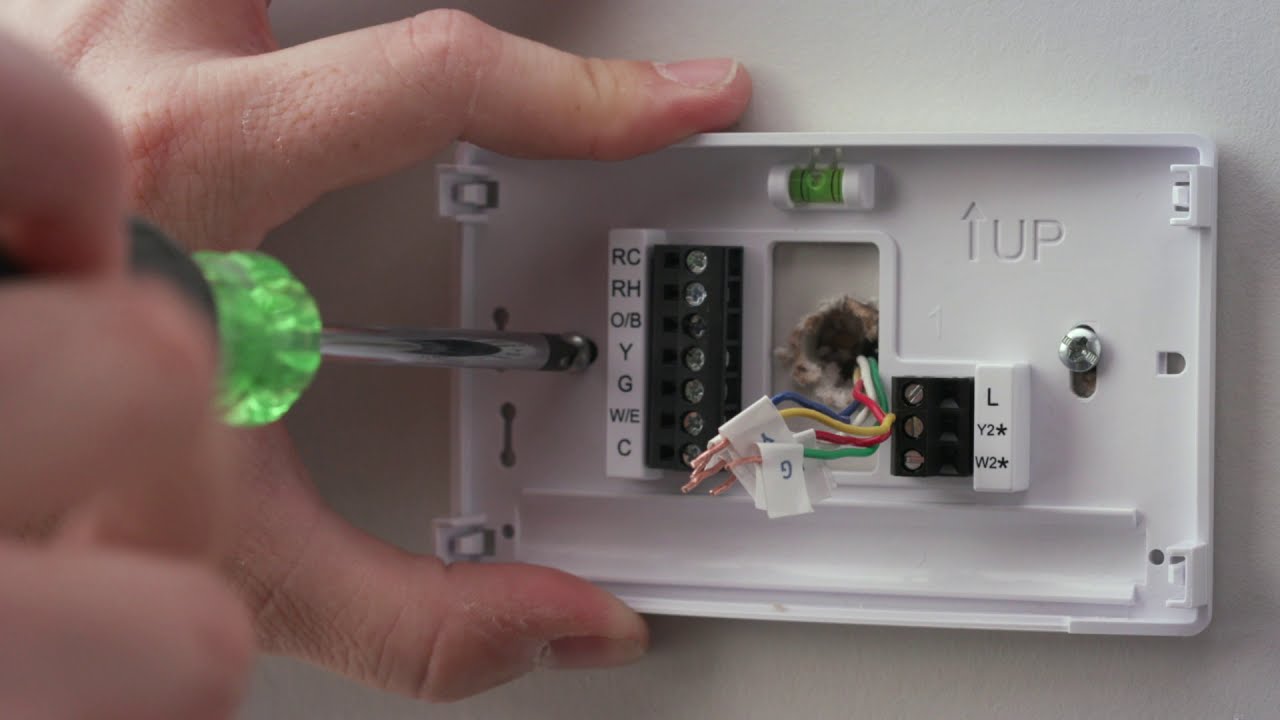
If you have removed the device from your account and forced pairing mode but the app still fails, the issue is almost always your phone’s Wi-Fi band or network settings. Smart thermostats require a 2.4 GHz network. They cannot see or connect to 5 GHz bands. Open your phone’s Wi-Fi settings and check the network name (SSID). If your router broadcasts a combined “dual-band” SSID, the phone may connect to 5 GHz while the thermostat only hears 2.4 GHz. Temporarily disable 5 GHz on your router’s admin panel, or create a separate 2.4 GHz guest network. Also, if your SSID is hidden (set to “not broadcast”), the thermostat will not find it. Unhide the SSID temporarily during setup. Finally, ensure the thermostat is within 30 feet of the router with no thick walls or metal obstructions. The physical placement and wiring steps to install honeywell smart thermostat include tips that directly affect signal strength. For models like the Trane XL824, low voltage can drop the Wi-Fi radio. The procedure to change the battery on a trane xl824 smart thermostat confirms the backup cells are fresh. A weak battery can prevent the radio from staying on during pairing. The cloud account record, not the device memory, is the single point of failure that blocks re-pairing after a factory reset.