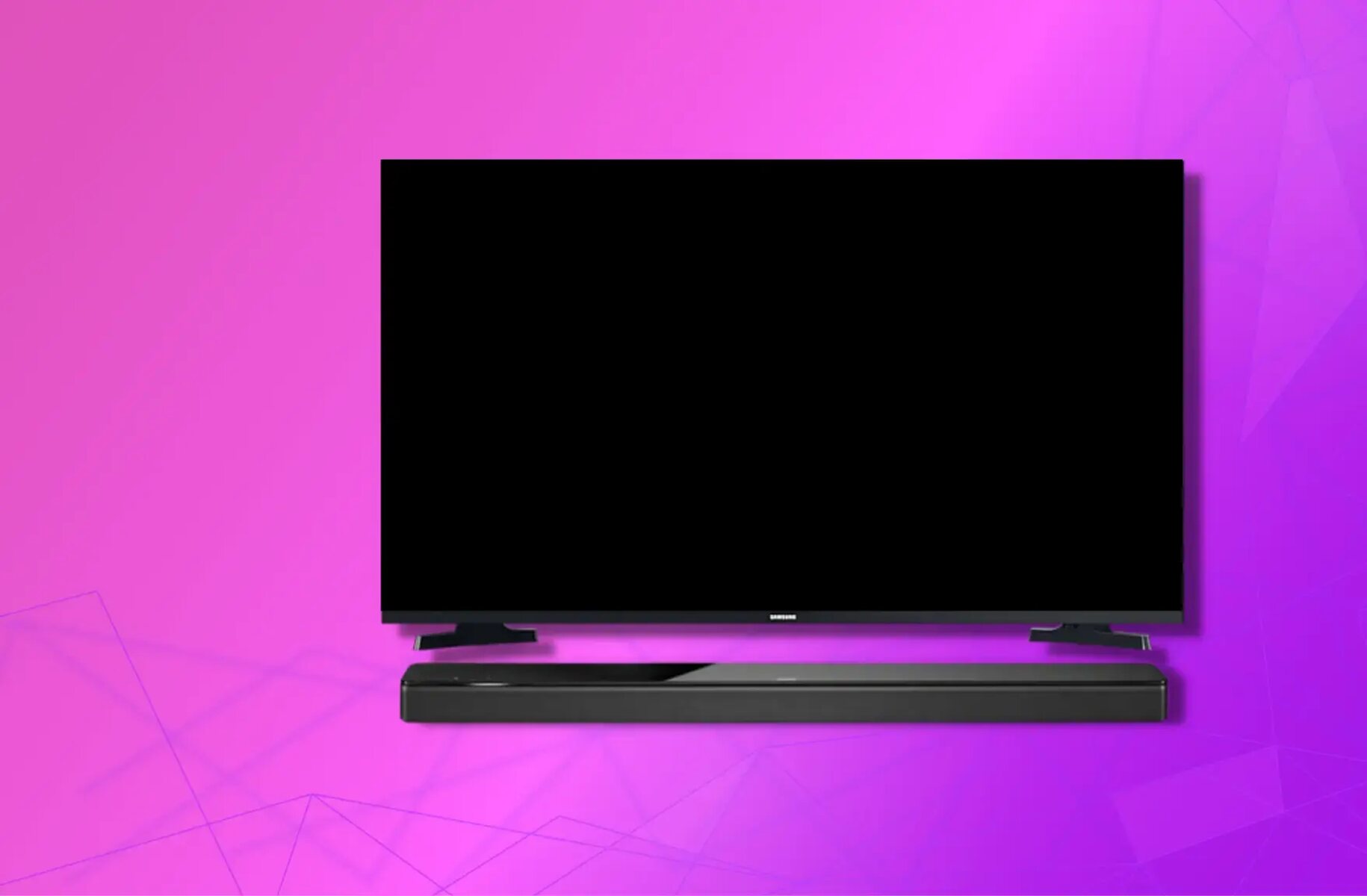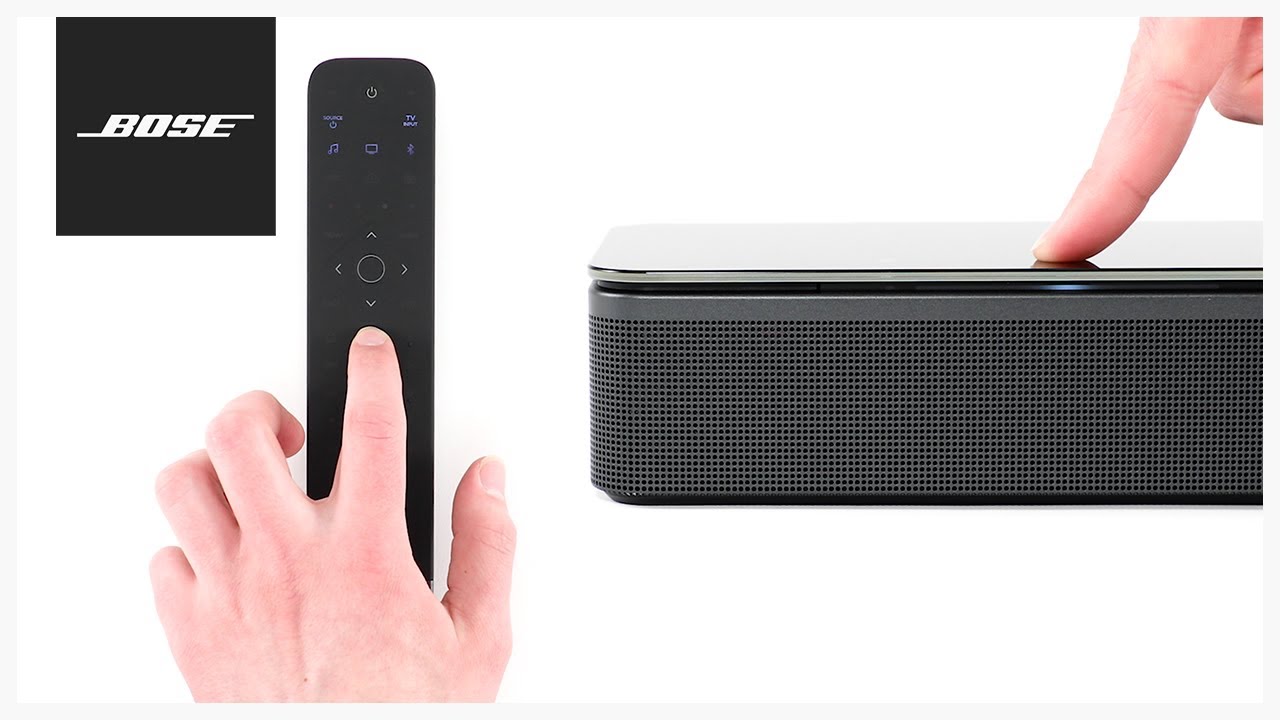
To connect a TV remote to a Bose soundbar, the best method is to use an HDMI ARC or eARC connection with HDMI-CEC enabled on both devices, which lets your existing TV remote control the soundbar’s volume, power, and mute automatically. If your TV or soundbar doesn't support HDMI-CEC, or you're using an optical cable, you can program a Bose universal remote or use the Bose Music app to set up IR control. The right approach depends entirely on your soundbar model and how it's connected to your TV. If you haven't yet established the physical audio connection, first connect bose soundbar to Samsung TV to ensure the soundbar can receive commands. For LG TV owners, the specific CEC settings you need are detailed when you connect bose soundbar to LG TV.
Before you connect a TV remote to your Bose soundbar
There are three primary ways to connect a TV remote to a Bose soundbar, and the correct one depends on your setup. The most seamless method is HDMI-CEC, which works automatically over an HDMI ARC or eARC connection and requires no manual programming. If your soundbar came with a Bose universal remote, you can program it to control your TV using a code booklet. For Bose Smart Soundbars (like the 500, 700, or 900), the Bose Music app can program the soundbar's own remote to control your TV. A critical limitation to keep in mind: if you're using an optical cable for audio, HDMI-CEC will not function, so you'll need to rely on programming a universal remote or using IR learning instead.
Connect via HDMI-CEC for automatic control
This is the easiest and most reliable way to connect your TV remote to a Bose soundbar, provided both devices support HDMI-CEC. First, ensure your soundbar is plugged into your TV's HDMI ARC or eARC port (it's usually labeled "HDMI ARC" or "HDMI eARC" on the TV). Next, enable HDMI-CEC on your TV. The menu name varies by brand, look for "Anynet+," "Bravia Sync," "SimpLink," or "HDMI-CEC" in your TV's settings. On the Bose soundbar, make sure CEC is also enabled in its settings menu (usually found under "System" or "HDMI"). Once both are on, your TV remote should automatically control the soundbar's volume, mute, and power without any manual pairing. Test it by pressing the volume buttons on your TV remote, if the soundbar responds, the connection is successful.
Program the Bose universal remote to control your TV
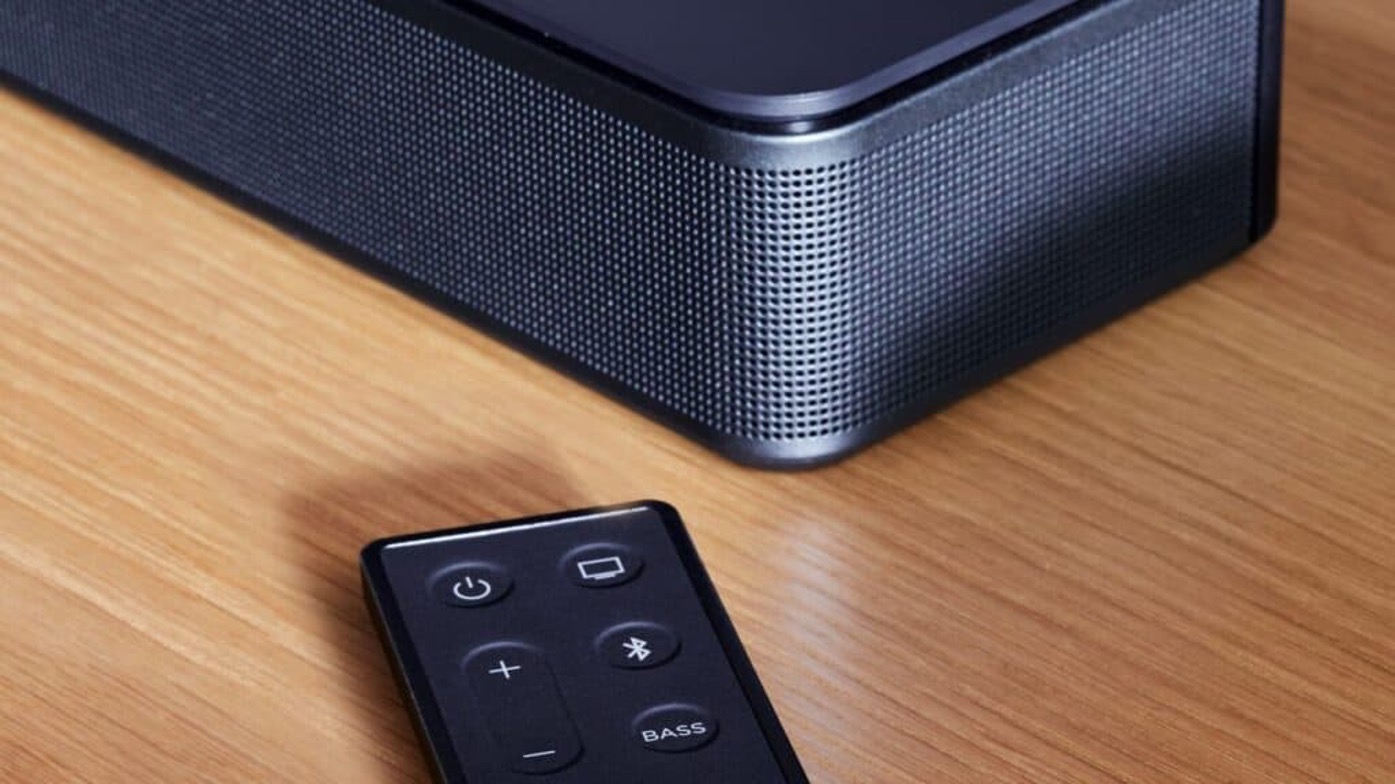
If your Bose soundbar came with a universal remote (often included with models like the Solo 5, Solo 2, or Lifestyle systems), you can program it to control your TV. Start by finding the TV brand code in the code booklet that came with your soundbar. If you've lost the booklet, search for your product at support.bose.com and click the "Downloads" tab to get a PDF version. On the Bose remote, press and hold the "TV" source button until all six source buttons glow, then release it so only the "TV" button remains glowing. Enter the code for your TV brand, then press the "Volume +" button. Test if the remote controls your TV by trying the Channel buttons, Menu, or Arrow buttons. If it works, press "Exit" to save the settings. If not, press "Volume +" again to try the next code for that brand. For Lifestyle 600 systems, use the Bose Unify menu by pressing "SETUP" on the console or remote, then select "TV Remote Autoprogram" or "Advanced Setup" to enter your TV brand and model. Make sure the IR sensors on the soundbar (located at the far left and right ends) are not blocked, as this method relies on line-of-sight IR signals.
Use the Bose Music app to program your smart soundbar remote
For Bose Smart Soundbars (500, 700, or 900), the Bose Music app is the recommended way to program the soundbar's remote to control your TV. Ensure your soundbar and the device running the Bose Music app are on the same Wi-Fi network. Open the app, tap the "Settings" icon, then under "Universal Remote," select "TV." Tap "Connect to a New TV." The soundbar may automatically detect your TV's brand, model, and remote code if it's connected via HDMI. If not, you can type and select the TV brand name in the entry field, then tap "Continue." After entering the brand, the app will guide you to confirm the power-off function works. If the soundbar turns off your TV, the code is correct and saved. If not, the app will try the next code. Once saved, your Bose remote will control your TV's power and volume, and your TV remote can still control the soundbar via HDMI-CEC if both are enabled.
Test the connection and functionality
Regardless of the method you used, test the connection thoroughly. Use your TV remote to adjust the volume up and down, the soundbar should respond accordingly. Press the power button on your TV remote to ensure it turns the soundbar on and off in sync with the TV. Test the mute function if your remote has one. Play content on your TV and verify that the audio is coming from the soundbar speakers, not the TV's built-in speakers. If any function doesn't work, double-check that HDMI-CEC is enabled on both devices (if using HDMI), confirm the soundbar is set as the audio output in your TV's settings, and ensure no obstructions are blocking the IR sensors. For additional troubleshooting, consult your TV's manual or the Bose support website for model-specific guidance.
Related guides for other remote and soundbar combinations
- How to Connect and Control a Soundbar
- How To Connect Bose Soundbar To Samsung TV
- How To Control A Soundbar With An LG TV Remote
- How To Program A Roku Remote To A Soundbar
For the wider topic, see connecting a soundbar.