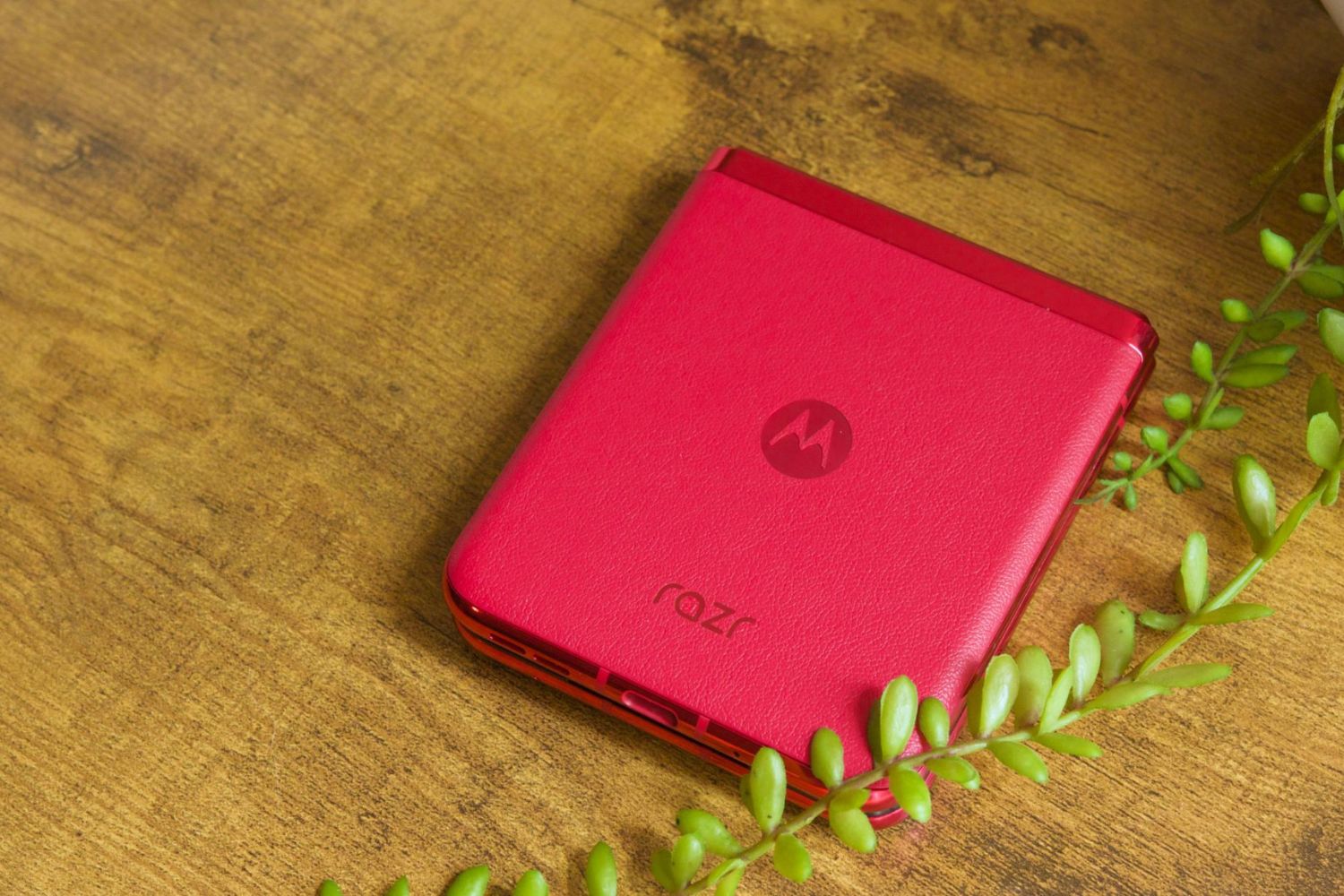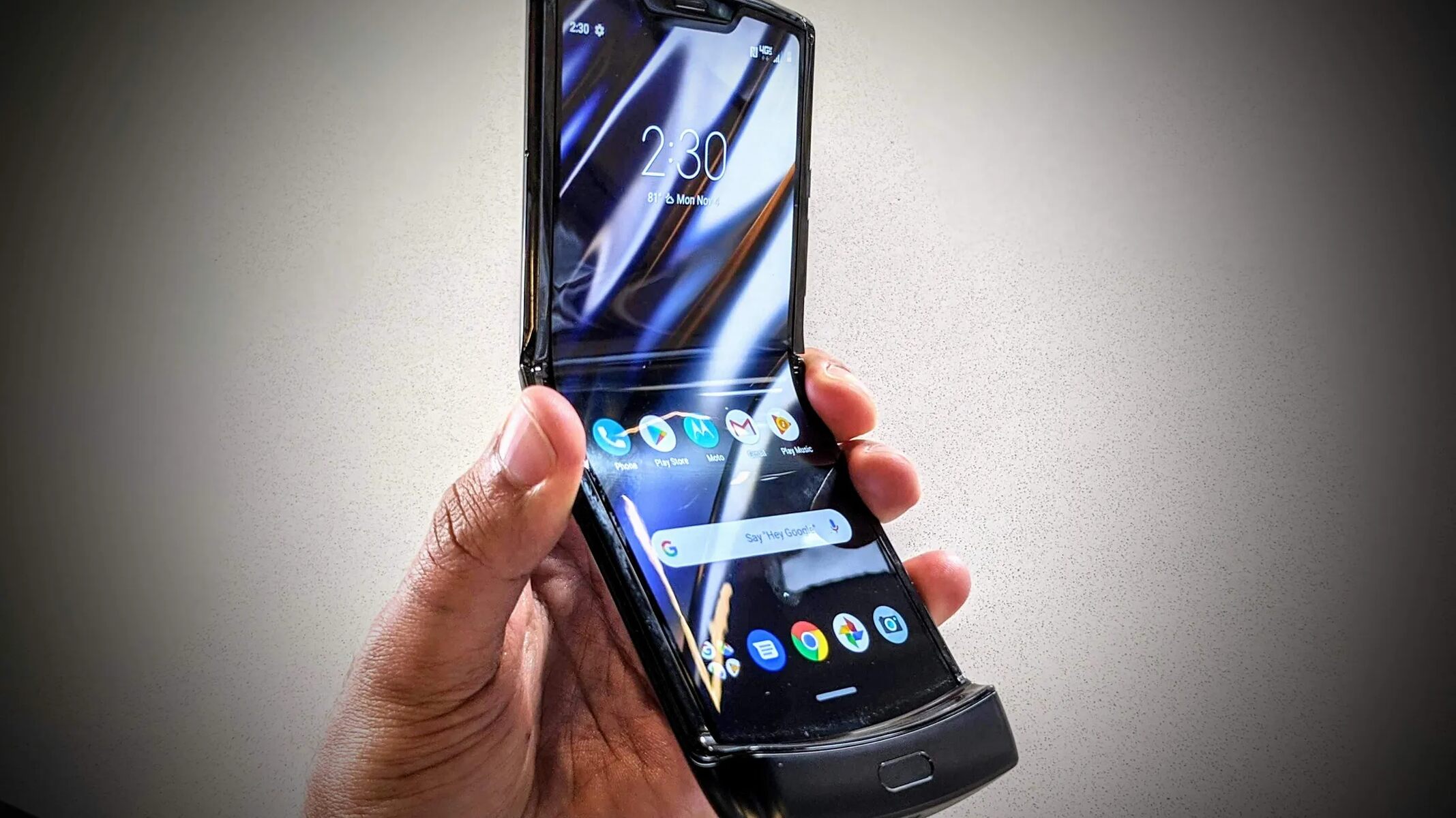
Resetting your Motorola Razr flip phone returns it to its original out-of-the-box condition, erasing all personal data, settings, and downloaded apps. This is the most effective fix for severe software glitches, persistent performance issues, or preparing the device for resale, but it is irreversible and will delete your Google account, media, and app data. Before you proceed, back up all important files to a cloud service or computer, and ensure you know your Google account credentials because you will need them to set up the phone again.
Before resetting your Motorola razr flip phone: Critical pre-reset warnings
A factory data reset is a permanent action. It wipes your contacts, photos, videos, messages, app settings, and every downloaded application. This process also removes your Google account from the device, which triggers Factory Reset Protection (FRP) on the next boot. To avoid being locked out, you must know the username and password for any Google account previously synced to the phone. If you recently changed your Google password, wait a full 24 hours before resetting, otherwise the FRP may reject your credentials. Also, ensure the battery has at least 30% charge or keep the phone plugged into a power source during the entire reset to prevent an interruption that could corrupt the system. If you are giving the phone to someone else, remove all Google accounts and disable any screen lock (PIN, pattern, or password) *before* resetting; failing to do so will lock the device to your Google account for the next user.
How to factory reset from Settings
This is the primary method for a responsive phone that powers on normally. Follow these steps exactly to erase all data and restore the original factory state.
- Open the Settings app from the app drawer or home screen.
- Scroll down and tap System.
- Tap Reset options.
- Tap Erase all data (factory reset).
- If prompted, enter your current passcode or draw the unlock pattern to authorize the action.
- If advised by your carrier or if you plan to give the device away, select Erase downloaded SIMs to remove the eSIM profile.
- Tap Erase all data at the bottom to confirm and begin the reset.
The phone will restart automatically and show the initial setup screen. This process takes several minutes, and the device may reboot once or twice. Do not power it off during this time.
How to factory reset with hardware keys
Use this method only when the phone is unresponsive, the screen is frozen, or the Settings menu is inaccessible. This is the same technique you would use to hard reset Android tablet when locked out, but adapted for the Razr's key layout. Ensure the device is powered off completely before starting.
- Press and hold the Volume Down button and the Power button simultaneously until the 'Fastboot Flash mode' screen appears.
- Use the Volume buttons to highlight RECOVERY MODE (or "Recovery mode").
- Press the Power button to select it.
- If you see an Android robot with "No Command" or an exclamation mark, press and hold the Power button, then press the Volume Up button once, and then release the Power button.
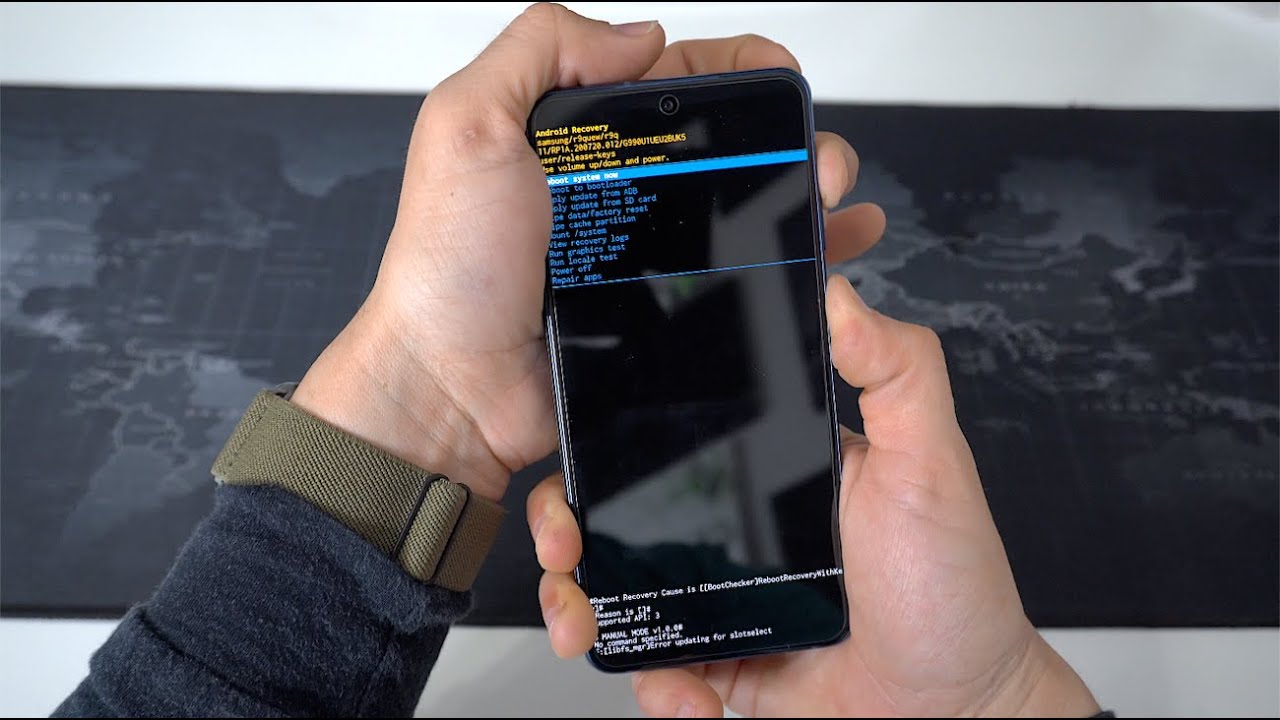
- From the Android system recovery screen, use the Volume buttons to scroll to Wipe data/factory reset.
- Press the Power button to select it.
- Use the Volume buttons to highlight Factory data reset and press the Power button to confirm.
- After the reset completes, highlight Reboot system now and press the Power button.
The phone will reboot and may take longer than usual on the first boot. This method completely bypasses the operating system and directly wipes the data partition.
What to do after the reset
Once the device restarts, you'll see the welcome screen. Go through the setup wizard, connecting to Wi-Fi and accepting the terms. This step is mandatory because of Android Device Protection (FRP); without the correct login, you cannot proceed past this screen. After signing in, you can restore your data from a cloud backup if you created one earlier. For media files you transferred to a computer, connect the phone via USB and copy them back to the appropriate folders. For app data, sign in to each app individually to retrieve synced content. The phone will not restore any data from the factory reset itself, only what you backed up externally.
A less drastic fix: reset network settings
Before committing to a full factory reset, try resetting only the network settings. This clears all saved Wi-Fi networks, Bluetooth pairings, and mobile data settings without deleting your personal files, photos, or apps. It is the ideal first step when you experience Wi-Fi disconnections, Bluetooth pairing failures, or mobile data issues after a system update. To perform this, go to Settings > System > Reset options > Reset mobile network settings or Reset Bluetooth & Wi-Fi. After the reset, you'll need to reconnect to your Wi-Fi network and re-pair your Bluetooth devices, but your contacts, messages, and app data remain untouched. This often resolves connectivity gremlins without the drastic step of wiping the entire phone.
\nRelated reading: Complete Guide: Hard Resetting Sony Xperia Phone and Troubleshooting Charging Issues On Motorola Razr.