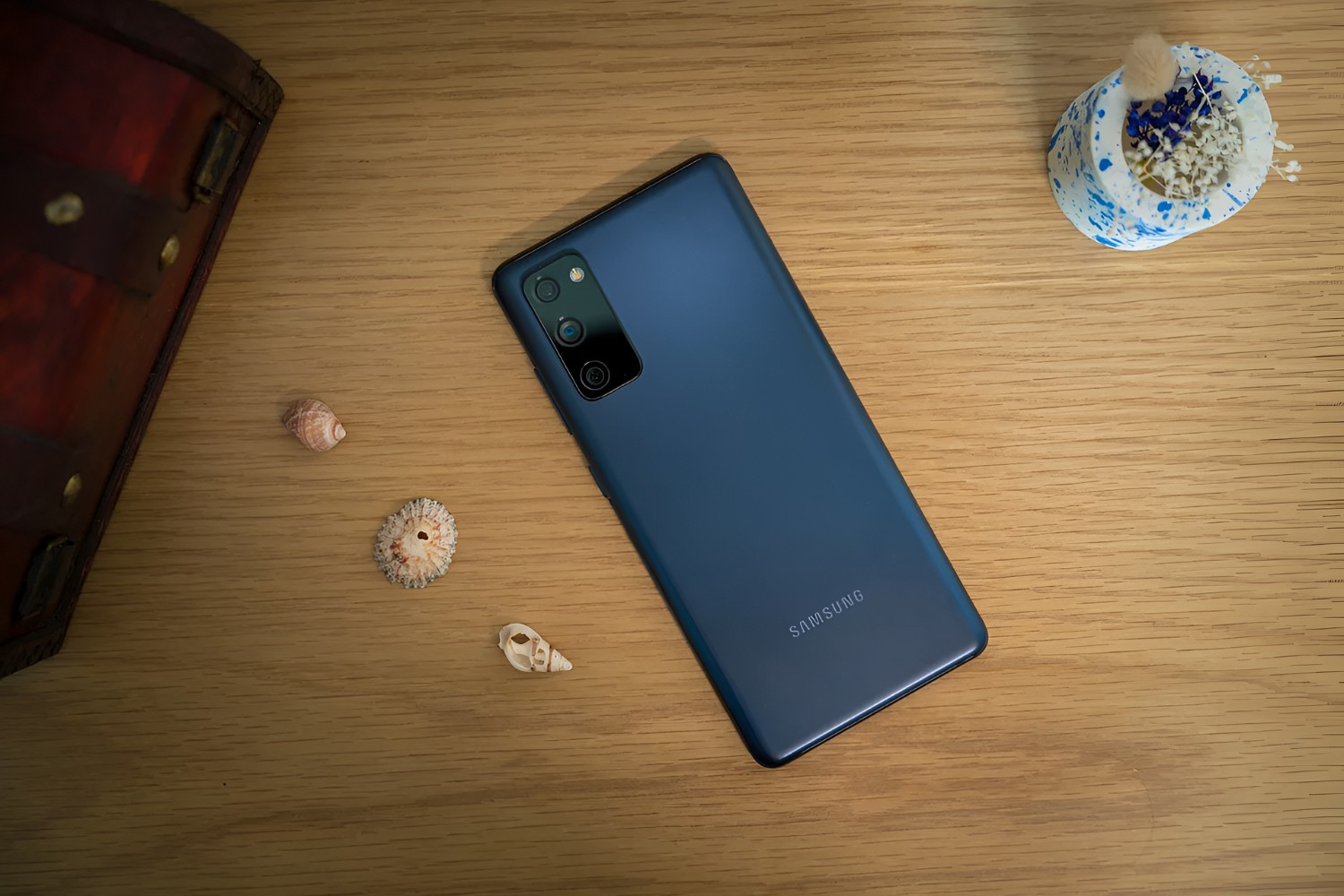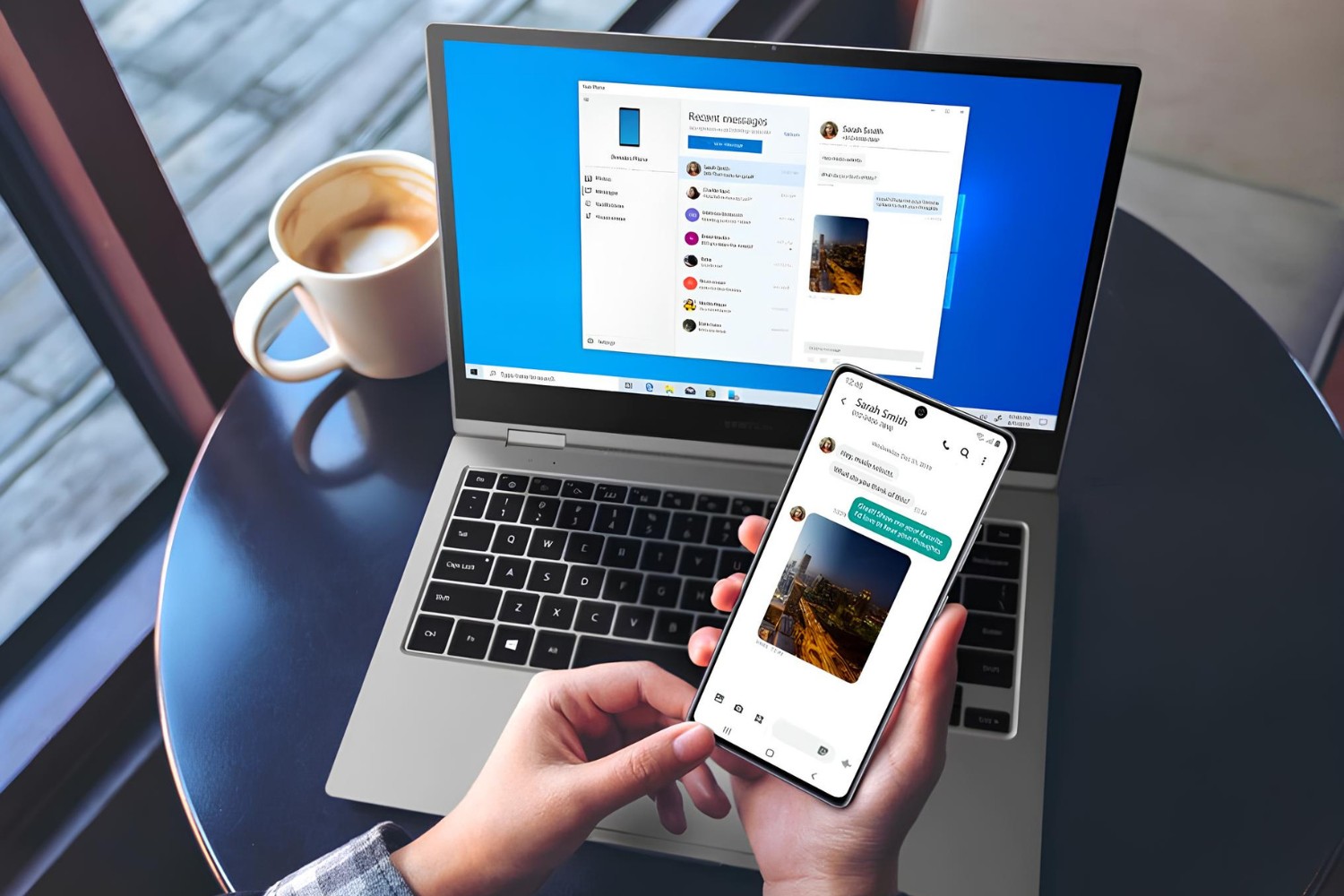
Enabling USB transfer on Samsung S20 FE starts by connecting the phone to your computer with a USB cable, then unlocking the screen and swiping down the notification panel. Tap the USB notification that says “USB charging” or “USB for charging phone,” then select “Transferring files / Android Auto” or “File Transfer” to make your storage visible to the computer.
Enabling USB transfer on Samsung s20 fe: the quick method
The fastest way to get file transfer working is through the notification panel, no settings digging required. This is the method Samsung expects you to use for everyday transfers, and it works every time as long as you follow the order below.
- Connect your Samsung S20 FE to your computer using a compatible USB cable. Use the cable that came with the phone for best results.
- Unlock your phone with your PIN, pattern, or password. If the screen is locked, the USB options may stay hidden.
- Swipe down from the top of the screen to open the notification panel (also called the Quick panel).
- Look for the USB notification that says “USB charging” or “USB for charging phone” by default. Tap it once.
- Tap the notification again to reveal the full list of USB options. Choose “Transferring files / Android Auto” or “File Transfer” (this is MTP mode).
Once you select file transfer mode, your phone’s internal storage and SD card (if you have one) will appear on your computer as a removable drive. You can now drag and drop photos, videos, documents, and any other files between the two devices. This is the core of enabling USB transfer on Samsung s20 fe, it’s a simple selection, not a permanent setting change.
Accessing your files on the computer
After selecting file transfer mode, open File Explorer on Windows. Your S20 FE will show up under “This PC” or “Devices and drives” with a name like “Phone” or “Galaxy S20 FE.” Double-click it to browse folders such as DCIM (for camera photos), Pictures, Downloads, and Music. You can copy files in either direction by dragging them between folders.
On a Mac, you’ll need additional software such as Android File Transfer or MacDroid to see your phone’s storage. macOS does not natively recognize Android devices in MTP mode, so install one of those apps first, then launch it after connecting your phone. The app will display your phone’s folders just like Finder does for local drives.
Troubleshooting USB connection problems
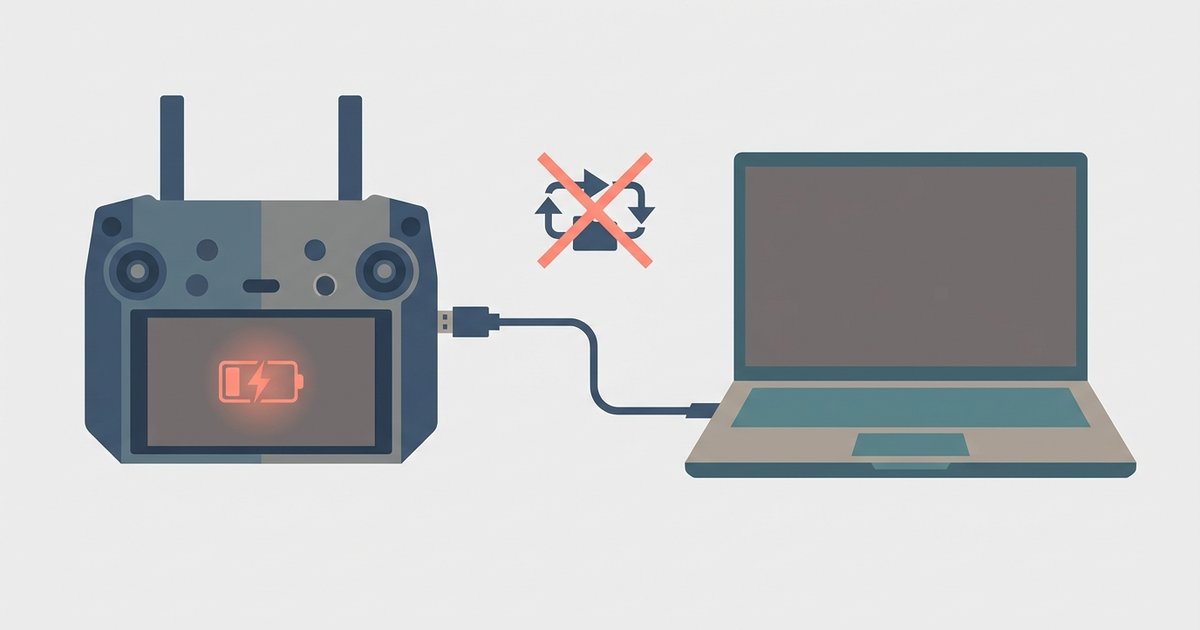
If your computer doesn’t recognize the phone or the transfer mode keeps reverting to charging-only, the most common cause is a dirty or damaged charging port. Dust, lint, or debris inside the USB-C port can block the data pins while still allowing power to flow, so the phone charges but never shows the file transfer notification. Inspect the port with a bright light and gently clean it with a dry, soft toothbrush or a wooden toothpick. Avoid metal tools that could scratch the internal contacts.
Also try a different USB cable, since some cables are charge-only and lack the data wires. If the port is physically damaged or bent, you may need professional repair. A damaged port can prevent a proper data connection even if the cable fits snugly. After cleaning or swapping cables, reconnect and repeat the notification panel steps above.
How to set file transfer as the default USB mode
If you’re tired of manually selecting file transfer every time you plug in, you can change the default USB configuration in Developer Options. This is an optional, advanced method, but it’s worth doing if you transfer files frequently, because it makes your phone automatically enter file transfer mode when connected.
- Open Settings and go to “About phone” then “Software information.”
- Tap “Build number” seven times. You’ll see a message that you’re now a developer, and you may need to enter your lock screen credentials.
- Go back to the main Settings menu and tap “Developer options.”
- Scroll down to “Default USB configuration.”
- Select “File Transfer” from the list.
Now every time you connect your S20 FE to a computer with a USB cable, it will automatically use file transfer mode instead of charging-only. Note that this setting applies to all USB connections, so if you ever want to charge only, you’ll need to change it back or use the notification panel to override it for that session.
One thing to keep in mind: USB debugging is a separate toggle in Developer Options. It is primarily intended for developer troubleshooting and accessing device logs, and is generally not necessary for standard file transfers. You don’t need to enable it just to move photos or documents, leaving it off is safer for everyday use.
For direct transfers to a USB stick or portable SSD, your S20 FE needs a Type-C USB cable or an OTG (On-The-Go) adapter. Plug the drive into the adapter, connect it to your phone, and you’ll see a notification to browse the drive’s contents. This works independently of the computer connection method described above.
\nRelated reading: Checking RAM On Samsung S20 FE: Step-by-Step Guide, Set Up Wi-Fi Calling On Samsung S20 FE - Easy Guide, and Resolve Green Line On Samsung S20 Plus Screen: Step-by-Step.