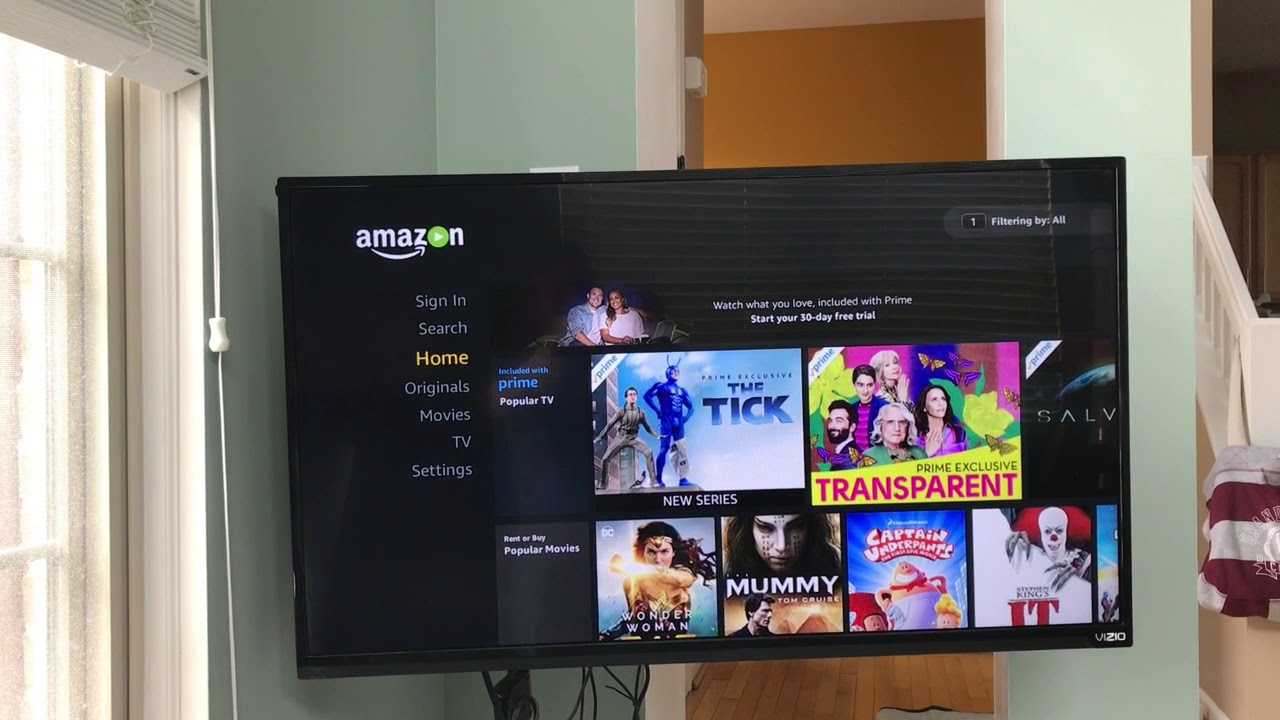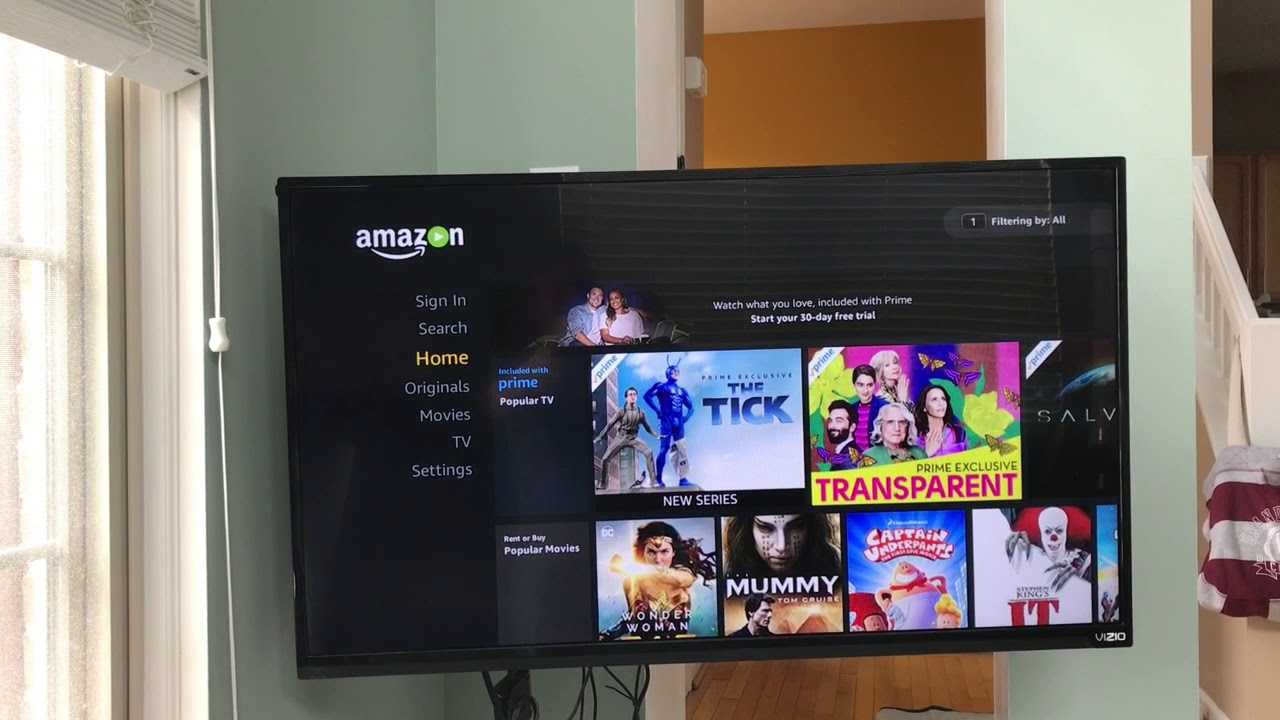
To log into Amazon Prime on TV, open the Prime Video app on your smart TV or streaming device and choose a sign-in method. The fastest way is to use the on-screen activation code displayed on your TV by visiting amazon.com/mytv on your phone or computer.
How to log into Amazon prime on TV: the 3 sign-in methods
There are three ways to sign in to Amazon Prime Video on your TV. The on-screen code method is the most reliable and works on nearly every device. Direct on-TV login is best if you prefer typing with your remote, though it can be slower. The QR code method is ideal if you have the Prime Video mobile app installed on your phone, and it can also help you understand any unexpected Prime Video charges with Amazon Prime by showing your account status. Before you settle in, you might want a complete review of its cost and subscription plans to confirm which features your plan includes. Choose the method that fits your setup.
Method 1: Sign in with an on-screen code (recommended)
This method avoids typing your email and password on the TV remote. You enter a short code on a separate phone or computer instead.
- Open the Prime Video app on your Smart TV and select "Sign In" or "Register on the Amazon website."
- A 5 or 6-digit registration code will appear on your TV screen.
- On a separate device (phone or computer), open a web browser and go to amazon.com/mytv.
- Sign in to your Amazon account on the website.
- Enter the code displayed on your TV into the text box on the website and select "Register Device" or "Continue."
Your TV will automatically refresh and link to your account. You can now browse and stream Prime Video content.
Method 2: Sign in directly on your TV
Use this method if you prefer to enter your credentials using the TV remote. It works on most smart TVs and streaming devices.
- Open the Prime Video app on your TV and select "Sign In."
- Use your TV remote to enter your Amazon account email address and password on the on-screen keyboard.
- Select "Sign In" or "Log In" to confirm.
Once authenticated, the app loads your personalized Prime Video library. This method is straightforward but requires careful typing, especially for complex passwords.
Method 3: Sign in by scanning a QR code
This method uses your phone’s camera or the Prime Video mobile app to link your TV instantly.
- An option to scan a QR code will appear on your TV screen.
- On your mobile device, open your camera app or the Prime Video app and scan the QR code.
- If prompted, sign in to your Amazon account on your mobile device and select "Allow" to link the device.
Your TV is now registered. This method is quick and eliminates the need to type anything on the TV screen.
Supported devices and account tips
Prime Video is supported on a wide range of devices, including Smart TVs (e.g., Sony, Samsung, Panasonic), Amazon devices, Blu-ray players, game consoles, and streaming media devices. Always use the same Amazon account for both your TV and any companion device used for signing in. You can manage all devices registered to your Prime Video account through the "Your Devices" section on the Prime Video Settings page on the Amazon website. Prime Video Account PINs and Profile PINs, once set up, apply across all devices linked to your account. For example, if you want to use Grubhub with Amazon Prime, your TV must be signed in to the same Amazon account that has the Prime membership benefits linked. This ensures seamless access across all your devices and services.