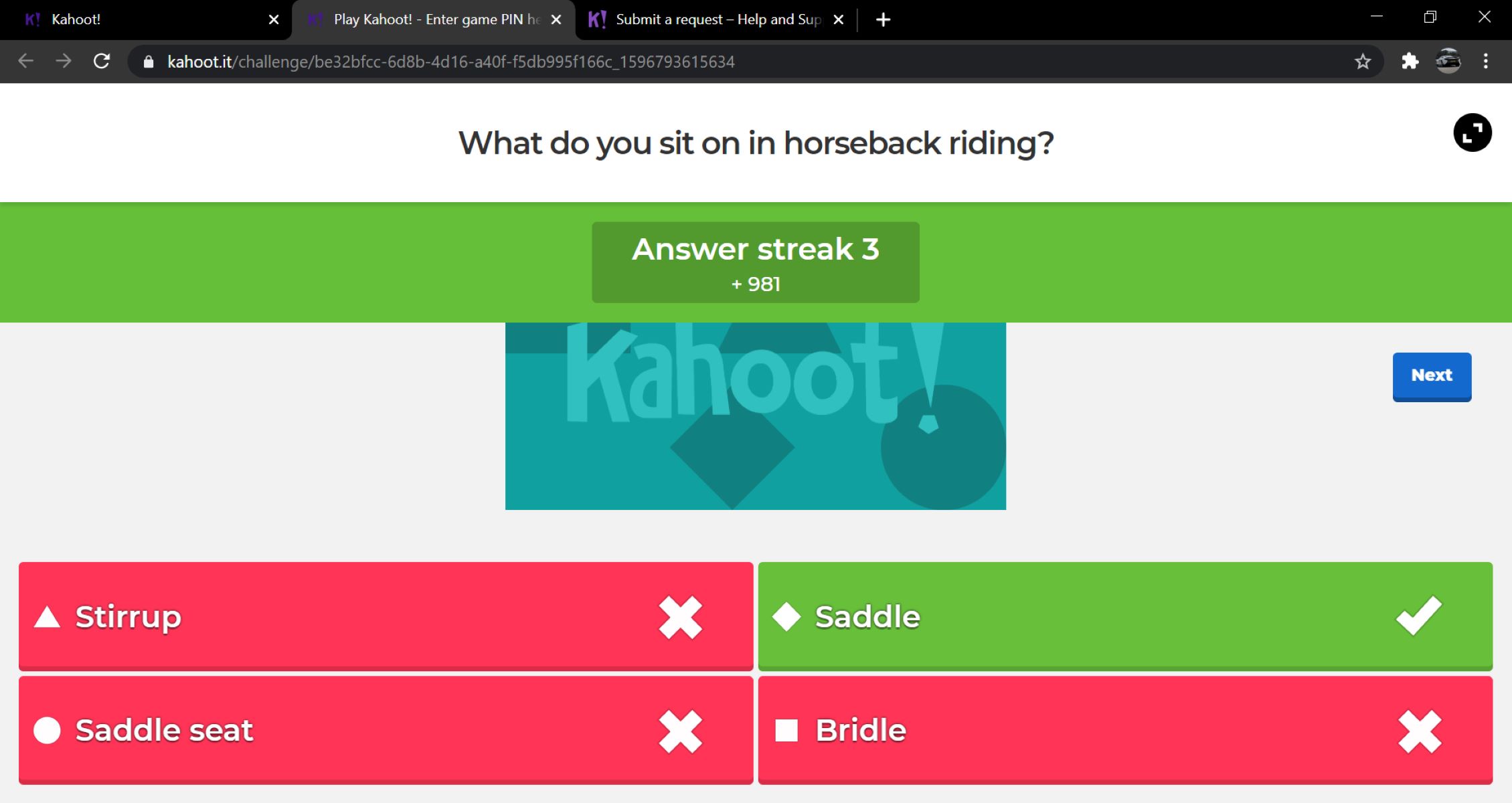
To get answers in Kahoot during a live game, the host must enable the “Show questions and answers on player devices” setting in Game Options before starting. This free feature displays each question and its answer choices directly on every player’s screen, with the correct answer highlighted in green after the timer ends or all players respond.
How to get answers in Kahoot during a live game
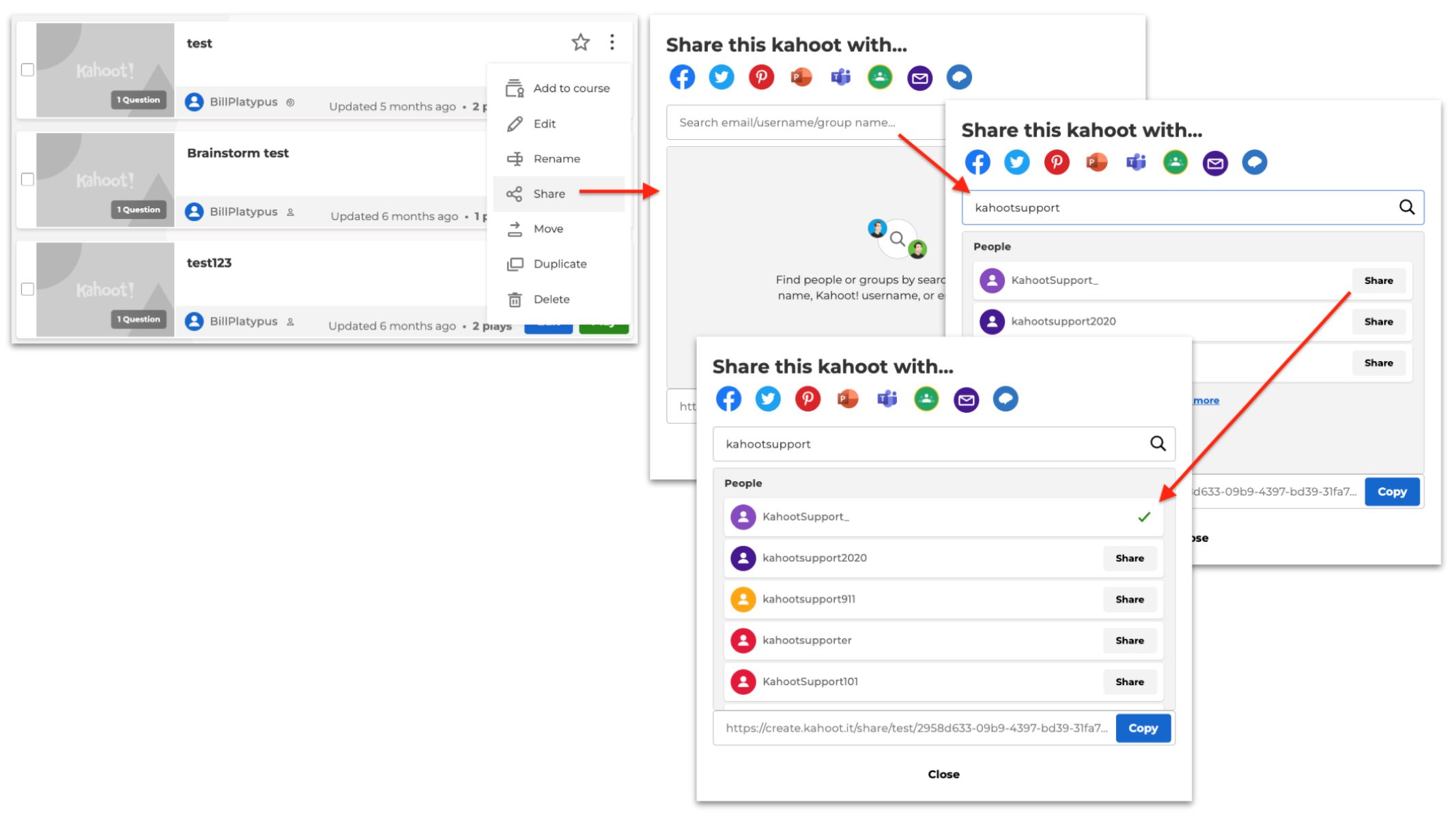
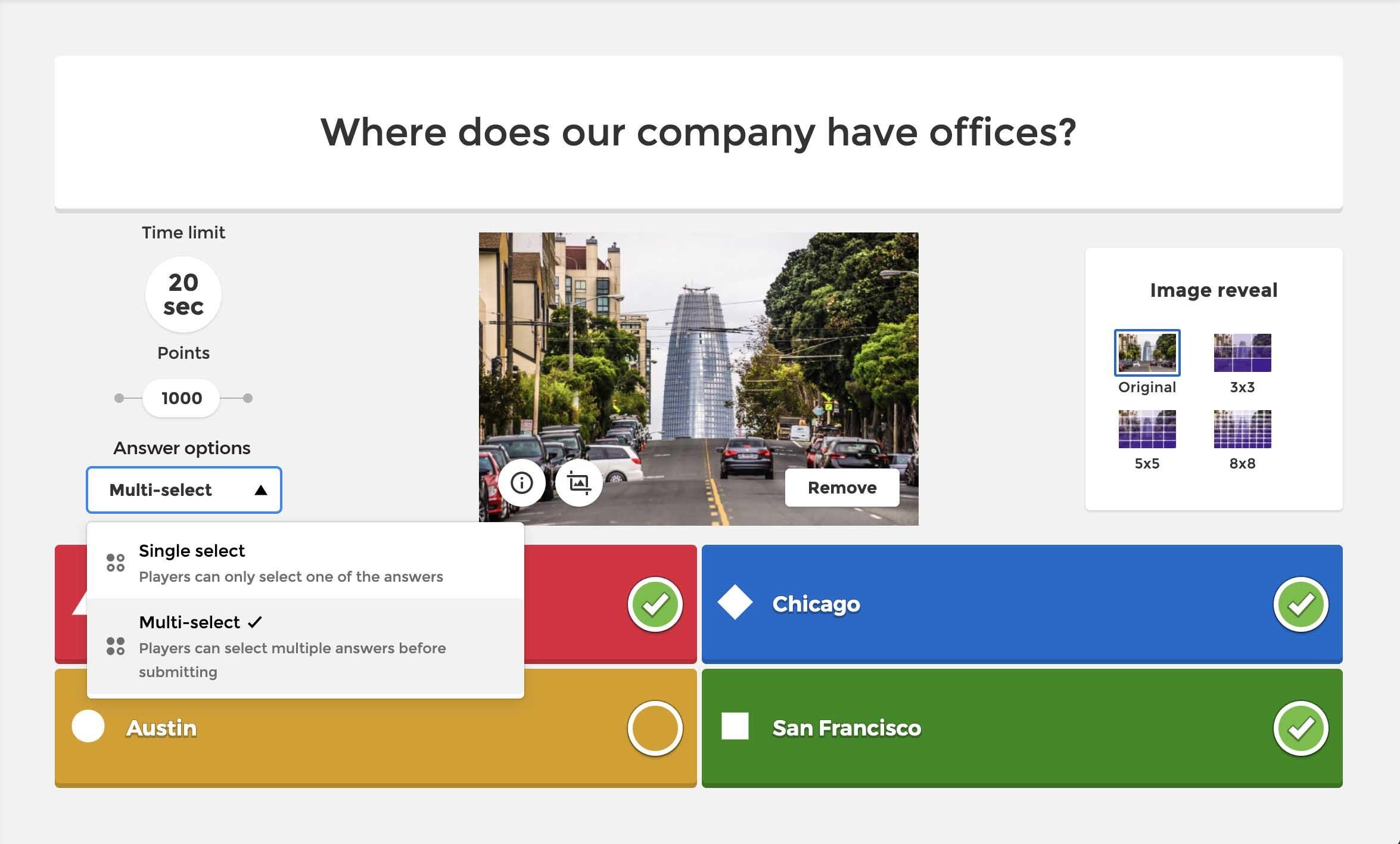
When you are the host of a live Kahoot session, you control whether players see the question and answer choices on their own devices. By default, players only see colored answer buttons on their screens, while the question appears on the shared main display. To change this, open your Kahoot and select the “Game options” tab before launching the game. Scroll down to the section labeled “Show questions and answers on player devices” and toggle it on. Once enabled, every participant will see the full question text and all answer options on their phone, tablet, or computer. After the timer counts down or everyone has answered, the correct answer turns green on their screens, giving immediate feedback without needing to look up at the main screen. This setting is completely free for all Kahoot users and works in both Classic and Team modes. Keep in mind that enabling it increases bandwidth usage because each device receives additional data, so ensure your internet connection can handle the extra load.
See answers automatically in assigned (self-paced) Kahoots
If you are playing an assigned Kahoot, which is a self-paced game that students complete on their own time, you do not need to worry about host settings. In assigned Kahoots, questions and correct answers are displayed on participants’ devices by default. There is no extra configuration required, and the platform automatically shows the question, the answer choices, and the correct answer highlighted in green after you submit your response. This makes self-paced Kahoots an ideal way to study independently, because you get instant feedback on every question without waiting for a host to enable any display options. If you want to simulate a multiplayer race to test your speed, you can get bots in Kahoot to join your session.
Find all the correct answers after any game with Reports
After a live game or an assigned Kahoot ends, the host can access a detailed breakdown of every question through the Reports tab in their Kahoot account. Navigate to the “Reports” section from your dashboard, select the specific game session, and you will see a summary of overall performance. For each question, the report shows the correct answer, the percentage of players who chose each option, and how many players selected the right or wrong responses. This data also highlights difficult questions that may need reteaching, allowing you to identify which concepts were most challenging for the group. To get all the answers right on Kahoot in future games, review these reports carefully and note the patterns in your mistakes. The Reports feature is available for free, though the depth of analytics may vary depending on your account and subscription type.
Study on your own with self-study modes that reveal answers
Kahoot’s self-study modes are built for solo review and give you direct access to correct answers at your own pace. To access them, open any kahoot in the Kahoot app or on the web platform, then select “Study” or “View all” under the self-study modes section. Flashcards mode lets you tap a card to flip it and see the answer, then mark whether you “Got it” or want to “Study again.” Learn mode uses a swipe-based format that requires you to answer correctly before moving to the next question, reinforcing material through repetition. Test mode simulates a timed quiz and reveals the correct answer after each response. Practice mode allows you to play a kahoot repeatedly until you have answered all questions correctly, and Smart Practice mode, available in the mobile app, focuses on questions you answered incorrectly in previous games by replaying them in phases over time. These modes are ideal for turning a kahoot into a personal study tool, and they do not generate Reports, so your practice data stays private.
What about third-party answer tools and hacks?
Unofficial browser extensions, websites, and scripts that claim to show Kahoot answers in real time exist, but they are not affiliated with Kahoot and violate the platform’s Terms of Service. These third-party tools are not guaranteed to work, may expose your device to malware or phishing attempts, and can result in your account being banned from the platform. Even if a hack appears to function during a game, the answers it provides are often incorrect or delayed, making them unreliable for learning or competition. The safest and most effective way to get answers in Kahoot is to use the official features described above, which are designed to support learning without compromising your security or account standing.
Legit tips for playing with teammates and spectators
Collaboration is a legitimate way to improve your chances of answering correctly without resorting to hacks. In Team mode, players work together on a shared device, and discussing each question aloud before selecting an answer is encouraged. One teammate can read the question while another analyzes the options, and pooling knowledge often leads to better decisions than playing alone. Additionally, the audience feature allows spectators to view questions and answer choices on their own devices when the host has enabled display settings. Spectators can then contribute insights, suggest answers, or confirm a choice, creating a shared learning moment for everyone involved. To use this feature, the host must enable the audience option in Game Options before starting, and spectators join using a separate code. While audience input is not always available in every game mode, it is a valuable resource when you are stuck on a difficult question.
Learn from questions you missed after the game ends
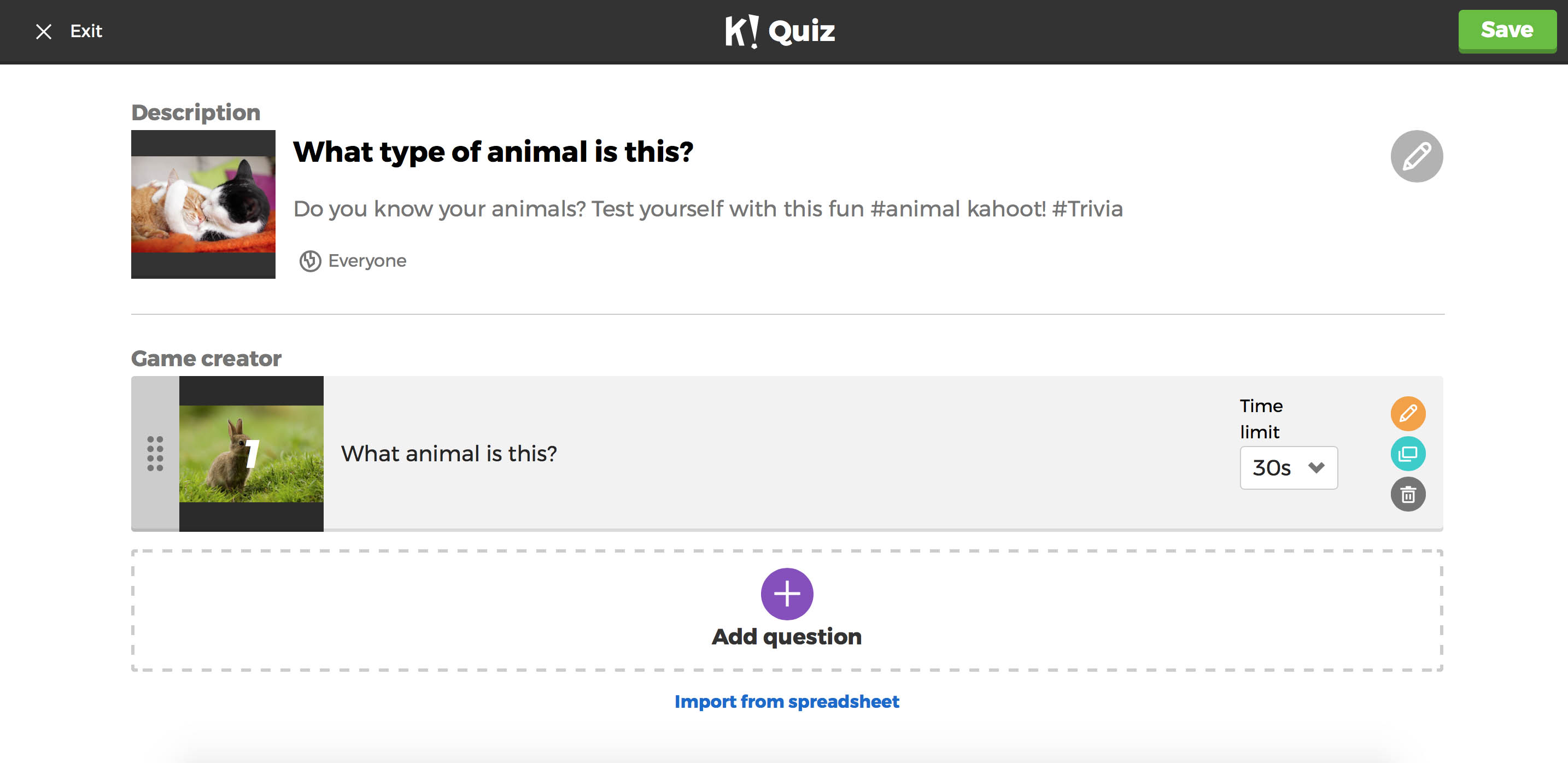
Post-game reflection is one of the most effective ways to turn a Kahoot session into a lasting learning experience. After the game ends, revisit the questions you answered incorrectly and analyze why you missed them. Look for patterns in your mistakes, such as recurring topics or question types that trip you up, and use that information to prioritize your study time. If you are the host, use the Reports data to see which questions stumped the majority of players and discuss those concepts as a group. You can also review questions with teammates or classmates, debating the reasoning behind each correct answer to deepen your understanding. By regularly reviewing missed questions and using the platform’s own feedback tools, you can close knowledge gaps and improve your performance in future games. This approach aligns with Kahoot’s educational purpose and helps you make a Kahoot for your own review sessions, turning every game into an opportunity to grow.