The short answer
Pick the method that matches what you have. If both computers are Windows, use Nearby Sharing. If one is a Mac, turn on File Sharing. If you want the same folder on both machines without copying files back and forth, set up a synced folder. And if nothing else works, open a browser on both computers and use a temporary link.
Before you start: check the one thing that trips everyone up
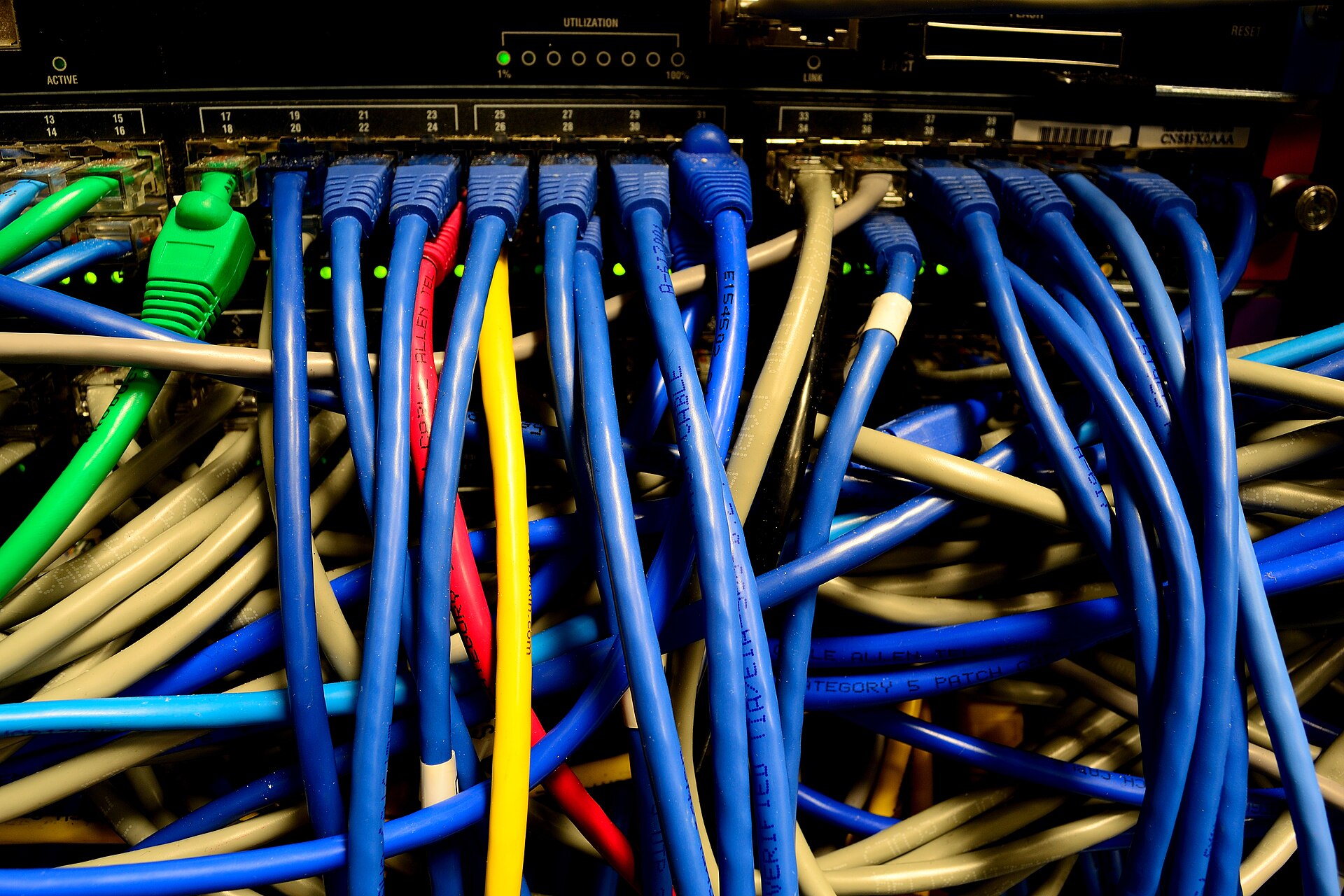
Both computers need to be on the same network. That usually means they are connected to the same Wi-Fi or plugged into the same router. If one is on a guest network and the other is on the main network, they probably cannot see each other. Fix that first, or none of the steps below will work.
Windows to Windows: use Nearby Sharing
Windows has a built-in tool called Nearby Sharing that works over Bluetooth and Wi-Fi. It is the quickest way to send a file from one Windows PC to another without a cable or a USB drive.
- On both computers, open Settings > System > Nearby Sharing.
- Choose Everyone nearby on both machines.
- On the sending computer, right-click the file in File Explorer and select Share.
- The other computer should appear in the list. Click its name.
- On the receiving computer, accept the notification that pops up.
The file lands in the Downloads folder by default. If the computers do not see each other, make sure Bluetooth is on and both are connected to the same private network, not a public one.
Mac to Mac: AirDrop is still the simplest
AirDrop uses Bluetooth to discover nearby Macs and Wi-Fi to transfer the file. It works between two Macs or between a Mac and an iPhone, but here we are focusing on computer-to-computer transfers.
- On both Macs, open a Finder window and click AirDrop in the sidebar.
- At the bottom of the AirDrop window, set Allow me to be discovered by to Everyone.
- On the sending Mac, drag the file onto the other Mac’s icon in the AirDrop window.
- On the receiving Mac, click Accept.
If AirDrop is not showing the other Mac, check that both have Wi-Fi and Bluetooth turned on. Apple has a detailed walkthrough for troubleshooting this on their AirDrop support page.
Mac to Windows or Windows to Mac: turn on File Sharing
This is the most reliable cross-platform method without installing anything extra. You set up a shared folder on one computer and access it from the other.
If the Mac is sharing files
- On the Mac, go to System Settings > General > Sharing.
- Turn on File Sharing.
- Click the i icon next to it and note the address shown. It looks like
smb://192.168.1.10. - Add the folders you want to share under Shared Folders.
- On the Windows PC, press Windows key + R, type two backslashes followed by the IP address (for example,
\\192.168.1.10), and press Enter. - Enter the Mac username and password when prompted. The shared folder appears.
If the Windows PC is sharing files
- On Windows, right-click the folder you want to share and select Properties.
- Go to the Sharing tab and click Share.
- Choose the user account or select Everyone and set permission to Read/Write.
- Note the network path that appears.
- On the Mac, open Finder, click Go > Connect to Server, and type
smb://followed by the Windows PC’s IP address. - Enter the Windows username and password. The shared folder mounts like an external drive.
Android to Windows: Quick Share is now built in
Google’s Quick Share (formerly Nearby Share) comes pre-installed on most Android phones and is available as a downloadable app for Windows. It works a lot like AirDrop.
- On the Android phone, pull down the quick settings panel and make sure Quick Share is turned on.
- On the Windows PC, install and open the Quick Share app from Google if it is not already there.
- On the phone, select the file, tap Share, and choose Quick Share.
- The PC should appear as a nearby device. Tap it.
- On the PC, accept the incoming file.
Google’s Quick Share help page covers setup and troubleshooting for different Android versions.
When you want the same files on both computers without copying every time
If you regularly work on the same documents from two different computers, copying files back and forth gets messy fast. A synced folder solves this. You set it up once, and any file you drop into it appears on the other computer automatically.
OneDrive, Google Drive, and iCloud Drive all do this. Install the desktop client on both computers, sign into the same account, and choose which folders to sync. After that, you work with the files normally and the syncing happens in the background. This is not a one-time transfer method, it is for files you need to keep current on multiple machines.
No setup at all: use a browser on both computers
Sometimes you just need to get a file from one computer to another right now, and you do not want to change any settings, install anything, or figure out IP addresses. In that case, a browser-based transfer tool does the job.
Open ShareIt Online on the sending computer. Drag the file onto the page. It uploads and gives you a link and a QR code. On the receiving computer, open the link or scan the QR code with a phone camera to download the file. There is no app to install, no account to create, and the link stops working after the transfer is complete. The free tier handles files up to 3 GB.
This method works across any operating system, Windows, Mac, Linux, ChromeOS, because it only needs a web browser. It is also useful when the two computers are not on the same local network, since it works over the internet.
What about a USB drive?
It sounds old-fashioned, but a USB flash drive or an external hard drive is still one of the fastest ways to move very large files between two computers sitting on the same desk. Copy the file onto the drive, walk it over, and copy it off. No network configuration, no upload wait time, and no file size limit beyond the capacity of the drive. The downside is you need physical access to both machines and a drive formatted in a way both operating systems can read, exFAT works everywhere.
How to pick the right method
Ask yourself three questions:
- Is this a one-time transfer or something I will do regularly? One-time transfers favor quick tools like Nearby Sharing or a browser link. Regular transfers favor a synced folder or a permanent shared folder.
- Are the computers on the same operating system? If yes, use the built-in tool for that platform. If no, use File Sharing or a browser-based transfer.
- How large are the files? For anything over a few gigabytes, a wired method like a USB drive or a direct network share will be noticeably faster than uploading through a browser.
What to do next
Pick the method that fits your situation and try it with a small, unimportant file first. That way you can confirm the connection works before you commit to moving a large folder. Once you have done it once, the same steps will work every time.
Frequently asked questions
Why can't my computers see each other on the same network?
They are likely on different network segments. Check that both are connected to the same Wi-Fi network, not one on a guest network and the other on the main network. Also verify the network profile is set to private on both machines, as public network settings often block device discovery for security reasons.
What is the fastest way to transfer large files between two computers?
A USB flash drive or external hard drive formatted as exFAT is the fastest method for very large files. You copy the file onto the drive, walk it to the other computer, and copy it off. There is no network configuration, no upload wait time, and no file size limit beyond the drive's capacity.
Can I transfer files between two computers that are not on the same network?
Yes, use a browser-based transfer tool. Open the tool on the sending computer, drag the file onto the page, and it generates a link and QR code. Open that link on the receiving computer to download the file. This works over the internet across any operating system and requires no app installation or account creation.