84 practical, hands-on guides for anyone who has ever stood behind a computer or TV holding a cable and wondered where it actually goes. These articles are written for everyday consumers, people setting up a home office, connecting a new peripheral to a gaming console, or trying to get an older device talking to a modern laptop. The focus is on clear, step-by-step instructions for making devices work together, whether that means plugging in a webcam for a video call, pairing a wireless keyboard, or transferring music and photos between gadgets.
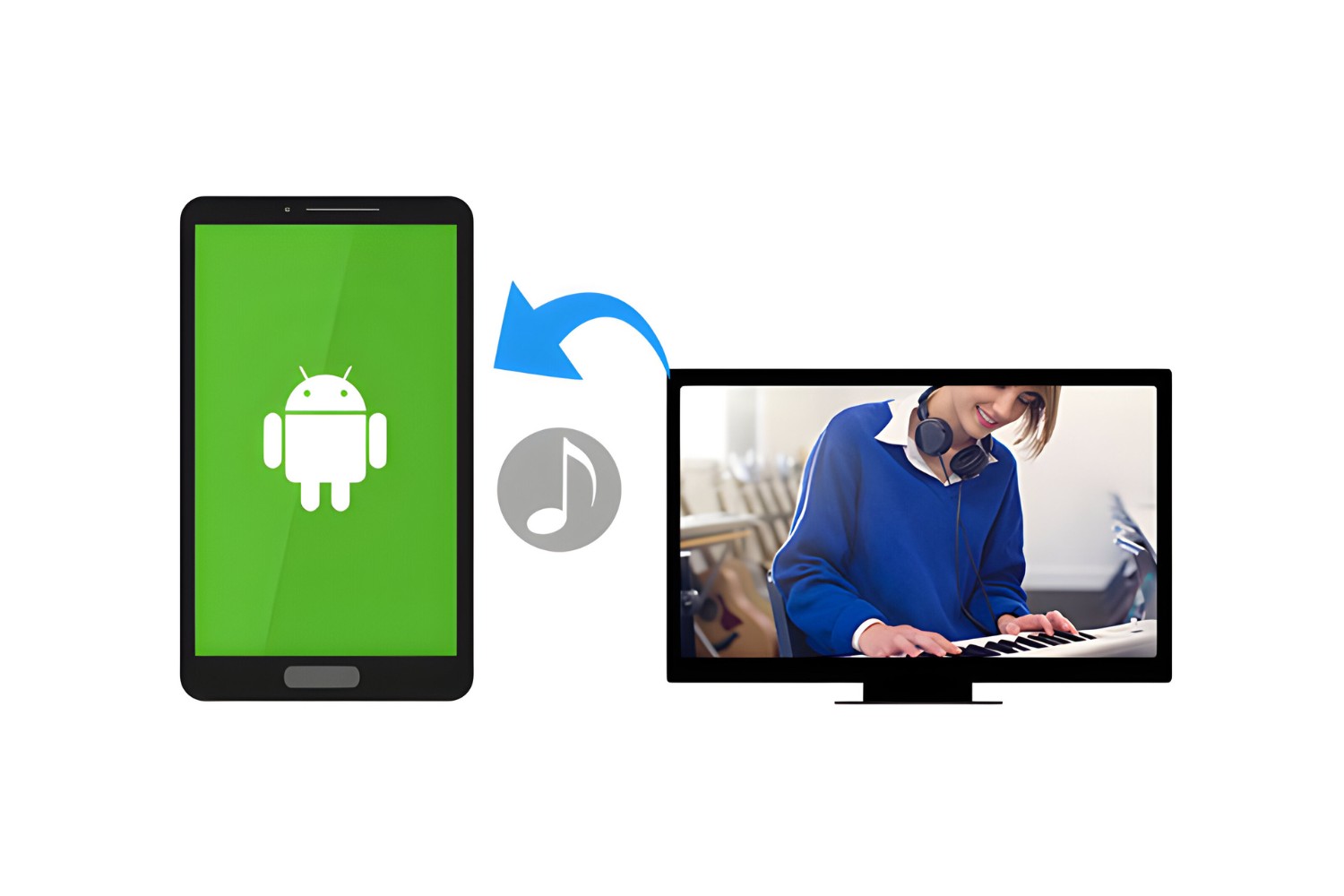
The articles cluster around three main kinds of tasks. First, there are connection and setup guides for input devices and peripherals: you can learn how to connect a PlayStation controller to a PC, install a Logitech C920 webcam on Windows 10, or plug in Logitech speakers. Second, there are file-transfer and media-management walkthroughs, such as moving pictures from a Canon Powershot camera, adding music to an Amazon Fire tablet, or downloading songs onto a SanDisk MP3 player. Third, several pieces address configuration and troubleshooting for specific hardware, like turning on an HP wireless keyboard, setting up a Huion pen tablet, or using a smart TV without an internet connection.
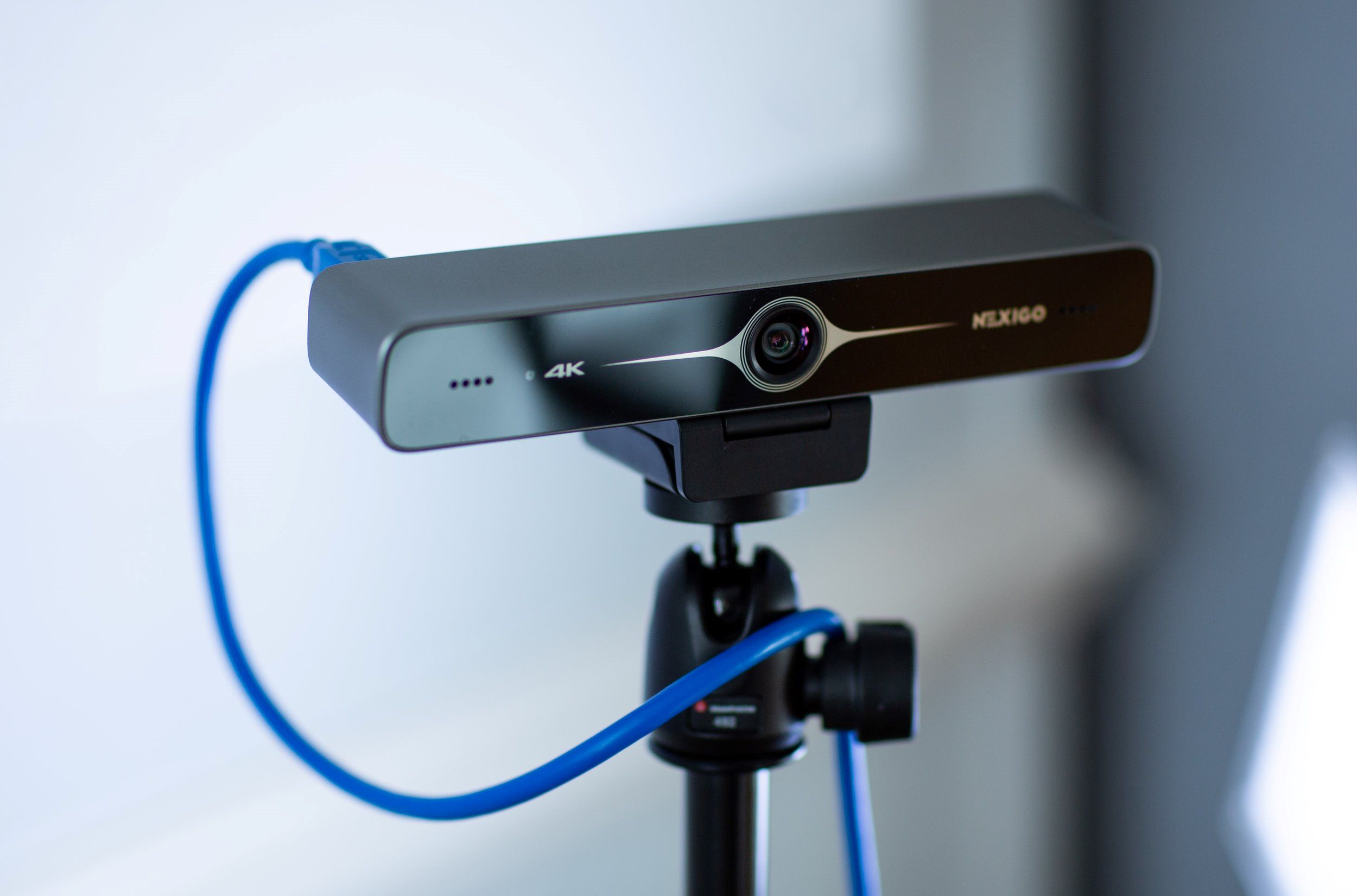
Many of the articles name their target device directly, Logitech headsets, NexiGo webcams, Chromebooks, and PSPs all appear in the titles. Some guides also take a careful approach to topics that touch on security or legal boundaries: for example, articles about downloading music or transferring files from a school Chromebook are framed around legitimate, authorized use, not circumventing protections. Similarly, a guide to turning on a Chromebook without the power button focuses on accessible alternatives for a device you own, not on bypassing any security measure. The tag is a practical resource for making your gear work the way you expect, without venturing into risky territory.