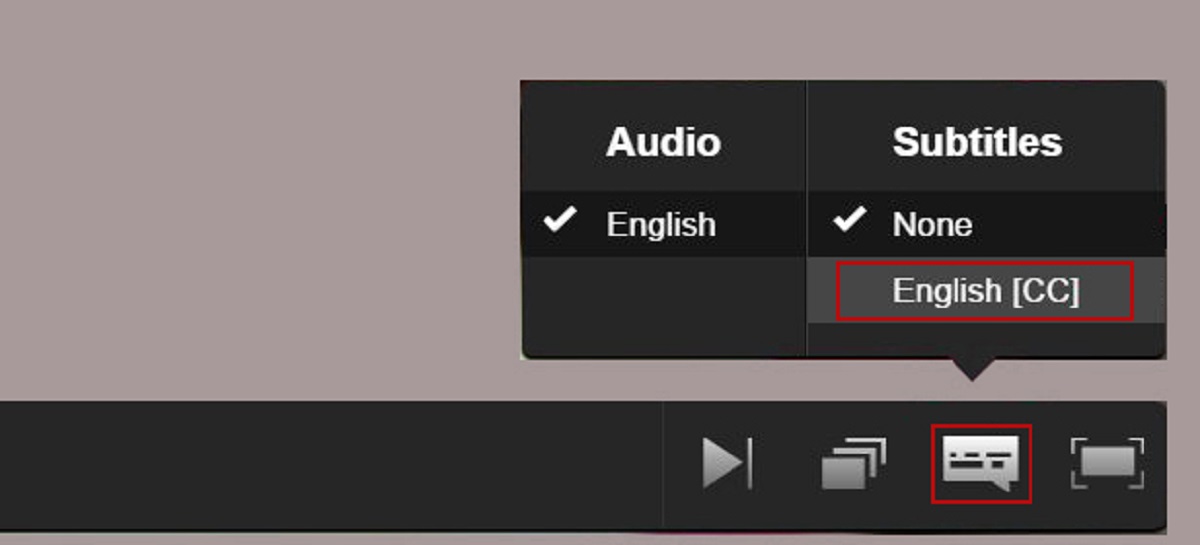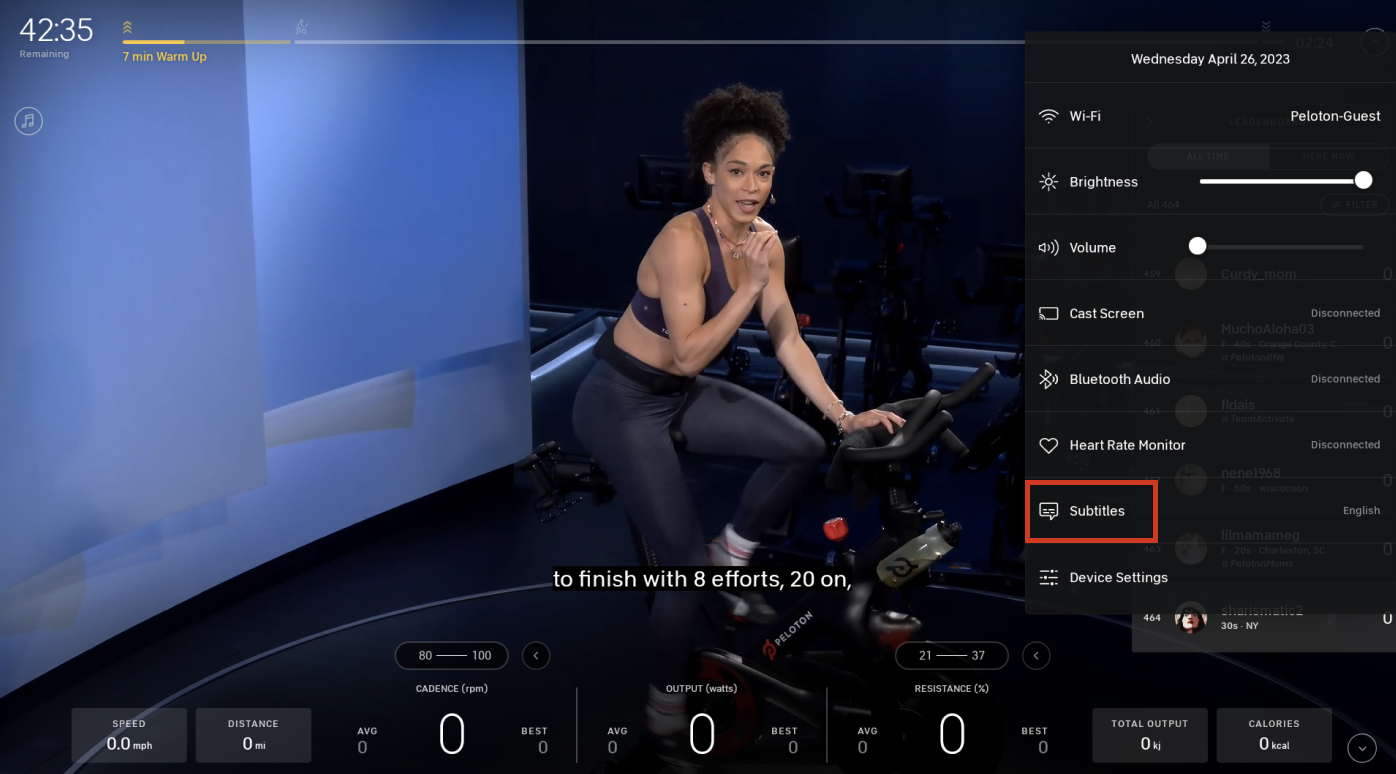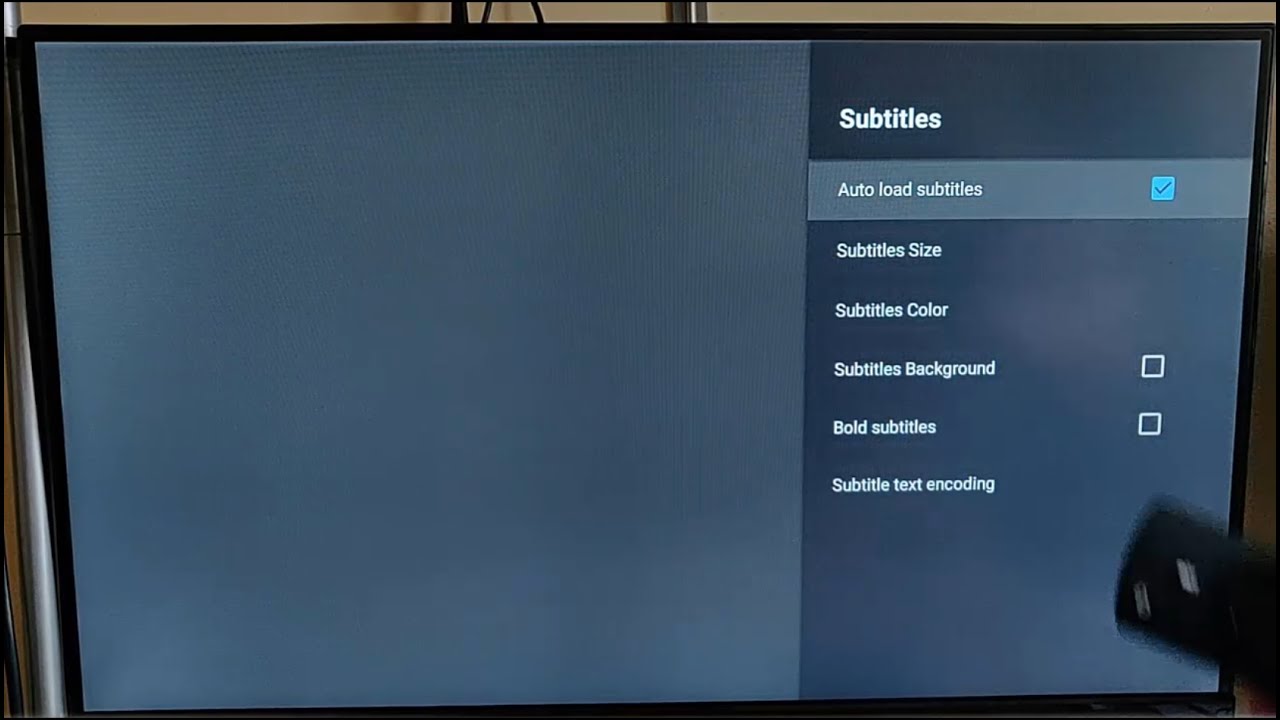
Before you start: how to turn on subtitles vs. captions vs. audio descriptions If you need to turn on subtitles, streaming platforms and device makers use overlapping terms that can...
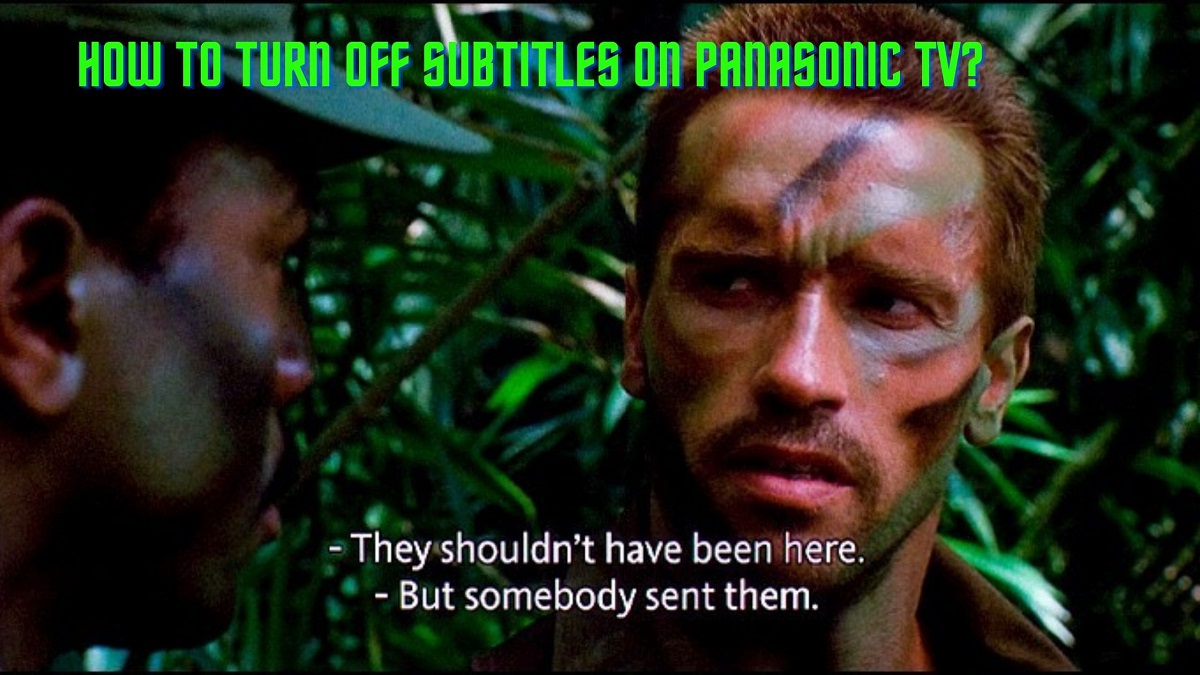
You can turn off subtitles on a Panasonic TV without a remote by pressing the physical buttons on the TV itself to open the on-screen menu and navigating to the...
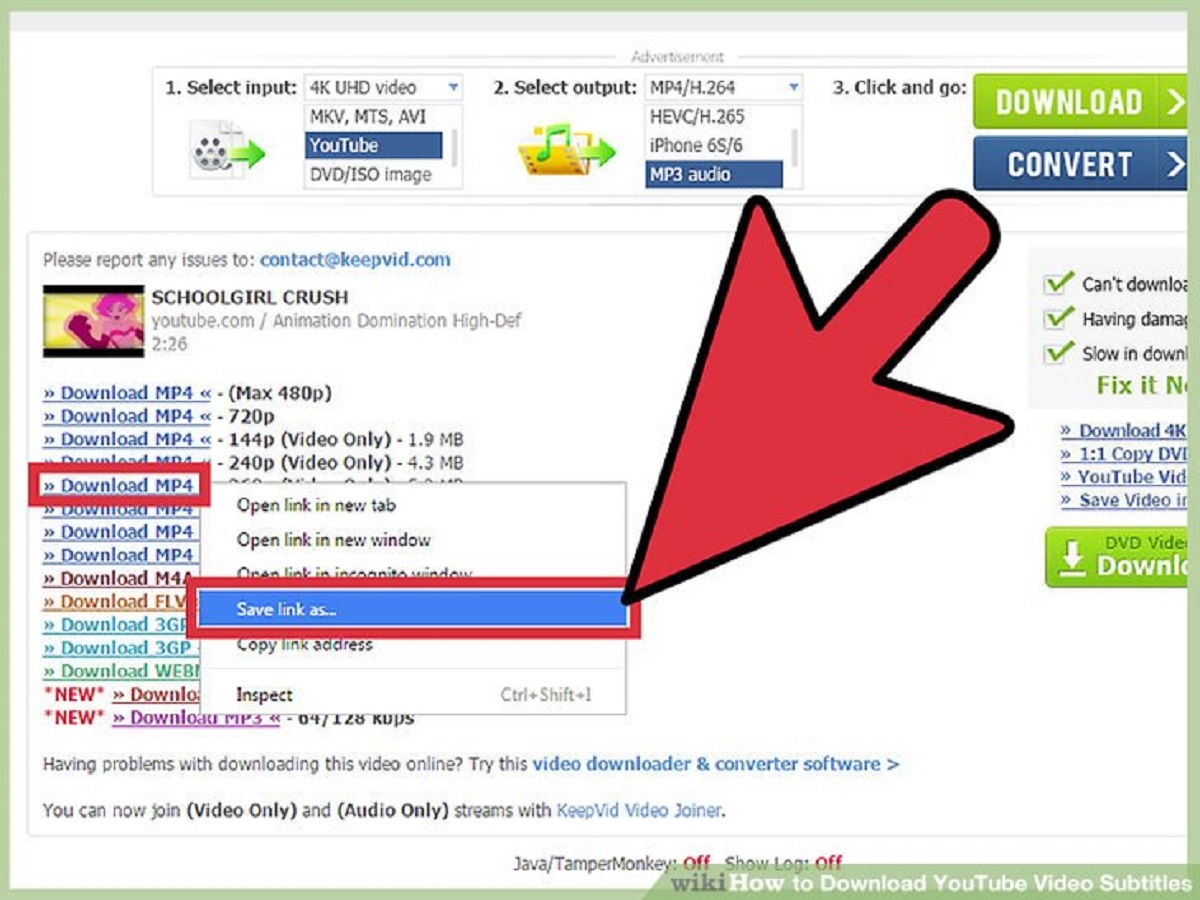
To download a YouTube video with subtitles, you need a third-party tool that can grab both the video file and its caption track, since YouTube’s own download feature keeps files...
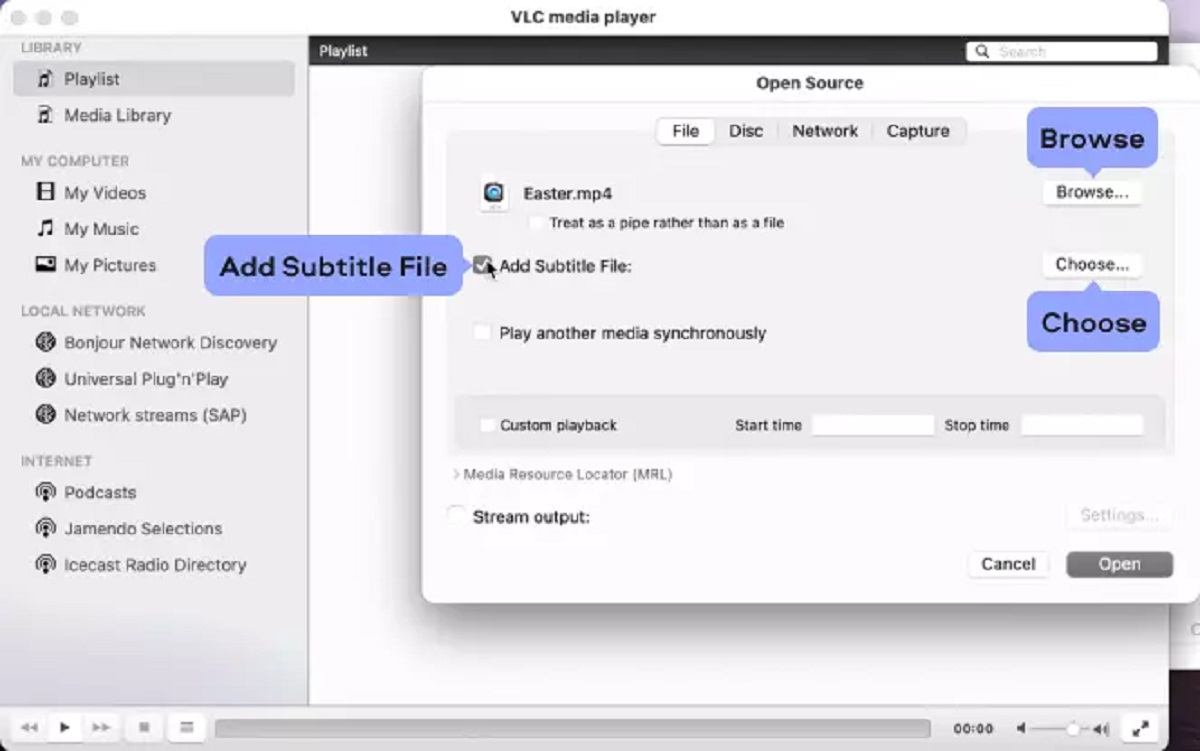
To embed subtitles permanently in VLC, you must use the Convert/Save function to hardcode the subtitle track into the video file itself. This process, known as transcoding, burns the text...
To turn off subtitles on Disney Plus, access the Audio & Subtitles menu during playback and select Off. This quick action removes distracting captions that were accidentally enabled or are...
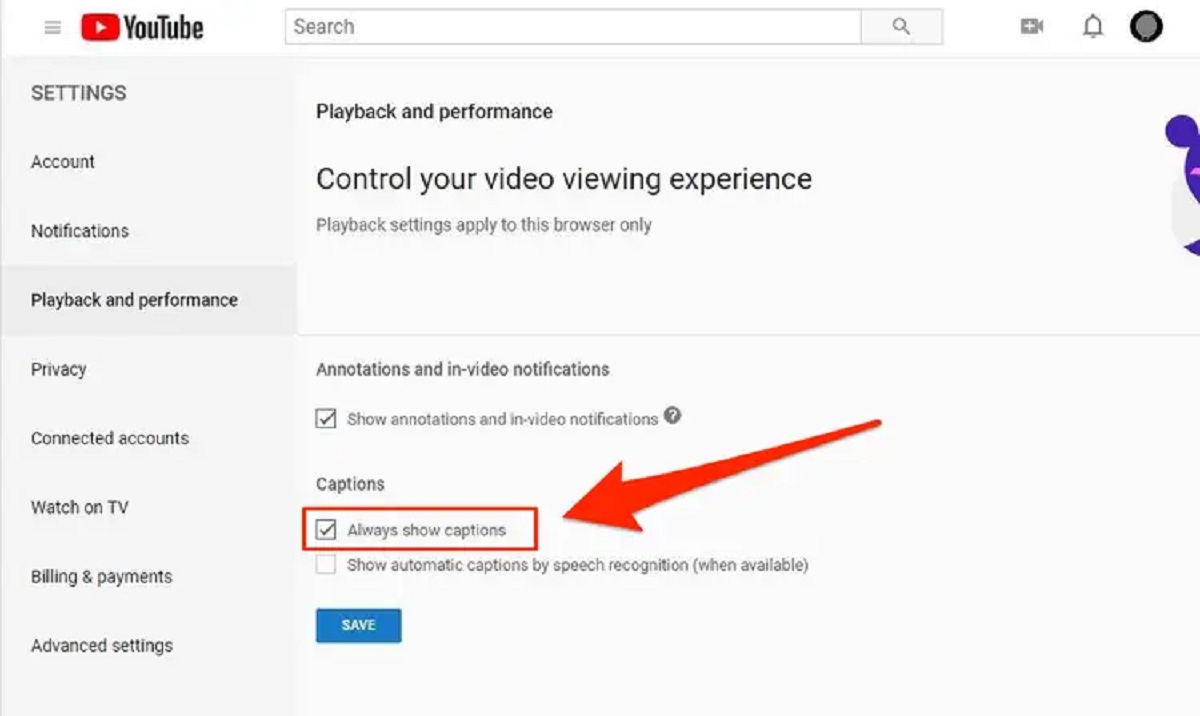
How To Make Automatic Subtitles On YouTube To make automatic subtitles on YouTube, sign in to YouTube Studio, select "Subtitles" from the left menu, click your video, then click "More"...
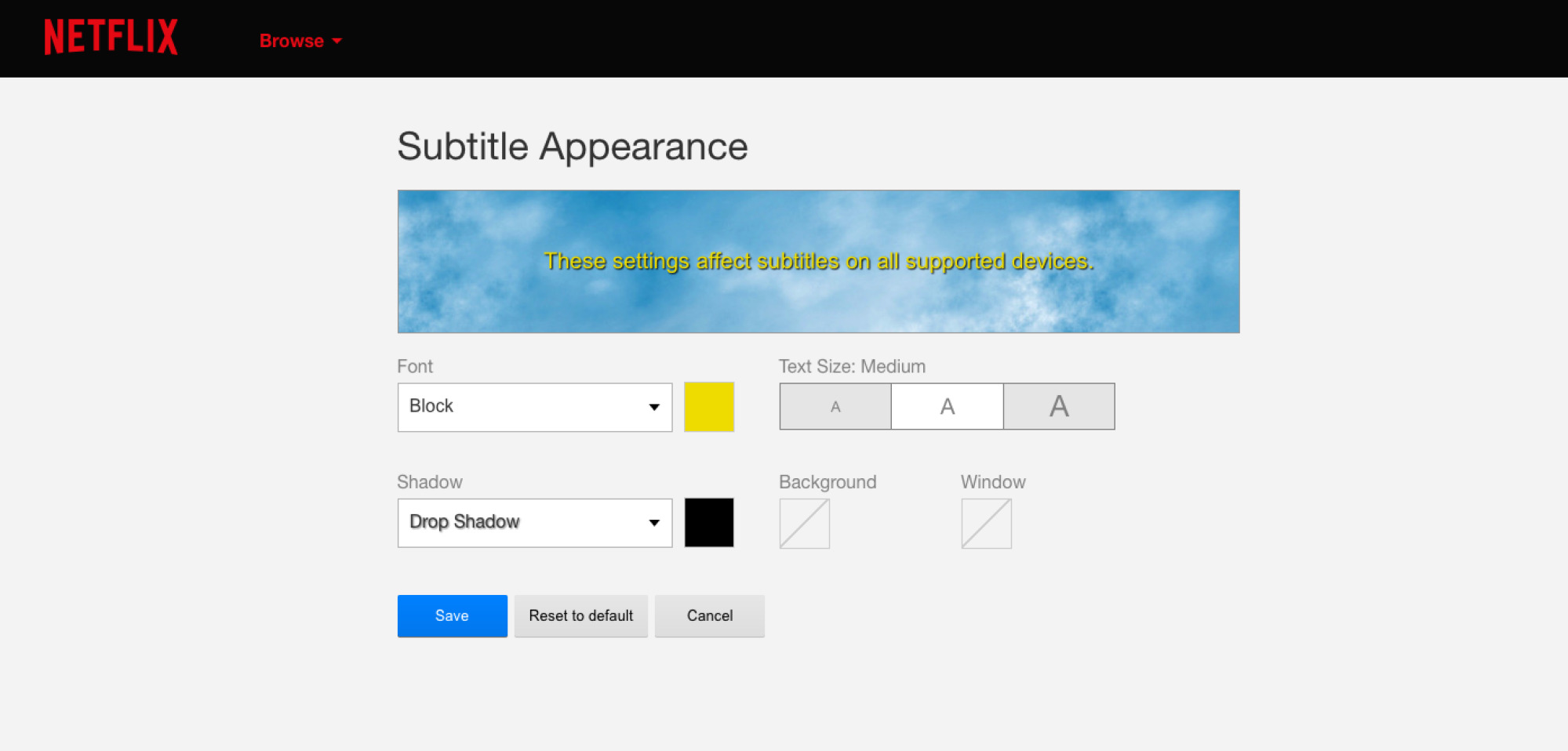
To change subtitles size on Netflix, open your account settings in a web browser, select your profile, and adjust the Subtitle Appearance options, this syncs the new size across every...
If subtitles suddenly appeared on your Toshiba TV and you want them gone, you can turn off subtitles on Toshiba TV in seconds using only the remote. The fix is...
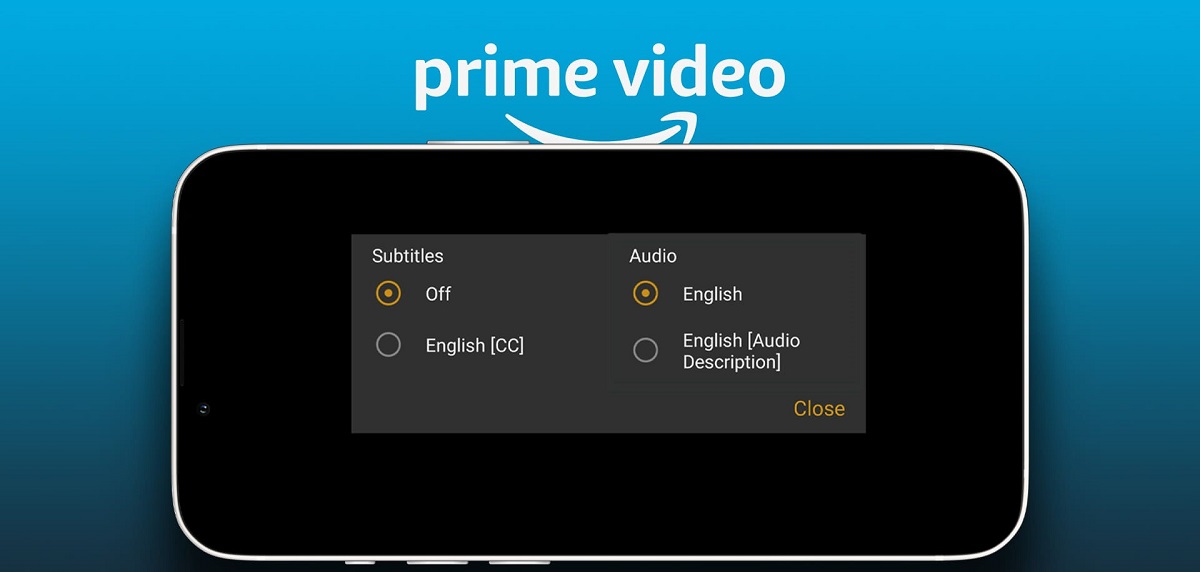
How to turn subtitles off prime video during playback To turn subtitles off prime video, start playback of any title and tap or click the screen to reveal the playback...
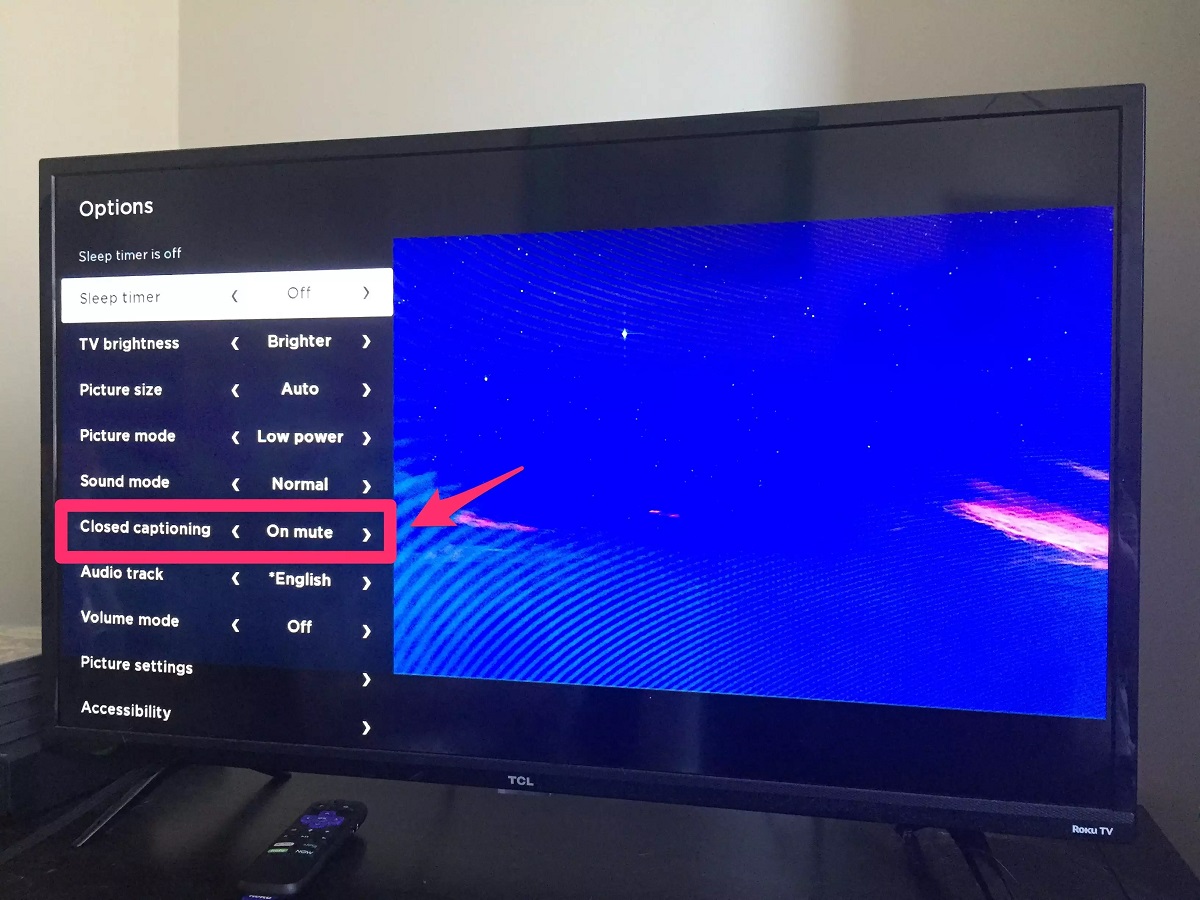
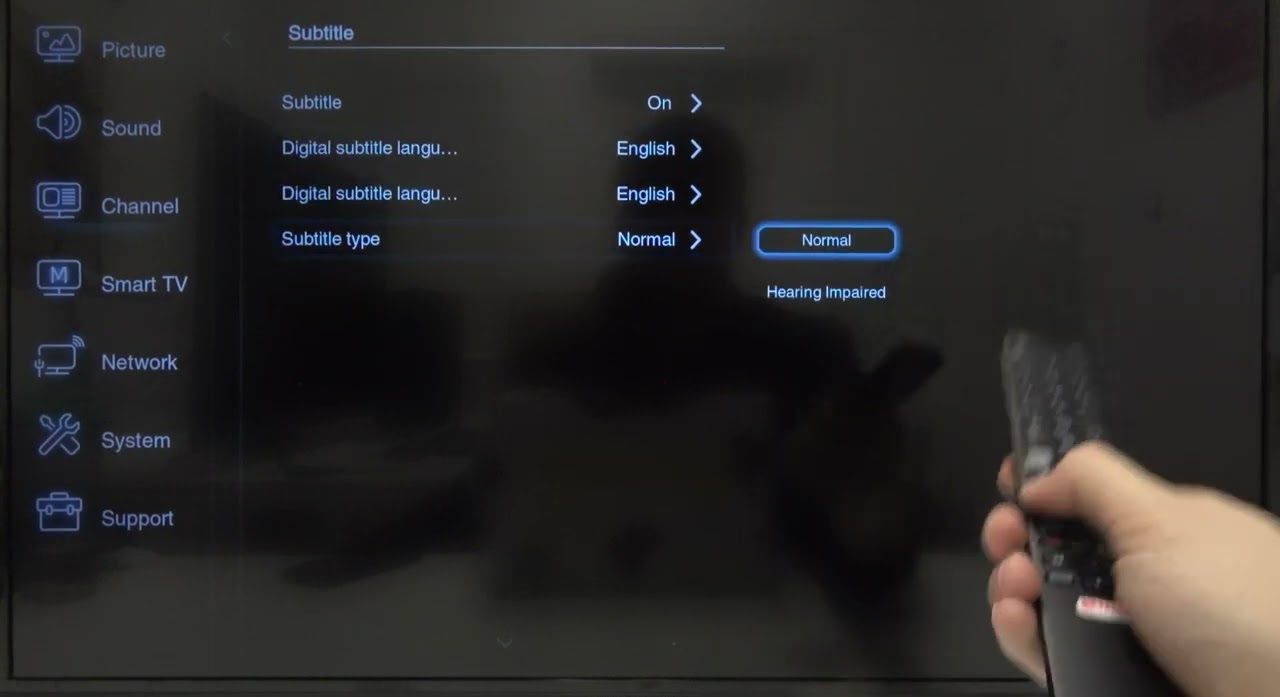
To turn off subtitles on your Philips TV, you need to find the correct method for your specific model. The quickest way is to press the "Subtitles" button on your...
To add subtitles to Instagram Reels, your fastest option is the native “Captions” sticker, which auto-generates text from your video’s audio in a few taps. You can also add subtitles...
To put subtitles on YouTube, you have three main options: upload a file, use auto-sync, or type manually in YouTube Studio. Each method serves a different need, from quickly syncing...
This website uses cookies so that we can provide you with the best user experience possible. Cookie information is stored in your browser and performs functions such as recognising you when you return to our website and helping our team to understand which sections of the website you find most interesting and useful.
Strictly Necessary Cookies
Strictly Necessary Cookie should be enabled at all times so that we can save your preferences for cookie settings.
If you disable this cookie, we will not be able to save your preferences. This means that every time you visit this website you will need to enable or disable cookies again.