The Keyboard tag collects straightforward, practical guides for anyone who uses a computer, laptop, tablet, or even a smart TV remote and has ever been puzzled by a key, a shortcut, or a connection problem. It is written for everyday users, not IT professionals, who want clear, step‑by‑step answers without jargon. Whether you are setting up a new wireless keyboard, trying to find a symbol like the backslash or apostrophe, or simply wondering why the letters are not in alphabetical order, these articles are designed to get you back to typing quickly.

The articles group into a few clear themes. One major theme is physical and on‑screen layout: you will find explanations of what the Return key, Command key, and Home button do, where keys like the apostrophe and backslash are located, and how to make an on‑screen keyboard bigger or return an Android keyboard to its normal size. Another theme is wireless connectivity and device management, with many guides focused on Logitech products, pairing a K350 or K520, making a MX Keys discoverable, resetting it, checking its battery, or using the Easy Switch button. A third theme covers everyday tasks and small conveniences, such as clearing keyboard history, turning on backlighting, or even playing “Twinkle Twinkle Little Star” for beginners. A few articles also address security‑adjacent topics, like how to clear your typing history to protect your privacy, or how to print screen using a compact keyboard, these are explained as safe, legitimate ways to manage your own device, not as workarounds for anything prohibited.
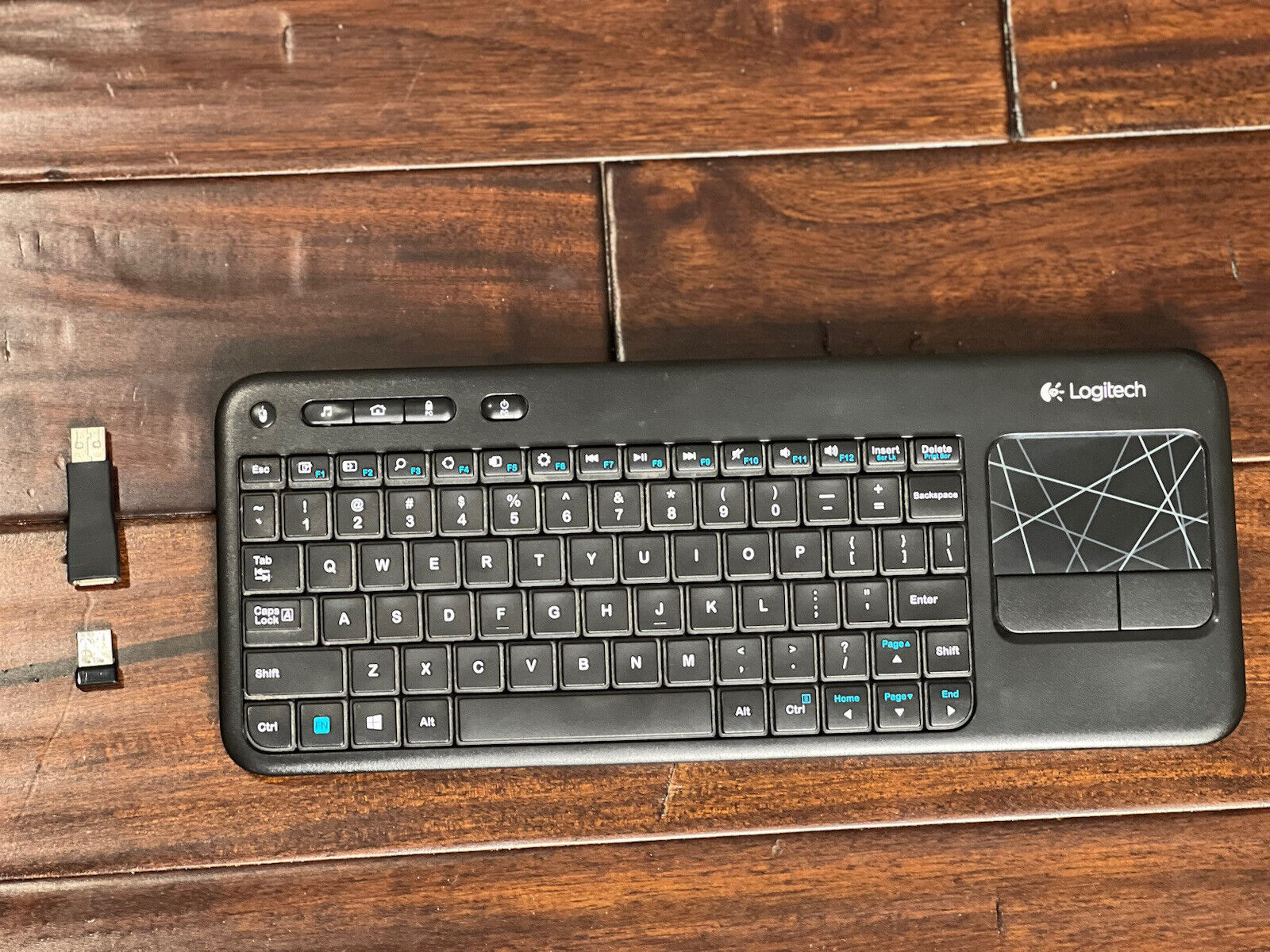
How To Pair Logitech Keyboard K400R

To pair Logitech keyboard K400R with your computer, insert the included Unifying Receiver into a USB-A port and turn on the keyboard, the connection happens automatically. If your keyboard has...

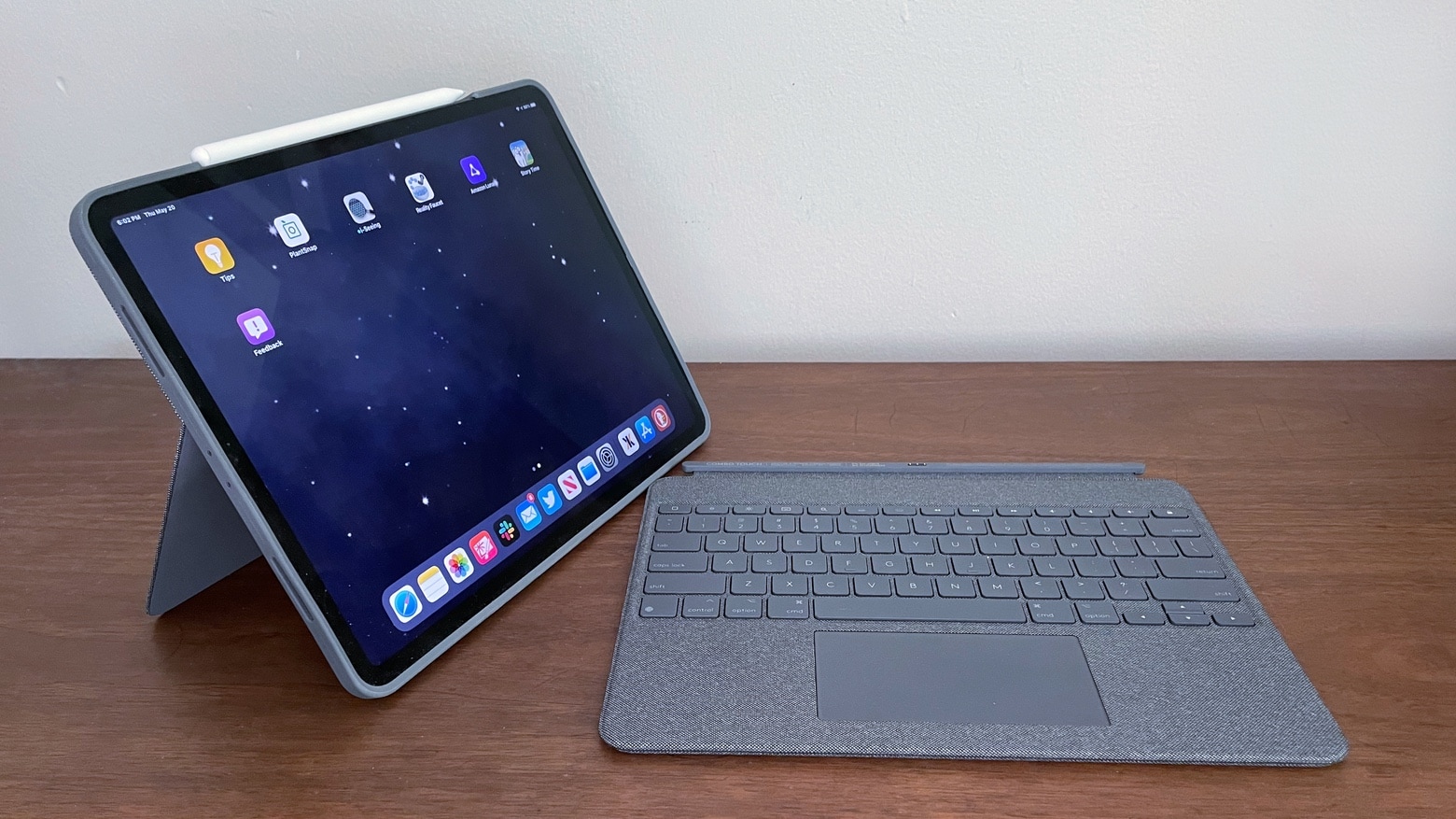
How To Use Logitech Combo Touch Keyboard

To use your Logitech Combo Touch keyboard, simply align the Smart Connector on the keyboard’s back edge with the Smart Connector on your iPad’s side, it snaps into place, draws...

How To Unlock My Logitech Keyboard

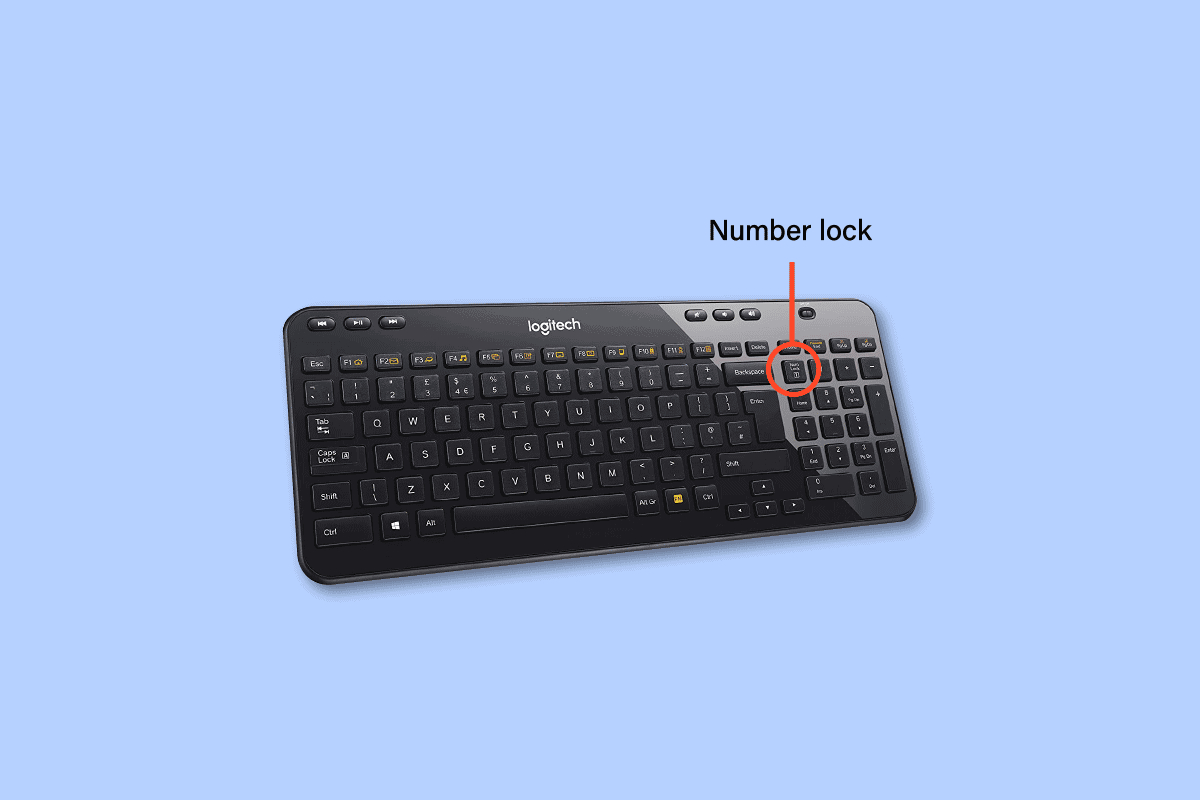
To unlock your Logitech keyboard, the fastest fix is to check and toggle the lock keys that were accidentally pressed. Most "locked" keyboards are simply in a state where Num...

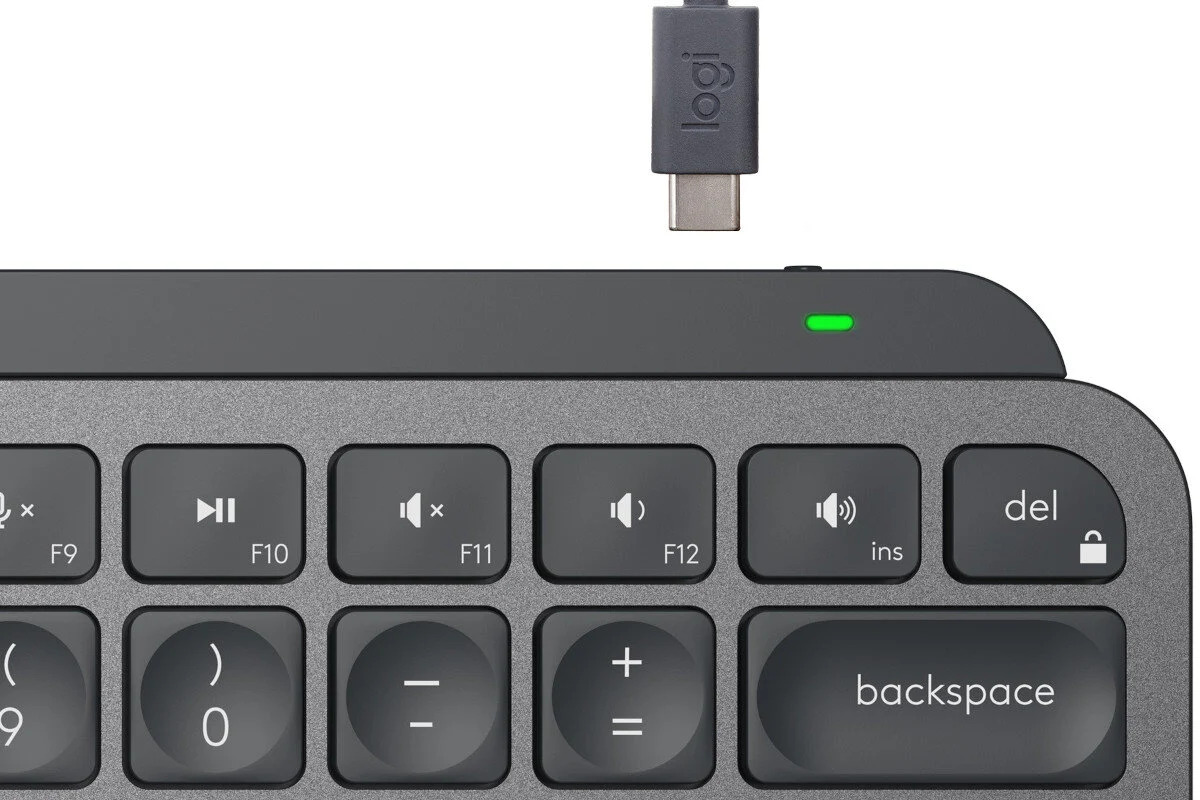
How To Reset Logitech Mx Keys Keyboard

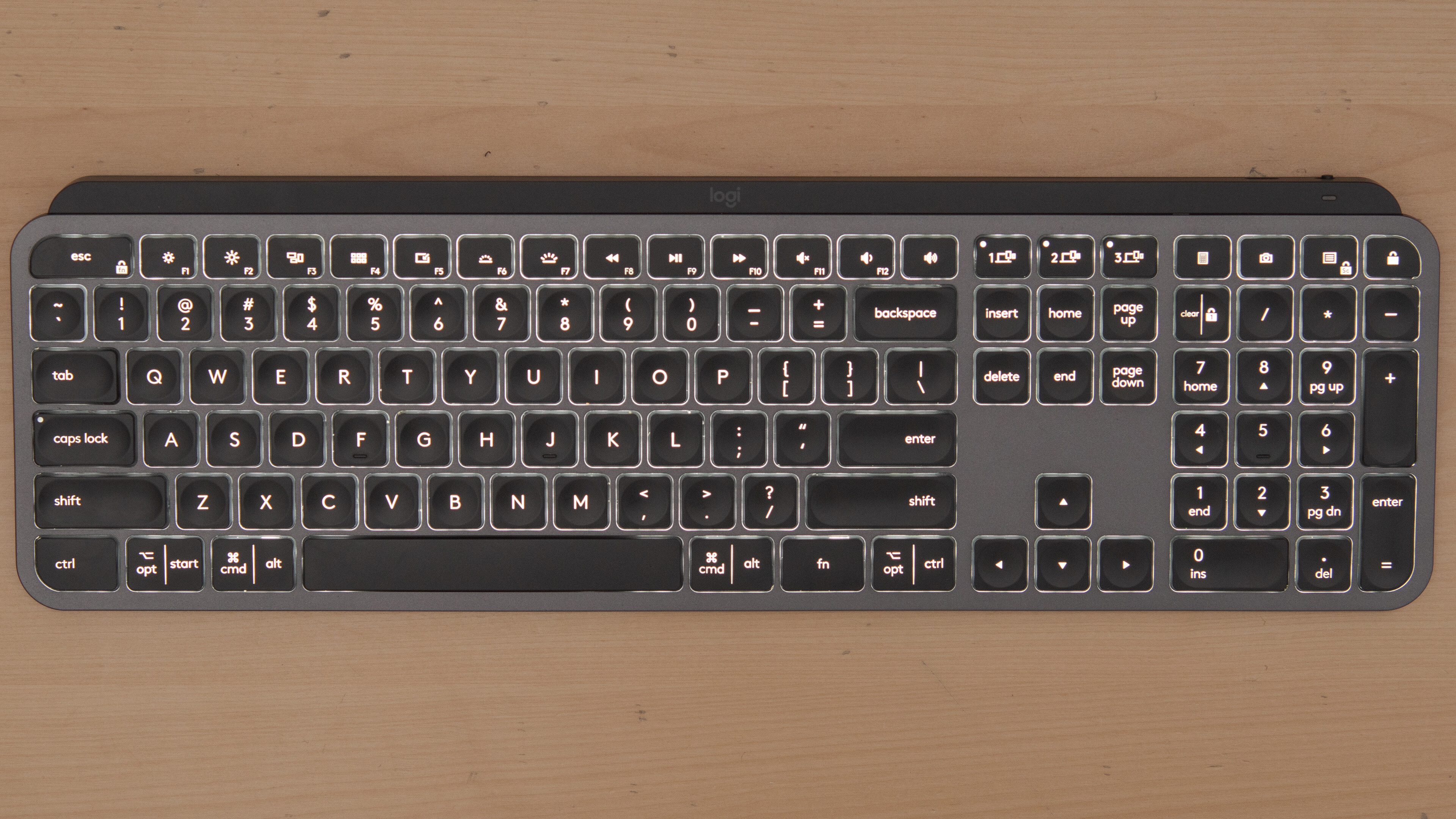
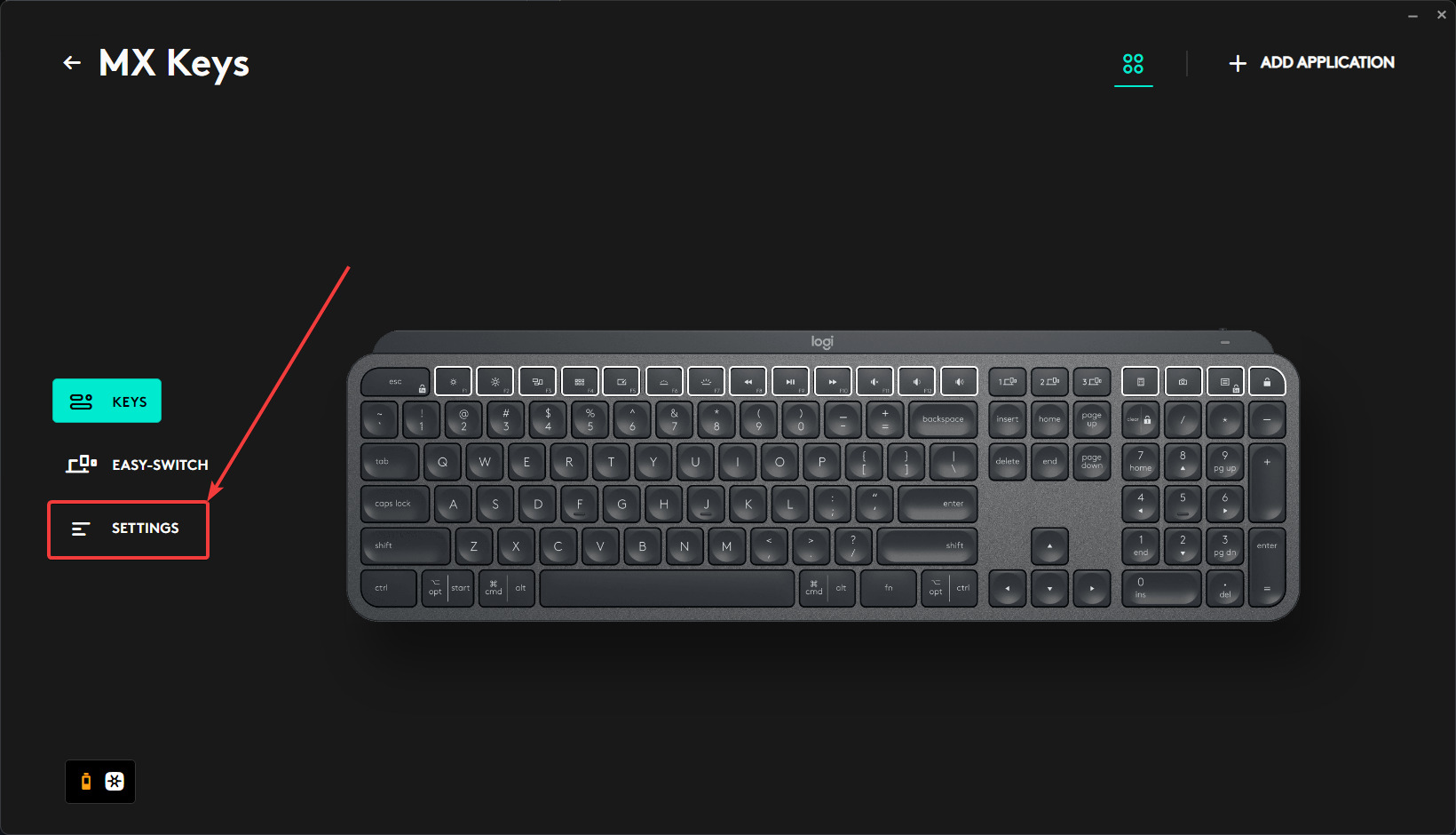
To reset a Logitech wireless keyboard like the MX Keys, you can perform either a soft reset to clear pairing issues or a hard reset to restore factory defaults. A...

How To Pair Logitech Mx Keys Mini

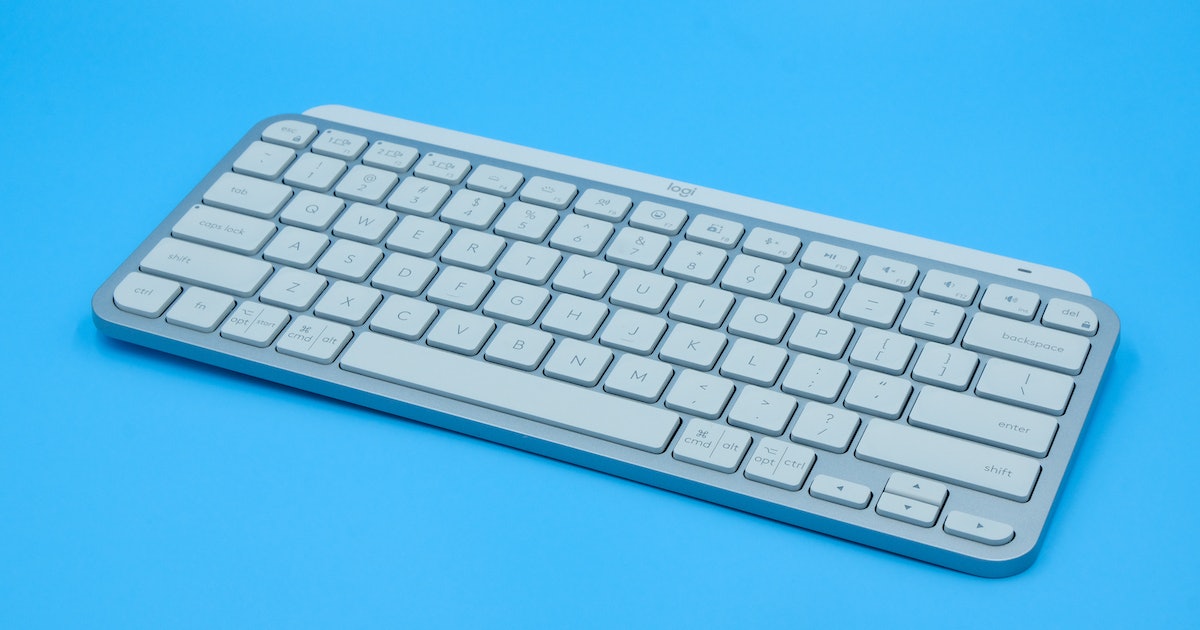
Check Your Device Is Compatible with the Logitech MX Keys Mini To pair Logitech MX Keys Mini, you'll need a device with Bluetooth wireless capability, the keyboard connects via Bluetooth...

How To Pair Logitech K520 Keyboard

To pair your Logitech K520 keyboard, you must use the included Logitech Unifying USB receiver and Logitech software, as this keyboard does not support Bluetooth. The process involves plugging in...

How To Connect Logitech Mx Keys

To connect Logitech MX Keys, you can use either Bluetooth Low Energy or a Logi Bolt USB receiver. This keyboard features Easy-Switch buttons that let you pair it with up...

How To Connect Logitech Keyboard K540

To connect Logitech Keyboard K540, insert the included Unifying USB receiver into your computer's USB port, then turn on the keyboard, the two are pre-paired and will connect automatically. This...