This tag collects practical, everyday guides for adjusting and troubleshooting the display settings on computers, tablets, TVs, and game consoles. It is written for home users who want to fix a screen that looks wrong, connect a second monitor, or simply make text and images easier to see, without wading through technical manuals.
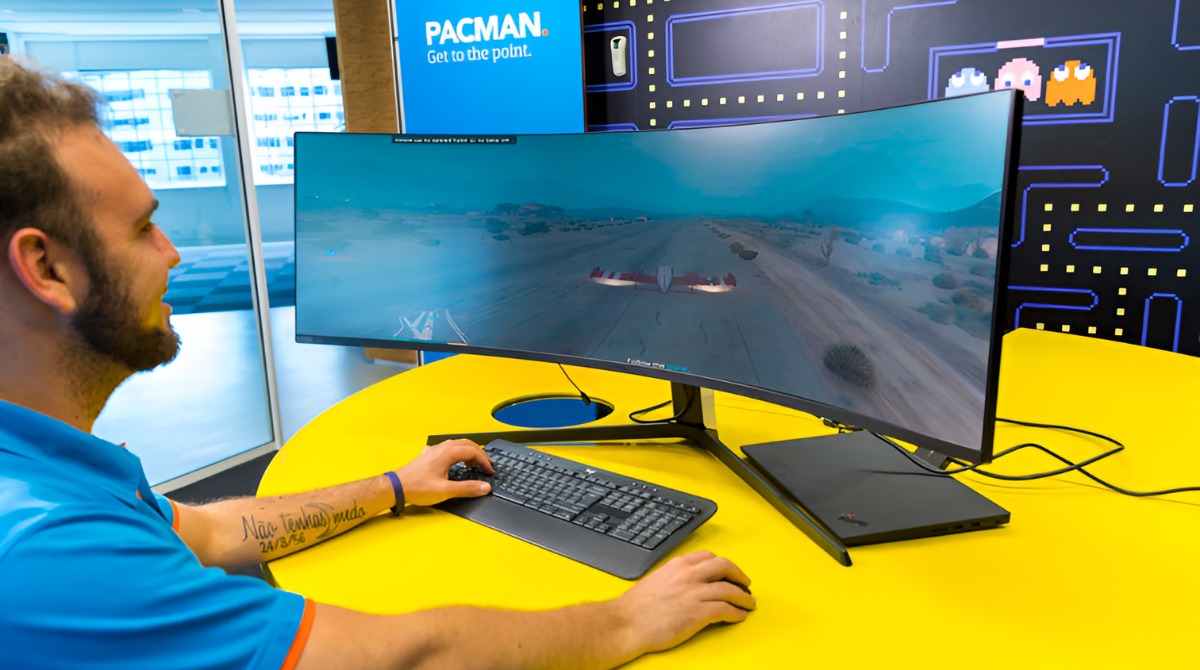
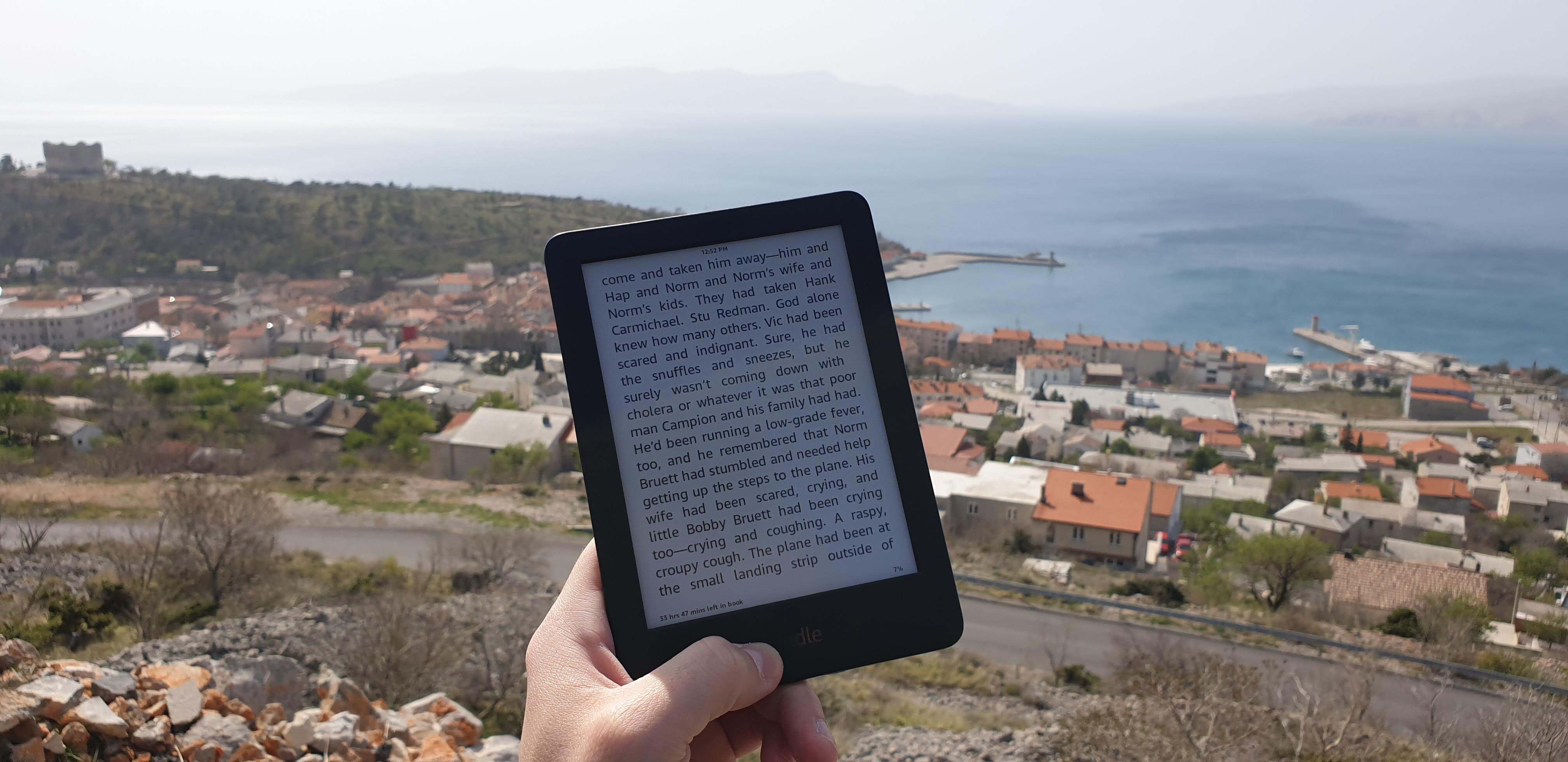
The articles fall into a few clear themes. One is connectivity: you’ll find help with hooking up a laptop to a Roku TV, switching a Windows PC to HDMI, or getting a second screen to work when the Windows key + P shortcut fails. Another theme is screen readability and comfort, covering topics like adjusting brightness on a PS5, reading a tablet in direct sunlight, zooming on a smart TV, or turning off blue light on an iPad for better nighttime viewing. A third group focuses on ultrawide and secondary monitors, how to make a PC recognize an ultrawide display, fit the desktop to its aspect ratio, or use one with a Mac.
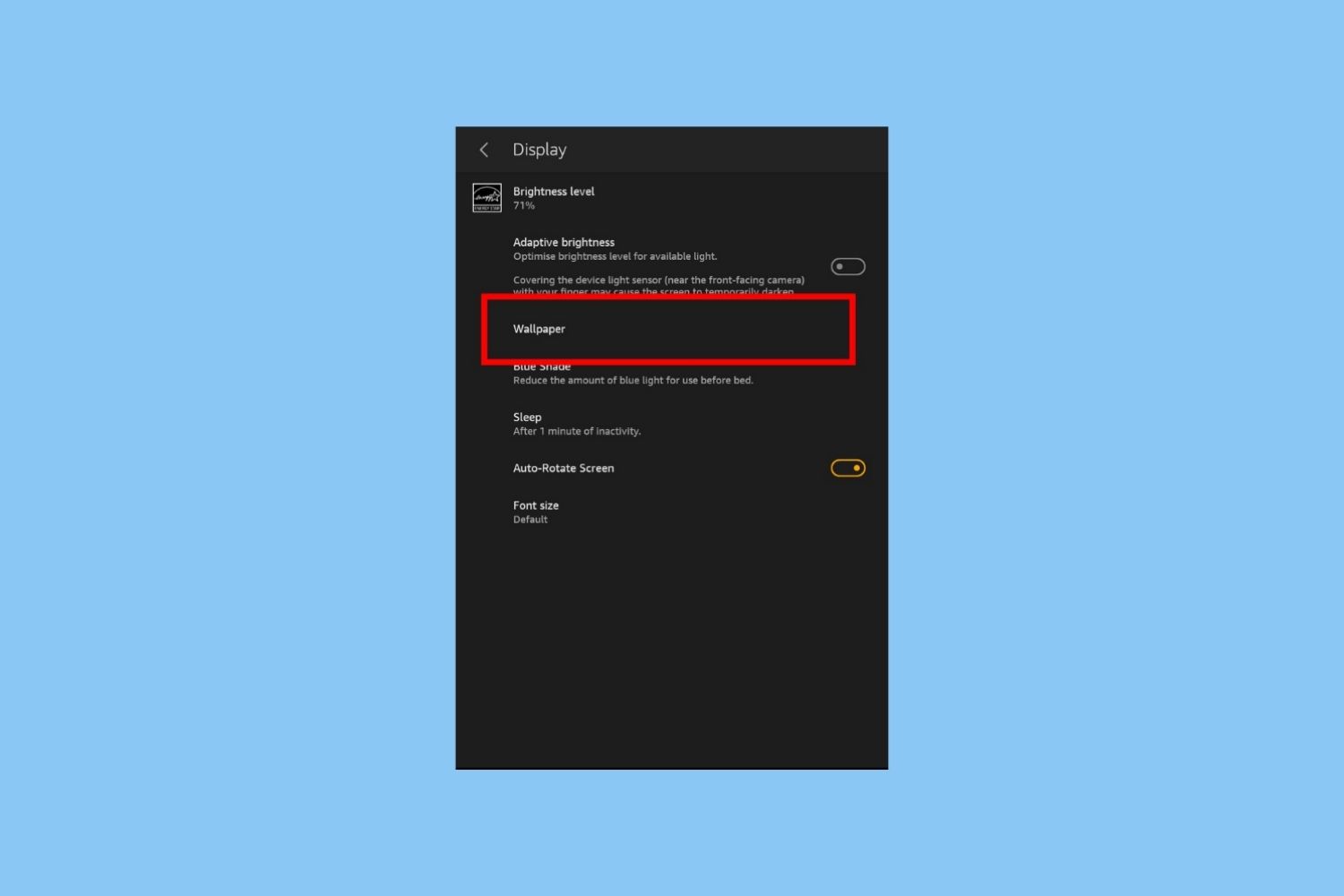
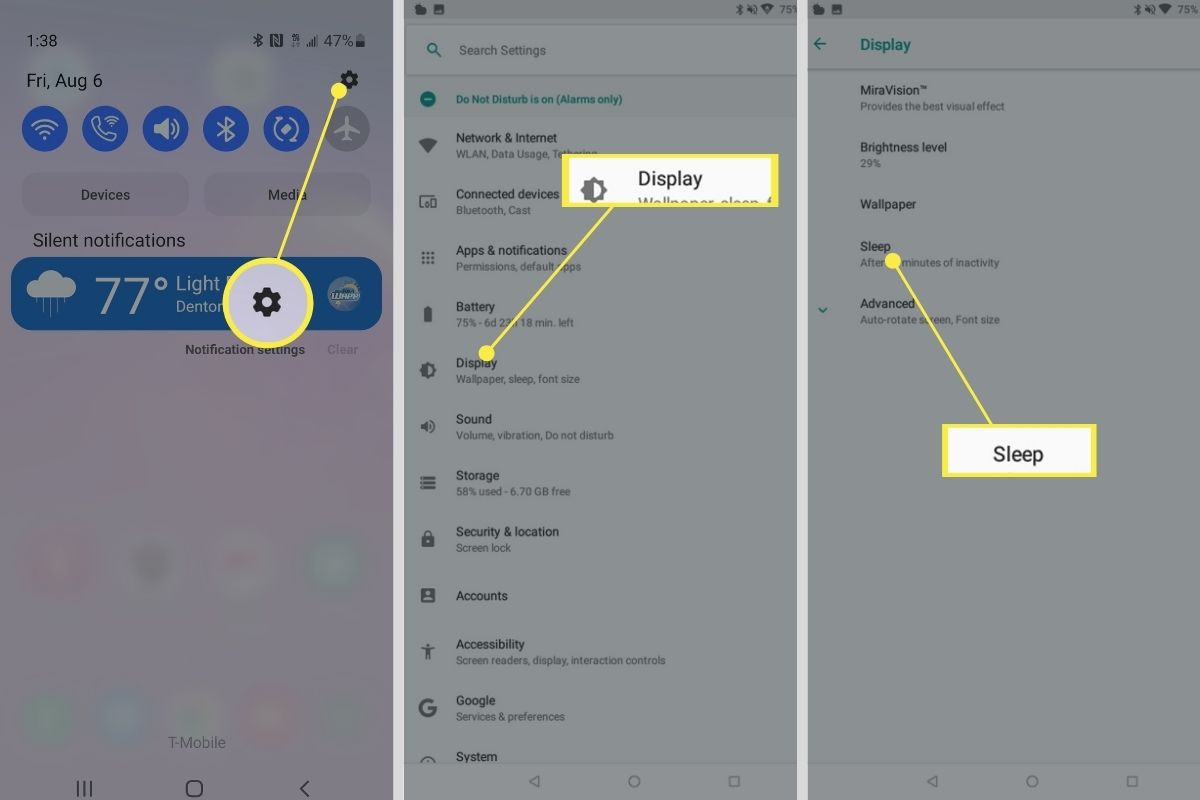
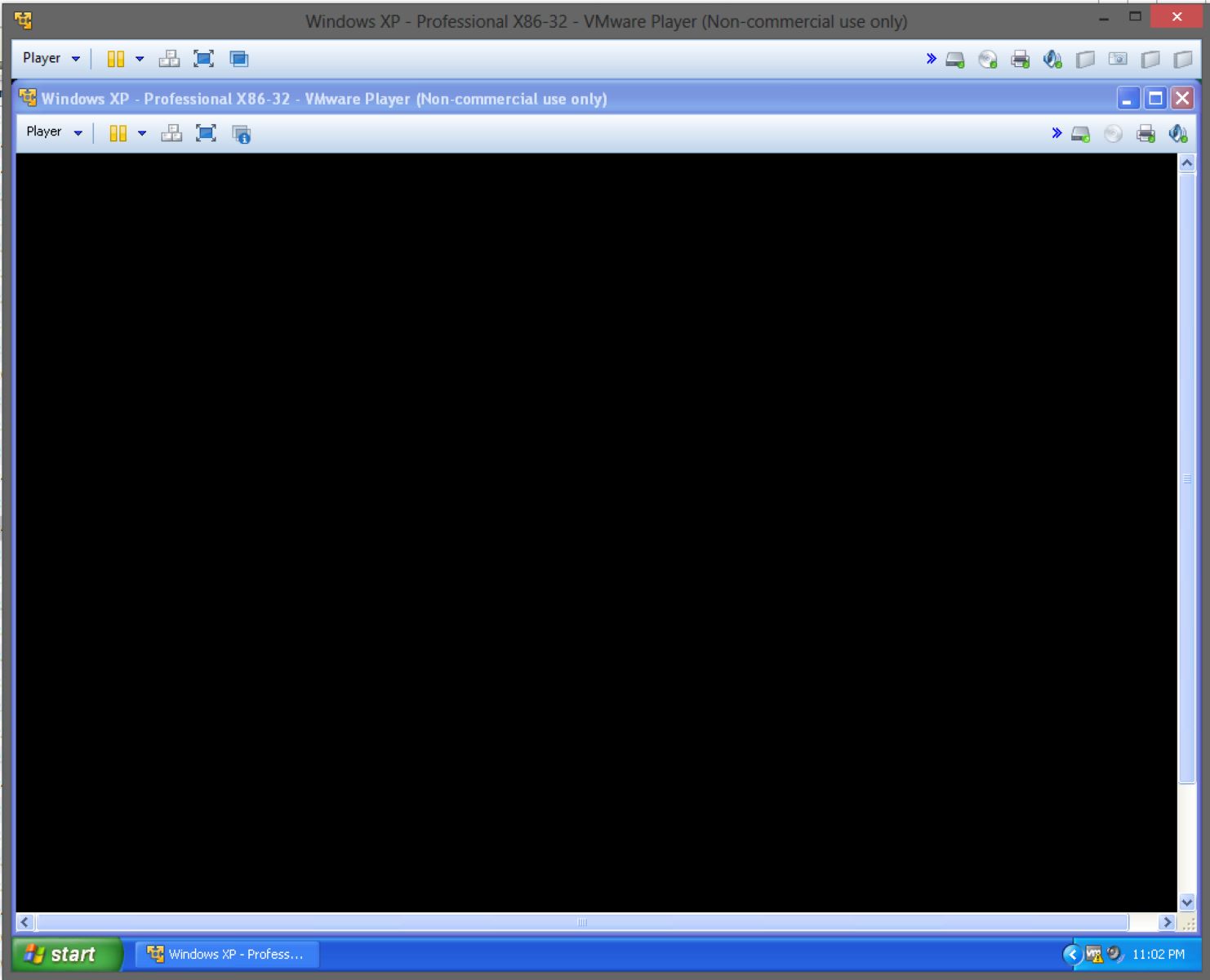
Several articles also address device-specific annoyances, such as stopping a Samsung tablet’s screen from timing out, resizing Chrome windows and fonts, or changing the wallpaper on an Amazon Fire tablet. Others take a safety- or security-conscious angle: for example, the guide to fixing an HDMI port on an Xbox Series X is about proper hardware care, not bypassing protections, and the article on why a virtual machine shows a black screen helps you diagnose a legitimate software issue rather than circumvent any system. Throughout, the focus is on helping you do everyday tasks, connect, adjust, and read, more comfortably and reliably.