You can edit a PDF without Adobe Acrobat by using a free online editor, macOS Preview, Microsoft Word, or the markup tools on your phone. For adding text, notes, highlights, shapes, images and signatures, any of these work well. Changing existing paragraphs is harder, because PDF text is placed on the page piece by piece rather than flowing like a document, so larger rewrites usually go better by converting to Word first.
Start by deciding which kind of edit you need, because that decides the tool.
Edit a PDF online with PDFBEAR
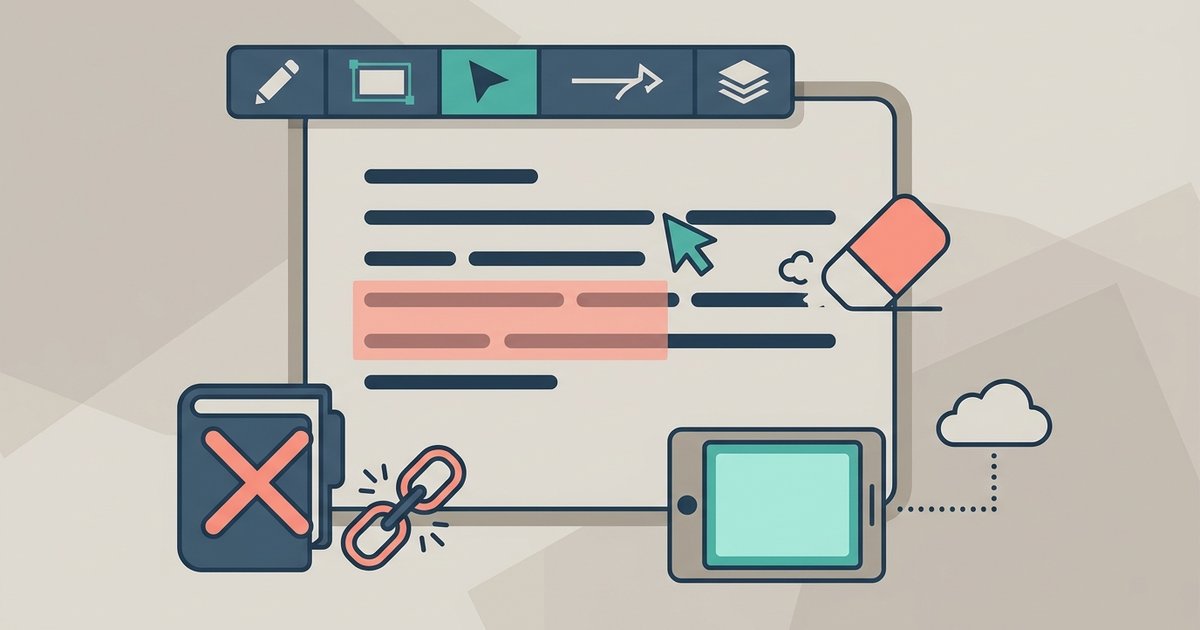
The recommended free option is PDFBEAR's Edit PDF tool. It runs in a browser on a computer, tablet or phone, and the site states that it is free with no account for files up to 50 MB. It has two modes: Annotate, for adding text, shapes, highlights and other marks on top of the page, and Edit Text, for changing the words that are already in the document. To edit a PDF online for free with PDFBEAR:
- Open the Edit PDF page and upload your PDF.
- Choose Annotate to add new content, or Edit Text to change existing words.
- Use the toolbar to add text, draw lines and shapes, fill in blanks or highlight. Move between pages with the page thumbnails.
- Use Preview result to check your changes against the Original document view.
- Click Save changes, then download the edited PDF.
Editing existing text works best on PDFs exported from a word processor. If the replacement text is longer than the original, it may not fit the space neatly, since a PDF does not reflow lines the way Word does. For a scanned PDF, the pages are pictures, so there is no text to edit until you run OCR, which PDFBEAR offers as a Premium feature. Password-protected files have to be unlocked first. Guests have a small daily allowance of free files, and a free account removes it. In testing, PDFs downloaded on the free tier carried a small "PDFBEAR.COM - Free Ver." line in the bottom corner of the page, and the pricing page lists removing it as a Premium feature.
Which kind of edit do you need
| What you want to do | Easiest tool |
|---|---|
| Add a note, arrow, highlight or comment | Any editor, including Preview and phone markup |
| Type into a form with no fillable fields | Online editor or Preview |
| Fix a typo or change a date | Online editor in Edit Text mode |
| Rewrite paragraphs or restructure the document | Convert to Word, edit, save back as PDF |
| Delete, reorder or rotate pages | Preview, or a page organizing tool |
| Permanently remove sensitive information | A proper redaction tool |
Edit a PDF on a Mac with Preview
Preview is free on every Mac and handles most annotation jobs. Open the PDF and show the Markup toolbar to add text boxes, shapes, highlights, sketches, notes and signatures. You can also fill in forms, whether or not they have interactive fields.
Preview is also good at page-level edits. Choose View then Thumbnails, then drag thumbnails to reorder pages, select a page and press Delete to remove it, or drag in pages from another PDF. Apple notes that Preview saves changes automatically, so duplicate the file first if you want to keep the original.
What Preview does not do is change the text that is already in the PDF. It adds content on top.
Edit a PDF in Microsoft Word
For substantial text changes, Word is often the better tool. In Word 2016 or later, choose File then Open, select the PDF, and accept the message that Word will make a converted copy. Edit it like any other document, then save it back as a PDF.
Microsoft says this works best on PDFs that are mostly text, and that line and page breaks may fall in different places from the original. Heavily designed documents, such as brochures, may lose their layout. For those, a PDF editor that works on the page directly will keep the design intact.
Edit a PDF on a phone
On iPhone, open the PDF in the Files app and tap the Markup button to draw, write, add text and shapes, or add a signature. Apple's Preview app on iPhone offers the same markup tools along with form filling.
On Android, the options depend on your phone. A browser editor works in Chrome, and free apps such as Adobe Acrobat Reader include annotation and fill and sign features.
Filling in forms
Many PDFs you are asked to edit are really forms. If the form has interactive fields, you can click into each box and type in almost any PDF viewer, including web browsers, Preview and Acrobat Reader, then save. PDFBEAR also has a separate Fill PDF Forms tool that detects the fields for you.
If the form is a flat scan or a document with blank lines and no fields, use an editor's text tool to place a text box over each blank. Zoom in so the text sits on the line, and use one font size throughout so the finished form looks tidy. When you are done, flattening the PDF merges your entries into the page so they cannot be accidentally moved.
Editing on Windows without extra software
Windows has no full PDF editor built in. Microsoft Edge, which opens PDFs by default on many Windows computers, offers basic markup such as drawing, highlighting and adding text, which covers quick notes. For anything more, a browser editor or converting to Word is the practical route.
Covering text is not redacting it
This is the mistake that causes real harm. If you draw a black box or a white rectangle over a name, account number or address in a PDF, the text underneath is usually still in the file. Anyone can often select it, copy it or remove the box and read it.
To genuinely remove information, use a redaction tool that deletes the underlying text and image data, then check the result by trying to search for the redacted word. PDFBEAR has a separate Redact PDF tool for this. Converting the page to an image and back also removes the text layer, though it makes the whole page unsearchable.
When you might still want Acrobat
Free tools cover most everyday edits, but Adobe Acrobat's paid version is more capable at reflowing edited text across lines, matching the original fonts, editing complex layouts, redacting at scale, and working with accessibility tags. If editing PDFs is a regular part of your job rather than an occasional fix, that is worth weighing.
Uploading documents to edit them
Browser editors mean uploading your file. PDFBEAR states that uploads use HTTPS, files are deleted automatically after a period and no person reviews them. For contracts, HR files or anything with personal data you are responsible for, Preview on a Mac or Word on your own computer keeps the document local.
Before you edit, keep an untouched copy of the original. After you edit, open the saved file in a different viewer from the one you used, such as your browser, to confirm the changes are there and display properly, since an edit that looks fine in one app occasionally shows up differently in another.
\nRelated reading: How to Compress a PDF Without Ruining the Quality, PDF Guide: Convert, Compress, Merge, Sign and Edit PDFs, and How to Convert a PDF to Word (and Word to PDF).