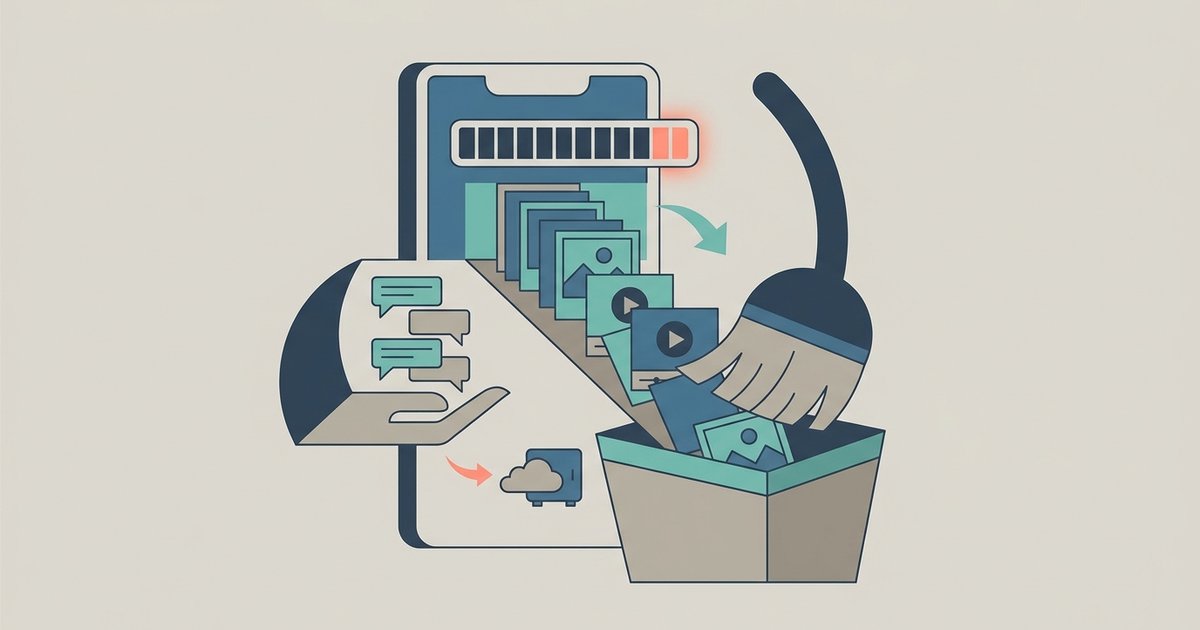
When WhatsApp fills your phone, the space is almost always taken by photos, videos and documents, not by the text of your chats. WhatsApp's Manage storage screen lets you find and delete the largest files and the ones forwarded many times, chat by chat, while leaving every message in place. Clearing media from a chat also keeps the conversation, and changing the auto-download settings stops the problem from coming back.
Before deleting anything, make a chat backup. Deleting media through WhatsApp is permanent, and you cannot download it again from the chat later.
See what is using the space
On Android:
- From WhatsApp, tap the menu (three dots) in the top-right corner, then Settings.
- Tap Storage and data, then Manage storage.
On iPhone:
- Tap your profile picture.
- Tap Storage and data, then Manage storage.
The top of the screen shows how much space WhatsApp is using on the device. Below that, chats and channels are listed by how much media they hold, which usually makes the problem obvious: a couple of busy groups that share videos all day often account for most of it.
You can also start from inside a chat. Open it, tap the chat name, and tap Manage storage to see that chat's media sorted from largest to smallest.
Do not be alarmed if the figure WhatsApp shows differs from what your phone's own storage settings report. WhatsApp says this is mainly down to the different ways the app and the operating system calculate storage.
Delete the largest files first
The fastest wins come from a small number of large files. From Manage storage, open a chat or channel, sort by Largest, and work down the list.
- Open Manage storage and select a chat or channel. You can search for one if the list is long.
- Tap the sort option and choose Largest. Each item shows its file size.
- Tap and hold an item to select it, tap more to add them, or use Select all. On iPhone, tap Select first.
- Tap the delete icon. If the selection has duplicates, choose the option to delete any copies as well.
- Confirm with Delete.
On iPhone, if the selection includes starred items, you get a choice between deleting everything except starred items and deleting all. That makes starring a practical way to protect specific photos before a big cleanup.
Three details from WhatsApp's guidance are easy to miss:
- Deleting this way removes the item permanently. You cannot re-download it from the chat.
- It deletes only your copy. Everyone else in the chat still has it.
- Copies may still be saved elsewhere on your device, and if you have several copies of one file you need to delete all of them to get the space back.
Clear media from a chat but keep the messages
If a group has built up years of videos and you want the space without losing the conversation, clear its media instead of the whole chat.
On Android, open the chat, tap the menu, then More and Clear chat. Choose Clear media files, tick or untick Videos and GIFs, Photos, Stickers, Documents and Audio, decide whether to clear starred messages, and tap Clear media.
On iPhone, tap the chat name at the top, scroll down and tap Clear Chat, then select the media types to delete, and tap Clear Chat.
Read the options carefully on this screen. The same menu also offers to clear every message in the chat, which is not what you want if the goal is to keep your history. Clearing a chat, even completely, does not delete the chat from your list or remove you from a group.
Stop it filling up again
Deleting files is a one-off fix. The settings below are what keep storage under control afterwards.
Media auto-download. By default, WhatsApp downloads photos and other media automatically. On Android, go to Settings, then Storage and data, and under Media auto-download choose which media types download when using mobile data, when on Wi-Fi and when roaming. Turning off videos and documents on every connection is the change that makes the most difference. Media you choose not to auto-download still appears in the chat, and you tap it to download it when you want it. Auto-download settings on iPhone sit in the same Storage and data section.
Media visibility on Android. WhatsApp saves downloaded media to your phone so it shows up in your gallery. You can turn this off for all chats under Settings, then Chats, then Media visibility, or for a single chat by tapping its name and choosing Media visibility. WhatsApp describes this as stopping media from being saved to your device's local storage automatically. It does not remove anything already saved, and it does not override choices you made earlier for individual chats, so check busy groups separately.
You may also see advice to create a .nomedia file in WhatsApp's images folder. WhatsApp mentions this method too, but it only hides WhatsApp photos from your gallery. It frees no space.
Disappearing messages. In chats with disappearing messages turned on, media disappears along with the messages and is not saved to your photos. For a busy group where nothing needs keeping, this keeps the chat from accumulating files.
Check the copies outside WhatsApp
Items you delete from WhatsApp's media may still be saved on your device, so the cleanup is not finished until you check your gallery or photo library too. When you delete an item through WhatsApp's search, Android offers an option to also delete media received in that chat from the device gallery. On iPhone, photos that were saved to your library stay there until you delete them in the Photos app.
If your phone backs up its photo library to the cloud, deleting local copies there may also affect the cloud copy, depending on how that service is set up. Check before deleting a large batch.
When WhatsApp warns about low storage
If free space on the phone gets critically low, WhatsApp may stop working properly and prompt you to free up space before you can carry on. At that point, the quickest route is to delete a few of the largest videos from Manage storage, which usually gets the app working again, and then do a more careful cleanup. Freeing space outside WhatsApp also counts: old downloads, unused apps and offline video in other apps all compete for the same storage.
A routine that works
Back up first, then sort Manage storage by largest and delete the videos and files you do not need, starting with forwarded clips in groups. Turn off auto-download for videos and documents, star anything you want to protect, and repeat the cleanup every few months. Your chat history stays intact the whole way through, because none of these steps touch the messages themselves.
\nRelated reading: How to Back Up and Restore Your WhatsApp Chats and How to Use WhatsApp on Two Phones With Linked Devices.