Instagram packs a lot of separate tools into one app, and most of them are buried a few taps deep. This guide is a map rather than a walkthrough: it explains what each part of Instagram actually does, where it lives, and which limits Instagram itself publishes. Use it to work out which feature you need, then follow the detailed steps for that feature.
Saving photos and videos, and what Instagram lets you download
Instagram has no built-in button that saves someone else's photo or video to your camera roll. The Save option (the bookmark icon) only files a post into a private collection inside the app, and the collection disappears if the original poster deletes the post. Saving a copy of a post you did not create also runs into copyright: Instagram's terms allow you to post content only if it does not violate intellectual property rights, and a public post is still the creator's work.
Your own content is a different matter. Instagram will export everything you have uploaded through Accounts Center, under Your information and permissions, then Download your information (or Export your information). You choose the profile, whether the export goes to your device or to an external service, the date range, the file format and the media quality. Instagram warns that the export link can take up to 30 days to arrive by email, and once it does arrive you have four days to download it before it expires.
Using Instagram on a desktop
Instagram on the web does more than it used to. Logging in at instagram.com gives you your feed, profiles, search, direct messages and the Create button in the left-hand rail, and Create then Post lets you pick a file with Select from computer, trim a video, choose a cover frame, write a caption, add a location, tag people and set alt text before sharing.
Some things still do not exist on the web. Stories creation tools, the full sticker tray, vanish mode in messages and closed caption toggles are documented by Instagram as phone features, and several help pages say outright that a feature is not available on computers. Treat the desktop site as a good place to write captions on a real keyboard and to review your own profile at a larger size, and keep the phone for anything involving the camera or stickers.
Posting features
Polls and story stickers
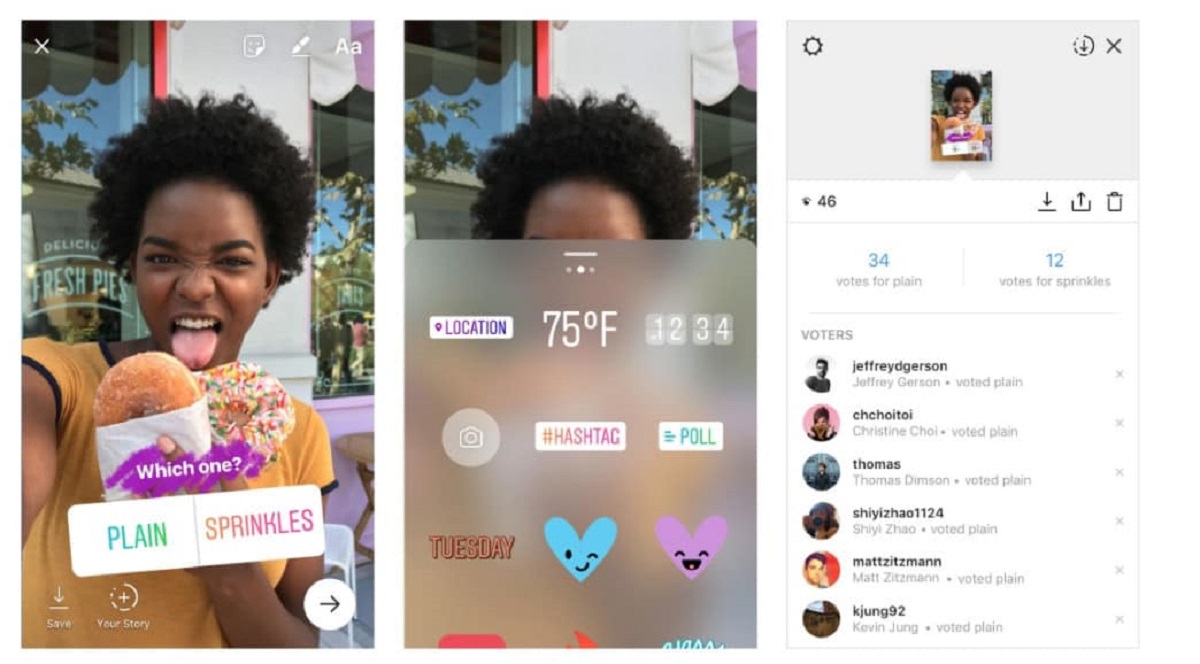
The poll sticker lives in the sticker tray of the stories camera. You take a photo or video, open the stickers, pick the poll, write your question and edit the two answer options. Results come back to you privately as people vote, and voters see the running split once they tap. Polls are a low-effort way to get a response from people who would never comment on a feed post.
Story highlights
Stories vanish after a day unless you keep them. A highlight pins a set of stories to a row under your bio, and Instagram says stories you add as highlights stay visible until you remove them, even after the original story has expired. You can build a highlight from the story archive as well as from a live story, which means old stories can be pulled back into a cover long after they disappeared. Highlights are the closest thing Instagram gives you to a permanent menu on your profile.
Boomerang
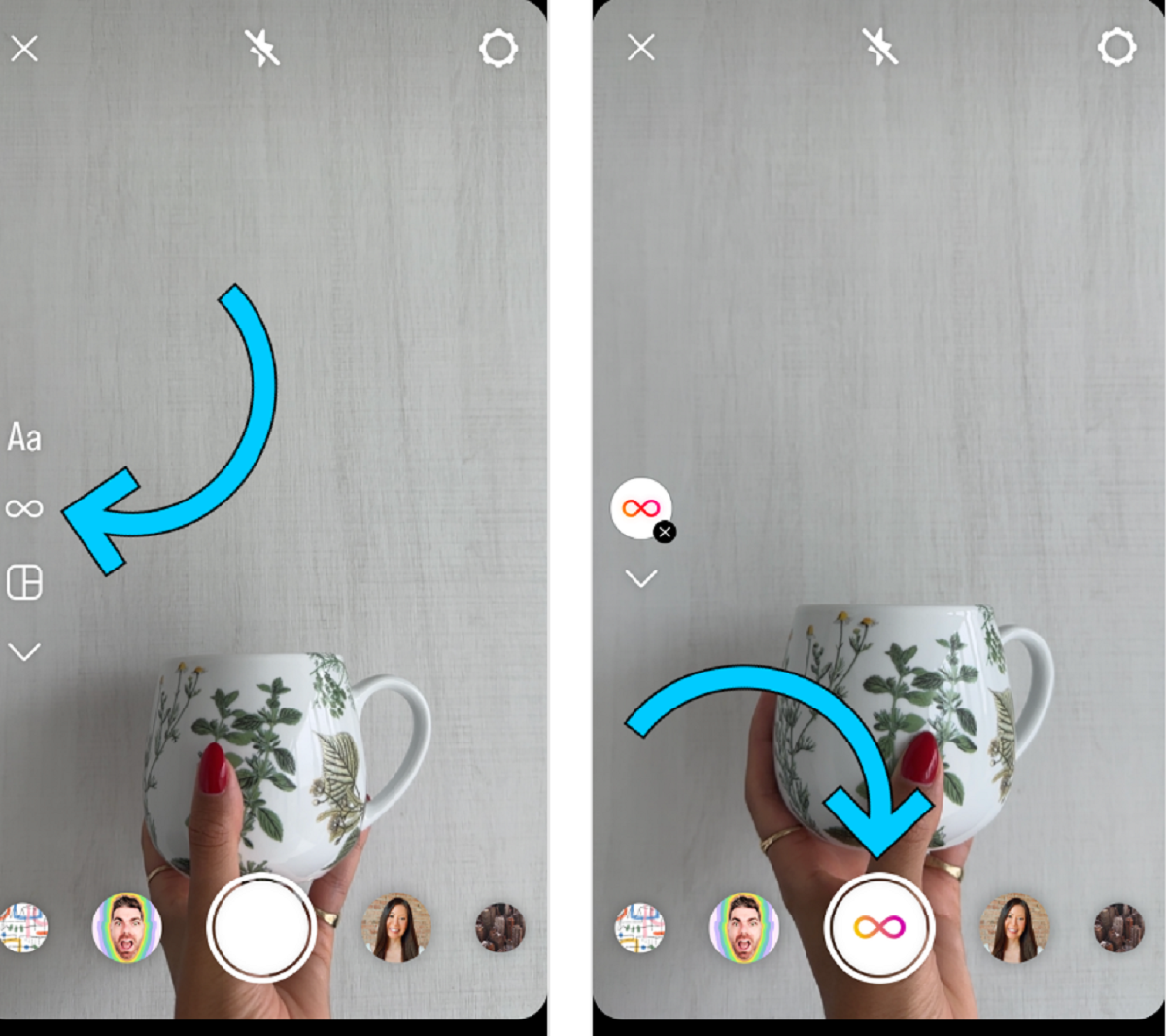
Boomerang is no longer a separate app you install. It is a mode in the format picker under the record button in the stories camera: hold the shutter, and Instagram stitches a burst of photos into a short clip that plays forward and then backward on a loop. You can also convert a Live Photo from your camera roll by pressing and holding on it after you add it to a story. The effect works best on a single clear movement rather than a long action.
Pinned posts
Instagram lets you pin up to three posts to the top of your profile. Pinned posts sit above your normal reverse-chronological grid, so they are what a new visitor sees first regardless of when you published them. Most people use the slots for an introduction, a best-performing post and whatever they currently want people to act on. You pin and unpin from the options menu on the post itself.
Going live
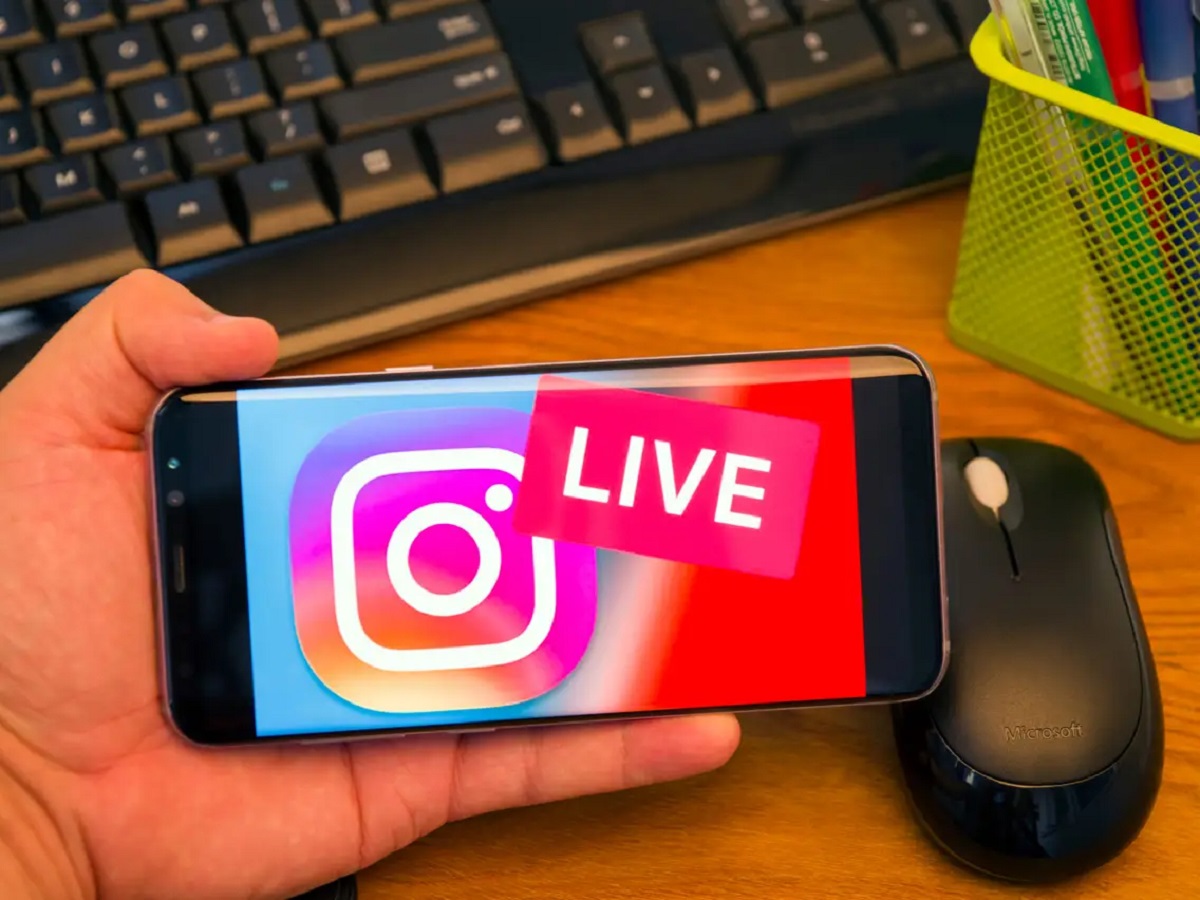
Live video runs from the stories camera, in the same format picker that holds Boomerang. Viewers can comment and react while you broadcast, you can invite another account to join the stream, and you can save or share the recording when you end it. Live is the one format where the audience is limited to people who are on the app at that moment, so it rewards telling people in advance.
Reels
Reels are Instagram's short vertical video format and the main way the app shows your work to people who do not follow you. Instagram accepts reels with an aspect ratio between 1.91:1 and 9:16, asks for a minimum frame rate of 30 frames per second and a minimum resolution of 720 pixels, and recommends a cover photo around 420 by 654 pixels. You can string together clips adding up to 20 minutes, but Instagram states plainly that reels longer than three minutes will not be recommended to new audiences, which makes three minutes the practical ceiling.
Privacy and restricting accounts
The blunt privacy control is a private account, which means only approved followers see your posts, reels and stories. Instagram notes that business profiles cannot be made private, so a professional account trades reach for exposure by design. Private accounts are also excluded from recommendations, since Instagram only recommends content from public accounts.
Restrict is the quieter option for one specific person. When you restrict someone, their new comments on your posts are visible only to them unless you tap See comment to approve them, you stop getting notifications about their comments, your chat with them moves into Message requests, and they can no longer see when you are online or whether you have read their messages. You can restrict from their profile, from a chat, by holding down one of their comments, or from the Restricted list in your settings. Unlike blocking, restricting is not announced and does not remove the follow, which is why people use it for colleagues and relatives.
Messages, vanish mode and deleted messages
Direct messages have their own set of controls. Vanish mode turns a normal chat into a disappearing one: you swipe up inside the chat to turn it on and swipe up again to turn it off, and content sent in vanish mode disappears once someone leaves the chat or switches the mode off. Instagram says it will notify you if it detects a screenshot of a disappearing message, while also pointing out that nothing stops someone photographing the screen with another device.
Recovering messages is where expectations usually break. Instagram keeps deleted posts, reels and stories in a Recently deleted folder, where posts and reels are removed permanently 30 days later and stories last up to 24 hours unless they were in your stories archive. Messages are not in that system at all: Instagram states that deleted messages cannot be restored. If you need a record of a conversation, export your information before anyone deletes anything, because there is no undo afterward.
Blocks, restrictions and missing profiles
Instagram never notifies anyone that they have been blocked, so people usually work it out from what disappears. The trouble is that a block looks a lot like a deactivated account, a changed username or a quieter restriction. Knowing how to tell if someone blocked you on Instagram comes down to checking which traces are left, such as whether your old comments on their posts are still there.
Broadcast channels
Channels are one-to-many message threads that creators run from their inbox, where the creator and invited collaborators post and members react, vote in polls and sometimes reply. Instagram says they are rolling out gradually and can be started by public accounts with more than 1,000 followers. Instagram broadcast channels are public, so anything a member posts there can be seen by anyone on Instagram.
Close Friends
Close Friends is a private audience list you build yourself and can use for stories, reels, notes and posts. Nobody is told when you add or remove them, and nobody else can see who is on it. People on the list do see a green ring or label on what you share with them, so Instagram Close Friends list membership is private to outsiders but not to the people included.
Notes
Notes are short text updates of up to 60 characters that sit at the top of your inbox and above your profile picture. You share each one with followers you follow back or with your Close Friends list, and it stays up for up to 24 hours. Likes are visible only to you, and replies to Instagram Notes arrive as private messages.
Scams and phishing
Most scams on Instagram follow one pattern: a surprise message offers a prize, a brand deal or a fix for a problem with your account, then asks for money, a password or a login code. Instagram says it will never send you direct messages about your account in the app, which rules out a whole category of fake support DMs. Recognizing Instagram scams early, and reporting the account rather than replying, is the best protection.
Teen Accounts and parental supervision
Accounts for 13 to 17 year olds are automatically placed into Teen Accounts, which default to private, limit who can message the teen, apply a 13+ content setting and turn on sleep mode overnight. Teens under 16 need a parent's permission to loosen those settings. Instagram parental supervision adds time limits, approval of setting changes and a view of who the teen chats with, without showing message content.
Checking who unfollowed you
Instagram does not notify you when someone unfollows, and it has no built-in list of people who left. The safe way to see who unfollowed you is to check by hand, either by searching your own Followers list or by looking at the other person's Following list. Apps that promise automatic reports ask for your login, which Instagram warns can give them complete access to your account.
Threads
Threads is Meta's app for public text conversations, and you sign in to it with an Instagram or a Facebook account rather than creating a separate login. A profile made with Instagram shares your username, password and birthday, while followers, privacy and blocks stay separate. How Threads connects to Instagram matters most when you leave, because deleting Instagram also deletes the Threads profile you created with it.
Account access and passwords
If you cannot get in, start from the login screen rather than from a search engine. Tapping 'Forgot password?' or 'Get help logging in.' below the login button starts Instagram's own recovery flow using the email address or phone number on the account. If you have lost access to that email address or phone number too, Instagram has a separate path for updating the contact details on the profile, which is slower and asks for more proof.
Two-factor authentication is the single change that prevents most of these problems. Instagram supports an authentication app, text message codes and backup codes, and the backup codes matter most: they are what gets you in when you have changed phone numbers or lost the device. Save them somewhere that is not your phone. If you suspect someone else has your account and you can still log in, change the password and turn on two-factor authentication in that order, so the new password is protected before the attacker can reset it.
Most Instagram problems come down to knowing which of these systems you are in. Sharing limits belong to the posting tools, visibility belongs to the account settings and the recommendation rules, and recovery belongs to Accounts Center. Work out which one your question sits in, then go straight to the setting that controls it rather than hunting through the app.
\nRelated reading: Instagram Image Sizes for Posts, Stories and Reels, How to Add Captions to Instagram Reels, Why Your Instagram Reels Get No Views, and How To Go Live On Instagram.