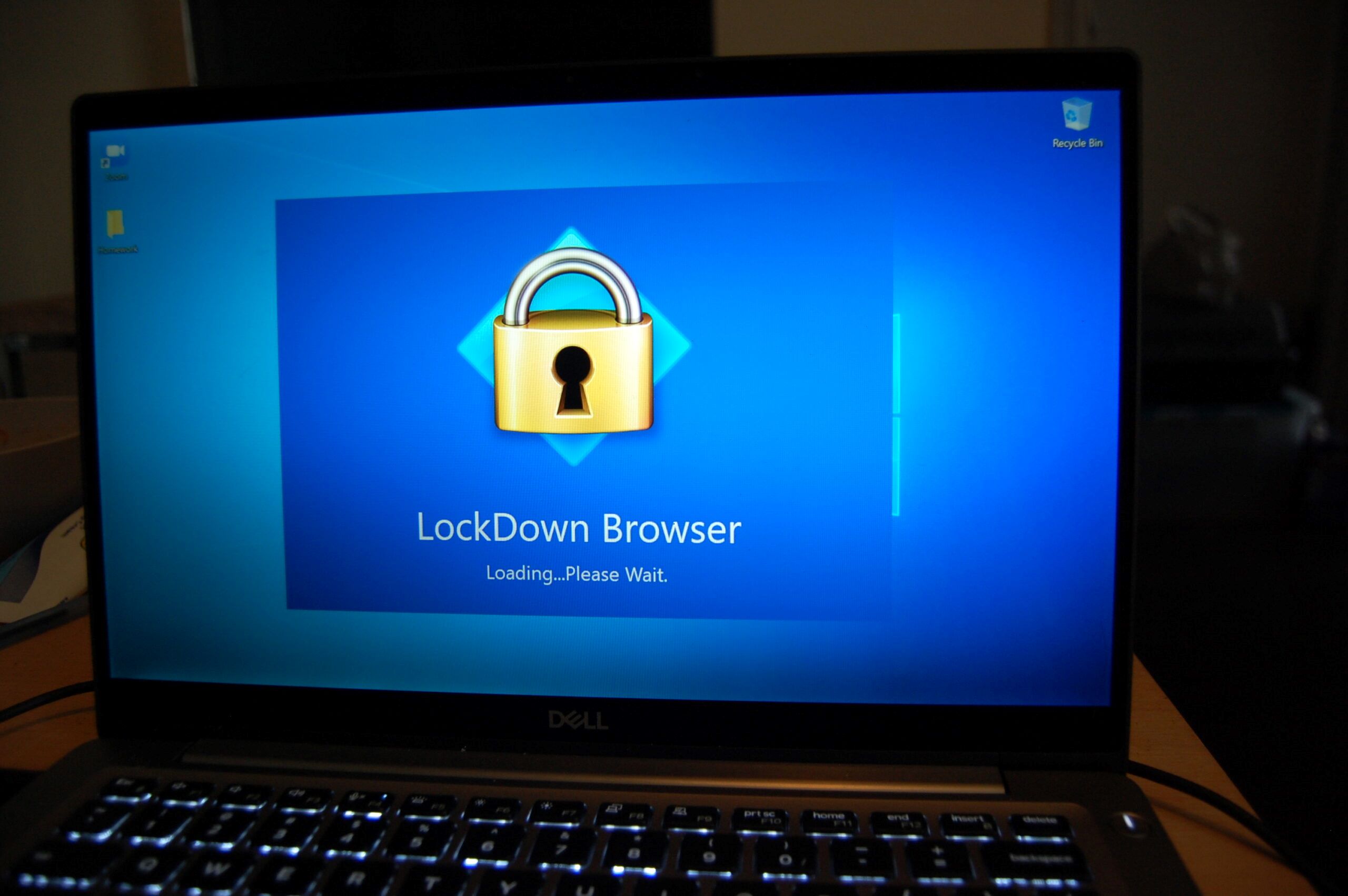
Respondus LockDown Browser is a custom web browser that locks down the testing environment within a learning management system, preventing students from accessing other applications, websites, or functions during an online exam. Its primary purpose is to deter cheating by restricting what a student can do on their computer while the assessment is active, ensuring the results reflect a student’s own knowledge. Understanding the operation of Respondus Lockdown Browser clarifies why it cannot block secondary devices. However, some students still attempt to get around respondus lockdown browser using secondary devices like a tablet.
What is Respondus LockDown Browser?
Respondus LockDown Browser is a specialized, custom browser designed specifically for secure online testing. Unlike a standard browser like Chrome or Firefox, it does not allow students to navigate freely. When an exam requires it, the browser takes over the screen and blocks access to everything else on the device. It is important to note that LockDown Browser is a separate product from Respondus Monitor. Monitor is an optional, automated proctoring add-on that uses a webcam and microphone to record a student during the exam; LockDown Browser itself only secures the computer environment, not the physical surroundings.
How does Respondus LockDown Browser work?
LockDown Browser works by enforcing a strict set of technical restrictions the moment an exam is launched. These are not just polite suggestions, they are hard-coded blocks that prevent common cheating methods. The specific lockdown measures include:
- Full-screen mode: The exam displays in full screen and cannot be minimized, resized, or closed without exiting the test entirely.
- Disabled browser menus and toolbars: All standard browser menus and toolbar options are removed, except for Back, Forward, Refresh, and Stop.
- Restricted keyboard shortcuts and function keys:
- Blocked printing and screen capture: The ability to print the exam or take screenshots is completely disabled.
- Disabled right-click menus: Right-clicking is turned off, preventing copy, paste, or open-in-new-tab actions.
- Blocked access to other applications: Messaging apps, note-taking software, screen-sharing tools, virtual machines, and remote desktop programs are all blocked from opening or running while the exam is active.
- Secure external links: If an instructor embeds an external website link within the exam, it opens in a new secure window that prevents navigation away from that specific page.
These restrictions work together to create a controlled, single-purpose environment where the only thing a student can do is answer the questions in front of them.
Key system requirements and compatibility
Before you plan to use LockDown Browser, verify that your device meets the minimum requirements. The browser supports Windows 11 and 10 (version 10.0.19045 or newer), macOS 12 through 26.0+, iPadOS 15.0+ (iPad only), and Chromebooks running the latest ChromeOS Stable or LTS channel. A minimum of 2 GB RAM is required, but 4 GB is recommended if you will also be using Respondus Monitor with a webcam. One important limitation is that Windows 10/11 "S mode" and "SE" operating systems are not compatible with LockDown Browser, so you cannot install it on those devices.
LockDown Browser integrates directly with major learning management systems, including Blackboard (9.1 or Ultra), Brightspace (D2L), Canvas, Moodle (versions 3-5), Sakai (2.7.1+), and Schoology. This means your instructor can enable it as a requirement for a specific exam within your existing course portal, and you won’t need any separate login or account to access the test.
Limitations: what it cannot prevent
It is critical to understand that LockDown Browser is not an all-seeing security solution. While it locks down the computer it is installed on, it cannot prevent students from using a second device to cheat. A student could still use a smartphone, another computer, or a tablet to search for answers, look up notes, or communicate with someone else during the exam. Similarly, physical notes, textbooks, or handwritten materials placed next to the computer are completely undetectable by LockDown Browser. The tool only secures the digital environment on the single device running the exam; it does nothing to monitor the room or the student’s actions outside of that screen. For that level of oversight, instructors must also enable Respondus Monitor, which uses a webcam to record the student and their surroundings.
How to use Respondus LockDown Browser as a student
Using LockDown Browser is a straightforward process, but it requires preparation ahead of your exam day. Follow these steps to ensure a smooth experience.
Step 1: Download and install from your institution’s unique link
Your school will provide a unique download URL for LockDown Browser, do not download it from any other source. This link is specific to your institution and ensures the browser is configured correctly for your LMS. The installation is a one-time process per device, so you only need to do this once. After installation, you do not need to open or configure the browser in advance; it will be ready when your exam is scheduled.
Step 2: Launch the exam through LockDown Browser
There are two ways to start your exam using LockDown Browser. The first method is to open the LockDown Browser application directly from your desktop or applications folder. It will automatically redirect you to your institution’s LMS login page. Log in as you normally would, navigate to your course, and click on the exam link. The browser will then lock down the environment and display the test.
The second method is to launch it from within your standard browser. If your instructor has enabled the option, you will see a "Launch LockDown Browser" button inside your LMS when you click on the exam link. Clicking that button will automatically close your regular browser and open the exam in LockDown Browser instead. This method is convenient because it ensures you are on the correct page without needing to navigate manually.
Regardless of which method you use, once the exam is active, you will not be able to switch to other apps, open new tabs, or take screenshots. You must complete the exam in one sitting, as exiting the browser will typically submit your test or flag it for review. If you are required to use LockDown Browser for a test, make sure your device is plugged in, your internet connection is stable, and you have closed all other programs before launching the exam.
To summarize, the key to a successful experience is preparation: download the browser early, verify your device meets the system requirements, and know which launch method your instructor expects. If you encounter technical issues during the exam, most institutions provide a support line or help desk specifically for LockDown Browser problems.